บันทึก push ไปยัง inbox
Save to Inbox จะเก็บสำเนา push ของคุณไว้ใน inbox ของแอปเมื่อคุณส่งการแจ้งเตือน ผู้ใช้ยังคงได้รับแบนเนอร์ push หากพวกเขาปัดทิ้ง พลาดไป หรือเปิดแอปในภายหลัง พวกเขาสามารถพบข้อความเดียวกันใน inbox และดำเนินการกับมันในตอนนั้นได้
กรณีการใช้งานทั่วไป:
- โปรโมชันหรือส่วนลดที่ผู้ใช้อาจปัดทิ้งแล้วเปิดในแอปภายหลัง
- การแจ้งเตือนที่ควรอยู่ต่อไปอีกสองสามวันหลังจาก push
- push ใดก็ตามที่ยังมีความสำคัญหลังจากแบนเนอร์หายไป
การประทับเวลาใน inbox ใช้เขตเวลาของอุปกรณ์ผู้ใช้แต่ละคน
ข้อกำหนดเบื้องต้น
Anchor link toก่อนที่ Save to Inbox จะทำงาน:
- ต้องตั้งค่า message inbox ในแอปไว้แล้ว แชร์คู่มือ message inbox บนมือถือ กับนักพัฒนาของคุณ
- สำหรับภาพรวมผลิตภัณฑ์และเส้นทางการตั้งค่า ดู เริ่มต้นใช้งาน message inbox
เปิดใช้งาน Save to Inbox
Anchor link toเปิดสวิตช์เมื่อคุณสร้าง push ป้ายกำกับใน Control Panel ขึ้นอยู่กับตำแหน่งที่คุณส่ง:
- One-time messages: Save message to Inbox
- เอลิเมนต์ Push ใน Customer Journey: Save to inbox
One-time push
Anchor link toใช้เส้นทางนี้เมื่อคุณส่ง one-time push จาก Campaigns
- ไปที่ Campaigns > One-time messages
- เริ่ม one-time push
- ในขั้นตอน Content ให้เปิด Save message to Inbox
หัวข้อและข้อความของ inbox มาจากพรีเซ็ต push จากนั้นตั้งค่าระยะเวลาเก็บ ไอคอน และการแตะการทำงานใน ตั้งค่าตัวเลือก inbox
Customer Journey
Anchor link toใช้เส้นทางนี้เมื่อคุณส่ง push จาก journey
- เปิด journey ของคุณและเลือกเอลิเมนต์ Push บนแคนวาส
- ในการตั้งค่าเอลิเมนต์ ให้เปิด Save to inbox
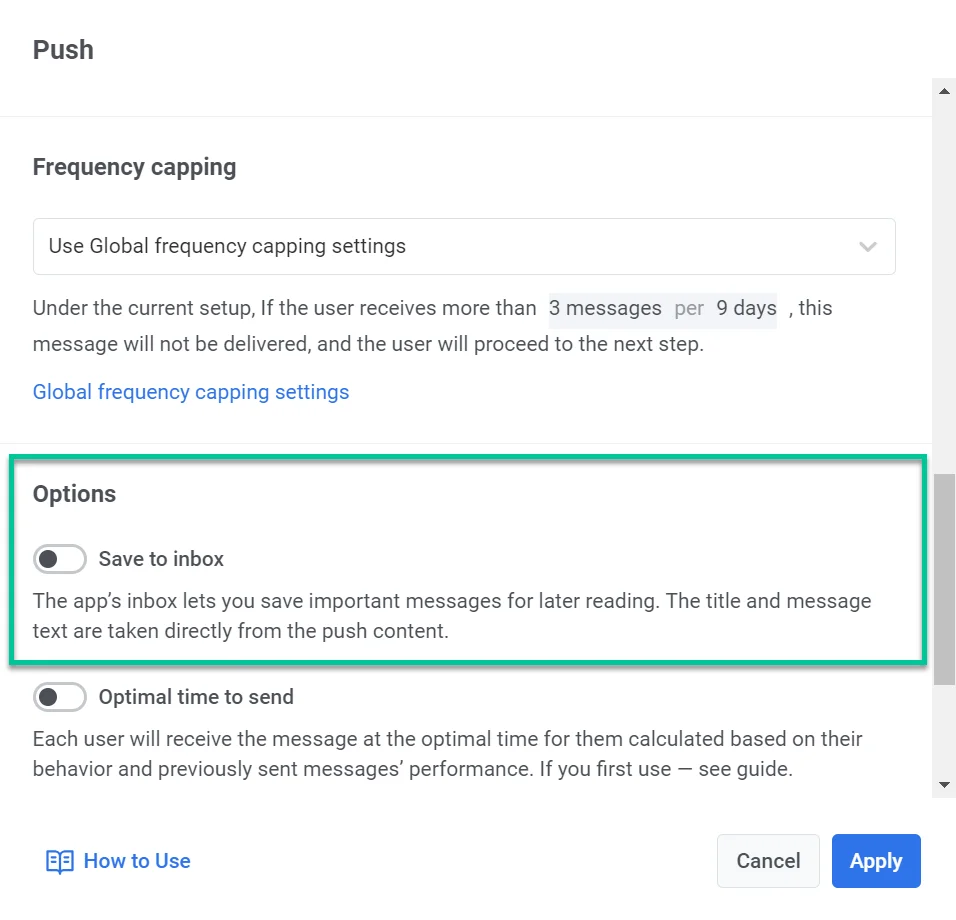
- ตั้งค่าตัวเลือก inbox ด้านล่าง แล้วคลิก Apply
ตั้งค่าตัวเลือก inbox
Anchor link toหลังจากเปิดสวิตช์แล้ว ให้ตั้งค่าว่าสำเนาใน inbox จะมีลักษณะและทำงานอย่างไร
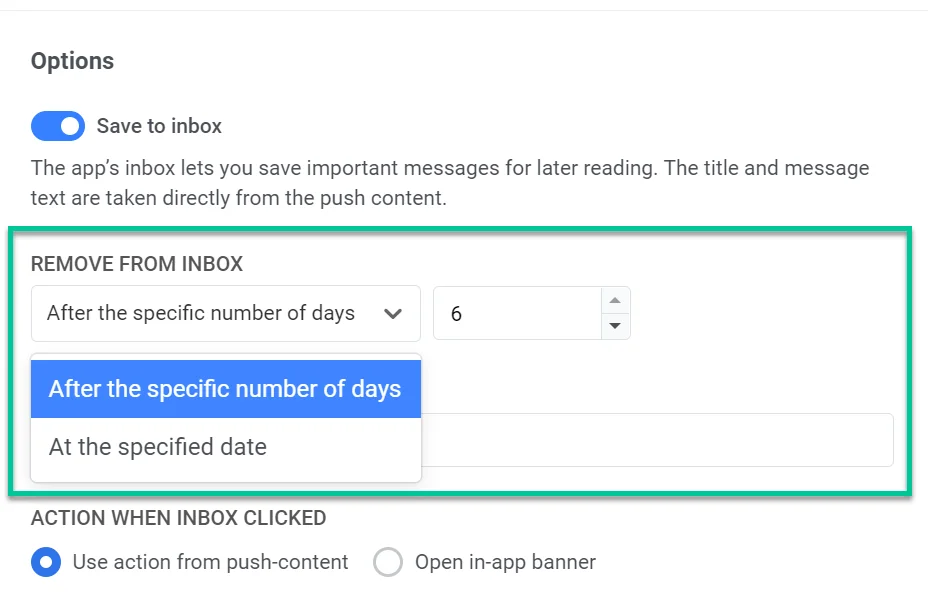
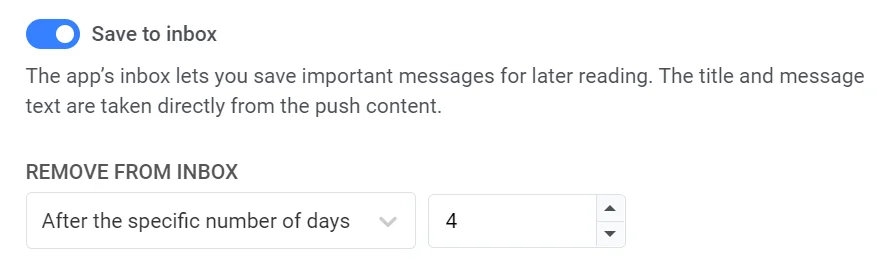
Remove from Inbox
Anchor link toใน Remove from Inbox เลือกระยะเวลาที่ข้อความจะคงอยู่:
- จำนวนวัน (เช่น 3 วัน)
- วันที่เฉพาะเจาะจง
ระยะเวลาเก็บสูงสุดคือ 30 วัน
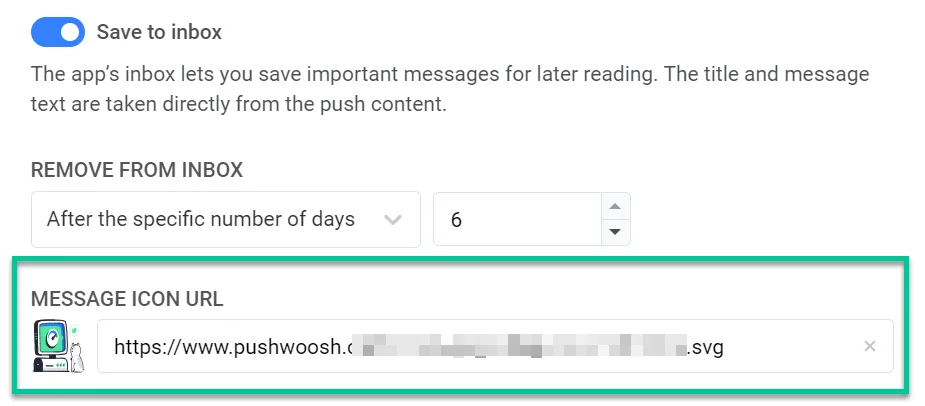
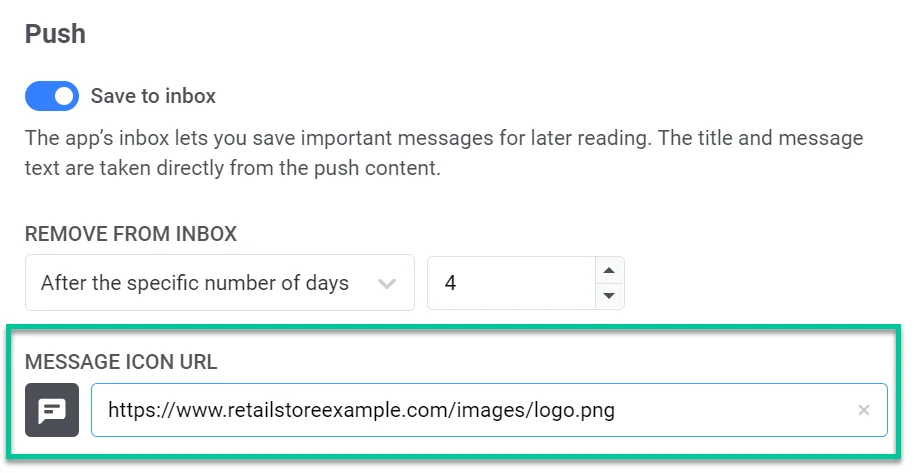
ไอคอนข้อความ
Anchor link toตั้งค่า URL ไอคอนเพื่อให้สังเกตเห็นข้อความได้ง่ายในรายการ inbox หากปล่อยว่างไว้ จะใช้ไอคอนเริ่มต้น
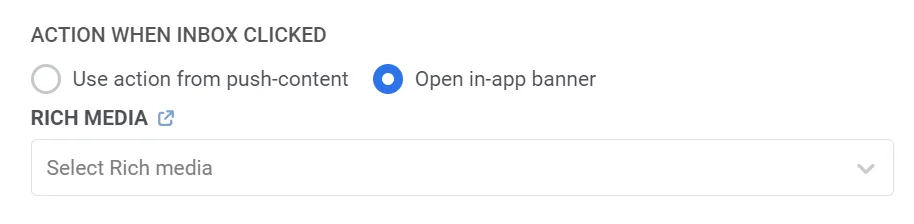
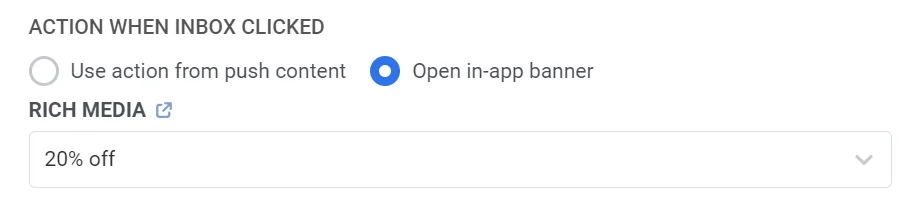
การทำงานเมื่อคลิก inbox
Anchor link toเลือกสิ่งที่จะเกิดขึ้นเมื่อผู้ใช้แตะแถวใน inbox:
- Use the action you set in the push content: ดีปลิงก์ URL หรือหน้าจอเดียวกันกับ push
- Open in-app banner: เปิด in-app ที่คุณเลือก สร้าง Rich media ก่อน แล้วเลือกจากรายการ
ตัวอย่างสถานการณ์
Anchor link toส่ง push โปรโมชันระยะสั้นที่คงอยู่ใน inbox เป็นเวลาสี่วัน แล้วเปิด in-app พร้อมโค้ดโปรโมชัน
- สร้าง journey ที่มีการเข้าตามกลุ่มเป้าหมาย สำหรับกลุ่มลูกค้าประจำของคุณ
- เพิ่มเอลิเมนต์ Push และตั้งค่าหัวข้อและข้อความโปรโมชัน
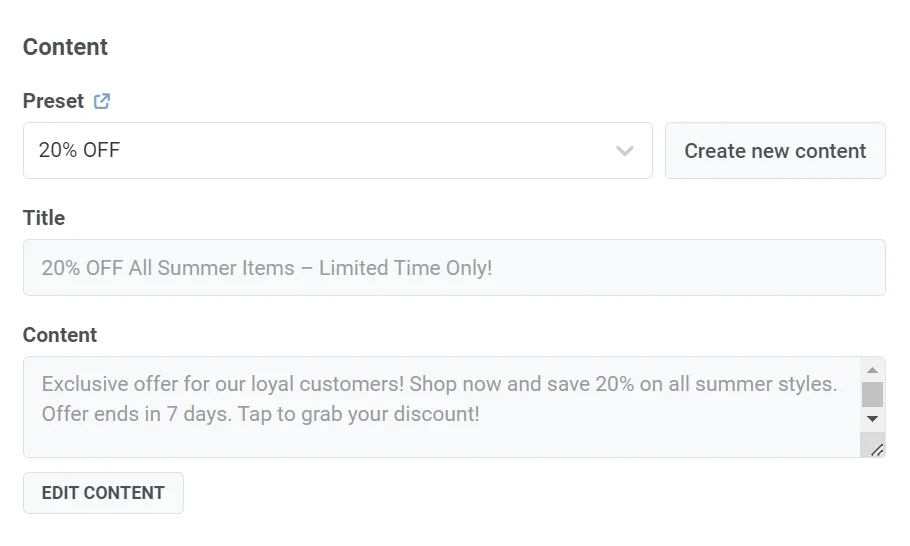
- เปิดใช้งาน Save to inbox ใน Remove from Inbox ตั้งค่าเป็น 4 days
- ตั้งค่า URL ไอคอน (ตัวเลือกไม่บังคับ) เช่น โลโก้ร้านค้าของคุณ
- ภายใต้ Action when inbox clicked เลือก Open in-app banner และเลือก Rich media ที่แสดงโค้ดโปรโมชัน
- คลิก Apply แล้วทำ journey ส่วนที่เหลือให้เสร็จสมบูรณ์
ติดตามสถิติข้อความใน inbox
Anchor link toControl Panel ไม่แสดงอัตราการเปิด inbox สำหรับ push ที่มี Save to Inbox ให้ดึงข้อมูลด้วยเมธอด API getMessageLog โดยกรองด้วย actions: ["inbox_opened"] สำหรับทุกอย่างที่ Control Panel แสดงสำหรับ push นี้ ดู สถิติข้อความสำหรับ push
หากต้องการดูว่าผู้ใช้คนหนึ่งมีอะไรอยู่ใน inbox ในขณะนี้ ให้เปิด User Explorer → Inbox