Set up the preference center
เนื้อหานี้ยังไม่มีในภาษาของคุณ
Set up email categories so users can choose which emails they receive. For what the preference center is and why to use it, see the overview.
Setup steps
Anchor link toFollow these steps to turn on the preference center and start using email categories.
Set up categories
Anchor link toTo enable category-based filtering and let users manage preferences, set up categories in your project:
- Go to Settings > Preference Center.
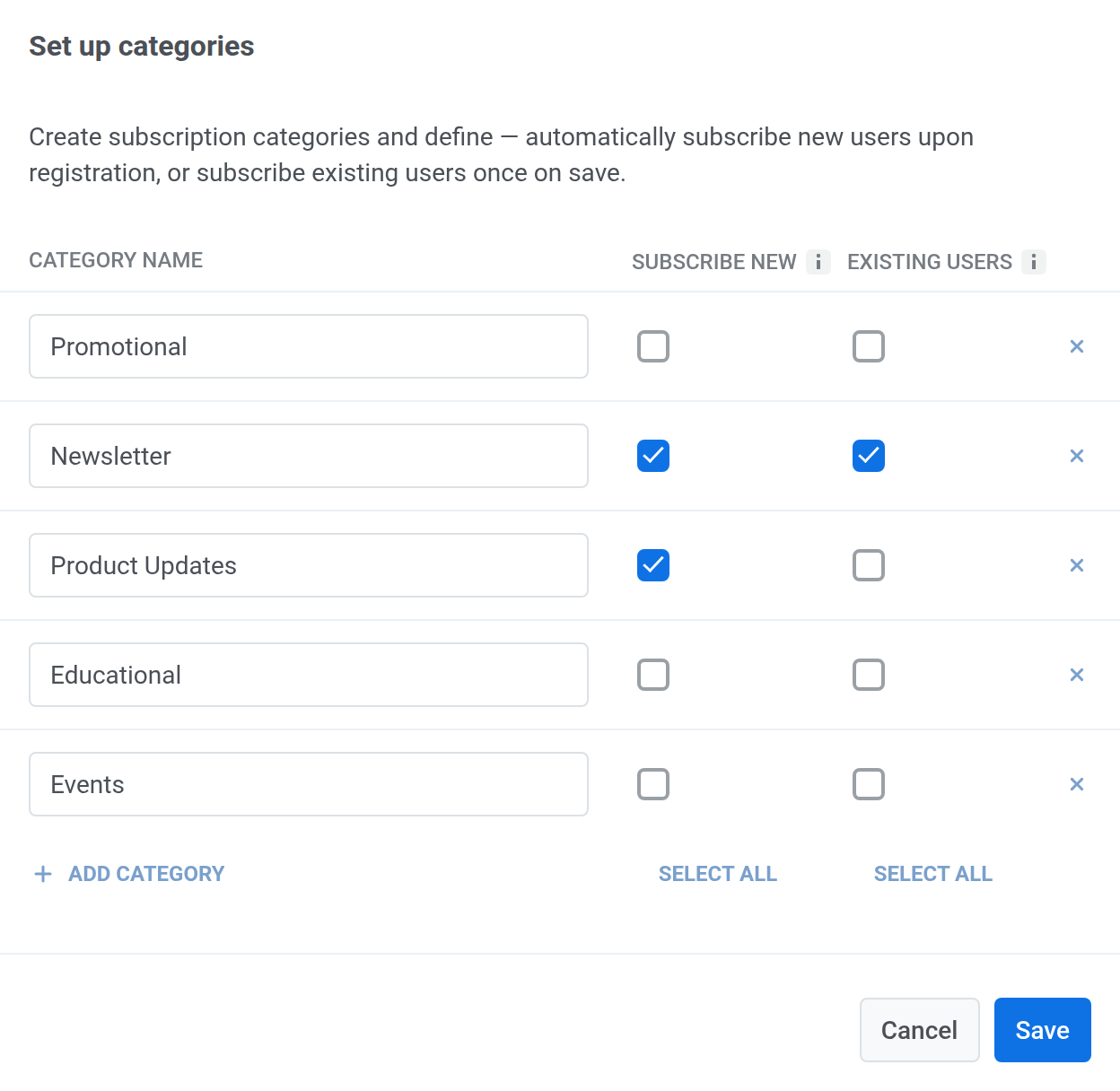
- Click Set up categories to define which email categories users can subscribe to (e.g., Promotional, Newsletter, Product Updates, Events).

- In the Set up categories modal, review the suggested category list, edit category names if needed, and add new categories with Add category. For each category, configure subscription options:
- Subscribe new to subscribe new users automatically when they register.
- Existing users to subscribe existing users once when you save changes. To subscribe users later or in bulk, import a CSV file.
- Click Save. Users will see these categories when they open the preference center.
After you save, the subscription pages are ready. See What happens when users click your links.
Add links to your emails
Anchor link toUsers manage the categories you just set up through links in your emails. Add two links: an unsubscribe link, so users can opt out, and a preference center link, so users can choose which categories they receive.
Unsubscribe link
Anchor link toAdd the unsubscribe link to your email content. After a click, users go through the unsubscribe flow.
Preference center link
Anchor link toInsert a link to the preference center in your emails (for example, in the footer or a call-to-action button) so users can manage their communication preferences. To do so:
- In the Drag & drop editor, select Manage preferences link from the Action type dropdown. Learn more
- In the HTML code editor, use the variable
%%PW_EMAIL_PREFERENCE_CENTER_LINK%%. Learn more - To copy the placeholder, open the three-dot menu in the top right of the Subscription categories section on the Categories tab and select Copy link to Preference center. Paste it into an email.
Select a subscription category in your campaigns
Anchor link toWhen you create a marketing email, select a Subscription category in the campaign form or in the Journey email step. Only users subscribed to this category receive the email. Learn how in one-time emails and Customer Journey emails.
What happens when users click your links
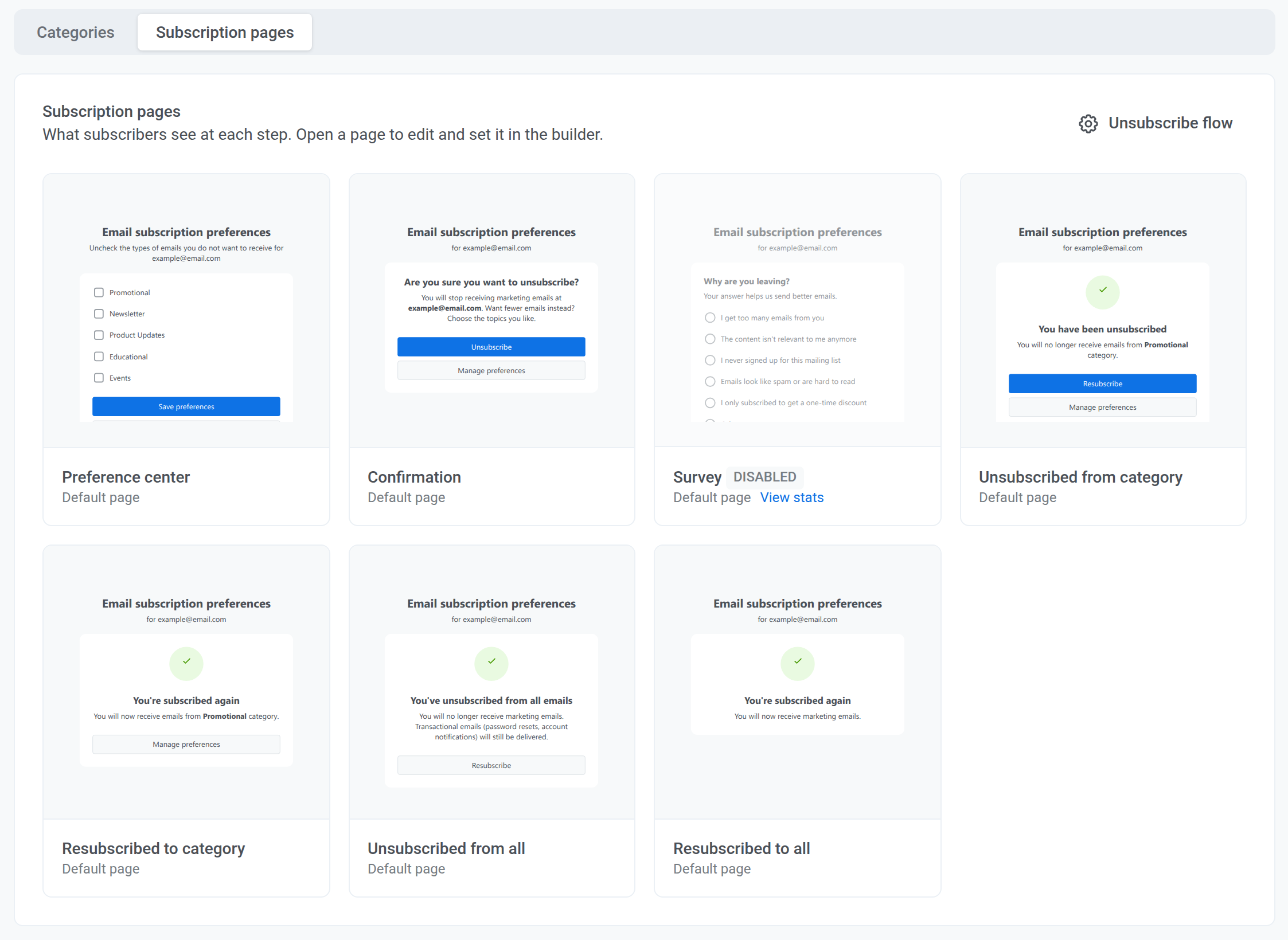
Anchor link toUsers land on ready-made subscription pages. The pages work by default, so you don’t need to connect them. Which page a user sees depends on what they click: the unsubscribe link and the preference center link lead to different pages, and each page leads to the next one through its buttons.
There are seven pages, and users see each one at a different moment:
| Page | When users see it |
|---|---|
| Preference center | They open the preference center link or click Manage preferences. They choose which types of emails to receive and click Save preferences, unsubscribe from several categories at once, or click Unsubscribe from all to opt out of all marketing emails. Learn more |
| Confirmation | They click the unsubscribe link, and Confirm before unsubscribing is on. |
| Survey | They have just unsubscribed, and Unsubscribe reason survey is on. |
| Unsubscribed from category | They unsubscribed from the category of the email. This is the last page of the unsubscribe flow. |
| Resubscribed to category | They clicked Resubscribe after unsubscribing from a category. |
| Unsubscribed from all | They clicked Unsubscribe from all. |
| Resubscribed to all | They clicked Resubscribe after unsubscribing from all emails. |
To see the steps after the unsubscribe link in detail, read What happens when a user clicks the unsubscribe link.
Manage the preference center
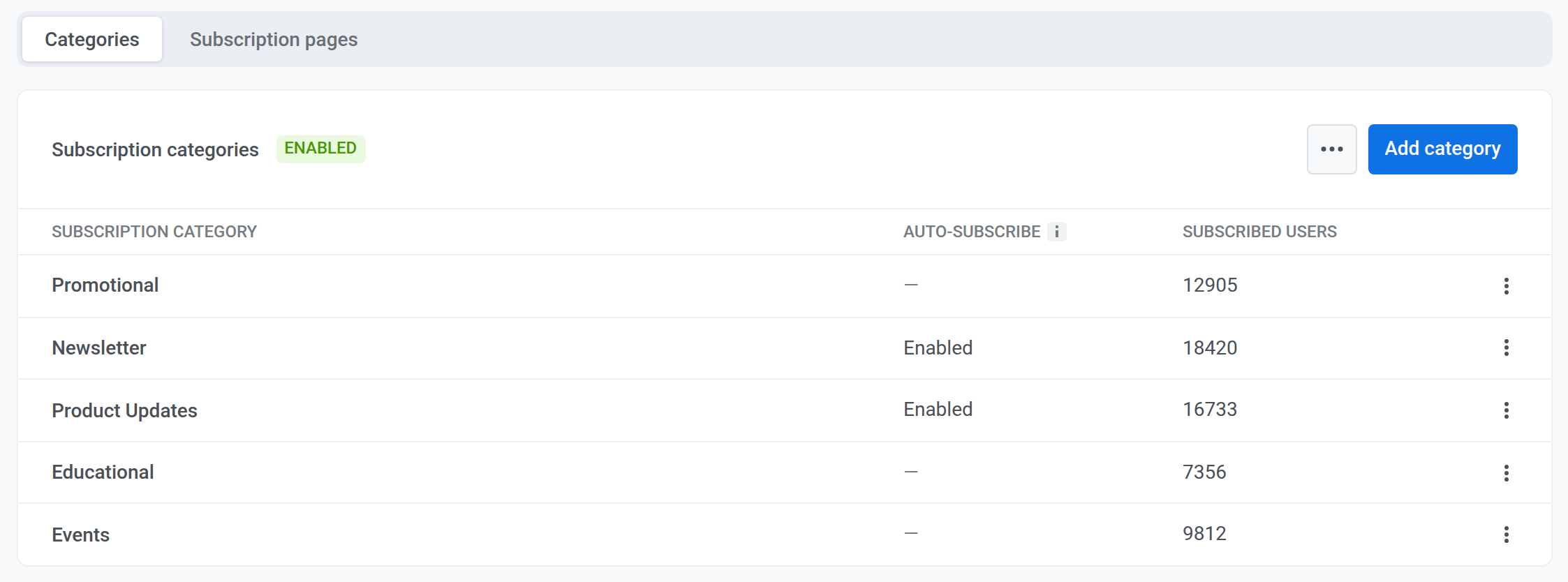
Anchor link toUse the Categories tab to add, edit, and delete categories and to check how many users are subscribed to each.
In the table, Subscribed users is the number of users currently subscribed to a category. Auto-subscribe is Enabled when new users are subscribed to the category automatically.
Add a category
Anchor link toTo add a category to your preference center:
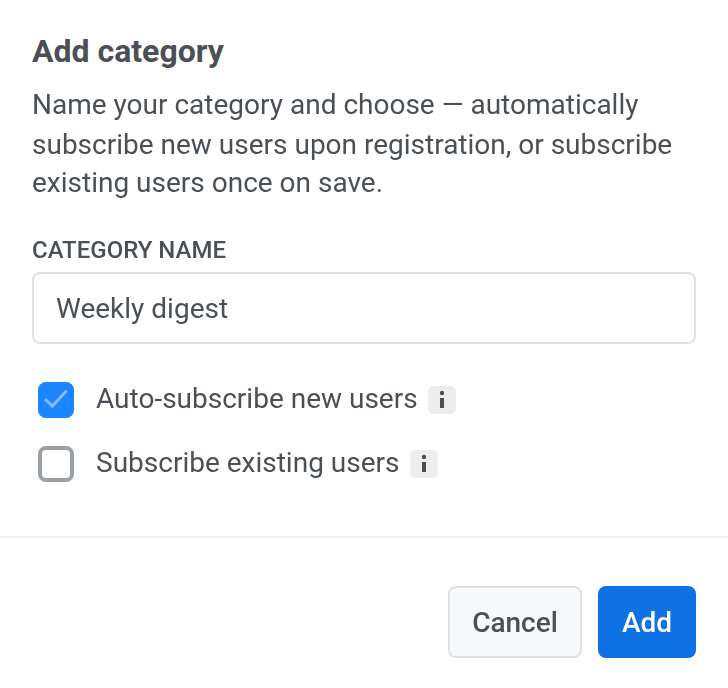
- Click Add category.
- Enter a clear, unique category name.
- Select Auto-subscribe new users to subscribe new users to this category automatically when they register.
- Select Subscribe existing users to subscribe current users to this category when you save it.
- Click Add.
Rename a category
Anchor link to- To rename a category, open the three-dot menu next to the category and click Edit settings.
- In Category settings, update the category name and set the Auto-subscribe new users checkbox as needed: select it to enable auto-subscription, or clear it to disable.
- Click Save.
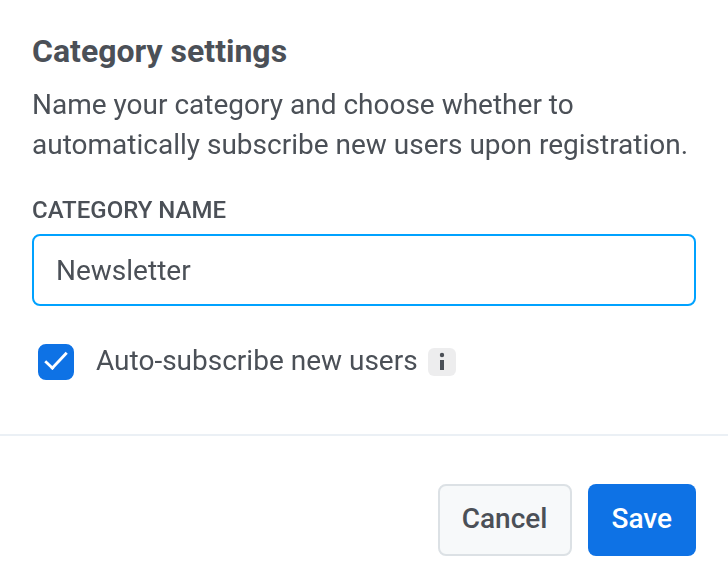
Once the category is renamed, the values in Subscribed Email Categories are automatically updated to match the new category name for all subscribers.
Delete a category
Anchor link toTo delete a category, open the three‑dot menu next to it and select Delete category.
Import subscription categories via CSV
Anchor link toUse Import subscription categories to import user subscriptions and bulk update the Subscribed Email Categories tag from a CSV file.
You can open this flow in either of these ways:
- On the Categories tab, open the three-dot menu and select Subscribe users manually.
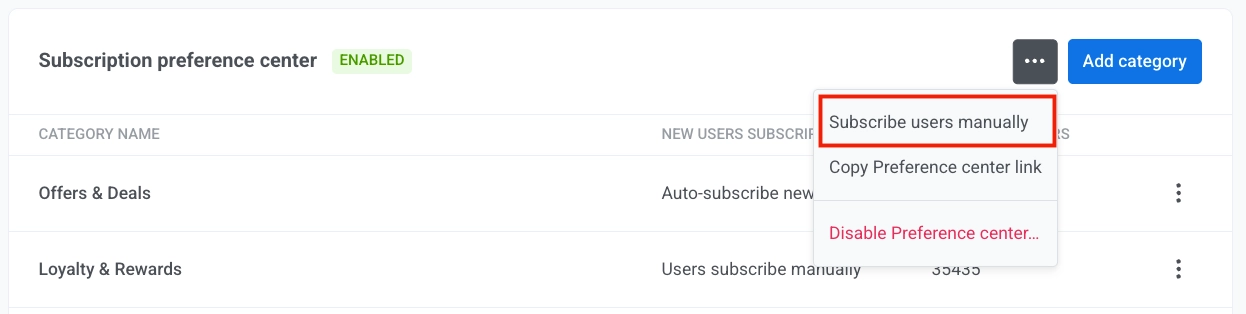
Alternatively, in the main menu, go to Audience > Import CSV > Import subscription categories.
- Upload your CSV file.
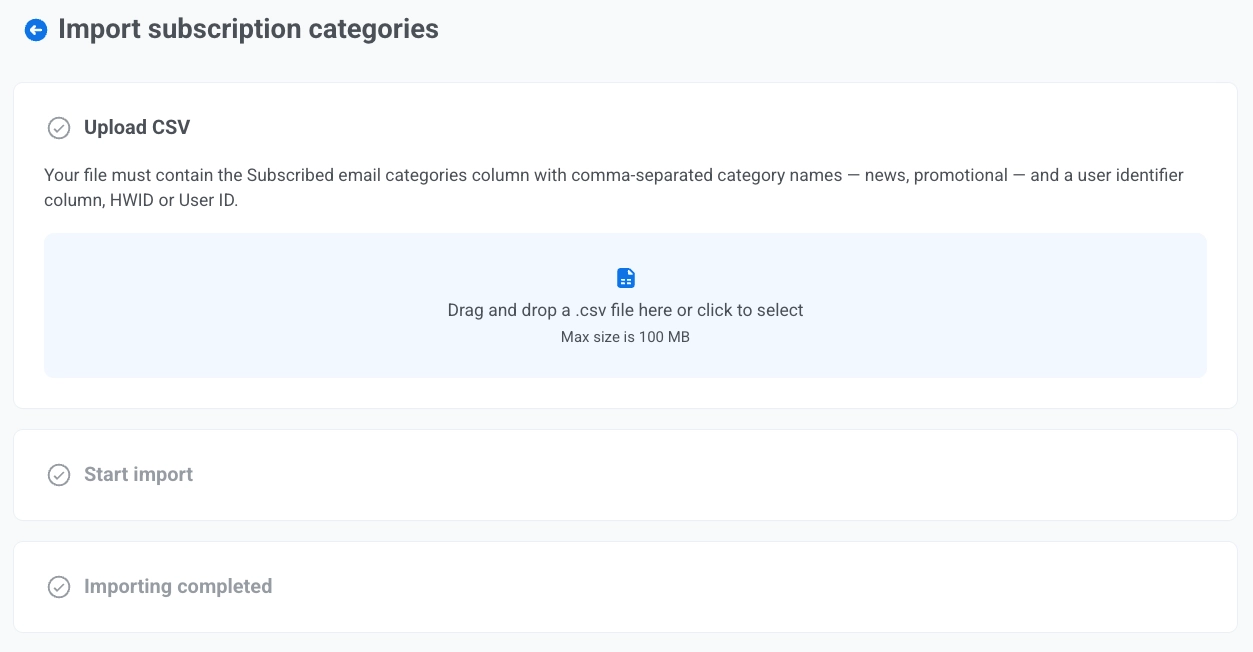
- Click Start import.
- Review results.
Disable and enable the preference center
Anchor link toTo disable the preference center:
- On the Categories tab, click the three-dot menu in the top right of the Subscription categories section.
- Select Disable Preference center.
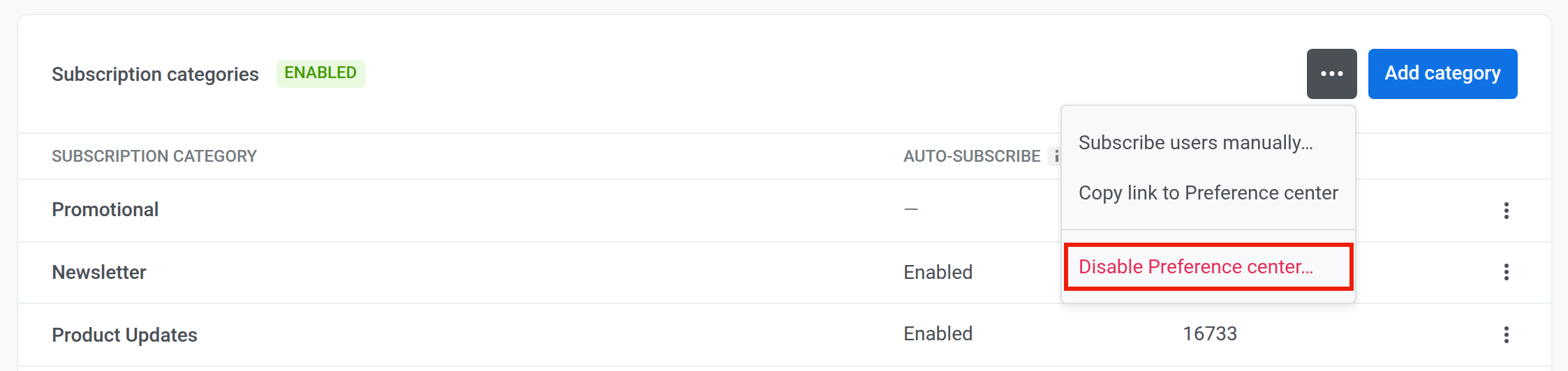
- In the confirmation dialog, click Disable.
To turn it back on, select Enable Preference center in the same menu.