Dynamics 365: สร้างหรืออัปเดตระเบียน
ใช้ Dynamics 365: create or update record เพื่อ upsert แถว Dataverse หนึ่งแถวจากขั้นตอน journey โดยจับคู่กับคอลัมน์ alternate key: จะอัปเดตแถวเมื่อมีค่าอยู่แล้ว และสร้างขึ้นเมื่อยังไม่มี Dataverse ไม่มี API key แบบคงที่ ดังนั้นจุดนี้จะรับรองความถูกต้องผ่านแอปพลิเคชัน Entra ID ที่ลงทะเบียนไว้ครั้งเดียวสำหรับทั้งบัญชี ไม่มีฟิลด์โทเค็นในจุดนี้
การใช้งานทั่วไป:
- ทำให้ Dynamics 365 ซิงค์อยู่เสมอ: สร้างหรืออัปเดตแถวเมื่อผู้เดินทางเคลื่อนที่ผ่าน journey เพื่อให้ CRM ของคุณเห็นข้อมูลปัจจุบัน
- ซิงค์กิจกรรม journey เข้าสู่ CRM: ตั้งค่าคอลัมน์เมื่อผู้เดินทางไปถึงเหตุการณ์สำคัญ เพื่อให้ทีมของคุณสามารถกรองหรือรายงานได้
- หลีกเลี่ยงแถวที่ซ้ำกัน: การจับคู่ด้วย alternate key หมายความว่าผู้เดินทางที่ผ่านจุดนี้อีกครั้งจะอัปเดตแถวเดิมแทนที่จะสร้างแถวใหม่
ก่อนที่คุณจะเริ่ม
Anchor link toลงทะเบียนแอปพลิเคชันใน Entra ID และเชื่อมต่อภายใต้ การตั้งค่า > การผสานรวมกับบุคคลที่สาม > Microsoft Dynamics 365:
- ใน Microsoft Entra admin center ให้ลงทะเบียนแอปพลิเคชันและสร้าง client secret สำหรับแอปพลิเคชันนั้น
- ใน Power Platform admin center เปิดสภาพแวดล้อมเป้าหมายของคุณ เพิ่มแอปพลิเคชันเป็น Application user และกำหนด security role ที่สามารถสร้างและอัปเดตแถวในตารางที่คุณวางแผนจะเขียนข้อมูลได้
- ใน Pushwoosh ในช่อง Environment URL ให้ป้อน URL ของสภาพแวดล้อมพร้อม
https://และไม่มีเส้นทางต่อท้าย เช่นhttps://acme.crm4.dynamics.com - ใน Directory (tenant) ID และ Application (client) ID ให้ป้อน ID ของแอปพลิเคชันจากหน้าภาพรวมใน Entra ID
- ใน Client secret ให้วางค่าของ secret นั้น ข้อมูลนี้จะถูกจัดเก็บแบบ write-only: Pushwoosh จะไม่แสดงข้อมูลนี้อีก ดังนั้นหากต้องการเปลี่ยนให้วางค่าใหม่
- คลิก Connect Dynamics 365
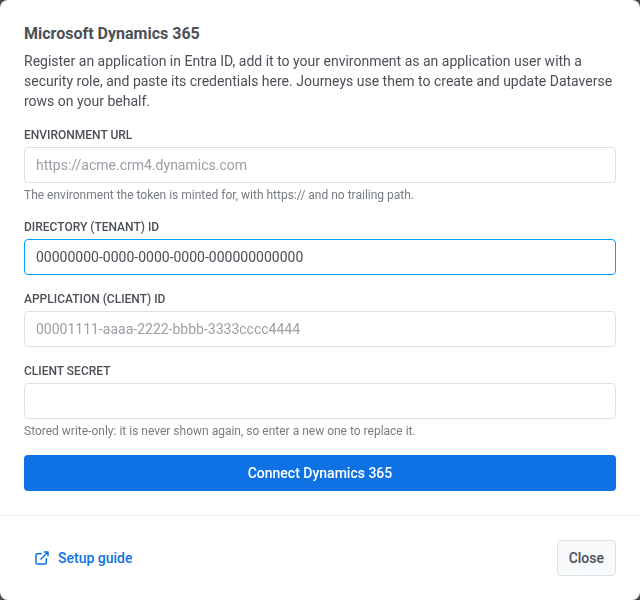
หลังจากที่คุณเชื่อมต่อ Dynamics 365 แล้ว ติดตั้งการผสานรวม เพื่อให้จุดนี้ปรากฏใน journey builder
กำหนดค่าจุด
Anchor link to- ลาก Dynamics 365: create or update record จากส่วน Integrations ของแผงด้านซ้ายมาวางบน canvas
- ดับเบิลคลิกที่จุดและป้อน Step Name
- ใน Environment host ให้ป้อนโฮสต์ของสภาพแวดล้อมเดียวกันโดยไม่มี
https://เช่นacme.crm4.dynamics.com
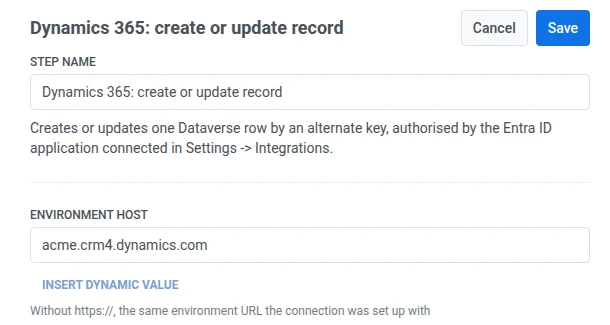
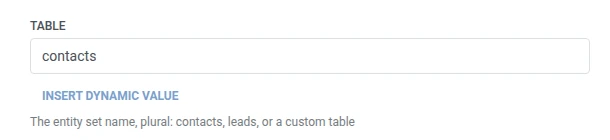
- ใน Table ให้ป้อนชื่อชุด entity ในรูปพหูพจน์ —
contacts,leadsหรือชื่อชุดของตารางที่กำหนดเอง
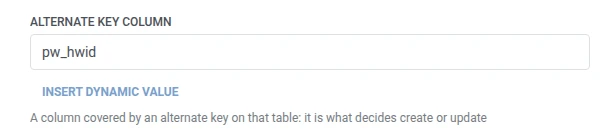
- ใน Alternate key column ให้ป้อนคอลัมน์ที่ครอบคลุมโดย alternate key ในตารางนั้น เช่น
pw_hwid
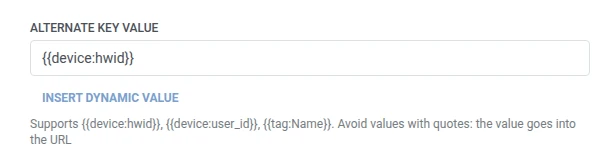
- ใน Alternate key value ให้ป้อนค่าที่จะใช้จับคู่ โดยปกติจะเป็นมาโคร เช่น
{{device:hwid}}หลีกเลี่ยงค่าที่มีเครื่องหมายคำพูด เนื่องจากค่าจะถูกส่งไปใน URL ของคำขอ
- ใน Columns ให้เพิ่มหนึ่งแถวต่อหนึ่งคอลัมน์ Dataverse ที่จะเขียนข้อมูล ป้อนชื่อคอลัมน์และค่า ชื่อต้องไม่ว่างเปล่าและไม่ซ้ำกัน ค่าอาจเป็นข้อความคงที่หรือมาโครของผู้เดินทาง เช่น
{{device:hwid}}ซึ่งเป็นมาโครเดียวกันกับในเนื้อหาของ Webhook หรือคลิก Insert Dynamic Value เพื่อเลือก attribute ที่ขั้นตอนก่อนหน้าใน journey นี้สร้างขึ้น เช่น การตอบกลับจาก LLM หรือค่า Webhook ที่แมปไว้

- คลิก Save
การตอบสนอง
Anchor link toผู้เดินทางจะเดินทางต่อไปยังขั้นตอนใดก็ตามที่คุณเชื่อมต่อถัดไปบน canvas
Attributes หลังจากขั้นตอนทำงาน
Anchor link toซึ่งแตกต่างจาก Salesforce: create or update record จุดนี้จะไม่ส่งคืน ID ของแถวไปยัง attribute ของผู้เดินทาง หากขั้นตอนถัดไปต้องการใช้ ID นี้ ให้ค้นหาแถวอีกครั้งด้วยค่า alternate key เดียวกัน
ความล้มเหลวและการตอบสนองที่ไม่คาดคิด
Anchor link toเปิด Calls log ในหน้าต่างของจุดและตรวจสอบการตอบสนอง:
- 401 — client secret ของการเชื่อมต่อถูกปฏิเสธหรือหมดอายุ ให้เชื่อมต่อใหม่ภายใต้ การตั้งค่า > การผสานรวมกับบุคคลที่สาม
- 403 — security role ของ application user ไม่อนุญาตให้สร้างหรืออัปเดตตารางนั้น
- 404 — Environment host หรือ Table ไม่ตรงกับสิ่งใดในสภาพแวดล้อมนั้น
- 400 — Alternate key column ไม่ได้ถูกกำหนดเป็น alternate key ในตารางนั้น หรือชื่อใน Columns ไม่ใช่คอลัมน์ที่มีอยู่จริง
คำขอที่ล้มเหลวจะทำให้ผู้เดินทางออกจาก journey ดู ข้อผิดพลาดและคำขอที่ล้มเหลว
สถานการณ์ตัวอย่าง: การซิงค์คำขอราคาสำหรับองค์กรเข้าสู่ Dynamics 365
Anchor link toแอป B2B SaaS อนุญาตให้ผู้ใช้แตะ Request enterprise pricing ภายในแอป ทีมงานต้องการให้คำขอนั้นถูก upsert เข้าสู่ Dynamics 365 โดยมีการจับคู่เพื่อให้การแตะซ้ำเป็นการอัปเดตแถวเดิมแทนที่จะสร้างแถวซ้ำ
- เพิ่มองค์ประกอบ Trigger-based entry และตั้งค่าให้ทำงานเมื่อมี event
EnterprisePricingRequested - เพิ่ม Dynamics 365: create or update record ต่อจากนั้นทันที ตั้งค่า Table เป็น
contacts, Alternate key column เป็นpw_hwid, และ Alternate key value เป็น{{device:hwid}}ใน Columns ตั้งค่าemailaddress1เป็น{{tag:Email}} - คลิก Save
เมื่อขั้นตอนนี้ทำงาน คำขอจะปรากฏเป็น contact ใน Dynamics 365 ที่จับคู่ด้วย ID อุปกรณ์ พร้อมสำหรับทีมขายที่จะทำงานจาก CRM แทนข้อมูลของแอปเอง