Global frequency capping
เพื่อป้องกันไม่ให้ผู้ใช้ของคุณได้รับข้อความมากเกินไปจากแคมเปญที่ทับซ้อนกัน ให้ใช้ Global frequency capping คุณสมบัตินี้จะจำกัดจำนวนข้อความทางการตลาดที่ผู้ใช้ได้รับภายในกรอบเวลาที่กำหนด เมื่อถึงขีดจำกัดข้อความสำหรับช่องทางใดช่องทางหนึ่งแล้ว จะไม่มีการส่งข้อความเพิ่มเติมจนกว่าช่วงเวลาจะรีเซ็ต
การแจ้งเตือนแบบพุชเงียบ และการอัปเดต Live Activity (iOS) จะไม่ถูกจำกัดเลย ไม่ว่าจะเป็นข้อความประเภทใด ดูข้อความใดบ้างที่ได้รับผลกระทบจาก Global frequency capping?
กำหนดค่า Global frequency capping
Anchor link toในการควบคุมจำนวนข้อความที่ส่งไปยังผู้ใช้ภายในกรอบเวลาที่กำหนด:
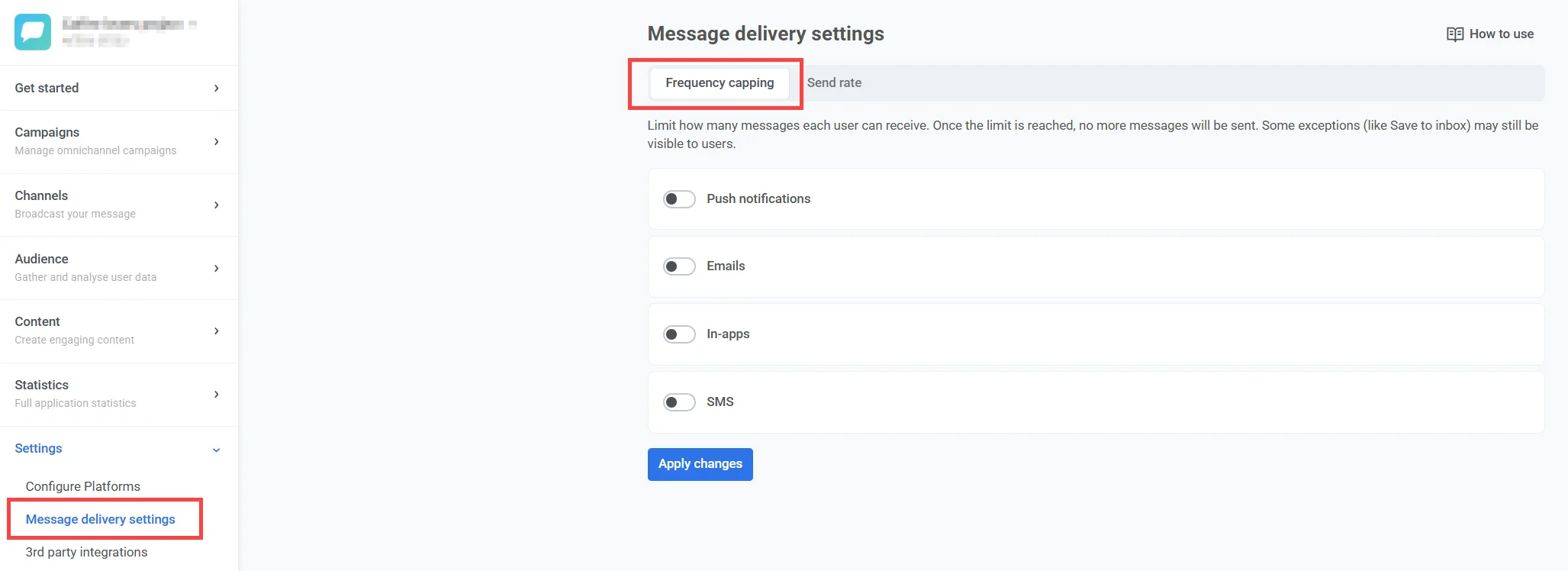
- ไปที่ Settings > Message delivery settings > Frequency capping
-
เปิดสวิตช์เพื่อเปิดใช้งาน frequency capping สำหรับช่องทางที่ต้องการ (push notifications, emails, in-apps, SMS, WhatsApp, App Inbox)
-
ตั้งค่าจำนวนข้อความสูงสุดต่อผู้ใช้สำหรับแต่ละช่องทางและช่วงเวลาที่สอดคล้องกัน
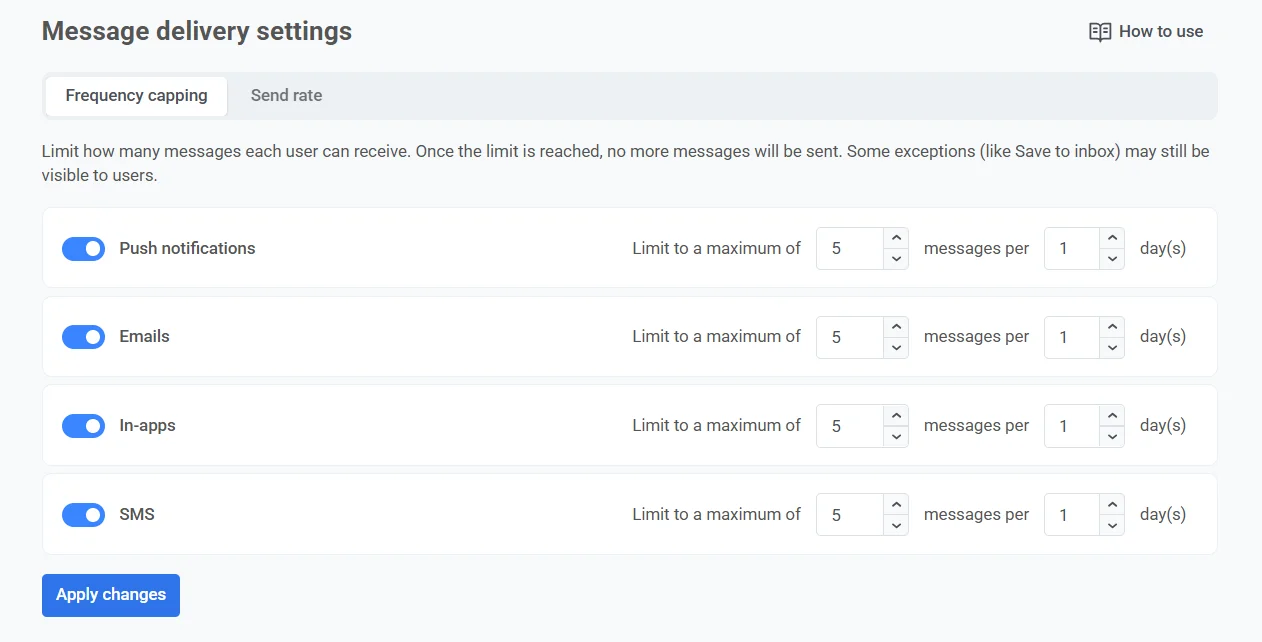
ตัวอย่างเช่น คุณสามารถอนุญาตให้ส่ง push notifications ได้สูงสุด 4 ครั้ง, email 2 ฉบับ และข้อความ WhatsApp 2 ข้อความในช่วงเวลา 5 วัน
คุณสามารถอนุญาตได้ตั้งแต่ 1 ถึง 1,000 ข้อความต่อช่วงเวลา และช่วงเวลาสามารถเป็น 1 ถึง 30 วัน หากคุณป้อนค่านอกช่วงเหล่านี้ ช่องจะเปลี่ยนค่าเป็นค่าที่อนุญาตที่ใกล้ที่สุด เช่น 1,500 ข้อความจะเปลี่ยนเป็น 1,000
-
เลือก Counting mode สำหรับช่องทาง:
- Rolling window (ค่าเริ่มต้น): นับข้อความที่ส่งภายใน N×24 ชั่วโมงล่าสุดก่อนการส่งแต่ละครั้ง ตัวอย่างเช่น ด้วยการจำกัด 3 push ต่อ 2 วัน push ที่ส่งในวันจันทร์เวลา 9.00 น. จะหยุดนับในวันพุธเวลา 9.00 น. และ push ที่ส่งในวันจันทร์เวลา 15.00 น. จะหยุดนับในวันพุธเวลา 15.00 น.
- Calendar day: นับข้อความที่ส่งในวันนี้และใน N-1 วันตามปฏิทินก่อนหน้า โดยเริ่มตั้งแต่เที่ยงคืน เลือก Capping timezone (เช่น
America/New_York) ที่กำหนดว่าเที่ยงคืนจะเกิดขึ้นเมื่อใดสำหรับช่องทางนี้ ตัวอย่างเช่น ด้วยการจำกัด 3 push ต่อ 2 วันเหมือนเดิม ในวันพุธทุก push ที่ส่งตั้งแต่วันอังคารเที่ยงคืนจะถูกนับ ทันทีหลังเที่ยงคืน หน้าต่างจะเลื่อนไปเป็นวันพุธและวันพฤหัสบดี หากคุณไม่ได้เลือก timezone Pushwoosh จะนับวันตามปฏิทินใน UTC
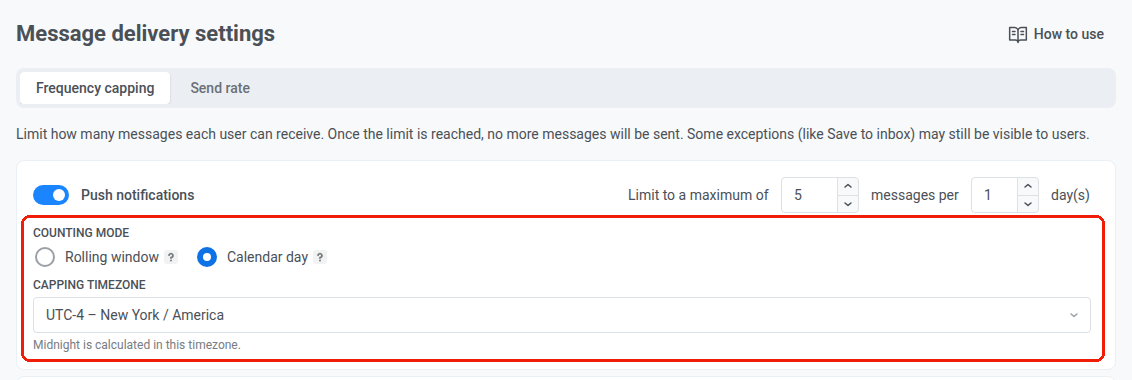
Counting mode ยังมีให้ใช้งานในทุกที่ที่คุณสามารถตั้งค่า frequency cap แบบกำหนดเองได้: แคมเปญแบบครั้งเดียว, in-app แบบทันที และ องค์ประกอบข้อความใน customer journey
App Inbox
Anchor link toหากต้องการจำกัดข้อความ App Inbox ให้ใช้สวิตช์ Inbox ในรายการนี้
App Inbox มีตัวนับของตัวเอง แยกจาก push และช่องทางอื่นๆ ทั้งหมด ผู้ใช้ที่ถึงขีดจำกัด push ของวันนั้นแล้วยังสามารถได้รับข้อความ Inbox ได้ และในทางกลับกันก็เช่นกัน
App Inbox ไม่มีการตั้งค่า send rate: ผู้ใช้จะรับข้อความ Inbox ทีละรายการเมื่อเปิดแอป จึงไม่มีการส่งพุ่งสูงที่ต้องจำกัด
ยกเว้นผู้ใช้ออกจาก global frequency capping
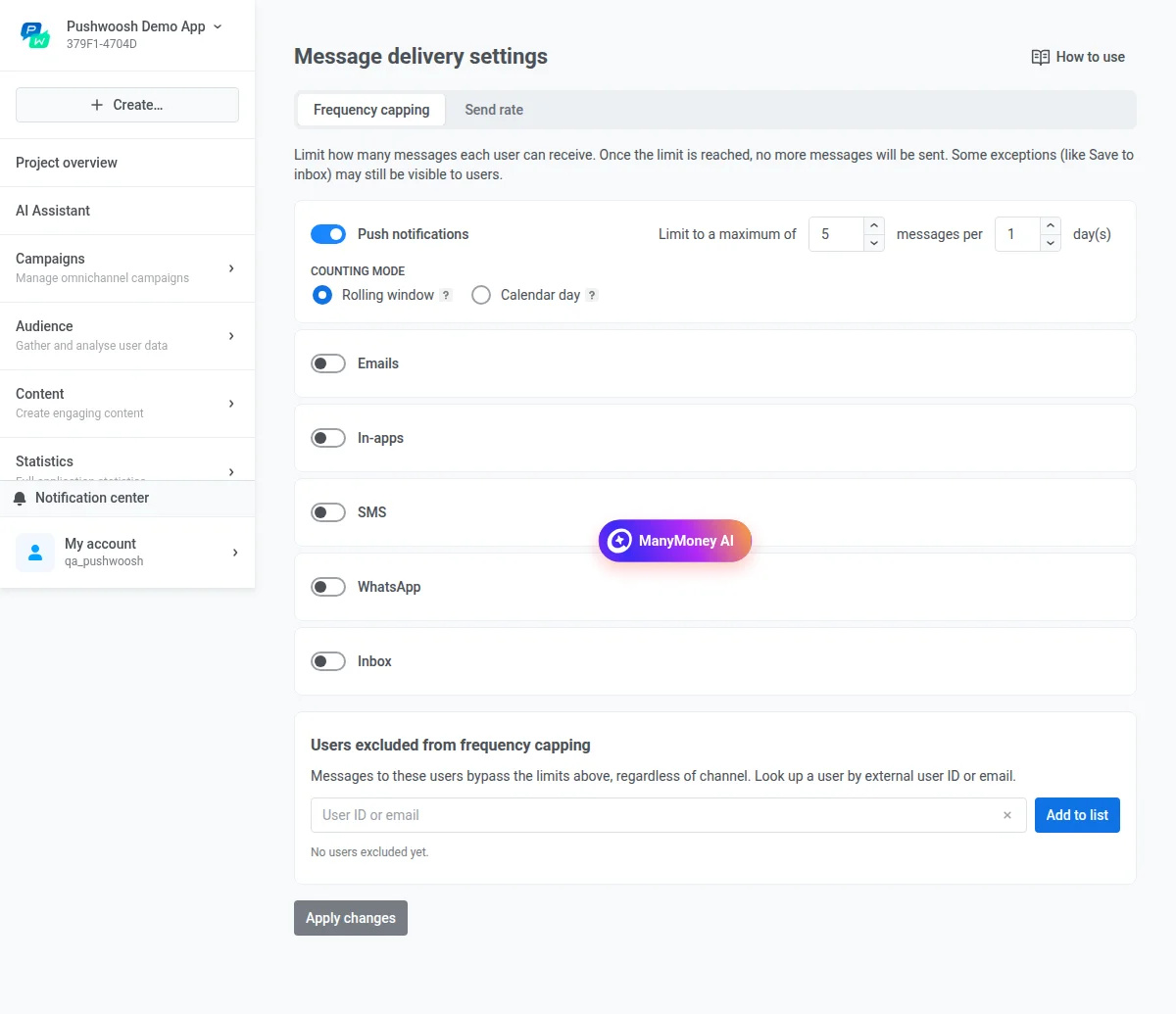
Anchor link toคุณสามารถยกเว้นผู้ใช้บางรายออกจาก frequency capping ได้ ข้อความที่ส่งไปยังผู้ใช้ที่ถูกยกเว้นจะข้ามทุกขีดจำกัดในทุกช่องทาง ทั้งขีดจำกัดส่วนกลางและขีดจำกัดที่กำหนดเองที่ตั้งไว้ในข้อความ
วิธียกเว้นผู้ใช้ออกจาก capping:
- ไปที่ Settings > Message delivery settings > Frequency capping
- ในส่วน Users excluded from frequency capping ให้ป้อน User ID หรืออีเมลครั้งละหนึ่งรายการ
- คลิก Add to list
- ทำซ้ำขั้นตอนที่ 2-3 สำหรับผู้ใช้เพิ่มเติมแต่ละคน
- คลิก Apply changes
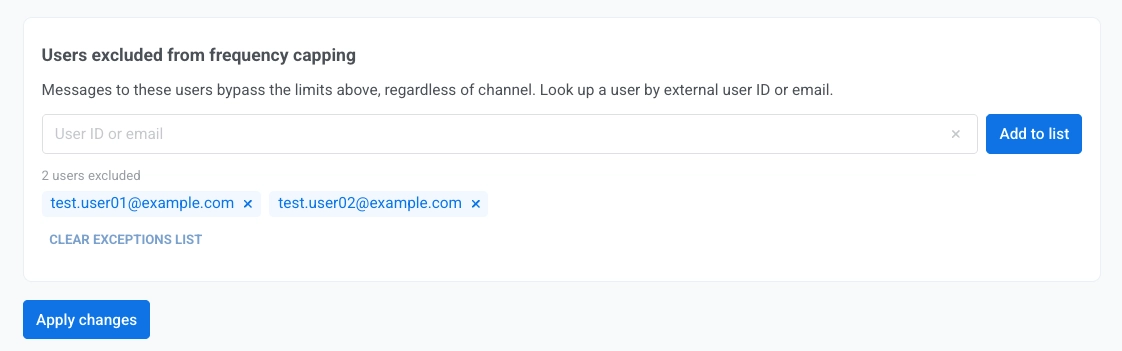
ผู้ใช้จะยังคงถูกยกเว้นจนกว่าคุณจะลบออกจากรายการในการตั้งค่าการส่งข้อความ
หากต้องการล้างรายการยกเว้น ให้คลิก Clear exceptions list จากนั้นคลิก Apply changes
Global frequency capping สำหรับข้อความ Journey
Anchor link toเมื่อสร้างองค์ประกอบข้อความใน customer journey การตั้งค่า Global frequency capping จะถูกนำมาใช้โดยค่าเริ่มต้น
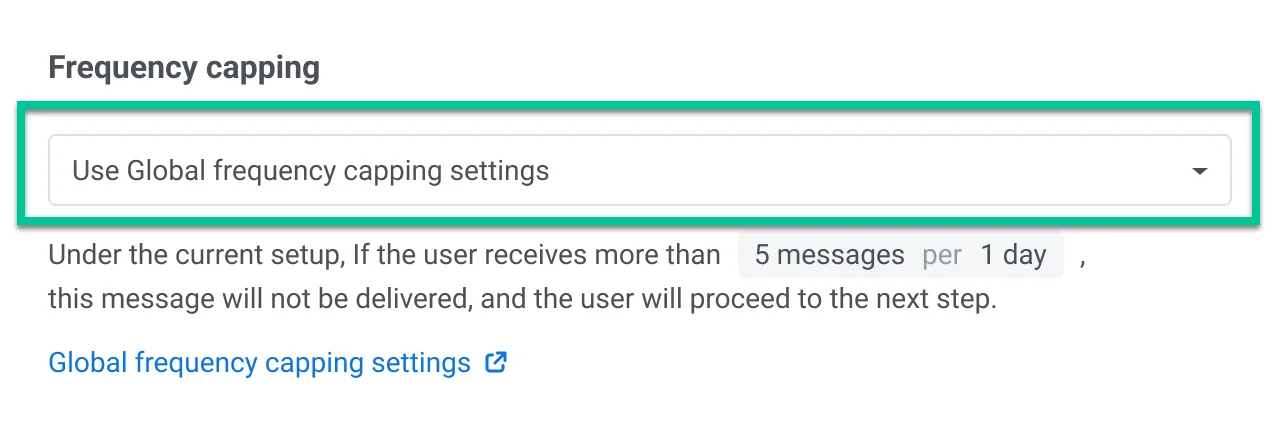
อย่างไรก็ตาม คุณมีตัวเลือกในการปรับแต่งวิธีการจัดการข้อความบางอย่างโดยการแทนที่การตั้งค่า Global frequency capping คุณสามารถทำสิ่งต่อไปนี้ได้:
ไม่สนใจ Global frequency capping
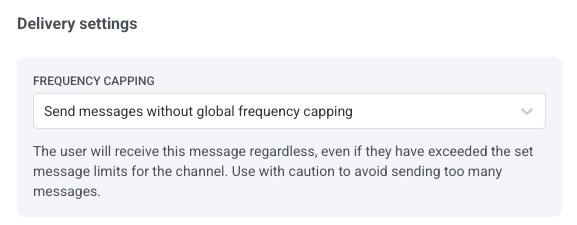
Anchor link toเลือก Send messages without global frequency capping เพื่อข้ามกฎของ global frequency capping ผู้ใช้จะได้รับข้อความนี้โดยไม่คำนึงถึงว่าพวกเขาได้เกินขีดจำกัดข้อความที่ตั้งไว้สำหรับช่องทางนั้นหรือไม่ ข้อความนี้จะไม่นับรวมในตัวนับส่วนกลางของช่องทางด้วย จึงไม่ใช้โควต้าของข้อความอื่นๆ ควรใช้อย่างระมัดระวังเพื่อหลีกเลี่ยงการส่งข้อความมากเกินไป
ใช้ custom frequency capping
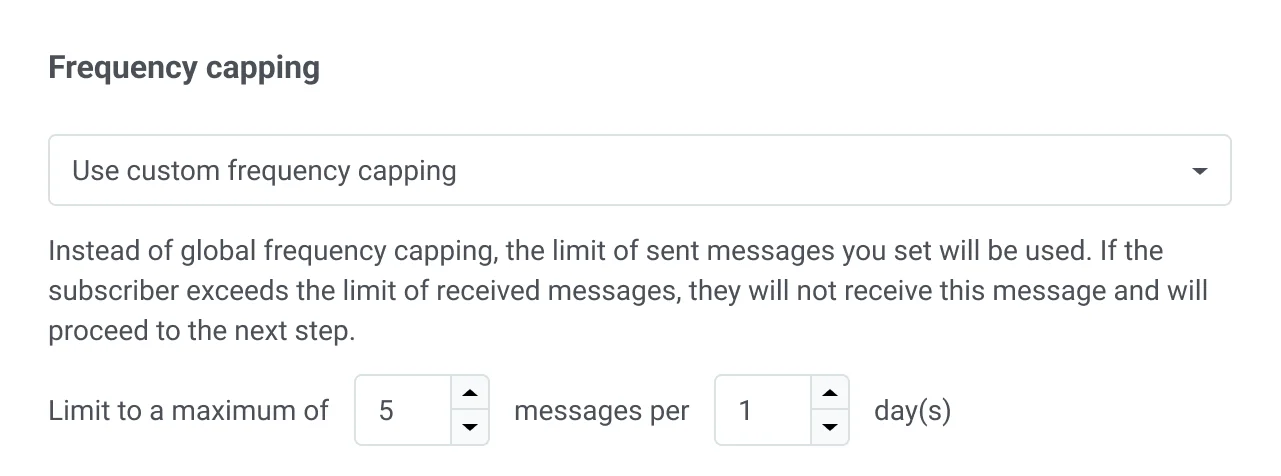
Anchor link toตัวเลือกนี้ช่วยให้คุณสามารถตั้งค่าขีดจำกัดที่กำหนดเองสำหรับจำนวนข้อความที่ส่งภายในช่วงเวลาที่ระบุ ที่นี่ ให้กำหนดจำนวนข้อความ (เช่น 5) และกรอบเวลา (เช่น 10 วัน) ที่สามารถส่งข้อความเหล่านี้ได้ เลือก counting mode สำหรับขีดจำกัดที่กำหนดเองนี้: Rolling window หรือ Calendar day เช่นเดียวกับการตั้งค่าส่วนกลาง
สถานการณ์ตัวอย่าง
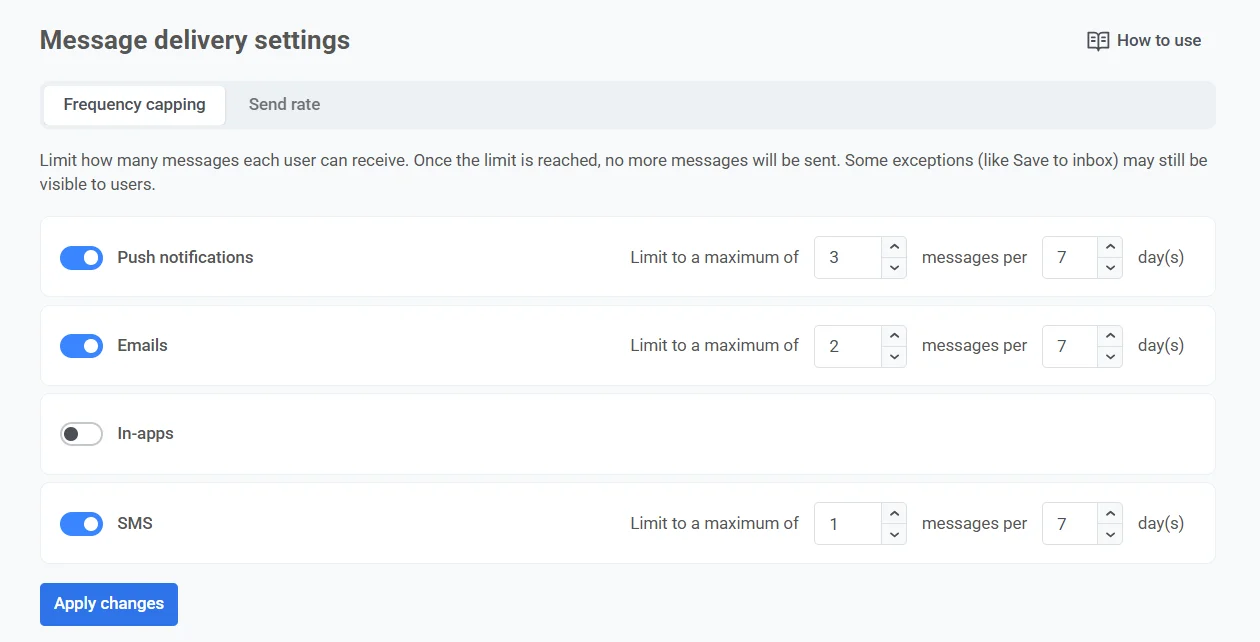
Anchor link toสมมติว่าคุณกำลังจัดการแคมเปญการตลาดหลายรายการผ่าน push notifications, email และ SMS เพื่อป้องกันไม่ให้ลูกค้าของคุณได้รับข้อความมากเกินไป คุณตัดสินใจตั้งค่า Frequency capping และจำกัดจำนวนข้อความที่ผู้ใช้แต่ละคนจะได้รับเป็น 3 push notifications, 2 email และ 1 SMS ต่อผู้ใช้ภายใน 7 วัน
นี่คือขั้นตอนในการตั้งค่า:
เปิดใช้งาน Global frequency capping
Anchor link to- ไปที่ Settings > Message delivery settings > Frequency capping
- เปิดสวิตช์สำหรับ push notifications, email และ SMS
- ระบุจำนวนข้อความสูงสุดที่ผู้ใช้สามารถรับได้: 3 push notifications, 2 email และ 1 SMS
- ระบุช่วงเวลาเป็น 7 วัน
กำหนดค่าข้อความที่สำคัญ
Anchor link toหากคุณต้องการให้แน่ใจว่าข้อความสำคัญ เช่น การยืนยันการชำระเงิน จะถูกส่งทันทีเสมอ โดยไม่คำนึงถึงขีดจำกัดข้อความใดๆ ให้เลือก Send messages without global frequency capping ในการตั้งค่าการส่งของขั้นตอน journey ที่ต้องการ
ตัวอย่างข้อความสำคัญอื่นๆ ได้แก่ การแจ้งเตือนความปลอดภัย คำขอรีเซ็ตรหัสผ่าน การอัปเดตแอปที่สำคัญ และอื่นๆ
ปรับแต่ง capping สำหรับข้อความเฉพาะ
Anchor link toสมมติว่าคุณต้องการส่ง push notification ข้อเสนอพิเศษทุกครั้งที่ผู้ใช้ดำเนินการบางอย่างในแอปเสร็จสิ้น อย่างไรก็ตาม เพื่อหลีกเลี่ยงการส่งข้อความเดิมซ้ำบ่อยเกินไป คุณต้องการให้แน่ใจว่าข้อความนี้จะแสดงไม่เกินหนึ่งครั้งทุก 3 วัน แม้ว่า Frequency capping ของคุณจะอนุญาตให้ส่ง 3 push notifications ต่อสัปดาห์ก็ตาม
นี่คือวิธีการกำหนดค่า:
- ตั้งค่า customer journey ที่จะทำงานเมื่อผู้ใช้ดำเนินการเป้าหมายเสร็จสิ้น
- ภายใน customer journey builder ไปที่การตั้งค่าสำหรับองค์ประกอบข้อความและเลือก Use custom frequency capping
- ตั้งค่า custom cap เป็น 1 ข้อความทุก 3 วัน
ดูสถิติ frequency capping
Anchor link toคุณสามารถดูได้ว่า frequency capping ส่งผลต่อข้อความของคุณอย่างไรในหลายที่
- Project dashboard: ภาพรวมโปรเจกต์ จะแสดงบล็อก Frequency capping ในแท็บ Push และ Email สำหรับช่วงเวลาที่เลือก โดยค่าเริ่มต้นคือ 30 วัน ในแท็บ Push บล็อกนี้จะเปลี่ยนตามดรอปดาวน์ All platforms คุณจึงตรวจสอบ capping ทีละแพลตฟอร์ม push ได้
- สถิติข้อความรายบุคคล: แท็บ Overview ของสถิติข้อความ push notification และ email จะแสดง frequency capping เป็นหนึ่งในเหตุผลการยกเว้นของขั้นตอน Audience
- ข้อความรวม: ฟันเนล Campaigns distribution จะแสดงผู้รับที่ถูกยกเว้นเนื่องจาก frequency capping เป็นหนึ่งในเหตุผลการยกเว้นของขั้นตอน Audience โดยแสดงเป็นจำนวนผู้รับที่ไม่ซ้ำกันซึ่งถูกข้ามไปเพียงค่าเดียว
- Customer Journey: หน้าต่าง สถิติการสื่อสาร จะรายงาน frequency capping ในทุกแท็บช่องทาง
สำหรับคำตอบของคำถามที่พบบ่อย โปรดดูที่ คำถามที่พบบ่อยเกี่ยวกับ Global frequency capping