สร้าง geozone
สร้าง geozone เพื่อกำหนดว่าแคมเปญของคุณจะทริกเกอร์ที่ไหน และจะเกิดอะไรขึ้นเมื่อผู้ใช้เข้ามาในพื้นที่นั้น: ข้อความพุช, อีเวนต์ Customer Journey, หรือทั้งสองอย่าง
ไปที่ Campaigns → Geo campaigns คลิก Create geozone เพื่อเริ่มต้น
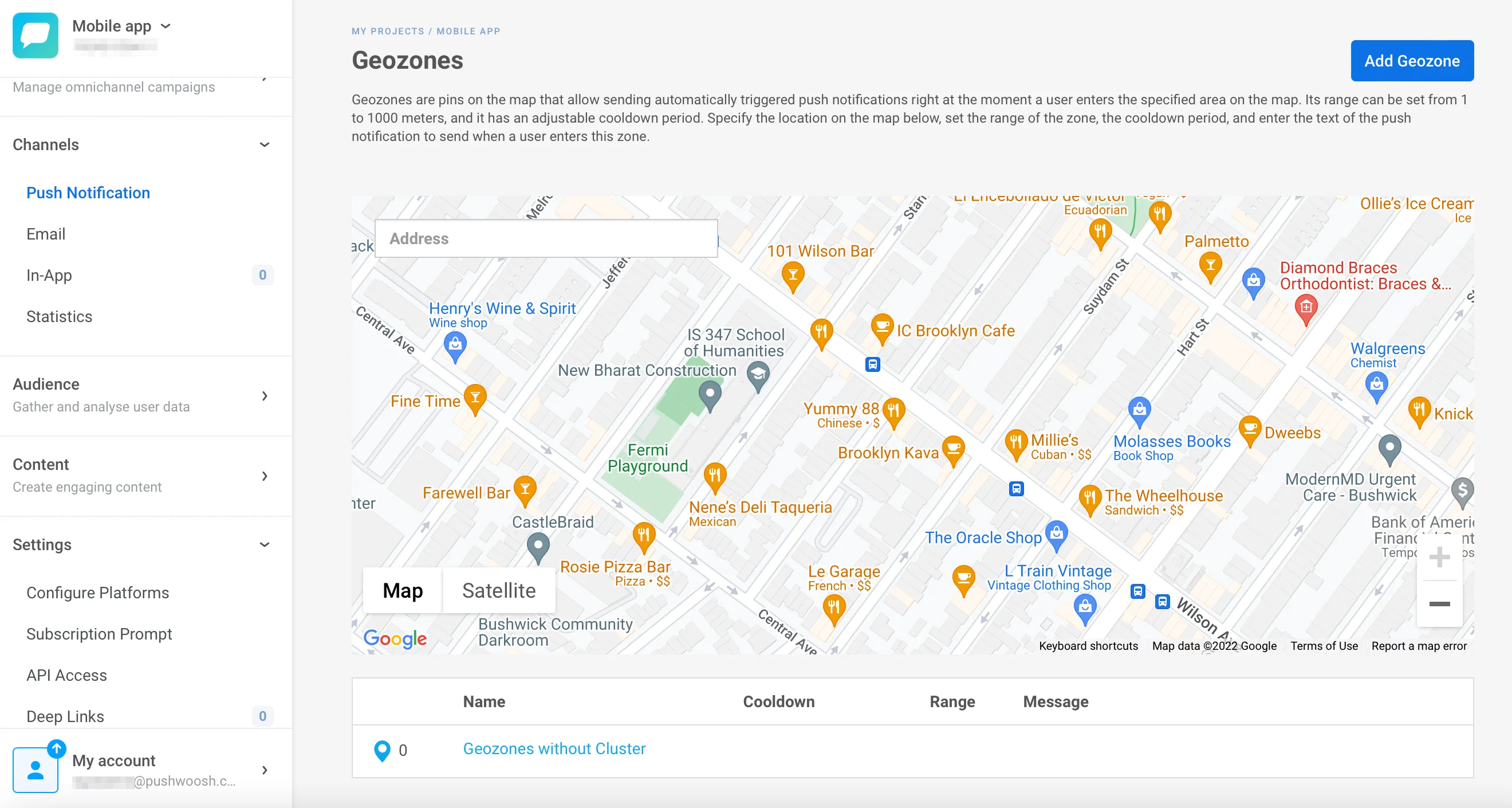
ตั้งชื่อแคมเปญและสถิติรวม
Anchor link toในช่อง Campaign name ให้ป้อนป้ายกำกับที่มีความยาวไม่เกิน 64 ตัวอักษร ทำให้สั้นและจดจำได้ง่าย เช่น ลดราคาฤดูใบไม้ผลิที่ร้านค้าในเมือง
คุณสามารถเลือกแคมเปญที่มีอยู่แล้วในช่อง Aggregated statistics ได้ ซึ่งพุชของแคมเปญภูมิศาสตร์จะถูกนับรวมกับทัชพอยต์อื่นๆ ในสถิติข้อความรวมของแคมเปญนั้น
เลือกการดำเนินการเมื่อเข้าพื้นที่
Anchor link toในส่วน Entry actions ให้เปิดใช้งานการดำเนินการเหล่านี้ร่วมกันได้ตามต้องการ อย่างน้อยต้องเปิดใช้งานหนึ่งอย่าง และให้ชื่ออีเวนต์ที่แตกต่างกันสำหรับการดำเนินการที่อิงตามอีเวนต์แต่ละรายการเมื่อเปิดใช้งานมากกว่าหนึ่งอย่าง
ใช้การเปรียบเทียบนี้เพื่อตัดสินใจว่าจะเปิดใช้งานการดำเนินการใด:
| การดำเนินการ | เลือกเมื่อ | ตัวอย่างแคมเปญ | เหมาะกับ |
|---|---|---|---|
| Send push | คุณต้องการให้คนเห็นข้อความทันทีที่มาถึง โดยไม่จำเป็นต้องมี journey | พุช “ลด 20% วันนี้” ทันทีที่นักช้อปเดินเข้าร้าน | Fire dwell event เพื่อที่คุณจะสามารถตั้งค่าสถานะคนที่อยู่ต่อได้ สำหรับข้อความติดตามผลในภายหลัง |
| Fire event | คุณต้องการเริ่มต้นโฟลว์อัตโนมัติที่ยาวขึ้น (หลายข้อความในช่วงเวลาหนึ่ง) ไม่ใช่แค่พุชเดียว | PW_GeozoneEntered เริ่มต้น Journey: ข้อความต้อนรับ → รอ 1 วัน → การแจ้งเตือนบัตรสะสมคะแนน | Fire exit event เพื่อให้ Journey สิ้นสุดลงเมื่อคุณแน่ใจว่าบุคคลนั้นได้ออกไปแล้วจริงๆ |
| Fire exit event | คุณต้องการทราบแน่ชัดว่าบุคคลนั้นได้ออกไปแล้ว การยืนยันนั้นอาจมาถึงช้า ซึ่งดีสำหรับการส่งข้อความติดตามผลหลังจากที่ได้เยี่ยมชมไปแล้ว | PW_GeozoneExited ทริกเกอร์แบบสำรวจ “การเยี่ยมชมของคุณเป็นอย่างไรบ้าง?” เมื่อการเยี่ยมชมได้รับการยืนยันแล้ว | Fire event เพื่อให้ Journey เดียวกันที่ต้อนรับพวกเขาเมื่อเข้ามา ก็จะสิ้นสุดลงอย่างถูกต้องเมื่อพวกเขาออกไป |
| Fire dwell event | คุณสนใจเฉพาะคนที่ใช้เวลาอยู่ที่นั่นจริงๆ ไม่ใช่คนที่แค่เดินผ่าน | PW_GeozoneDwell (เวลาภายใน = 15 นาที) ตั้งค่าสถานะผู้เยี่ยมชมที่ “สนใจอย่างแท้จริง” สำหรับอีเมลติดตามผล | Assume exit after silence เพื่อให้คุณได้รับสัญญาณทั้งสองใน CRM ของคุณโดยไม่ต้องส่งข้อความถึงบุคคลนั้นในระหว่างการเยี่ยมชม |
| Assume exit after silence | การติดตามตำแหน่งของคุณมักจะสูญเสียสัญญาณ (ในสถานที่, แอปที่ทำงานในพื้นหลัง) ดังนั้นการยืนยันการออกจึงไม่น่าเชื่อถือ สิ่งนี้จะทำงานต่อไปตามเวลาที่ตั้งไว้ | PW_GeozoneExitedByTimeout (ความเงียบ = 2 ชั่วโมง) ปิดการเยี่ยมชมที่สนามกีฬาที่มีสัญญาณอ่อน | Fire dwell event เพื่อให้คุณสามารถปิดการเยี่ยมชมได้อย่างน่าเชื่อถือและยังคงทราบว่าพวกเขามีส่วนร่วมจริงหรือไม่ในขณะที่อยู่ที่นั่น |
ส่ง Push
Anchor link toส่งการแจ้งเตือนแบบพุชที่คุณกำหนดค่าใน Compose the push message ด้านล่าง ตัวอย่างเช่น อุปกรณ์ที่เข้าสู่โซนเวลา 10:00 น. จะได้รับการพุชทันที ตราบใดที่คูลดาวน์อนุญาตให้ส่งได้ ปิดการใช้งานหากคุณต้องการเพียงการดำเนินการที่อิงตามอีเวนต์เท่านั้น การตั้งค่าข้อความจะหายไปและคุณไม่จำเป็นต้องกรอกข้อมูล

เรียกใช้อีเวนต์
Anchor link toทริกเกอร์ custom event เมื่ออุปกรณ์เข้าสู่โซน ใช้เป็น Trigger-based entry ใน Customer Journey ตัวอย่างเช่น อุปกรณ์ที่เข้าสู่โซนเวลา 14:00 น. จะทริกเกอร์ PW_GeozoneEntered เวลา 14:00 น. การเข้าและอีเวนต์เกิดขึ้นในเวลาเดียวกัน
- เปิด Fire event
- ตั้งค่า Event name เว้นว่างไว้เพื่อใช้อีเวนต์เริ่มต้นของระบบ
PW_GeozoneEnteredหรือป้อนชื่อของคุณเอง (ไม่เกิน 128 ตัวอักษร)
อีเวนต์มีแอตทริบิวต์หกอย่าง: geozone_code, geozone_name, lat, lng, range, และ distance หาก geozone ถูกกำหนดให้กับคลัสเตอร์ มันจะมี cluster_code และ cluster_name ด้วย

เรียกใช้อีเวนต์ออก
Anchor link toอีเวนต์นี้จะไม่ทำงานทันทีที่ใครบางคนออกจากโซน อุปกรณ์จะตรวจจับการออกก่อน จากนั้นจะรายงานการออกในครั้งต่อไปที่ติดต่อกับ Pushwoosh: การตรวจสอบในพื้นหลังเป็นระยะๆ ที่ส่งตำแหน่งของอุปกรณ์ ไม่ใช่การเชื่อมต่อสดแบบต่อเนื่อง
การติดต่อจะเกิดขึ้นเร็วแค่ไหนขึ้นอยู่กับระบบปฏิบัติการและการตั้งค่าพื้นหลังของอุปกรณ์ ไม่ใช่ Pushwoosh ดังนั้นความล่าช้าระหว่างการออกจริงกับอีเวนต์อาจมีตั้งแต่ไม่กี่วินาทีถึงหลายชั่วโมง ตัวอย่างเช่น อุปกรณ์ที่ออกจากพื้นที่เวลา 15:00 น. แต่ไม่ได้ติดต่อ Pushwoosh อีกจนถึง 15:45 น. จะทริกเกอร์อีเวนต์เวลา 15:45 น. ไม่ใช่ 15:00 น.
คูลดาวน์จะจำกัดการดำเนินการเมื่อเข้าพื้นที่ ไม่ใช่การดำเนินการนี้ หากอุปกรณ์เข้า ออก และเข้าสู่ geozone เดิมอีกครั้งภายในช่วงเวลาคูลดาวน์ การเข้าซ้ำจะถูกระงับ แต่การออกจริงแต่ละครั้งจะยังคงทริกเกอร์อีเวนต์ของตัวเอง ดังนั้นคุณอาจมีอีเวนต์การออกมากกว่าการเข้าที่ถูกจำกัดสำหรับลำดับการเยี่ยมชมเดียวกัน
- เปิด Fire exit event
- ตั้งค่า Exit event name เว้นว่างไว้เพื่อใช้อีเวนต์เริ่มต้นของระบบ
PW_GeozoneExitedหรือป้อนชื่อของคุณเอง

เรียกใช้อีเวนต์การอยู่
Anchor link toทริกเกอร์ custom event เมื่ออุปกรณ์อยู่ในโซนเป็นระยะเวลาที่คุณตั้งค่าใน Time inside โดยนับจากการเข้า
- เปิด Fire dwell event
- ตั้งค่า Time inside เป็นค่าตั้งแต่ 1 ถึง 1440 นาที
- ตั้งค่า Dwell event name เว้นว่างไว้เพื่อใช้อีเวนต์เริ่มต้นของระบบ
PW_GeozoneDwellหรือป้อนชื่อของคุณเอง

ถือว่าออกหลังจากเงียบ
Anchor link toทริกเกอร์ custom event เมื่ออุปกรณ์ที่ได้รับการยืนยันครั้งล่าสุดว่าอยู่ในโซน เงียบไป (หยุดส่งการอัปเดตตำแหน่งไปยัง Pushwoosh) เป็นระยะเวลาที่ตั้งค่าใน Silence before assuming
- เปิด Assume exit after silence
- ตั้งค่า Silence before assuming เป็นค่าตั้งแต่ 5 ถึง 1440 นาที
- ตั้งค่า Assumed exit event name เว้นว่างไว้เพื่อใช้อีเวนต์เริ่มต้นของระบบ
PW_GeozoneExitedByTimeoutหรือป้อนชื่อของคุณเอง

เขียนข้อความพุช
Anchor link toเมื่อเปิด Send push ให้เลือกวิธีเขียนการแจ้งเตือน:
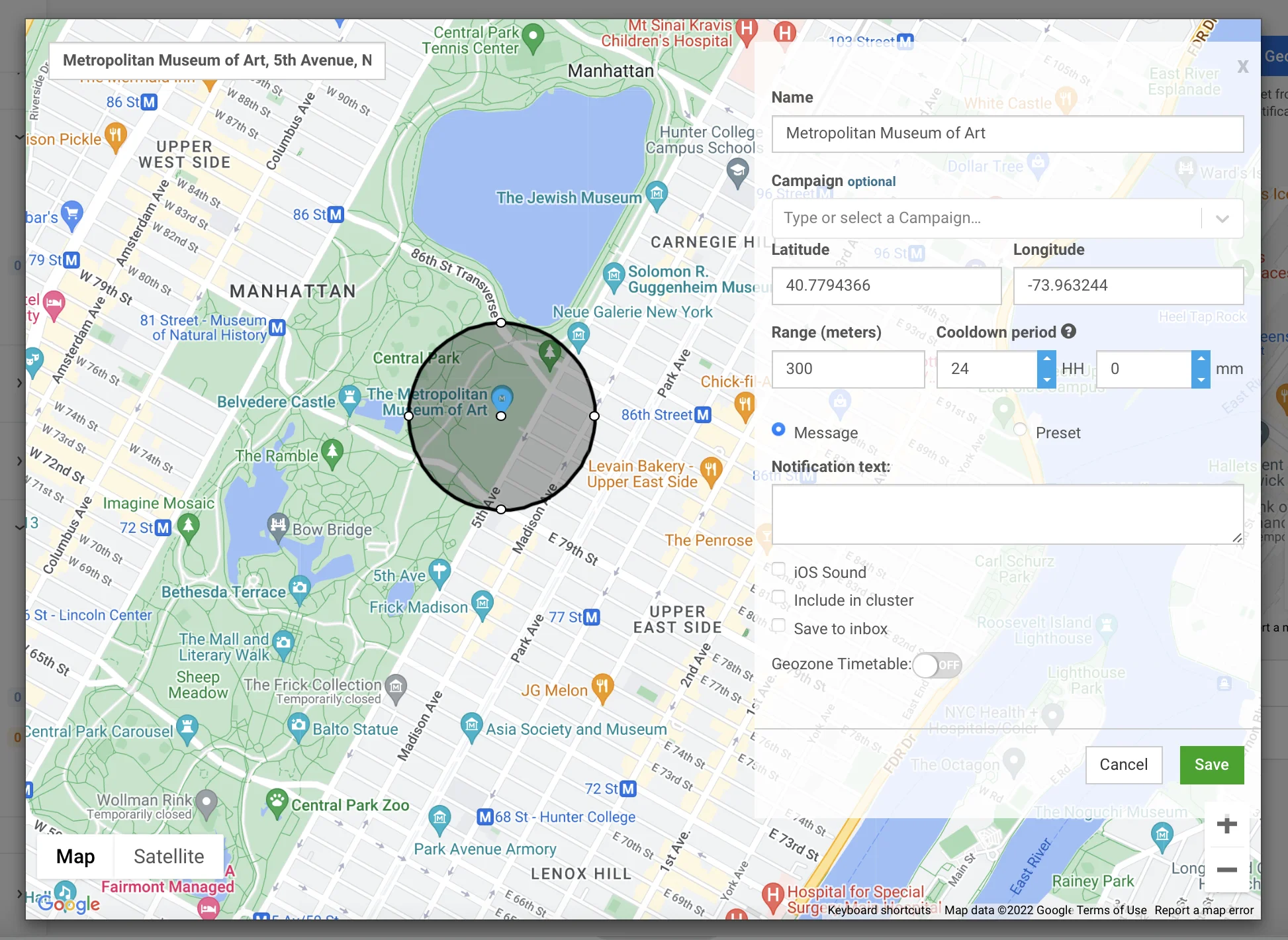
- Write a message: ป้อนข้อความพุชโดยตรงในฟอร์ม (ไม่เกิน 1024 ตัวอักษร) ใช้ตัวเลือกนี้สำหรับข้อความครั้งเดียวอย่างรวดเร็วใน geozone เดียว
- Use an existing preset: เลือก preset ที่บันทึกไว้สำหรับการสร้างเทมเพลตเต็มรูปแบบพร้อมชื่อเรื่อง, deep link, เสียงที่กำหนดเอง, และเพย์โหลดเฉพาะแพลตฟอร์ม หากต้องการเปลี่ยนลำดับของ preset ให้คลิกปุ่มเรียงลำดับข้างฟิลด์ ค่าเริ่มต้นคือ ชื่อ A→Z และลำดับที่คุณเลือกจะใช้กับดรอปดาวน์ push preset อื่นๆ ด้วย เช่น push แบบครั้งเดียวและองค์ประกอบ Push ใน journey
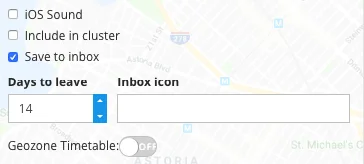
กำหนดค่าการตั้งค่าข้อความเพิ่มเติม:
- Play default sound on iOS: ใช้เสียงพุชของระบบบนอุปกรณ์ iOS
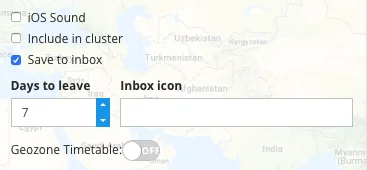
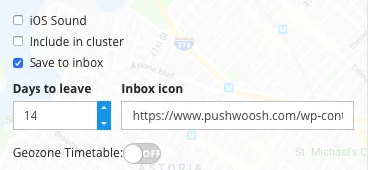
- Save to inbox: เก็บสำเนาของ push ไว้ใน inbox ของแอปหลังจากการส่ง เพื่อให้ผู้ใช้เปิดดูได้ในภายหลัง เมื่อเปิดใช้งาน ให้ตั้งค่า Inbox expire (1–30 วัน) และ Inbox icon URL (ไม่บังคับ) ตัวเลือก Save to Inbox แบบเต็ม: บันทึก push ไปยัง inbox
ตั้งค่าตำแหน่งทริกเกอร์
Anchor link toเลือกรูปร่างสำหรับตำแหน่งทริกเกอร์:
- Circle: ค้นหาที่อยู่, วางพิกัดดิบลงในแถบค้นหา, หรือคลิกที่ใดก็ได้บนแผนที่เพื่อวางเครื่องหมาย ลากที่จับบนวงกลมเพื่อตั้งค่า Range สามารถตั้งค่า Range ได้ระหว่าง 50 ม. ถึง 100 กม. ค่าเริ่มต้นคือ 200 ม.
- Polygon: คลิกบนแผนที่เพื่อวางมุมทีละมุม เพื่อวาดโครงร่างของพื้นที่ เช่น แผนผังชั้นของห้างสรรพสินค้าหรือขอบเขตของสถานที่จัดงาน ลากมุมเพื่อย้าย คลิกขวาที่มุมเพื่อลบ รูปหลายเหลี่ยมต้องมีมุมที่แตกต่างกัน 3 ถึง 100 มุม คุณไม่จำเป็นต้องปิดรูปร่างโดยการคลิกที่มุมแรกอีกครั้ง
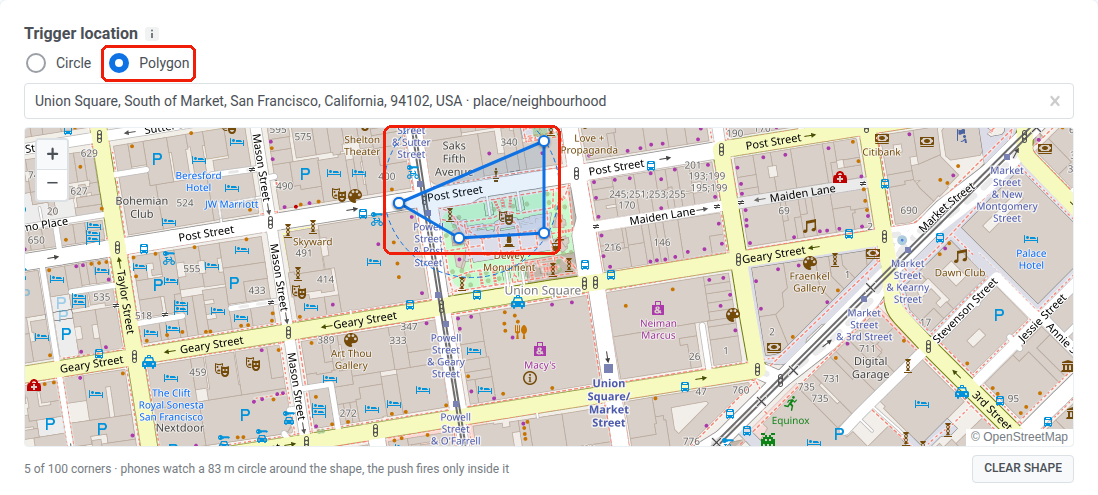
คุณสามารถเปลี่ยนรูปร่างได้เมื่อแก้ไข geozone ที่บันทึกไว้:
- หากต้องการแปลง geozone รูปหลายเหลี่ยมเป็นวงกลม ให้เลือก Circle และตั้งค่าจุดศูนย์กลางและช่วงตามปกติ
- หากต้องการแปลง geozone วงกลมเป็นรูปหลายเหลี่ยม ให้เลือก Polygon และวาดมุมใหม่
- การล้างมุมทั้งหมดของรูปหลายเหลี่ยม (Clear shape) จะเปลี่ยนกลับเป็นวงกลมด้วย
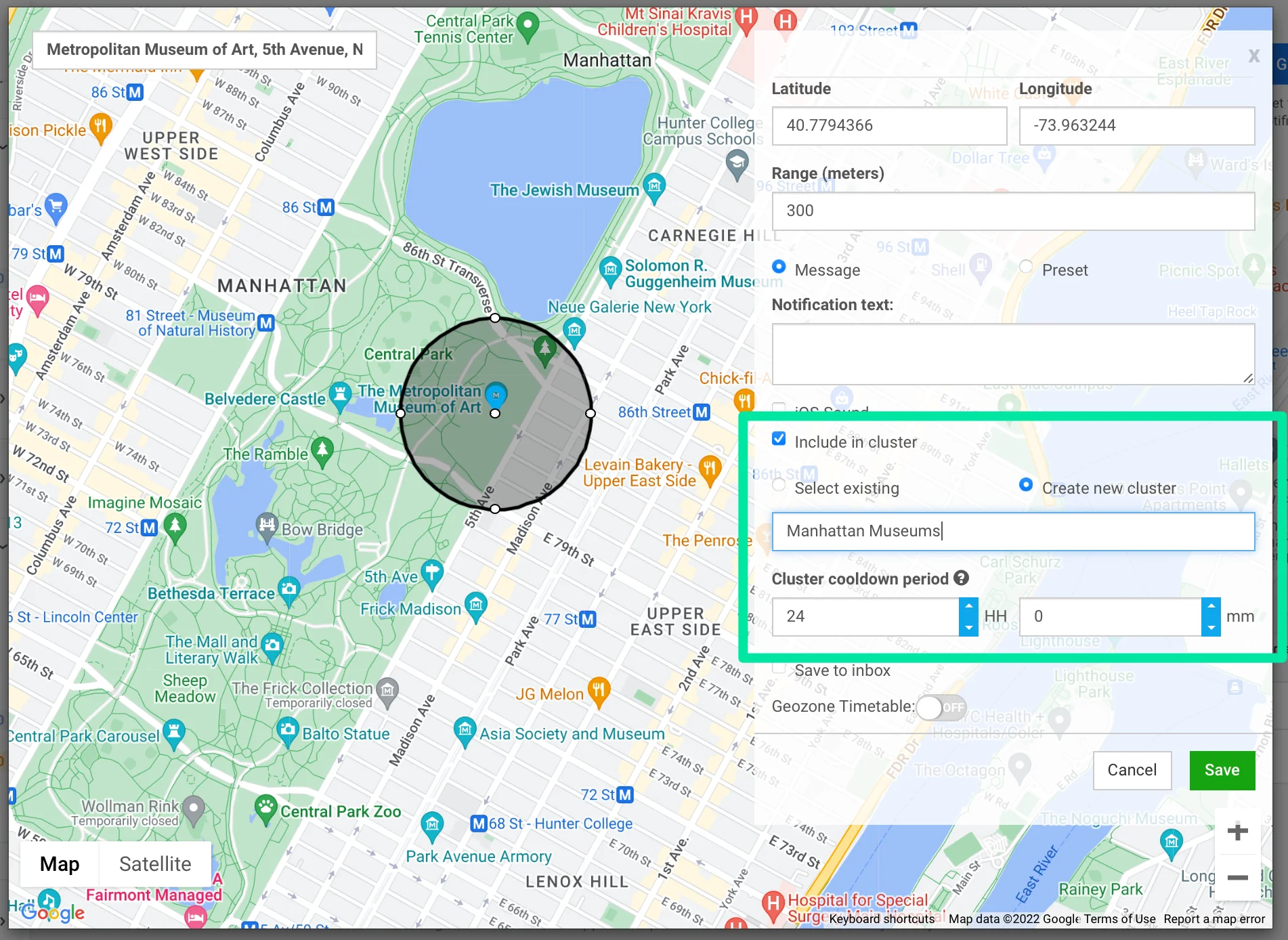
เลือกคลัสเตอร์และคูลดาวน์
Anchor link toคูลดาวน์คือช่วงเวลาเงียบหลังจากส่งพุช สำหรับ geozone แบบสแตนด์อโลน อุปกรณ์เดียวกันจะไม่ได้รับการแจ้งเตือนอื่นจากมันจนกว่าคูลดาวน์จะหมดอายุ แม้ว่าจะออกและเข้ามาใหม่ก็ตาม หาก geozone อยู่ในคลัสเตอร์ คูลดาวน์จะใช้กับทั้งคลัสเตอร์แทน: อุปกรณ์จะเงียบสำหรับทุก geozone ในคลัสเตอร์นั้น ไม่ใช่แค่ geozone ที่ส่งพุช
ในช่อง Cooldown ให้เลือกหนึ่งในสามโหมด:
| โหมด | วิธีการตั้งค่าคูลดาวน์ | พฤติกรรม |
|---|---|---|
| Standalone | ตั้งค่าวัน, ชั่วโมง, และนาทีโดยตรงสำหรับ geozone นี้ ขั้นต่ำคือ 1 นาที สูงสุดคือ 41 วัน | คูลดาวน์ใช้กับ geozone นี้เท่านั้น |
| Use existing cluster | ใช้คูลดาวน์จาก cluster ที่มีอยู่ | คูลดาวน์ของคลัสเตอร์จะแทนที่คูลดาวน์ของ geozone นี้ |
| New cluster | สร้างคลัสเตอร์ใหม่และตั้งค่าคูลดาวน์ ดู Create a cluster | คูลดาวน์ของคลัสเตอร์จะแทนที่คูลดาวน์ของ geozone นี้ |
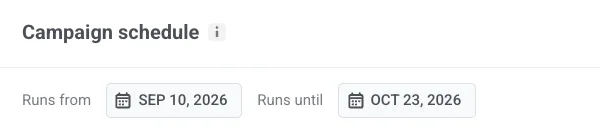
กำหนดเวลาที่แคมเปญสามารถทำงานได้
Anchor link toส่วน Campaign schedule จะจำกัดเวลาที่การดำเนินการเมื่อเข้าพื้นที่จะสามารถทำงานได้ พุชหรืออีเวนต์การเข้าจะทำงานก็ต่อเมื่อ geozone ทำงานอยู่ในขณะนั้นและคูลดาวน์อนุญาตให้ส่งได้
จำกัดแคมเปญให้อยู่ในช่วงวันที่
Anchor link toช่องเหล่านี้เป็นทางเลือก ตั้งค่าเมื่อคุณต้องการให้แคมเปญทั้งหมดทำงานภายในช่วงวันที่ที่กำหนด เช่น โปรโมชั่นวันหยุดตั้งแต่วันที่ 10 กันยายนถึง 23 ตุลาคม หรือการเปิดร้านค้าในเวลาจำกัด
- Runs from: วันแรกที่ geozone สามารถทำงานได้
- Runs until: วันสุดท้ายที่ geozone สามารถทำงานได้
เลือกวิธีการทำงานของ geozone
Anchor link toเลือก Always active เพื่อให้ทำงานตลอด 24 ชั่วโมง หรือ On selected days and hours เพื่อจำกัดการทำงานให้อยู่ในช่วงเวลาที่กำหนดต่อวันของสัปดาห์
Always active
Anchor link toแคมเปญจะทำงานตลอด 24/7 ไม่จำเป็นต้องกำหนดค่าตารางเวลาเพิ่มเติม

On selected days and hours
Anchor link toแคมเปญจะทำงานเฉพาะในช่วงเวลาที่คุณตั้งค่าไว้ที่นี่:
- เปิดใช้งานแต่ละวันในสัปดาห์ที่คุณต้องการให้แคมเปญทำงาน
- ตั้งเวลาเริ่มต้นและสิ้นสุดสำหรับวันนั้น
คลิก Save เพื่อสิ้นสุด ไม่ว่าคุณจะเลือกโหมดใด geozone จะเปิดใช้งานทันที หากคุณตั้งค่าตารางเวลา พุชจะทำงานเฉพาะในช่วงเวลาที่กำหนดค่าไว้เท่านั้น
การดำเนินการใดที่ปฏิบัติตามตารางเวลา
Anchor link to- Send push, Fire event, และการดำเนินการอื่นๆ ที่ทำงานเมื่ออุปกรณ์เข้าสู่โซนจะทำงานเฉพาะในช่วงเวลาที่ตารางเวลาทำงานและเมื่อคูลดาวน์อนุญาตให้ส่งได้
- Fire exit event, Fire dwell event, และ Assume exit after silence จะติดตามการเยี่ยมชม ไม่ใช่ตารางเวลา หากอุปกรณ์เข้าสู่โซนในขณะที่ตารางเวลาทำงานอยู่ การดำเนินการเหล่านี้ยังคงสามารถทำงานได้หลังจากช่วงเวลารายวันปิดลง