Mixpanel: ตั้งค่าโปรไฟล์
ใช้ Mixpanel: set profile เพื่ออัปเดตโปรไฟล์ Mixpanel ของผู้เดินทางจากขั้นตอน journey ผ่าน Engage API โดยใช้ project token ในการยืนยันตัวตน ไม่จำเป็นต้องมีการเชื่อมต่อหรือ service account แยกต่างหาก
การใช้งานทั่วไป:
- ซิงค์แท็กเข้าสู่กลุ่ม Mixpanel: พุช plan, อีเมล หรือแท็กอื่น ๆ ไปยังโปรไฟล์ Mixpanel เพื่อให้ cohorts ของ Mixpanel ตรงกับกลุ่มเป้าหมายของ Pushwoosh
- รักษาโปรไฟล์ให้เป็นปัจจุบันโดยไม่ต้องมีงานซิงค์แยก: อัปเดตโปรไฟล์ในขั้นตอน journey ที่แท็กมีการเปลี่ยนแปลงทันที
- จับคู่กับ Track event: ใช้ Distinct ID เดียวกันกับจุด Mixpanel: track event ที่จับคู่กัน เพื่อให้ event และการอัปเดตโปรไฟล์ไปอยู่ที่บุคคลเดียวกันใน Mixpanel
กำหนดค่าจุด
Anchor link to- ลาก Mixpanel: set profile จากส่วน Integrations มาวางบน canvas
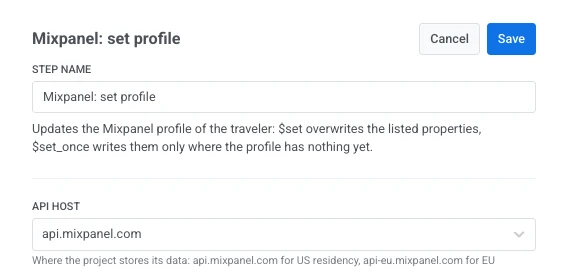
- ดับเบิลคลิกที่จุดและป้อน Step Name
- ใน API host เลือกรีเจียนที่โปรเจกต์ Mixpanel จัดเก็บข้อมูล:
api.mixpanel.comสำหรับโปรเจกต์ในสหรัฐอเมริกา,api-eu.mixpanel.comสำหรับโปรเจกต์ในสหภาพยุโรป
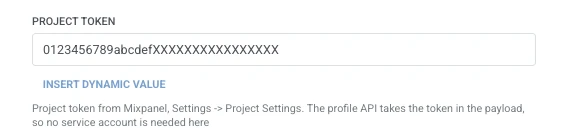
- ใน Project token ป้อน project token จาก Mixpanel: Settings > Project Settings Profile API จะรับ token ใน request body ดังนั้นจึงไม่จำเป็นต้องใช้ service account ที่นี่ ซึ่งแตกต่างจาก Mixpanel: track event
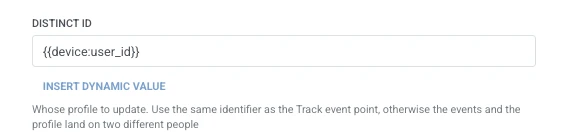
- ใน Distinct ID ป้อนโปรไฟล์ที่จะอัปเดต ใช้ตัวระบุเดียวกับจุด Mixpanel: track event ที่จับคู่กัน เนื่องจากทั้งสองค่าเริ่มต้นเป็น
{{device:user_id}}การไม่ตรงกันจะส่ง event และการอัปเดตโปรไฟล์ไปยังบุคคลที่แตกต่างกันสองคนใน Mixpanel
- ใน Update mode เลือก $set เพื่อเขียนทับคุณสมบัติที่ระบุทุกครั้ง หรือ $set_once เพื่อเขียนเฉพาะในกรณีที่โปรไฟล์ยังไม่มีค่า

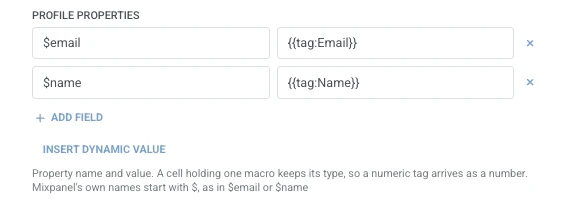
- ใน Profile properties เพิ่มหนึ่งแถวต่อหนึ่งคุณสมบัติที่จะตั้งค่าบนโปรไฟล์ Mixpanel ป้อนชื่อคุณสมบัติและค่า ชื่อต้องไม่ว่างและไม่ซ้ำกัน ใช้ชื่อที่สงวนไว้ของ Mixpanel เองเมื่อเหมาะสม เช่น
$emailหรือ$nameค่าที่เป็นมาโครของผู้เดินทางเดี่ยวจะคงประเภทของตัวเองไว้ ({{tag:Age}}จะมาถึงเป็นตัวเลข) ข้อความอื่น ๆ จะถูกส่งเป็นสตริง มาโครใช้ไวยากรณ์เดียวกับ body ของ Webhook หรือคลิก Insert Dynamic Value เพื่อเลือกแอตทริบิวต์ที่ขั้นตอนก่อนหน้าใน journey นี้สร้างขึ้น เช่น การตอบสนองของ LLM หรือค่า Webhook ที่แมปไว้
- คลิก Save
การตอบสนอง
Anchor link toผู้เดินทางจะเดินทางต่อไปยังขั้นตอนใดก็ตามที่คุณเชื่อมต่อถัดไปบน canvas
แอตทริบิวต์หลังจากขั้นตอนทำงาน
Anchor link toจุดนี้ไม่ได้แมปข้อมูลการตอบสนองใด ๆ กลับเข้ามาใน journey
ความล้มเหลวและการตอบสนองที่ไม่คาดคิด
Anchor link toคำขอที่ล้มเหลวจะทำให้ผู้เดินทางออกจาก journey ดูที่ ข้อผิดพลาดและคำขอที่ล้มเหลว
สถานการณ์ตัวอย่าง: การทำให้โปรไฟล์ Mixpanel ซิงค์กับการอัปเดต journey
Anchor link toทีมต้องการใหระดับแผนของผู้เดินทางอัปเดตบนโปรไฟล์ Mixpanel ของพวกเขาทันทีที่มีการเปลี่ยนแปลงใน Pushwoosh
- เพิ่ม Mixpanel: set profile ทันทีหลังจากขั้นตอนที่ระดับแผนเปลี่ยนแปลง ตั้งค่า Distinct ID เป็น
{{device:user_id}}(ให้ตรงกับจุด Mixpanel: track event ที่จับคู่กัน) และ Update mode เป็น $set ใน Profile properties ตั้งค่า$emailเป็น{{tag:Email}} - คลิก Save
เมื่อขั้นตอนนี้ทำงาน โปรไฟล์ Mixpanel จะสะท้อนการเปลี่ยนแปลงแผนโดยไม่ต้องมีงานซิงค์แยกต่างหาก