สร้างข้อความ in-app แบบเนทีฟ
in-app แบบเนทีฟใช้เลย์เอาต์สำเร็จรูปที่ Pushwoosh SDK เรนเดอร์โดยตรงบนอุปกรณ์ แทนที่จะเป็นหน้า HTML ที่ in-app แบบกำหนดเองโหลด ซึ่งทำให้โหลดได้เร็วขึ้นและเคลื่อนไหวได้อย่างราบรื่นยิ่งขึ้น และคุณไม่จำเป็นต้องมีทักษะด้านการออกแบบหรือการพัฒนาเพื่อสร้างมันขึ้นมา
เลือกใช้ in-app แบบเนทีฟเมื่อคุณต้องการเปิดตัวโปรโมชัน การแจ้งเตือน หรือการประกาศฟีเจอร์อย่างรวดเร็ว และไม่จำเป็นต้องใช้เลย์เอาต์ที่กำหนดเองทั้งหมด หากคุณต้องการควบคุมการออกแบบอย่างเต็มที่ ให้สร้าง in-app ที่ใช้ HTML แทน
ข้อกำหนดเบื้องต้น
Anchor link toก่อนที่คุณจะสร้างเทมเพลต in-app แบบเนทีฟ ตรวจสอบให้แน่ใจว่า:
- Pushwoosh SDK ได้รับการผสานรวมในแอปของคุณเพื่อให้ข้อความ in-app สามารถปรากฏขึ้นได้ เรียนรู้เพิ่มเติม
- แอปของคุณรัน iOS SDK 7.2.0+ หรือ Android SDK 6.10.0+ สำหรับ modal, fullscreen และ stories ส่วน Sheet, carousel และ banner ต้องการ iOS SDK 7.2.1+ หรือ Android SDK 6.10.1+ และ Video ต้องการ iOS SDK 7.2.0+ หรือ Android SDK 6.11.0+
เฟรมเวิร์กข้ามแพลตฟอร์ม
Anchor link toโมดูล in-app แบบเนทีฟจะถูกจัดส่งแตกต่างกันไปขึ้นอยู่กับ stack ของคุณ:
- Flutter จะรวมโมดูล in-app แบบเนทีฟโดยอัตโนมัติ ไม่จำเป็นต้องตั้งค่าเพิ่มเติมใดๆ นอกเหนือจากปลั๊กอิน Pushwoosh Flutter
- React Native, Cordova, Capacitor, Unity และ Expo ไม่ได้รวมโมดูล in-app แบบเนทีฟ คุณต้องเพิ่มมันเข้าไปในโปรเจกต์ Android/iOS พื้นฐานของแอปของคุณด้วยตนเอง:
pushwoosh-inapp-uiบน Android,PushwooshInAppบน iOS ดู คู่มือการผสานรวม ของเฟรมเวิร์กของคุณสำหรับวิธีการเพิ่มโมดูลเนทีฟลงในโปรเจกต์ของคุณ - ไม่รองรับ Web in-app แบบเนทีฟจะเรนเดอร์ผ่าน Android และ iOS SDK และ Web SDK ไม่มีโมดูล in-app แบบเนทีฟ
สร้างเทมเพลต in-app แบบเนทีฟ
Anchor link to- ไปที่ เนื้อหา → In-apps
- คลิกลูกศรข้าง สร้าง in-app แล้วเลือก Native in-app ตัวแก้ไขเนทีฟจะเปิดขึ้นทันที
- ป้อนชื่อเทมเพลต
- ใน Display type ที่ด้านบนของตัวแก้ไข เลือกประเภทการแสดงผล: modal, fullscreen, stories, sheet, carousel, banner หรือ video ดู กำหนดค่าประเภทการแสดงผล สำหรับสิ่งที่แต่ละประเภทต้องการ
ตัวแก้ไขจะแสดงตัวอย่างบนมือถือแบบสดทางด้านขวาและฟิลด์เทมเพลตทางด้านซ้าย ซึ่งจัดกลุ่มเป็น เนื้อหา, การกำหนดค่า และ การดำเนินการ สิ่งที่คุณเห็นในแต่ละกลุ่มจะขึ้นอยู่กับประเภทการแสดงผลที่คุณเลือก
กำหนดค่าประเภทการแสดงผล
Anchor link toModal
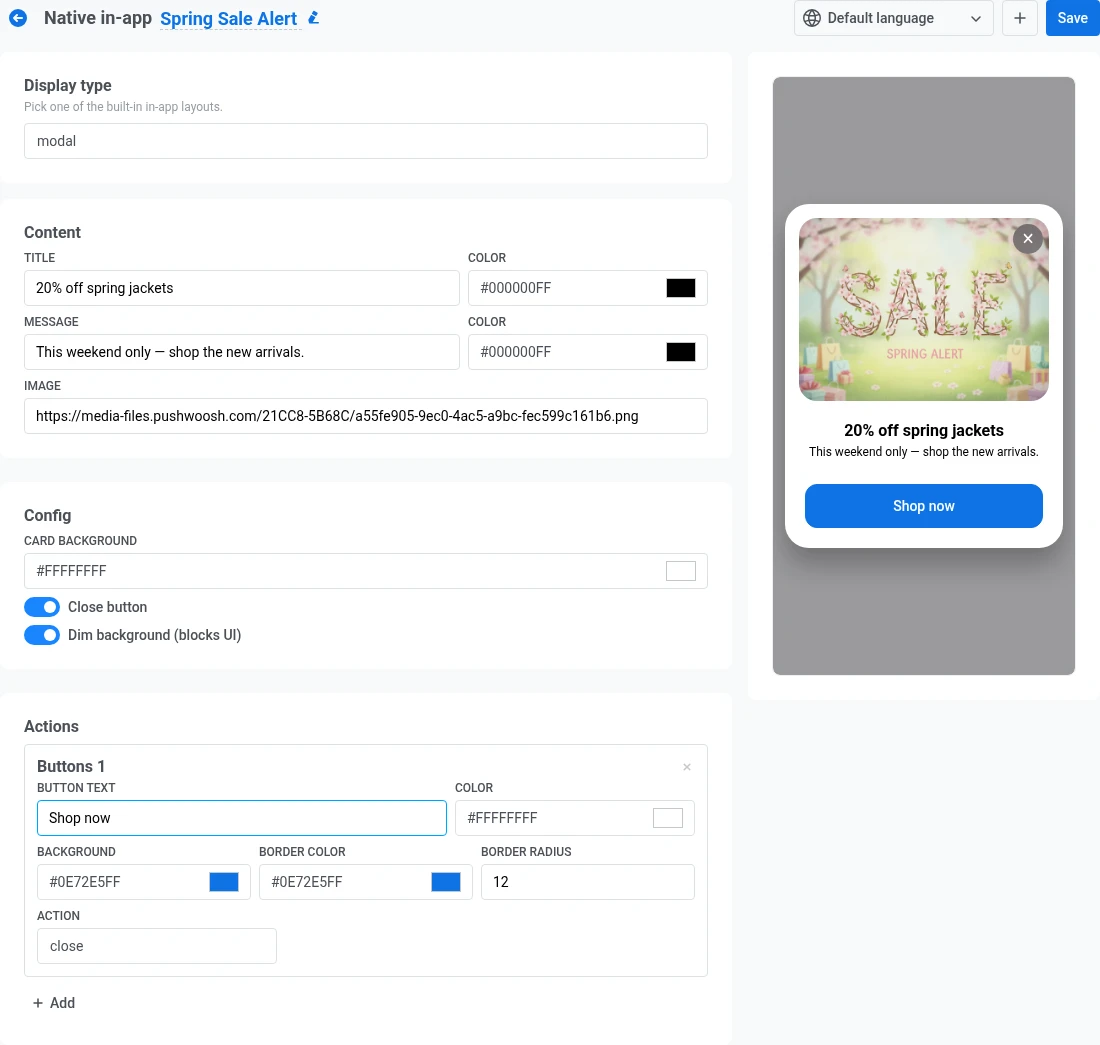
Anchor link toการ์ดที่อยู่ตรงกลาง ซึ่งสามารถแสดงบนพื้นหลังที่หรี่แสงได้
- ภายใต้ เนื้อหา เพิ่มหัวข้อและข้อความ โดยแต่ละส่วนมีสีข้อความของตัวเอง พร้อมรูปภาพเสริม ดู เพิ่มรูปภาพ
- ภายใต้ การกำหนดค่า ตั้งค่าสีพื้นหลังของการ์ด ซึ่งจะเติมพื้นที่ด้านหลังข้อความและรูปภาพของคุณ
- เปิด ปุ่มปิด หากคุณต้องการให้มีตัวควบคุม ✕ เพื่อให้ผู้ใช้สามารถปิด in-app ได้โดยไม่ต้องแตะปุ่ม
- เปิด หรี่พื้นหลัง เพื่อทำให้หน้าจอด้านหลังการ์ดมืดลงและให้ความสนใจกับข้อความของคุณ
- ภายใต้ การดำเนินการ เพิ่มปุ่มหนึ่งปุ่มหรือมากกว่า ดู กำหนดค่าปุ่ม
Fullscreen
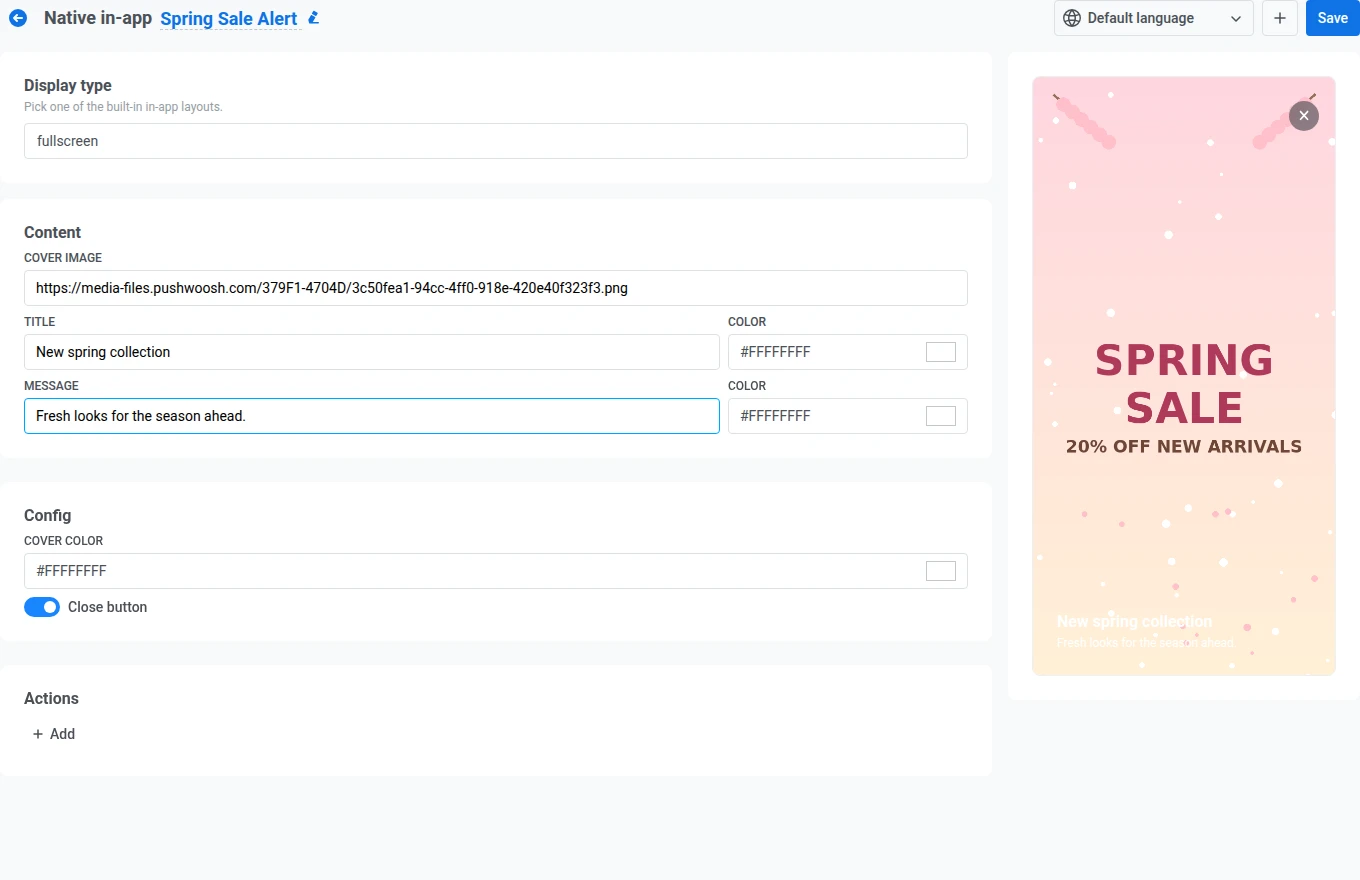
Anchor link toรูปภาพปกแบบเต็มขอบพร้อมข้อความและปุ่มอยู่ด้านบน กรอกฟิลด์เหล่านี้ในแผงด้านซ้าย:
- ภายใต้ เนื้อหา เพิ่มรูปภาพปก พร้อมหัวข้อและข้อความ โดยแต่ละส่วนมีสีข้อความของตัวเอง ดู เพิ่มรูปภาพ
- ภายใต้ การกำหนดค่า ตั้งค่าสีปก ซึ่งจะแสดงในขณะที่รูปภาพปกกำลังโหลด หรือแสดงเพียงอย่างเดียวหากคุณเว้นว่างรูปภาพไว้
- เปิด ปุ่มปิด หากคุณต้องการให้มีตัวควบคุม ✕ เพื่อให้ผู้ใช้สามารถปิด in-app ได้โดยไม่ต้องแตะปุ่ม
- ภายใต้ การดำเนินการ เพิ่มปุ่มหนึ่งปุ่มหรือมากกว่า ดู กำหนดค่าปุ่ม
Stories
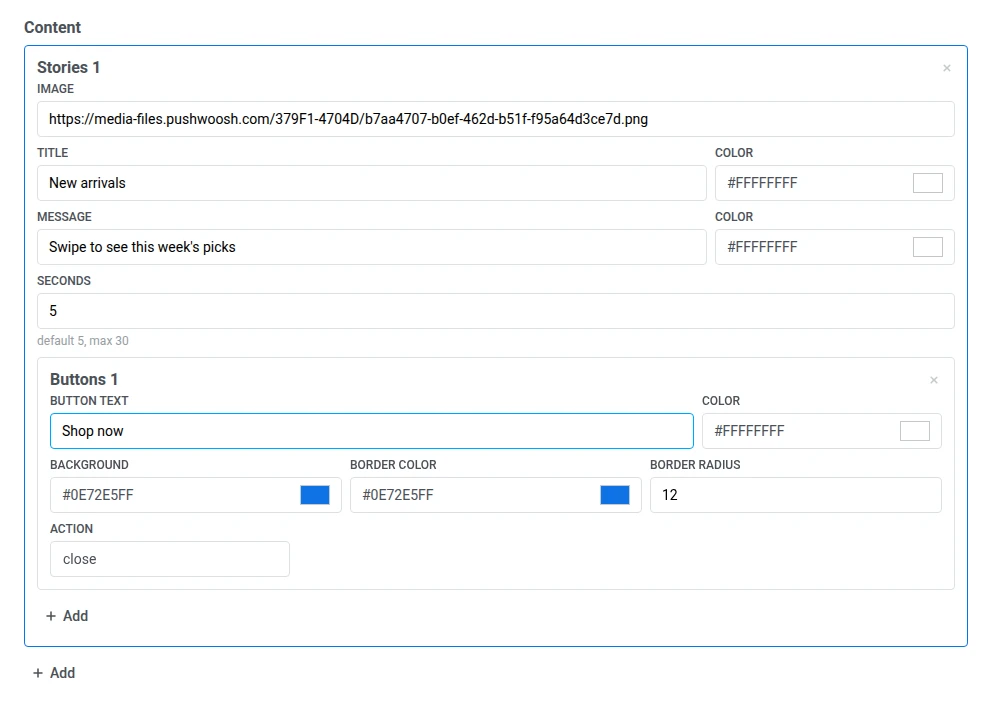
Anchor link toลำดับของสไลด์เต็มหน้าจอพร้อมแถบความคืบหน้าที่ด้านบน คล้ายกับสตอรี่ในโซเชียลมีเดีย แต่ละสไลด์เป็นรายการ Stories ของตัวเองภายใต้ เนื้อหา
- กรอก รูปภาพ, หัวข้อ และ ข้อความ ของสไลด์แรก (แต่ละส่วนมีสีข้อความของตัวเอง) ดู เพิ่มรูปภาพ
- ตั้งค่า วินาที เป็นระยะเวลาที่สไลด์จะแสดงบนหน้าจอก่อนที่จะเลื่อนไปสไลด์ถัดไป ค่าเริ่มต้นคือ 5 ป้อนค่าตั้งแต่ 1 ถึง 30 ค่าที่อยู่นอกช่วงนี้จะบล็อกการ บันทึก พร้อมข้อผิดพลาดในการตรวจสอบความถูกต้อง
- หรือคลิก เพิ่ม ภายในสไลด์เพื่อเพิ่มปุ่ม CTA ของตัวเอง ดู กำหนดค่าปุ่ม
- คลิก เพิ่ม ใต้สไลด์สุดท้ายเพื่อเพิ่มสไลด์อีกอัน จากนั้นทำซ้ำขั้นตอนที่ 1-3 สำหรับสไลด์นั้น
- ภายใต้ การกำหนดค่า เปิด วนซ้ำ หากคุณต้องการให้สตอรี่เริ่มใหม่อีกครั้งจากสไลด์แรกหลังจากสไลด์สุดท้ายจบลง
- เปิด ปุ่มปิด หากคุณต้องการให้มีตัวควบคุม ✕ เพื่อให้ผู้ใช้ออกจากสตอรี่ก่อนที่สไลด์ทั้งหมดจะเล่นจนจบ

ตัวอย่างของสตอรี่ที่เสร็จสมบูรณ์จะปรากฏต่อผู้ใช้
Anchor link toSheet
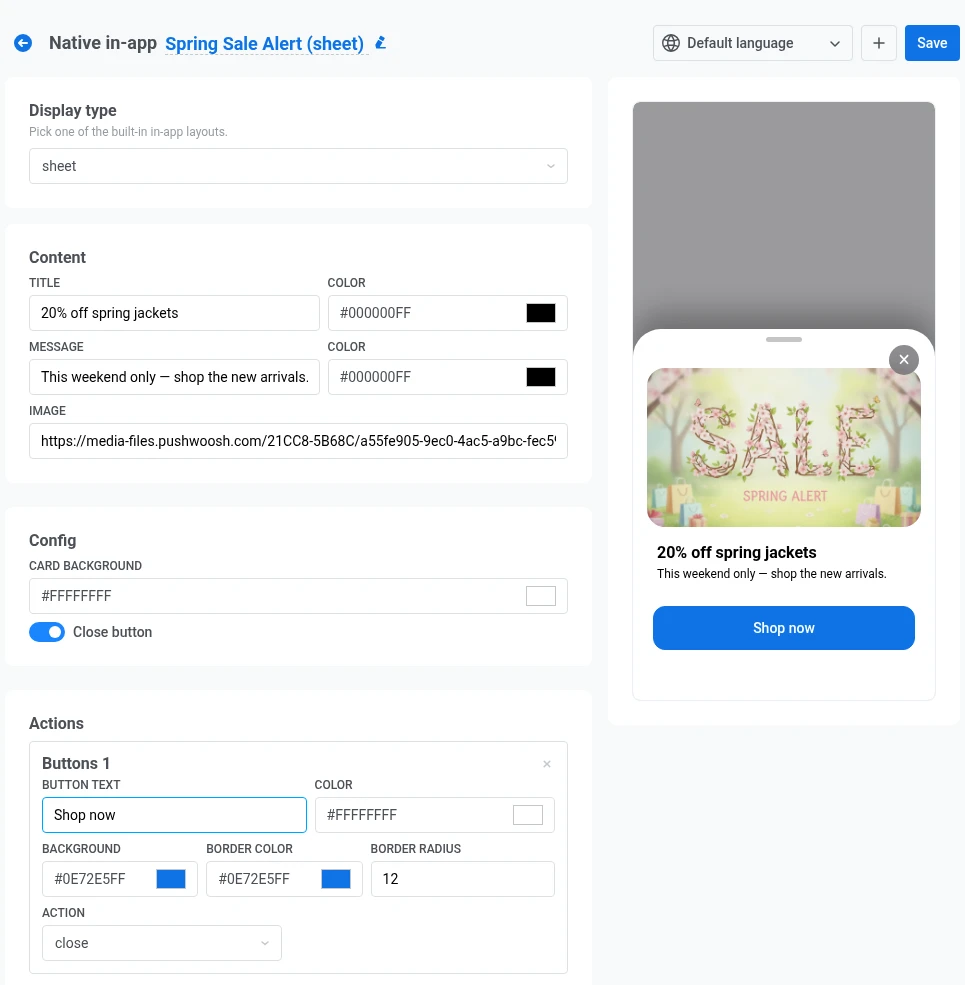
Anchor link toแผ่นด้านล่างที่เลื่อนขึ้นมาจากขอบล่างของหน้าจอ มีที่จับที่ด้านบนเพื่อให้ผู้ใช้ลากลงเพื่อปิด
กรอกฟิลด์เหล่านี้ในแผงด้านซ้าย:
- ภายใต้ เนื้อหา เพิ่มหัวข้อและข้อความ โดยแต่ละส่วนมีสีข้อความของตัวเอง พร้อมรูปภาพเสริม ดู เพิ่มรูปภาพ
- ภายใต้ การกำหนดค่า ตั้งค่าสีพื้นหลังของแผ่น ซึ่งจะเติมพื้นที่ด้านหลังข้อความและรูปภาพของคุณ
- เปิด ปุ่มปิด หากคุณต้องการให้มีตัวควบคุม ✕ เพื่อให้ผู้ใช้สามารถปิดแผ่นได้โดยไม่ต้องแตะปุ่ม
- ภายใต้ การดำเนินการ เพิ่มปุ่มหนึ่งปุ่มหรือมากกว่า ดู กำหนดค่าปุ่ม
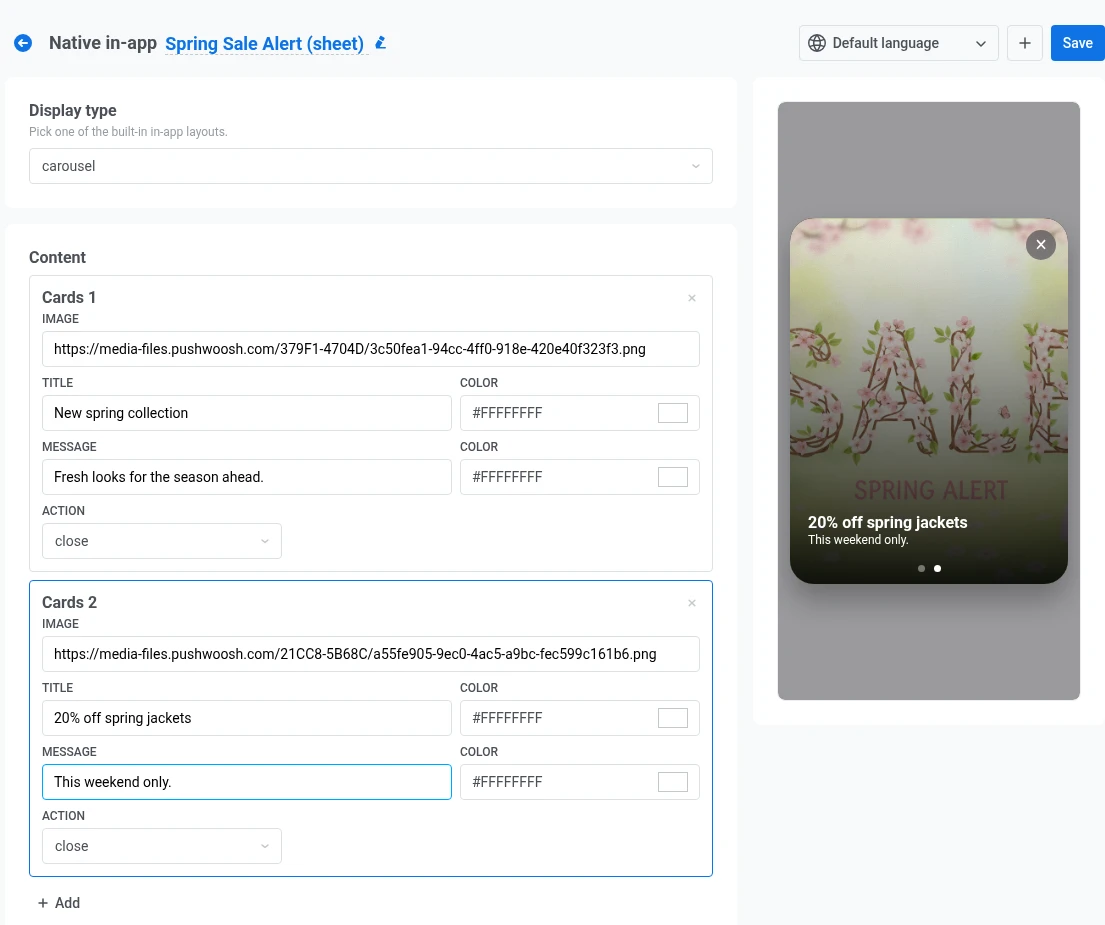
Carousel
Anchor link toข้อความเต็มหน้าจอพร้อมการ์ดหลายใบที่ผู้ใช้สามารถปัดผ่านได้ จุดที่ด้านล่างจะแสดงว่าการ์ดใดที่ใช้งานอยู่ ภายใต้ เนื้อหา แต่ละการ์ดเป็นรายการ การ์ด แยกต่างหาก
- กรอก รูปภาพ, หัวข้อ และ ข้อความ ของการ์ดแรก (แต่ละส่วนมีสีข้อความของตัวเอง) ดู เพิ่มรูปภาพ
- ตั้งค่า การดำเนินการ สำหรับการ์ด เลือก ปิด เพื่อปิด in-app เมื่อผู้ใช้แตะการ์ด หรือ url เพื่อเปิดลิงก์ (ตัวเลือกเดียวกับ กำหนดค่าปุ่ม)
- คลิก เพิ่ม ใต้การ์ดสุดท้ายเพื่อเพิ่มอีกอัน จากนั้นทำซ้ำขั้นตอนที่ 1-2 สำหรับการ์ดนั้น
- เปิด ปุ่มปิด หากคุณต้องการให้มีตัวควบคุม ✕ เพื่อให้ผู้ใช้ออกจาก carousel ได้โดยไม่ต้องแตะการ์ด
Banner
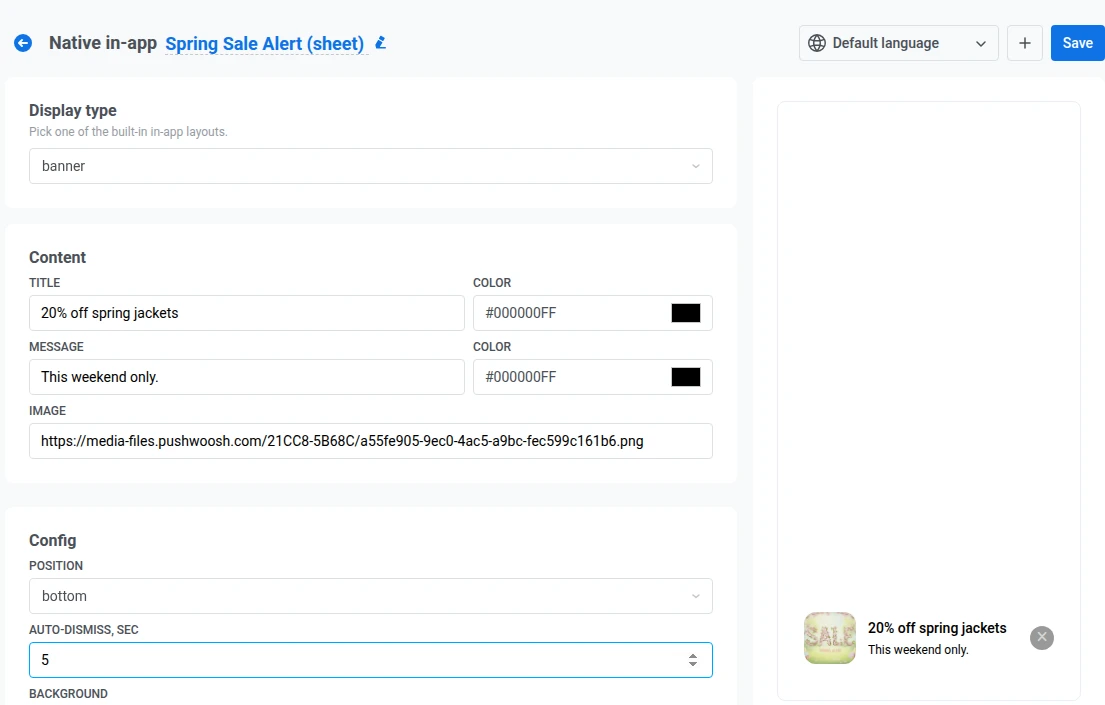
Anchor link toแถบขนาดกะทัดรัดที่ปักหมุดไว้ที่ขอบบนหรือล่างของหน้าจอ สำหรับข้อความที่ไม่ควรบล็อก UI ทั้งหมด
- ภายใต้ เนื้อหา เพิ่มหัวข้อและข้อความ โดยแต่ละส่วนมีสีข้อความของตัวเอง พร้อมรูปภาพขนาดเล็กเสริม ดู เพิ่มรูปภาพ
- ภายใต้ การกำหนดค่า ตั้งค่า ตำแหน่ง เป็น บน หรือ ล่าง เพื่อปักหมุดแบนเนอร์ที่ขอบหน้าจอที่คุณต้องการ
- ตั้งค่า ปิดอัตโนมัติ, วินาที เพื่อปิดแบนเนอร์โดยอัตโนมัติหลังจากผ่านไปหลายวินาที เว้นว่างไว้เพื่อให้แบนเนอร์อยู่จนกว่าผู้ใช้จะปิด
- ตั้งค่าสีพื้นหลังสำหรับแถบ
- เปิด ปุ่มปิด หากคุณต้องการให้มีตัวควบคุม ✕ บนแบนเนอร์
- ภายใต้ การดำเนินการ ตั้งค่า การดำเนินการ เป็น ปิด หรือ url แบนเนอร์ไม่มีปุ่มแยกต่างหาก การแตะที่ใดก็ได้บนแบนเนอร์จะเรียกใช้การดำเนินการนี้ ดู กำหนดค่าปุ่ม สำหรับพฤติกรรมของ ปิด และ url
Video
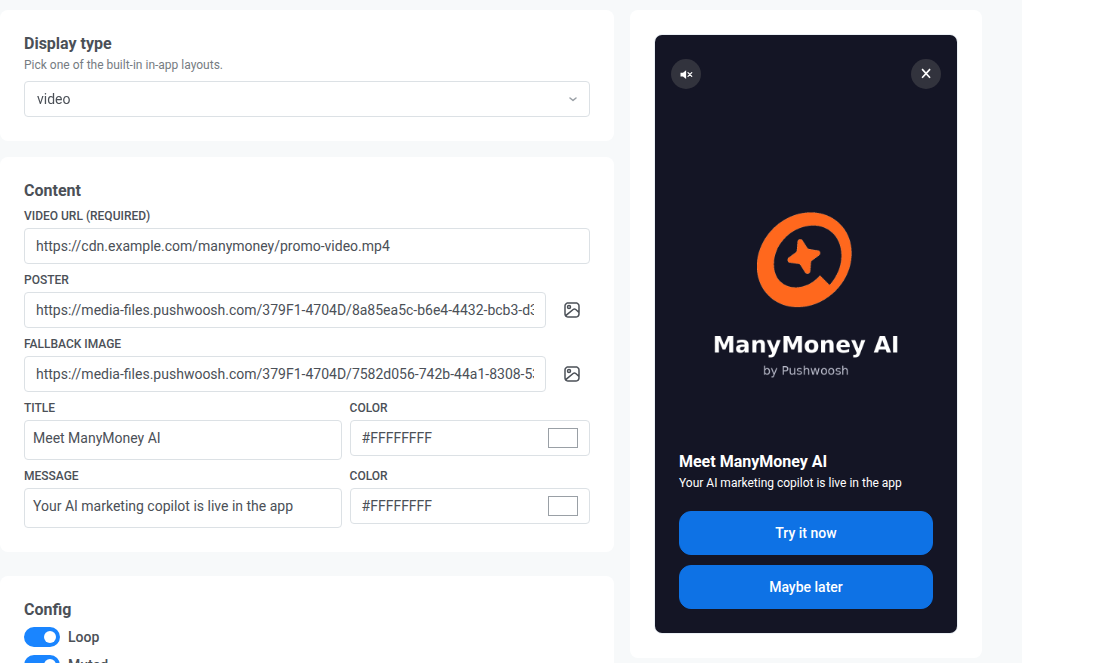
Anchor link toเครื่องเล่นเต็มหน้าจอสำหรับลิงก์สตรีมมิ่ง HLS (.m3u8) หรือไฟล์ .mp4 โดยตรง พร้อมหัวข้อ ข้อความ และปุ่มเสริมด้านบน
- ภายใต้ เนื้อหา ตั้งค่า URL วิดีโอ (จำเป็น) เป็นลิงก์ HTTPS แบบสมบูรณ์ไปยังไฟล์
.m3u8หรือ.mp4หรือเพิ่มรูปภาพ โปสเตอร์ ที่แสดงก่อนเริ่มเล่น และ รูปภาพสำรอง ที่แสดงหากไม่สามารถเล่นวิดีโอได้ - เพิ่มหัวข้อและข้อความ โดยแต่ละส่วนมีสีข้อความของตัวเอง
- ภายใต้ การกำหนดค่า เปิด วนซ้ำ เพื่อเริ่มวิดีโอใหม่หลังจากจบ
- เปิด ปิดเสียง เพื่อเริ่มเล่นโดยปิดเสียง
- เปิด ปุ่มปิด หากคุณต้องการให้มีตัวควบคุม ✕ เพื่อให้ผู้ใช้สามารถปิด in-app ได้โดยไม่ต้องรอให้วิดีโอจบ
- ภายใต้ การดำเนินการ เพิ่มปุ่มหนึ่งปุ่มหรือมากกว่า ดู กำหนดค่าปุ่ม
กำหนดค่าฟิลด์ข้อความ
Anchor link toฟิลด์ข้อความไม่รองรับข้อความหลายบรรทัด หากคุณกด Enter ตัวแก้ไขอาจแสดงการขึ้นบรรทัดใหม่ แต่ Pushwoosh จะบันทึกเป็นช่องว่างแทน บนอุปกรณ์ ข้อความจะปรากฏเป็นบรรทัดเดียว
หากต้องการเพิ่มอีโมจิ ให้คลิก อีโมจิ ถัดจากแถบเครื่องมือของฟิลด์ อีโมจิได้รับการสนับสนุนในฟิลด์ข้อความเดียวกับข้อความธรรมดา ตรวจสอบตัวอย่างสดเพื่อดูว่ามีลักษณะอย่างไรบนเลย์เอาต์
เพิ่มเนื้อหาแบบไดนามิก
Anchor link toทุกฟิลด์ข้อความรองรับการปรับเปลี่ยนในแบบของคุณด้วยแท็กและ User ID
- คลิก การปรับเปลี่ยนในแบบของคุณ ถัดจากแถบเครื่องมือของฟิลด์
- ภายใต้ แท็ก เลือกแท็กหรือ User ID
- เลือกตัวแก้ไขรูปแบบ (เช่น CapitalizeFirst หรือ regular)
- หรือป้อน ค่าแท็กเริ่มต้น
- คลิก แทรก
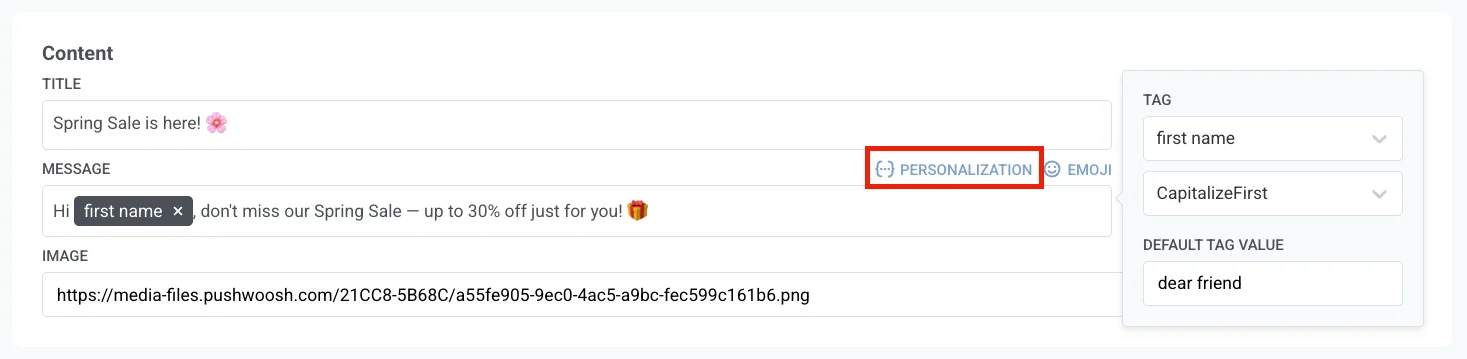
แท็กที่แทรกจะแสดงเป็นชิปในฟิลด์ คุณสามารถเปลี่ยนแท็ก ตัวแก้ไข และค่าเริ่มต้นก่อนที่จะคลิก แทรก การปรับเปลี่ยนในแบบของคุณใช้แท็ก ตัวแก้ไข และค่าเริ่มต้นเดียวกับ เนื้อหาแบบไดนามิก
เมื่อคุณคลิก บันทึก Pushwoosh จะตรวจสอบเนื้อหาแบบไดนามิกและ Liquid ในทุกฟิลด์ข้อความ หากฟิลด์ไม่สามารถแยกวิเคราะห์ได้ (เช่น แท็ก {% if %} ที่ไม่ได้ปิด) การ บันทึก จะถูกบล็อกและข้อความแจ้ง เนื้อหาแบบไดนามิกมีข้อผิดพลาด จะระบุชื่อฟิลด์และภาษาที่เสีย แก้ไขที่นั่น แล้วคลิก บันทึก อีกครั้ง
กำหนดค่าปุ่ม
Anchor link toModal, fullscreen, แต่ละสไลด์ของ stories, sheet และ video ใช้ฟิลด์ปุ่มเดียวกัน:
- ข้อความปุ่ม และสีของมัน
- พื้นหลัง, สีขอบ และ รัศมีขอบ
- การดำเนินการ: เลือกสิ่งที่จะเกิดขึ้นเมื่อผู้ใช้แตะปุ่ม:
- ปิด: ปิด in-app
- url: เปิดลิงก์ที่คุณป้อนในฟิลด์ที่ปรากฏขึ้น ใช้ที่อยู่เว็บ (เช่น
https://example.com) หรือ deep link ไปยังแอปของคุณ (เช่นmyapp://product/123)
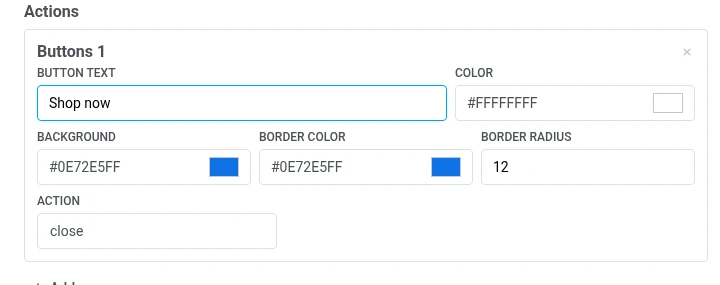
คลิก เพิ่ม เพื่อเพิ่มปุ่มอีกอัน หรือ × บนปุ่มเพื่อลบออก
เพิ่มรูปภาพ
Anchor link toทุกฟิลด์รูปภาพ (รูปภาพ, รูปภาพปก, และรูปภาพของการ์ดหรือสไลด์แต่ละอัน) ทำงานในลักษณะเดียวกัน วาง URL รูปภาพที่โฮสต์ไว้โดยตรงลงในฟิลด์ หรือคลิก เลือกจากที่เก็บสื่อ ถัดจากนั้นเพื่อเปิด ที่เก็บสื่อ และเลือกรูปภาพที่คุณอัปโหลดแล้ว การเลือกรูปภาพจากที่เก็บสื่อจะแทนที่ URL ใดๆ ที่มีอยู่ในฟิลด์ปัจจุบัน
เพิ่มบาร์โค้ด
Anchor link toถัดจาก เลือกจากที่เก็บสื่อ คลิก สร้างบาร์โค้ด เพื่อเปิดลิ้นชักที่สร้าง Code 128, EAN-13, EAN-8, UPC-A หรือ QR code ที่สแกนได้ และเขียน URL ที่ได้ลงในฟิลด์:
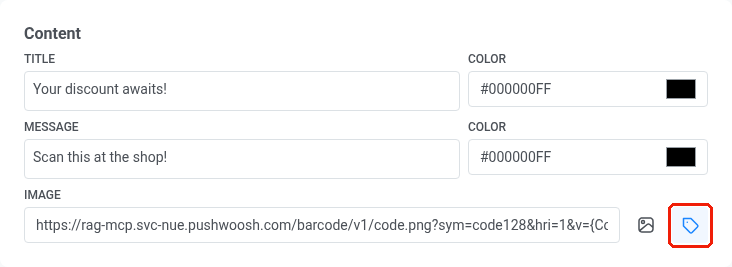
- โค้ด ค่าที่จะเข้ารหัส: อาจเป็นโค้ดคงที่ เช่น
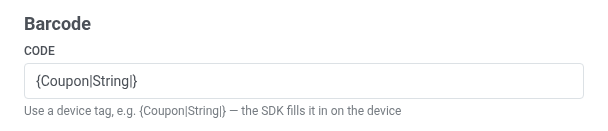
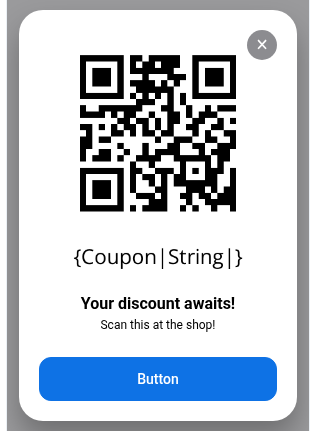
SAVE20หรือแท็กอุปกรณ์ เช่น{Coupon|String|}หรือ{LoyaltyCardNumber|String|}เพื่อให้ผู้รับแต่ละคนเห็นโค้ดของตนเอง แท็กอุปกรณ์จะถูกเติมด้วยค่าจริงของผู้รับบนอุปกรณ์ของพวกเขาก่อนที่ in-app จะปรากฏขึ้น ค่าเริ่มต้นคือ{Coupon|String|}
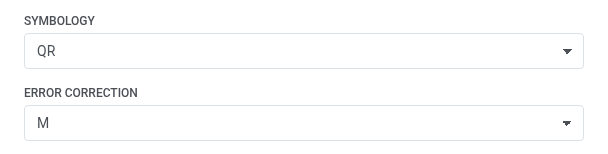
- สัญลักษณ์ เลือกรูปแบบบาร์โค้ด: Code 128, EAN-13, EAN-8 และ UPC-A เป็นบาร์โค้ดค้าปลีกมาตรฐานที่อ่านโดยเครื่องสแกนมือถือ และ QR เป็นโค้ดสี่เหลี่ยมที่กล้องโทรศัพท์ใดๆ ก็สามารถสแกนได้
- การแก้ไขข้อผิดพลาด ปรากฏขึ้นหลังจากที่คุณตั้งค่าสัญลักษณ์เป็น QR เท่านั้น QR code ในโลกแห่งความเป็นจริงอาจมีรอยขีดข่วน เบลอ หรือถูกโลโก้บังบางส่วน และการแก้ไขข้อผิดพลาดเป็นข้อมูลเพิ่มเติมที่อบเข้าไปในโค้ดเพื่อให้ยังคงสแกนได้แม้จะมีความเสียหายนั้น เลือกระดับความทนทานต่อความเสียหาย:
L,M,QหรือHจากน้อยไปหามากที่สุด ระดับที่สูงขึ้นจะทนทานต่อความเสียหายได้มากขึ้น แต่จะสร้างโค้ดที่หนาแน่นและดูยุ่งเหยิงมากขึ้น ค่าเริ่มต้นคือM
- พิมพ์โค้ดเป็นตัวเลข แสดงค่าใต้โค้ด
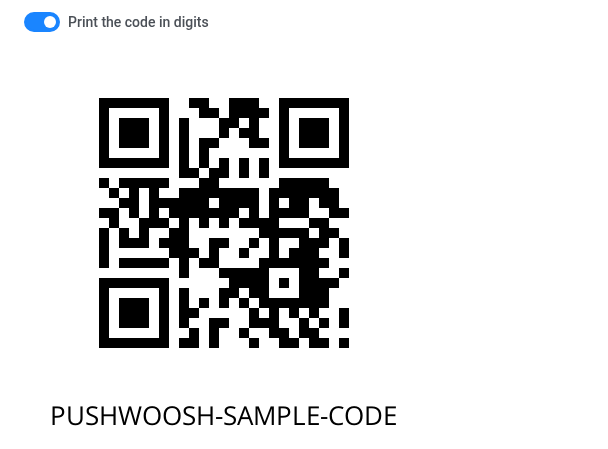
เมื่อ โค้ด เป็นแท็กอุปกรณ์ ตัวอย่างจะแทนที่ด้วยค่าตัวอย่าง เนื่องจากไม่สามารถแก้ไขแท็กของผู้รับจริงได้ โค้ดคงที่ เช่น SAVE20 จะแสดงตัวอย่างตรงตามที่ป้อน
คลิก แทรกลงในฟิลด์รูปภาพ เพื่อคัดลอก URL ที่สร้างขึ้นลงในฟิลด์ รูปภาพ ด้านบน
เพิ่มการแปลภาษา
Anchor link toโดยค่าเริ่มต้น in-app แบบเนทีฟจะมีหนึ่งภาษา หากต้องการเพิ่ม:
- คลิก + ถัดจากตัวเลือกภาษาในแถบด้านบน
- เลือกภาษาที่จะเพิ่มและคลิก ใช้
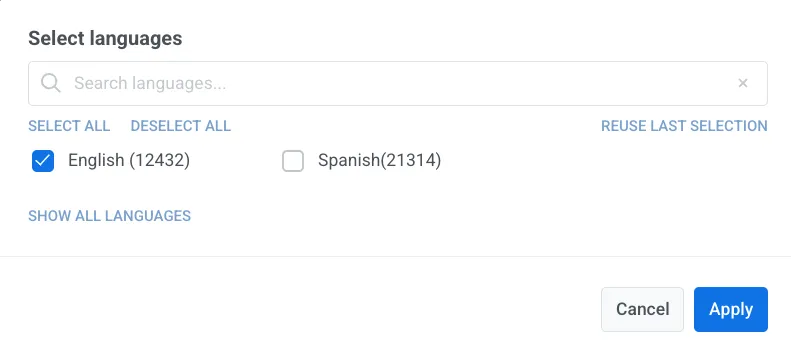
- ใช้ตัวเลือกภาษาในแถบด้านบนเพื่อสลับระหว่างภาษาและกรอกฟิลด์ข้อความสำหรับแต่ละภาษา
บันทึกเทมเพลต
Anchor link toคลิก บันทึก ที่มุมบนขวาเพื่อบันทึกการเปลี่ยนแปลงของคุณ
จากนั้นเทมเพลตจะปรากฏใน เนื้อหา → In-apps ควบคู่ไปกับเทมเพลต in-app อื่นๆ ของคุณ
ใช้ในแคมเปญ
Anchor link toเทมเพลต in-app แบบเนทีฟจะปรากฏในตัวเลือกเทมเพลตพร้อมกับเทมเพลต in-app อื่นๆ ของคุณ
คุณสามารถใช้เพื่อ:
- ส่ง in-app ทันที
- เพิ่มขั้นตอน in-app ไปยัง Customer Journey
- เปิด in-app เมื่อผู้ใช้แตะ push