ส่งข้อความ Facebook Messenger
ในการส่งข้อความ Facebook Messenger แบบครั้งเดียวใน Pushwoosh:
- ไปที่ Campaigns
- เปิด One-time messages
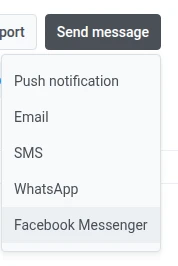
- คลิก Send message → Facebook Messenger
สร้างข้อความของคุณ
Anchor link toในขั้นตอน Content ให้ตั้งค่าประเภทข้อความ, ป้อนข้อความ, และเลือกแท็กข้อความหากคุณต้องการ
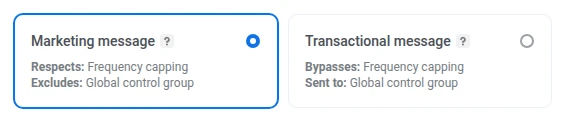
เลือกประเภทข้อความ
Anchor link toเลือกวิธีการจัดการข้อความนี้สำหรับกฎการสมัครสมาชิกและการส่ง:
- Marketing message: เคารพ frequency capping. ไม่ส่งไปยังผู้ใช้ control group
- Transactional message: ส่งไปยังผู้ใช้ทุกคนโดยไม่คำนึงถึงสถานะการสมัครสมาชิก. ข้าม frequency capping. ส่งไปยังผู้ใช้ control group
ประเภทข้อความไม่ได้มาแทนที่กฎ 24-hour window หรือ message-tag ของ Meta เรียนรู้ว่าประเภทข้อความส่งผลต่อการส่งอย่างไร
ป้อนข้อความ
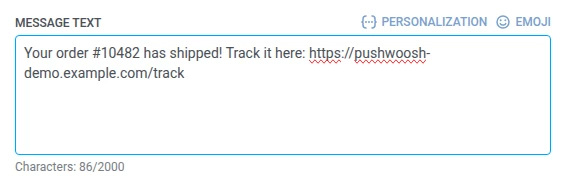
Anchor link toป้อนข้อความของคุณในช่อง Message text
ใช้แท็กข้อความนอก 24-hour window
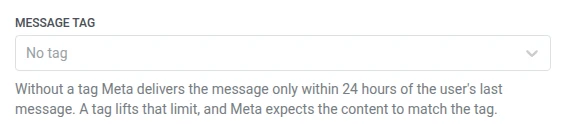
Anchor link toMeta จะส่งเนื้อหาแบบ free-form ภายใน 24-hour window ที่เปิดขึ้นโดยข้อความขาเข้าจากผู้ใช้เท่านั้น. ให้ตั้งค่า Message tag เป็น No tag เมื่อคุณส่งภายในช่วงเวลานั้น
นอกช่วงเวลานั้น ให้เลือก Message tag ที่ตรงกับกรณีการใช้งานที่ Meta อนุมัติ มิฉะนั้นการส่งจะล้มเหลว:
- CONFIRMED_EVENT_UPDATE: การแจ้งเตือนหรืออัปเดตเกี่ยวกับกิจกรรมที่ผู้รับมีกำหนดจะเข้าร่วม
- POST_PURCHASE_UPDATE: การอัปเดตที่เกี่ยวข้องกับการซื้อที่ผู้รับได้ทำไปแล้ว
- ACCOUNT_UPDATE: การอัปเดตที่ไม่เกิดขึ้นซ้ำเกี่ยวกับการเปลี่ยนแปลงบัญชีของผู้รับ
- HUMAN_AGENT: ข้อความจากเจ้าหน้าที่ที่เป็นมนุษย์ตอบกลับผู้รับ
เลือกแท็กที่ตรงกับเหตุผลที่แท้จริงของข้อความ เรียนรู้เพิ่มเติมเกี่ยวกับแท็กข้อความและ closed windows
เลือกกลุ่มเป้าหมายสำหรับแคมเปญ Facebook Messenger ของคุณ
Anchor link toในขั้นตอน Audience ให้กำหนดว่าใครจะได้รับข้อความของคุณ
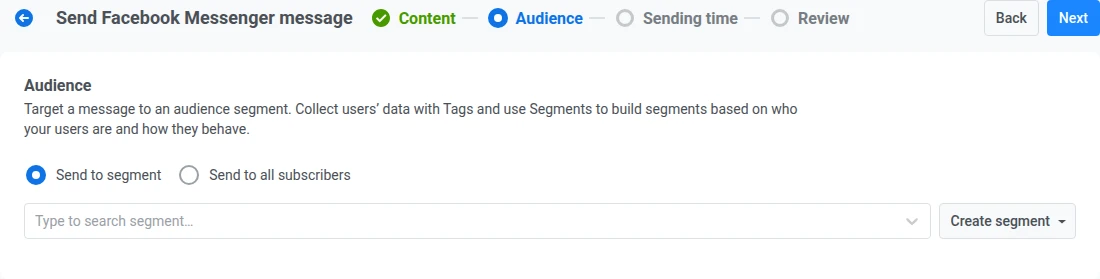
ส่งไปยัง segment
Anchor link toกำหนดเป้าหมายไปยัง segment ที่กำหนดไว้ล่วงหน้าของกลุ่มเป้าหมายของคุณตามแท็ก, event, หรือพฤติกรรม. เลือก segment จากดรอปดาวน์ หรือคลิก Create segment เพื่อ สร้าง หรือ นำเข้า segment
ส่งไปยังผู้สมัครสมาชิกทั้งหมด
Anchor link toกำหนดเป้าหมายไปยังกลุ่มเป้าหมายทั้งหมดที่สามารถเข้าถึงได้ผ่าน Facebook Messenger
เมื่อคุณตั้งค่ากลุ่มเป้าหมายแล้ว ให้คลิก Next เพื่อไปยังขั้นตอน Sending time
ตั้งเวลาส่งข้อความ Facebook Messenger
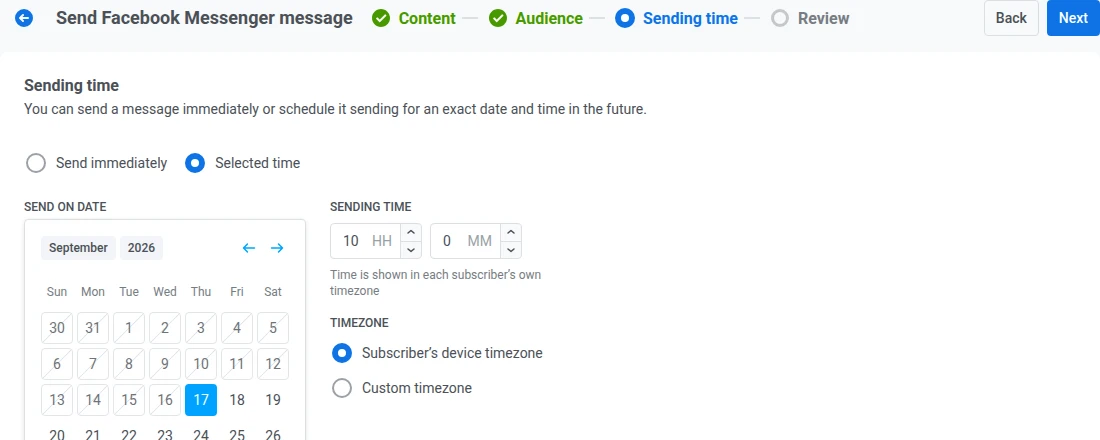
Anchor link toในขั้นตอน Sending time ให้เลือกเวลาที่จะส่งข้อความ Facebook Messenger ของคุณ
ส่งทันที
Anchor link toส่งข้อความทันทีที่การตั้งค่าแคมเปญเสร็จสมบูรณ์. เหมาะสำหรับข้อความด่วนหรือที่ต้องคำนึงถึงเวลา
เวลาที่เลือก
Anchor link toตั้งเวลาส่งข้อความของคุณสำหรับวันที่และเวลาที่ระบุ
- ตั้งค่าวันที่และเวลา: ใช้ปฏิทินเพื่อเลือกวันที่ จากนั้นระบุเวลาเป็นชั่วโมงและนาที (รูปแบบ 24 ชั่วโมง)
- เลือกเขตเวลา:
- Subscriber’s device timezone: ข้อความจะถูกส่งตามเวลาท้องถิ่นที่ระบุสำหรับผู้รับแต่ละคน
- Custom timezone: ข้อความจะถูกส่งในเวลาเดียวกันสำหรับผู้รับทุกคน เหมาะสำหรับการกำหนดเป้าหมายไปยังภูมิภาคใดภูมิภาคหนึ่ง
ตั้งค่า frequency capping
Anchor link toใช้ Frequency capping เพื่อจำกัดความถี่ที่ผู้ใช้จะได้รับข้อความ Facebook Messenger เพื่อป้องกันการส่งข้อความมากเกินไป. เลือกหนึ่งในตัวเลือกต่อไปนี้:
-
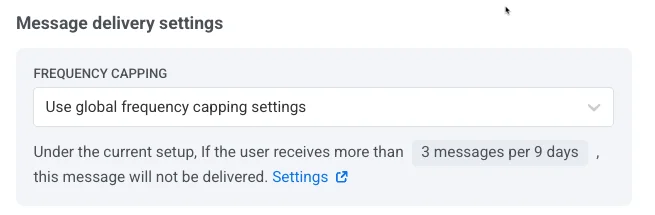
ใช้การตั้งค่า global frequency capping
ใช้ขีดจำกัดทั่วทั้งโปรเจกต์ที่กำหนดค่าไว้ใน การตั้งค่า Global frequency capping ของคุณ. ตัวอย่างเช่น หากขีดจำกัดทั่วโลกคือ 3 ข้อความใน 9 วัน ข้อความเพิ่มเติมที่เกินขีดจำกัดนี้จะถูกข้ามไป
-
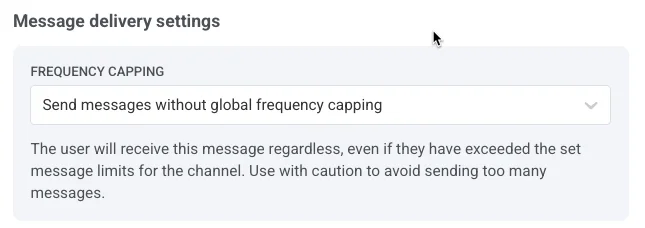
ส่งข้อความโดยไม่ใช้ global frequency capping
ผู้ใช้จะได้รับข้อความนี้แม้ว่าพวกเขาจะเกินขีดจำกัดข้อความของช่องทางแล้วก็ตาม. โปรดใช้ด้วยความระมัดระวังเพื่อหลีกเลี่ยงการส่งข้อความมากเกินไป
-
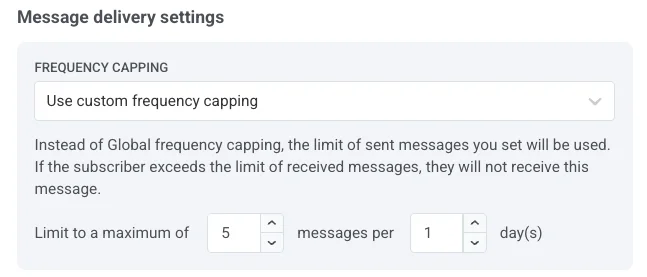
ใช้ frequency capping แบบกำหนดเอง
ตั้งค่าขีดจำกัดข้อความที่กำหนดเองสำหรับข้อความนี้. หากผู้ใช้เกินขีดจำกัดที่กำหนดเองนี้ ข้อความจะถูกข้ามไป ใน Counting mode ให้เลือกวิธีนับข้อความที่ส่งแล้ว:
- Rolling window: นับข้อความที่ส่งภายใน N×24 ชั่วโมงล่าสุดก่อนการส่งแต่ละครั้ง โดย N คือจำนวนวันในขีดจำกัด ตัวอย่างเช่น ด้วยขีดจำกัด 3 ข้อความต่อ 2 วัน ข้อความที่ส่งในวันจันทร์เวลา 9.00 น. จะหยุดนับในวันพุธเวลา 9.00 น.
- Calendar day: นับข้อความที่ส่งในวันนี้และใน N-1 วันตามปฏิทินก่อนหน้า โดยเริ่มตั้งแต่เที่ยงคืน ด้วยขีดจำกัด 3 ข้อความต่อ 2 วันเหมือนเดิม ในวันพุธทุกข้อความที่ส่งตั้งแต่เที่ยงคืนวันอังคารจะถูกนับ ทันทีหลังเที่ยงคืน หน้าต่างจะเลื่อนไปเป็นวันพุธและวันพฤหัสบดี เลือก Capping timezone เพื่อกำหนดว่าเที่ยงคืนจะเกิดขึ้นเมื่อใด หากคุณไม่เลือก วันตามปฏิทินจะนับตาม UTC
ตั้งค่าขีดจำกัดอัตราการส่ง
Anchor link toการตั้งค่า Send rate ควบคุมความเร็วในการส่งข้อความ. ใช้เมื่อคุณต้องการการส่งที่สม่ำเสมอแทนที่จะส่งไปยังกลุ่มเป้าหมายทั้งหมดให้เร็วที่สุดเท่าที่จะทำได้
เลือกหนึ่งในตัวเลือกต่อไปนี้:
-
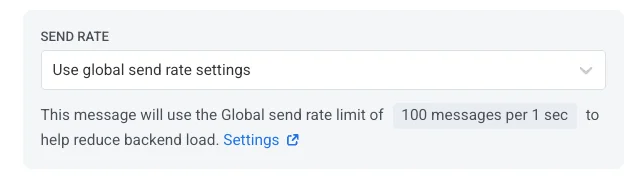
ใช้การตั้งค่าอัตราการส่งทั่วโลก
ใช้ขีดจำกัดอัตราการส่งที่กำหนดค่าไว้ในการตั้งค่าการส่งข้อความของโปรเจกต์ของคุณ. หากไม่ได้ตั้งค่าขีดจำกัดไว้ ข้อความทั้งหมดจะถูกส่งทันที เรียนรู้เพิ่มเติมเกี่ยวกับขีดจำกัดอัตราการส่งทั่วโลก
-
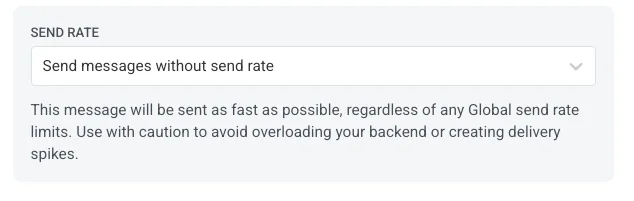
ส่งข้อความโดยไม่ใช้อัตราการส่งทั่วโลก
ส่งข้อความให้เร็วที่สุดเท่าที่จะทำได้ โดยไม่สนใจขีดจำกัดอัตราการส่งทั่วโลก. โปรดใช้ด้วยความระมัดระวังเพื่อหลีกเลี่ยงการพุ่งสูงขึ้นของการส่ง
-
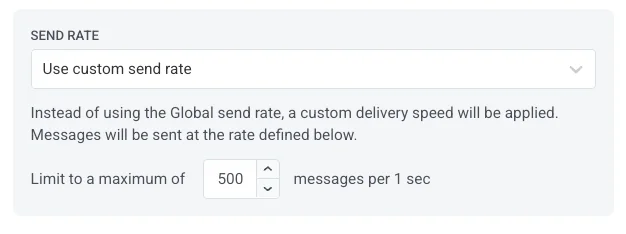
ใช้อัตราการส่งแบบกำหนดเอง
แทนที่อัตราการส่งทั่วโลกสำหรับข้อความนี้เท่านั้น. ระบุจำนวนข้อความที่ส่งต่อนาทีเพื่อควบคุมความเร็วในการส่งได้อย่างเต็มที่
ตรวจสอบและส่ง
Anchor link toใน Review ให้ตรวจสอบการแสดงตัวอย่างและสรุปสำหรับเนื้อหา, กลุ่มเป้าหมาย, และตารางเวลา. อัปเดตสิ่งที่ยังต้องเปลี่ยนแปลงก่อนที่คุณจะส่ง
หากคุณตั้งเวลาส่งโดยไม่มีแท็กข้อความ แคมเปญจะเข้าถึงเฉพาะผู้ใช้ที่เขียนถึงเพจภายใน 24 ชั่วโมงก่อนที่จะเริ่มทำงาน
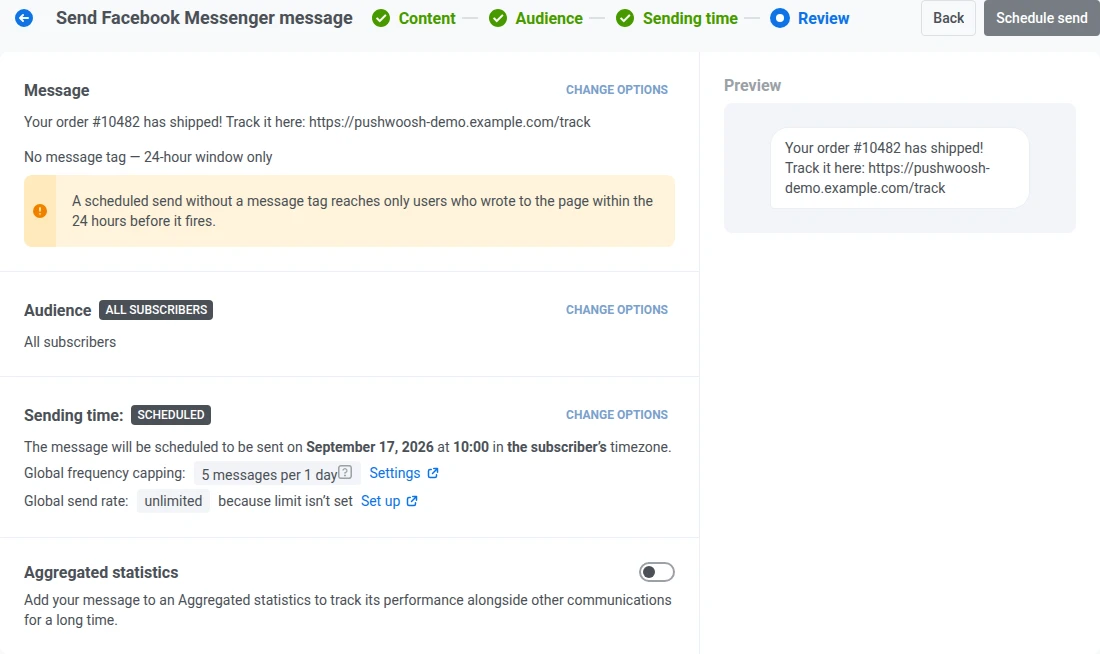
คลิก Schedule send หรือ Send now เพื่อเปิดไดอะล็อก Send this message? ที่มีฟิลด์ Campaign name: ป้ายกำกับข้อความอิสระสำหรับข้อความนี้
Campaign name จะถูกกรอกล่วงหน้าด้วยข้อความที่คุณป้อนใน Message text (ข้อความหลายบรรทัดจะกรอกล่วงหน้าเป็นบรรทัดเดียว) ล้างค่านี้แล้ว ประวัติข้อความ จะกลับไปใช้ค่าเริ่มต้นเดียวกันเหมือนก่อนที่ฟิลด์นี้จะมีอยู่ จำกัดไว้ที่ 255 ตัวอักษรหรือน้อยกว่า การพิมพ์เกินขีดจำกัดจะตัดข้อความทิ้งโดยไม่มีคำเตือน
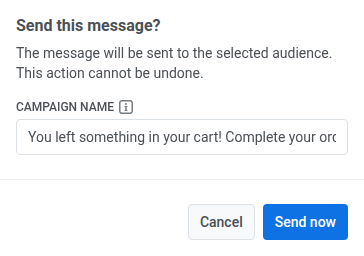
เมื่อตั้งค่าแล้ว ชื่อแคมเปญจะกลายเป็นชื่อตัวหนาของข้อความนี้ใน ประวัติข้อความ และในไฟล์ CSV ที่ส่งออก ยืนยันอีกครั้งในไดอะล็อกเพื่อเสร็จสิ้น ขึ้นอยู่กับตัวเลือกการตั้งเวลาที่คุณเลือก
จัดการข้อความที่ตั้งเวลาไว้
Anchor link toสำหรับข้อความ Facebook Messenger ที่ตั้งเวลาไว้และยังไม่ได้ส่ง (สถานะ PENDING) คุณสามารถเปลี่ยนแปลงหรือยกเลิกได้. เปิดรายการข้อความใน Campaigns → One-time messages จากนั้นเปิดเมนูการดำเนินการ (⋮) สำหรับข้อความ:
- Edit message: เปิดฟอร์ม Facebook Messenger พร้อมข้อมูลข้อความที่โหลดไว้. คุณสามารถอัปเดตเนื้อหา, แท็กข้อความ, กลุ่มเป้าหมาย, ตารางเวลา, และการตั้งค่าการส่งได้ ใน Review ปุ่มจะมีป้ายกำกับ Apply changes แทนที่จะเป็น Schedule send หรือ Send now คลิกที่ปุ่มนั้น จากนั้นยืนยันอีกครั้งในไดอะล็อก Send this message? เพื่อบันทึกการเปลี่ยนแปลงของคุณ รวมถึงการแก้ไขชื่อแคมเปญใดๆ
- Rename: เปิดไดอะล็อกขนาดเล็กเพื่อตั้งค่าหรือเปลี่ยนชื่อแคมเปญ โดยไม่ต้องเปิดฟอร์มแก้ไขแบบเต็มอีกครั้ง จำกัดที่ 255 ตัวอักษรเช่นเดียวกับฟิลด์ Campaign name ที่คุณตั้งค่าตอนส่ง ล้างฟิลด์แล้วบันทึกเพื่อลบชื่อออก แถวจะกลับไปใช้ชื่อเรื่องเริ่มต้นก่อนหน้า
- Delete message: ยกเลิกการส่งที่ตั้งเวลาไว้และเปลี่ยนสถานะเป็น Canceled