Estadísticas de App Inbox
Las estadísticas de App Inbox muestran cuántas personas realmente recibieron el mensaje, cuántas lo abrieron y cuántas lo tocaron, además de dónde pierde al resto en el camino.
Abrir las estadísticas de App Inbox
Anchor link to- Haga doble clic en el elemento App Inbox en el lienzo de un journey.
- Revise las métricas del panel para este elemento. Consulte Métricas en el lienzo más abajo.
- Haga clic en Detail statistics para abrir la página completa Message stats, con las pestañas Overview, Timeline y Errors.
Métricas en el lienzo
Anchor link toHaga doble clic en el elemento App Inbox en el lienzo de un journey para abrir este panel. Cuenta personas, no mensajes, y le da una lectura rápida de la entrega y el engagement antes de que abra las Estadísticas detalladas más abajo.
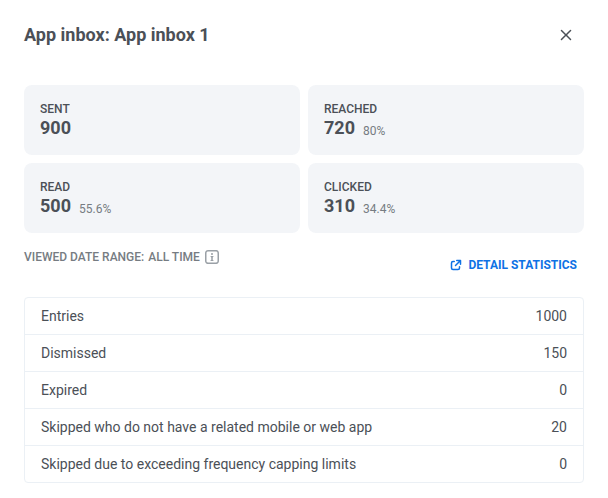
| Métrica | Qué significa |
|---|---|
| Entries | Todos a quienes este elemento intentó llegar. |
| Sent | Personas que recibieron el mensaje en su inbox. |
| Reached | Personas que tienen el mensaje en su inbox. Aparece cuando abren la app, aunque todavía no lo hayan mirado. |
| Read | Personas que abrieron y miraron el mensaje. |
| Clicked | Personas que tocaron el mensaje. |
| Dismissed | Personas que eliminaron el mensaje, lo hayan leído antes o no. |
| Expired | Personas cuyo mensaje desapareció antes de que lo leyeran. Un número alto significa que la gente necesita más tiempo. Pruebe una expiración más larga. |
| Skipped (no app) | Personas sin ninguna app móvil o web configurada para mostrar un inbox, así que el mensaje no tenía adónde ir. |
| Frequency capping skipped | Personas que ya habían alcanzado su límite de App Inbox, por lo que este mensaje no se entregó. |
Estadísticas detalladas
Anchor link toUse Message stats para revisar cómo se desempeñó este elemento de App Inbox, desde la audiencia hasta los clics.
Pestaña Overview
Anchor link toUse la pestaña Overview para revisar la entrega y el engagement de este elemento.
Campaign performance
Anchor link toEstas tarjetas resumen cómo se desempeñó este elemento de App Inbox.
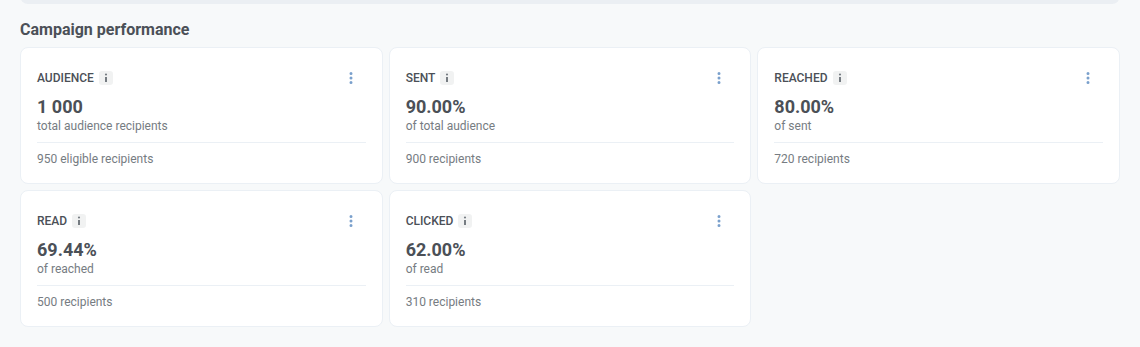
| Tarjeta | Qué muestra | Fórmula |
|---|---|---|
| Audience | Total de usuarios de audiencia para este elemento, y cuántos siguieron siendo elegibles tras las exclusiones (frequency capping o un grupo de control). | Usuarios elegibles + usuarios excluidos |
| Sent | Proporción de la audiencia total que recibió el mensaje en su inbox. | Colocados en inboxes ÷ audiencia total |
| Reached | Proporción de los enviados cuya app captó el mensaje al menos una vez. Está en su dispositivo, pero puede que aún no lo hayan mirado. | Reached ÷ sent |
| Read | Proporción de los alcanzados que abrieron el mensaje, lo hayan eliminado después o no. | Read ÷ reached |
| Clicked | Proporción de los leídos que tocaron el mensaje. Los toques repetidos cuentan una vez. | Clicked ÷ read |
Campaigns distribution
Anchor link toCampaigns distribution muestra cómo se mueven los usuarios por el embudo. Cambie entre Funnel view y Table view con el menú desplegable en el encabezado del bloque.
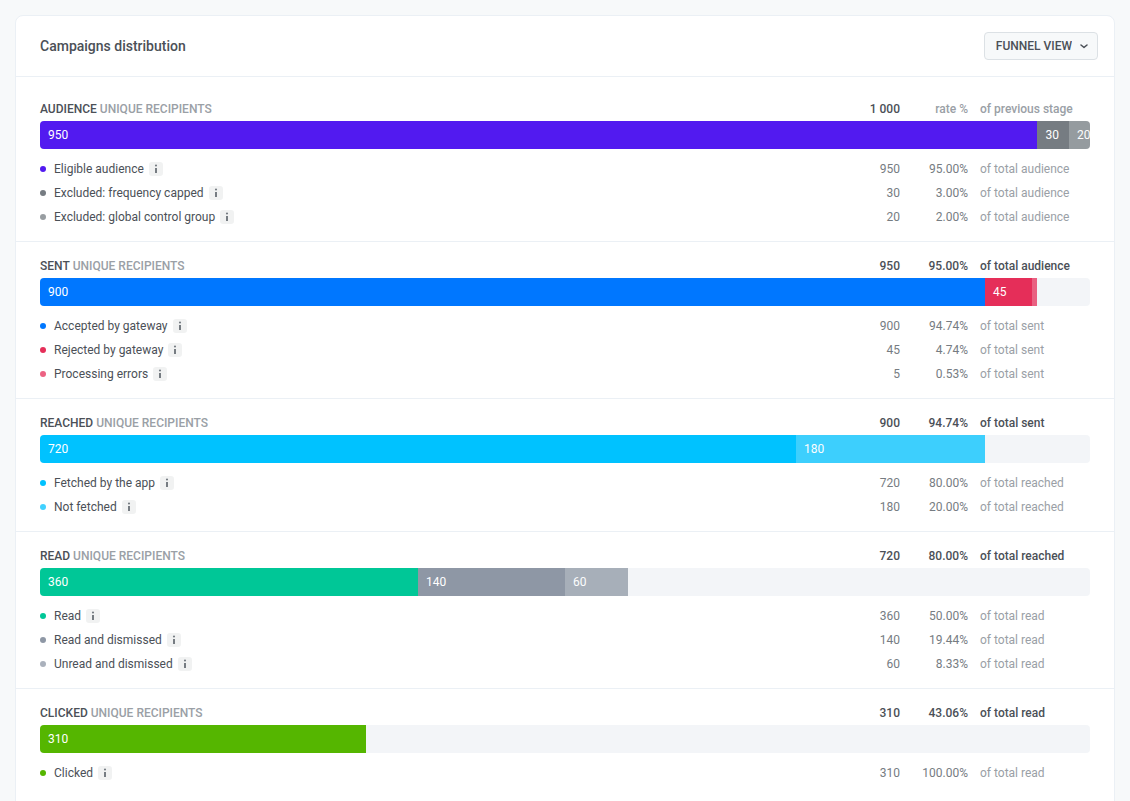
Cada fila muestra cuántas personas llegaron a esa etapa, y por qué algunas no avanzaron a la siguiente:
| Etapa | Qué significa |
|---|---|
| Audience | Todos los que este elemento tenía como objetivo. Algunos se excluyen antes de que se envíe nada: ya alcanzaron su límite de frequency capping, o están en un grupo de control global. |
| Sent | Casi todos los elegibles reciben el mensaje en su inbox. Unos pocos no, normalmente por un dispositivo o token defectuoso, o un error de entrega. Revise la pestaña Errors para conocer el motivo. |
| Reached | La mayoría de los mensajes enviados se captan en el momento en que el usuario abre la app. El resto simplemente está esperando: su app aún no ha recuperado el mensaje, lo cual no es un fallo de entrega. |
| Read | La mayoría de los mensajes alcanzados se abren. Algunas personas eliminan un mensaje sin leerlo, y otras lo leen y luego lo eliminan. En cualquier caso, una vez eliminado no cuenta como no leído. |
| Clicked | Algunas personas que leyeron el mensaje pasan a tocarlo. Los toques repetidos cuentan una vez, igual que Read cuenta las aperturas repetidas una vez. |
Pestaña Timeline
Anchor link toUse la pestaña Timeline para revisar los eventos personalizados que siguieron a este mensaje. App Inbox no tiene gráfico de entrega, por lo que en su lugar la pestaña muestra No delivery chart for App Inbox y, debajo, la tabla Events. Establezca el período en la parte superior de la pestaña para elegir qué eventos cuenta la tabla.
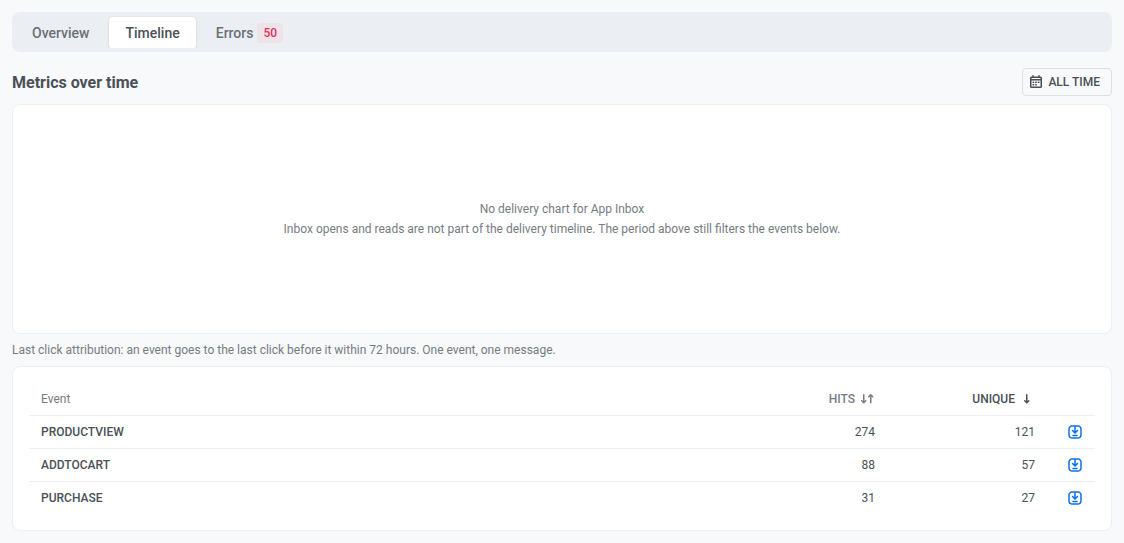
Eventos personalizados después de abrir este mensaje
Anchor link toLa tabla Events muestra los eventos personalizados que su aplicación envió después de que los usuarios abrieran este mensaje en el inbox. Solo se completa si su aplicación envía eventos a Pushwoosh.
Cada evento se asigna al mensaje en el que el usuario hizo clic por última vez en las 72 horas anteriores al evento:
- Qué cuenta como clic: Abrir el mensaje.
- Clics en otros mensajes: Cuentan los clics en todos los mensajes de la misma aplicación, por lo que un evento que sigue a un clic en un mensaje posterior se asigna a ese mensaje posterior, no a este.
- Límites: Cada evento se asigna a un solo mensaje.
| Columna | Qué muestra |
|---|---|
| Evento | El nombre del evento. |
| Aciertos | Cuántos eventos se asignaron a este mensaje. Cuenta cada evento que el usuario envía después de abrirlo, hasta que hace clic en otro mensaje o pasan 72 horas. |
| Únicos | Cuántos usuarios distintos enviaron el evento al menos una vez. |
Los eventos se vinculan al mensaje por User ID, no por dispositivo.
El período filtra los eventos, no las aperturas. Una apertura anterior al inicio del período sigue contando para un evento dentro del período. Cada fila tiene un icono de exportación que descarga como CSV los dispositivos detrás de esa fila, contados con la misma regla.
Pestaña Errors
Anchor link toErrors lista cada error de entrega de este elemento, agrupado por plataforma, con el nombre de error propio del remitente y la proporción de los envíos de esa plataforma.
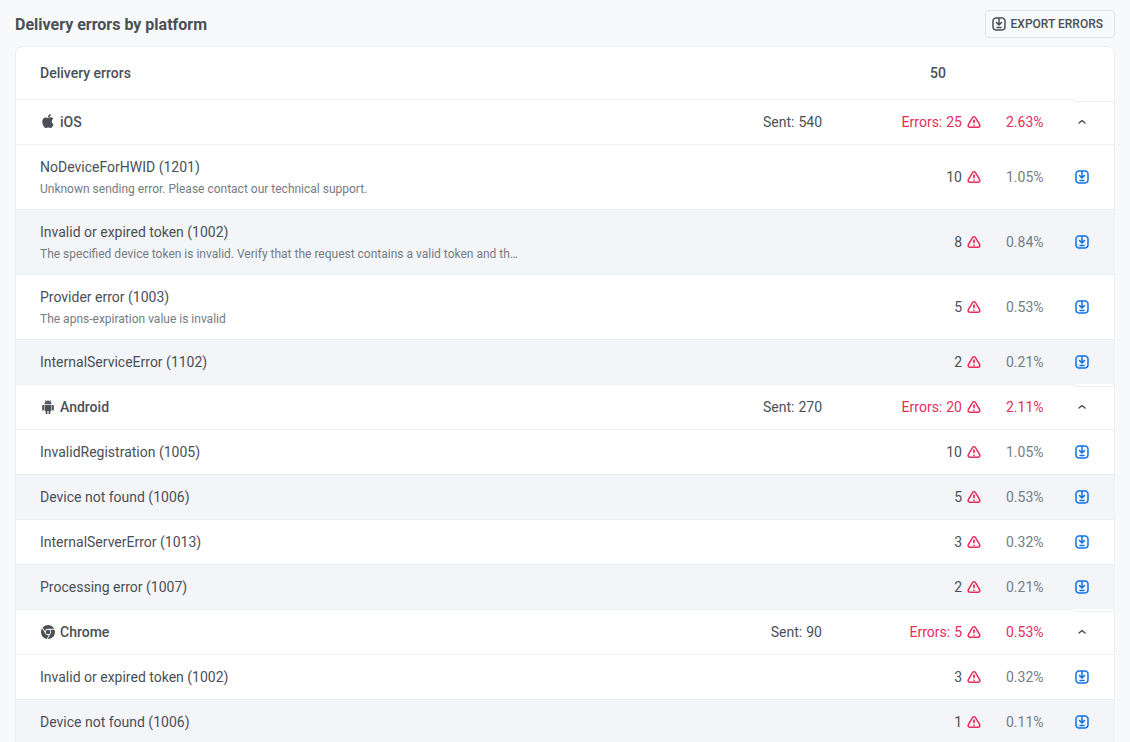
Haga clic en Export errors para descargar la lista completa. Exportar errores requiere el permiso Personal data en su rol.