Crear una Cloud Page
Utilice esta guía para crear y publicar una Cloud Page. Una Cloud Page es una página web pública que usted construye en Pushwoosh para campañas promocionales, formularios de captación de clientes potenciales, cuestionarios y otras páginas de destino de tipo “click-through”.
Antes de empezar
Anchor link to- Cloud Pages está disponible bajo petición. Contacte con el Soporte de Pushwoosh para habilitarlo en su proyecto.
- Decida a dónde redirigir a los usuarios después de la acción principal en la página. La redirección puede ser cualquier URL que usted controle, por ejemplo, una página de agradecimiento, una página de resultados, otra Cloud Page u otra URL de campaña. Prepare esa URL antes de probar el envío.
Crear una página
Anchor link to- Vaya a Contenido → Cloud Pages.
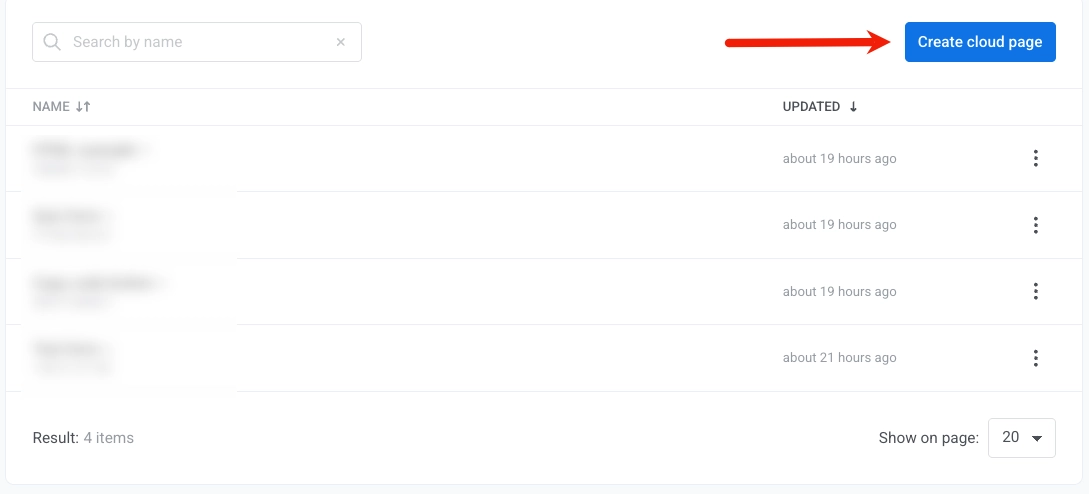
- Haga clic en Crear cloud page. Esto abre directamente el editor de la página, donde el nombre, la redirección y el contenido se encuentran en una sola pantalla.
- Haga clic en el nombre de la página junto a Crear página: e introduzca un nombre.
- Añada la URL en Después del envío, redirigir a. Este campo es obligatorio. Utilícelo para definir a dónde van los usuarios después de completar una acción en la página, por ejemplo, a una página de agradecimiento u otra página de campaña.
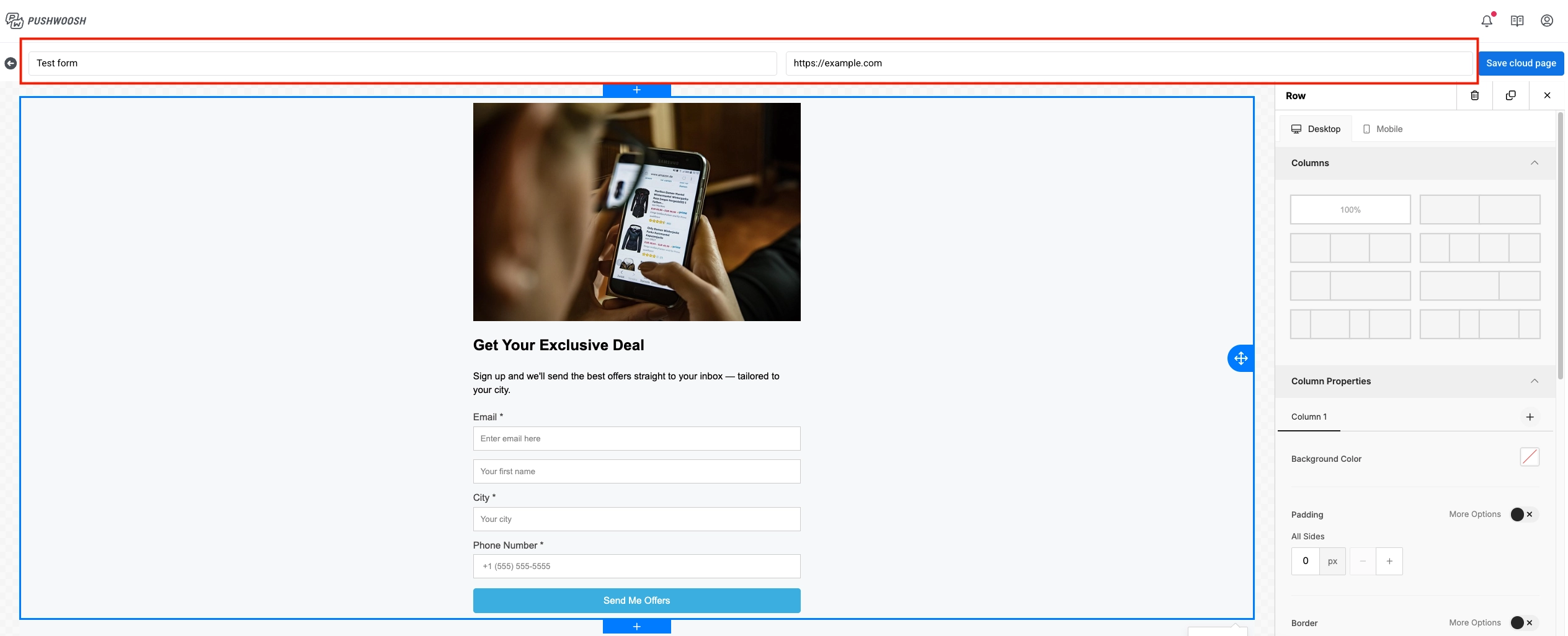
- En el menú desplegable de al lado, elija qué sucede cuando un contacto existente envía el formulario de nuevo:
- Actualizar usuario existente (predeterminado): actualiza los campos del perfil del contacto con los valores enviados.
- Omitir tags para usuario existente: registra el dispositivo desde el que el usuario realiza el envío, pero no actualiza los tags existentes en el perfil del contacto.
- Mostrar error para usuario existente: para registros únicos como ofertas exclusivas o seminarios web. Si el contacto ya existe, el envío se rechaza, el perfil no se actualiza y el usuario es redirigido de vuelta al formulario y ve un mensaje de error.
Construir el contenido de la página
Anchor link toLa mayoría de las páginas de captación de clientes potenciales necesitan un bloque de Formulario. Siga los pasos de Crear un formulario de captación de clientes potenciales o de envío después de añadir el diseño básico. Si solo necesita contenido y un botón, puede omitir la sección del formulario.
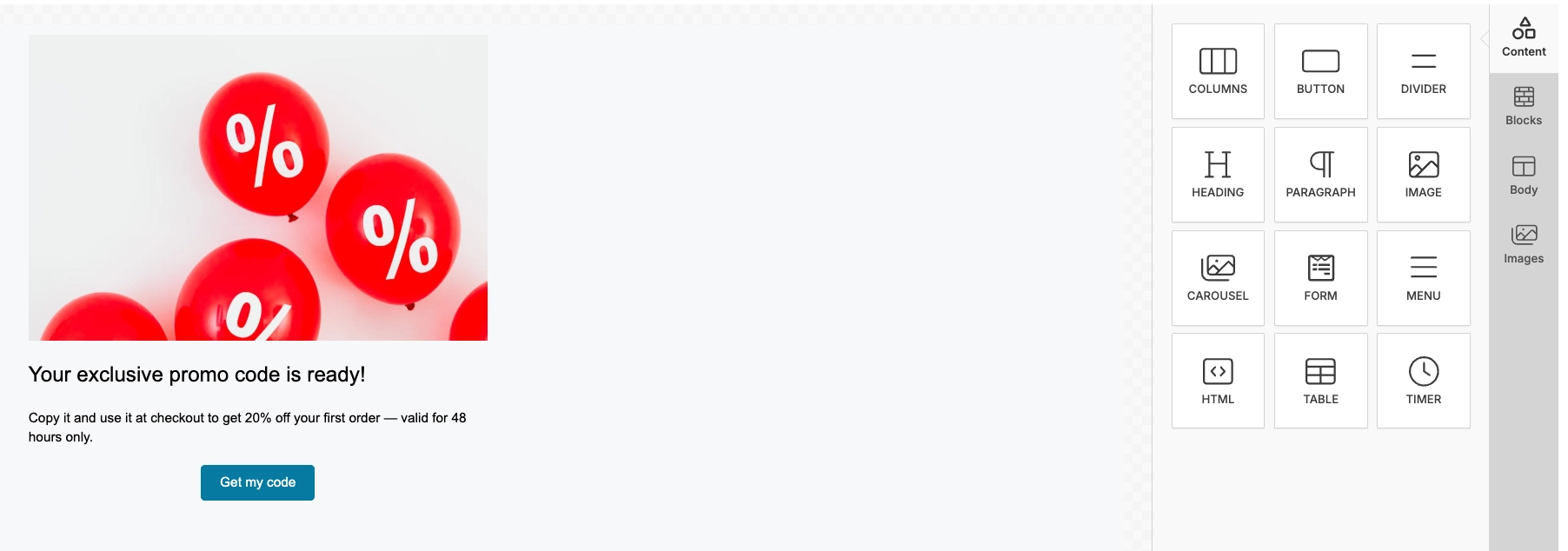
- En el panel de Bloques a la derecha, haga clic o arrastre bloques al lienzo.
- La mayoría de los bloques son los mismos que en el editor de correo electrónico. Para configurarlos, consulte la guía de bloques del editor de correo electrónico.
- Grupo: suelte bloques en un Grupo cuando quiera mover, ocultar o dar estilo a varios de ellos juntos (fondo y espaciado compartidos), u organizarlos en una fila en lugar de apilados con Dirección: Horizontal. Añada o elimine bloques en el panel de Capas arrastrándolos dentro o fuera del grupo.
- Formulario: vea Crear un formulario de captación de clientes potenciales o de envío a continuación.
- Edite el contenido del bloque en el lienzo.
- Repita para cada bloque que necesite.
- Haga clic en Guardar.
Crear un formulario de captación de clientes potenciales o de envío
Anchor link toAñada un formulario para recopilar datos de contacto y otros valores que necesite para la segmentación. Un Nombre del Tag es el nombre del campo que se guarda en el contacto. Utilice un nombre claro como email o fitness_goal para que pueda encontrar ese valor más tarde en los segmentos y en el User Explorer.
- Desde Bloques, añada un bloque de Formulario.
- En el panel de Formulario, bajo Campos, haga clic en Añadir campo.

-
En la lista de campos, haga clic en el icono de editar (lápiz) en el campo para abrir su configuración.
-
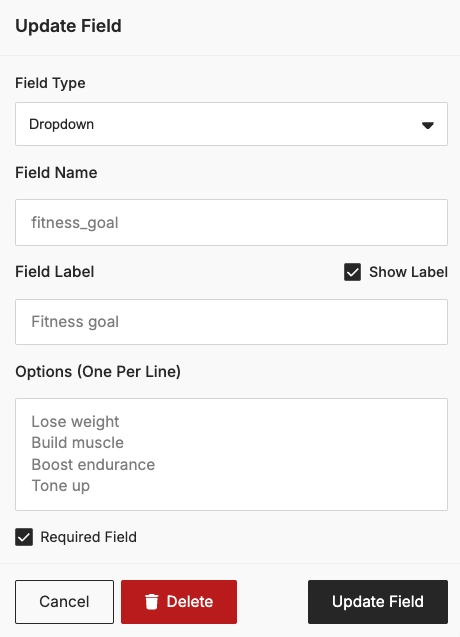
En la configuración del campo, configure el campo:
- Nombre del Tag: el nombre guardado en el contacto (por ejemplo,
fitness_goal) - Tipo: el tipo de entrada (por ejemplo, Texto, Teléfono o Desplegable)
- Etiqueta y Placeholder
- Opciones (una por línea): si el Tipo es Desplegable, introduzca una opción por línea
- Requerido: habilítelo si los usuarios deben rellenar este campo antes de enviar
Para eliminar el campo, haga clic en Eliminar campo.
- Nombre del Tag: el nombre guardado en el contacto (por ejemplo,
-
Repita los pasos 2 a 4 para cada campo que necesite.
-
Bajo Botón de envío, establezca la Etiqueta. Opcionalmente, ajuste el Fondo, el Color del texto y el Radio de la esquina.

- Haga clic en Guardar.
Qué sucede después del envío del formulario
Anchor link toDespués del envío, Pushwoosh crea o actualiza el contacto y envía al usuario a su URL de redirección. Los detalles a continuación le ayudarán a verificar el resultado en el User Explorer y a utilizar el envío en Customer Journey. No son pasos de configuración adicionales en el editor.
Perfil de contacto y dispositivos
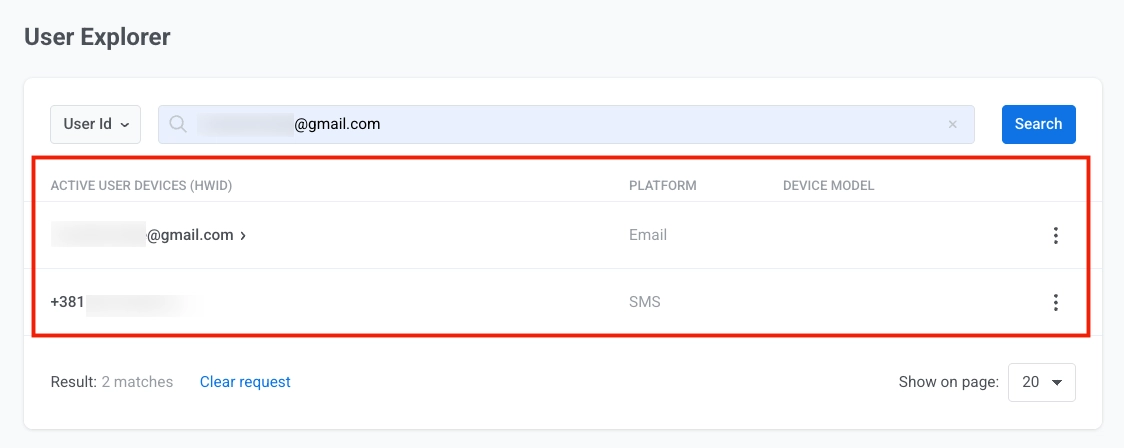
Anchor link toCuando un usuario envía el formulario, Pushwoosh crea o actualiza un perfil de contacto en User Explorer.
Por ejemplo, si el formulario incluye un campo de correo electrónico y un campo de teléfono, Pushwoosh registra un dispositivo de Email y un dispositivo de SMS. Ambos dispositivos están vinculados bajo un mismo User ID.
Tags
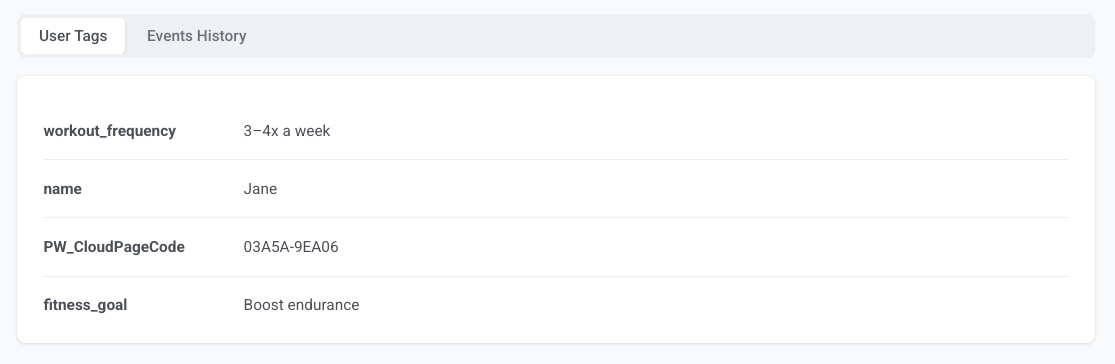
Anchor link toTodos los demás campos se guardan como tags personalizados por nombre de campo. Por ejemplo, si su formulario tiene los campos fitness_goal y workout_frequency, el perfil del contacto mostrará tags como fitness_goal = Boost endurance y workout_frequency = 3–4x a week.
El código de la página se guarda en el tag PW_CloudPageCode.
Evento
Anchor link toPushwoosh dispara PW_FormSubmitted en cada envío de formulario. Puede verlo en la pestaña Historial de Eventos en el perfil del contacto en User Explorer. El evento incluye un atributo form_code que identifica de qué Cloud Page provino el envío, y una marca de tiempo de cuándo ocurrió.
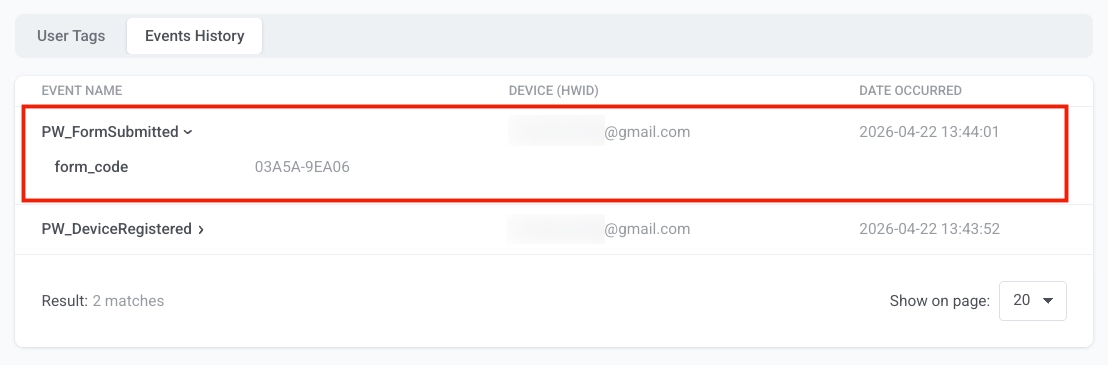
Utilícelo como un disparador en Customer Journey para iniciar secuencias de bienvenida, flujos de seguimiento y otras automatizaciones. Por ejemplo, puede construir un journey que envíe un correo electrónico de bienvenida inmediatamente después de que un usuario envíe un formulario de cuestionario de fitness, y luego haga un seguimiento con un plan de entrenamiento personalizado 24 horas después.
Probar la página
Anchor link toDespués de guardar la página, se vuelve accesible públicamente a través de su URL. El formato predeterminado es https://cloud-pages.svc-nue.pushwoosh.com/cloud-pages/v1/page/<page-code>.
- Utilice el control de retroceso en el editor para volver a Contenido → Cloud Pages.
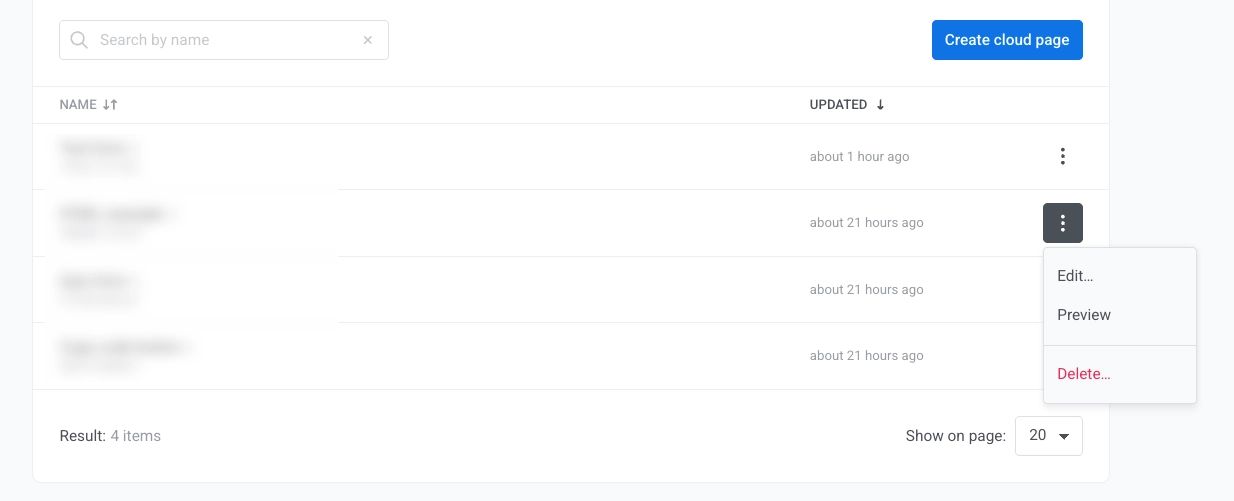
- En la lista de páginas, abra el menú de acciones de la página y haga clic en Vista previa.
- Copie la URL pública de la barra de direcciones del navegador cuando se abra la vista previa. Utilice esa URL en un CTA de mensaje, en Customer Journey o en un anuncio.
- Verifique que el contenido de la página se carga correctamente y se muestra como se esperaba.
- Si su página incluye un formulario, rellénelo con datos de prueba y haga clic en el botón de envío. Utilice un correo electrónico de prueba con un nombre claro para que pueda encontrar o eliminar ese contacto en el User Explorer después.
- Confirme que la redirección abre la página esperada.
- Abra User Explorer y confirme que los datos de usuario y los tags enviados se muestran.
Editar o eliminar una página
Anchor link toTodas las Cloud Pages se listan en Contenido → Cloud Pages, donde puede gestionarlas y editarlas.
- Vaya a Contenido → Cloud Pages.
- Abra el menú de acciones de la página.
- Haga clic en Editar o Eliminar la página.