Analizar la ruta del usuario en un customer journey
Pushwoosh le permite rastrear el journey de un usuario específico dentro de una campaña resaltando sus pasos. Al analizar las rutas de los usuarios, puede obtener una comprensión más profunda de cómo los usuarios interactúan con sus campañas y tomar decisiones basadas en datos para mejorar su experiencia general.
Para rastrear la ruta de un usuario:
- Vaya a la campaña que desea analizar.
- Haga clic en Buscar ruta de usuario en la parte inferior derecha del lienzo de Journey.
- Ingrese un identificador de usuario. Puede buscar por ID de Usuario, HWID, correo electrónico, teléfono o token; cualquier identificador asociado con el usuario cuya ruta desea examinar. Asegúrese de que el valor que ingresó sea preciso y relevante para la campaña que se está analizando.
Buscar ruta de usuario requiere el permiso Personal data en su rol.
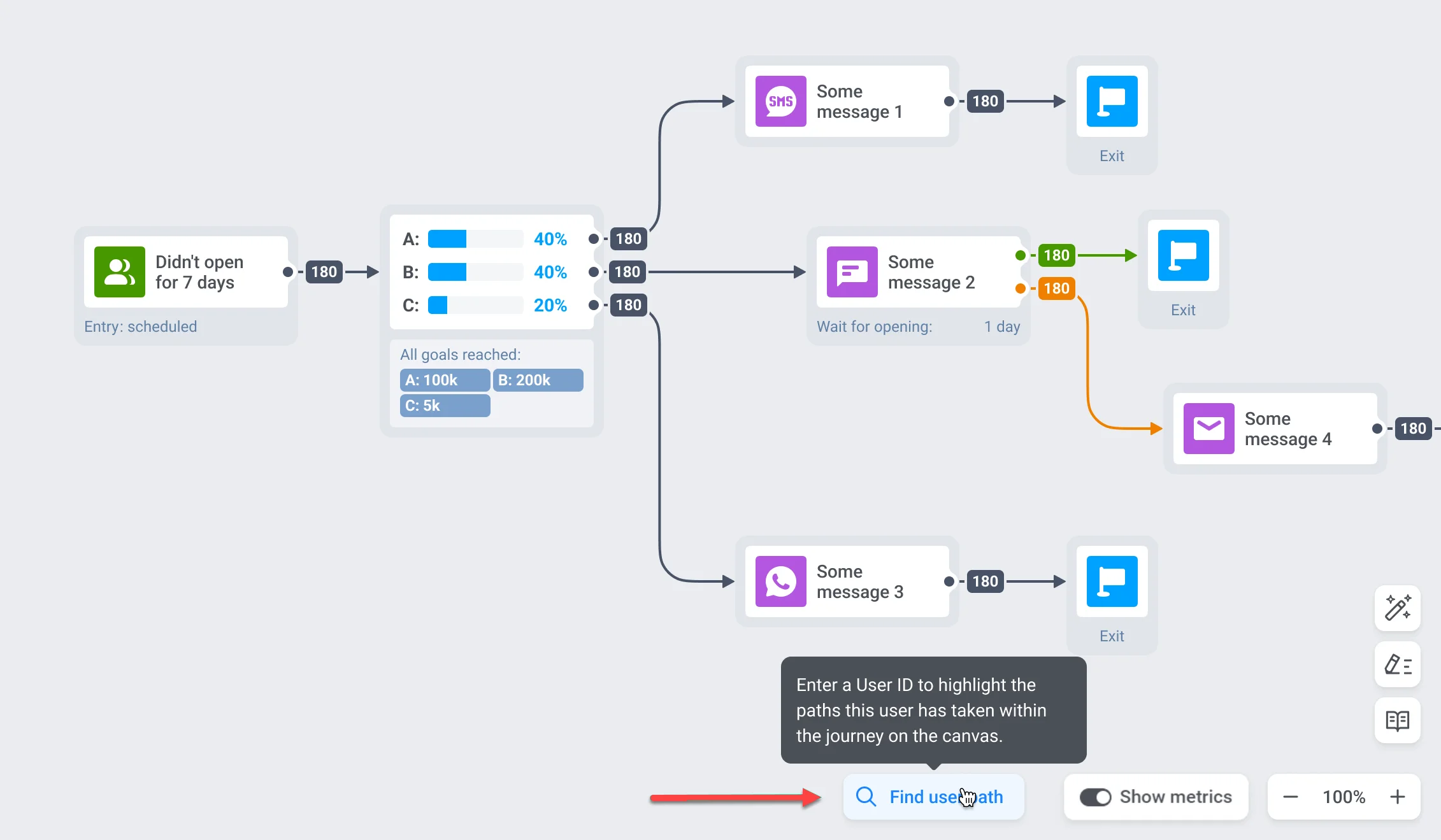
Pushwoosh visualizará el journey del usuario en el lienzo, resaltando los pasos y mensajes que ha completado.
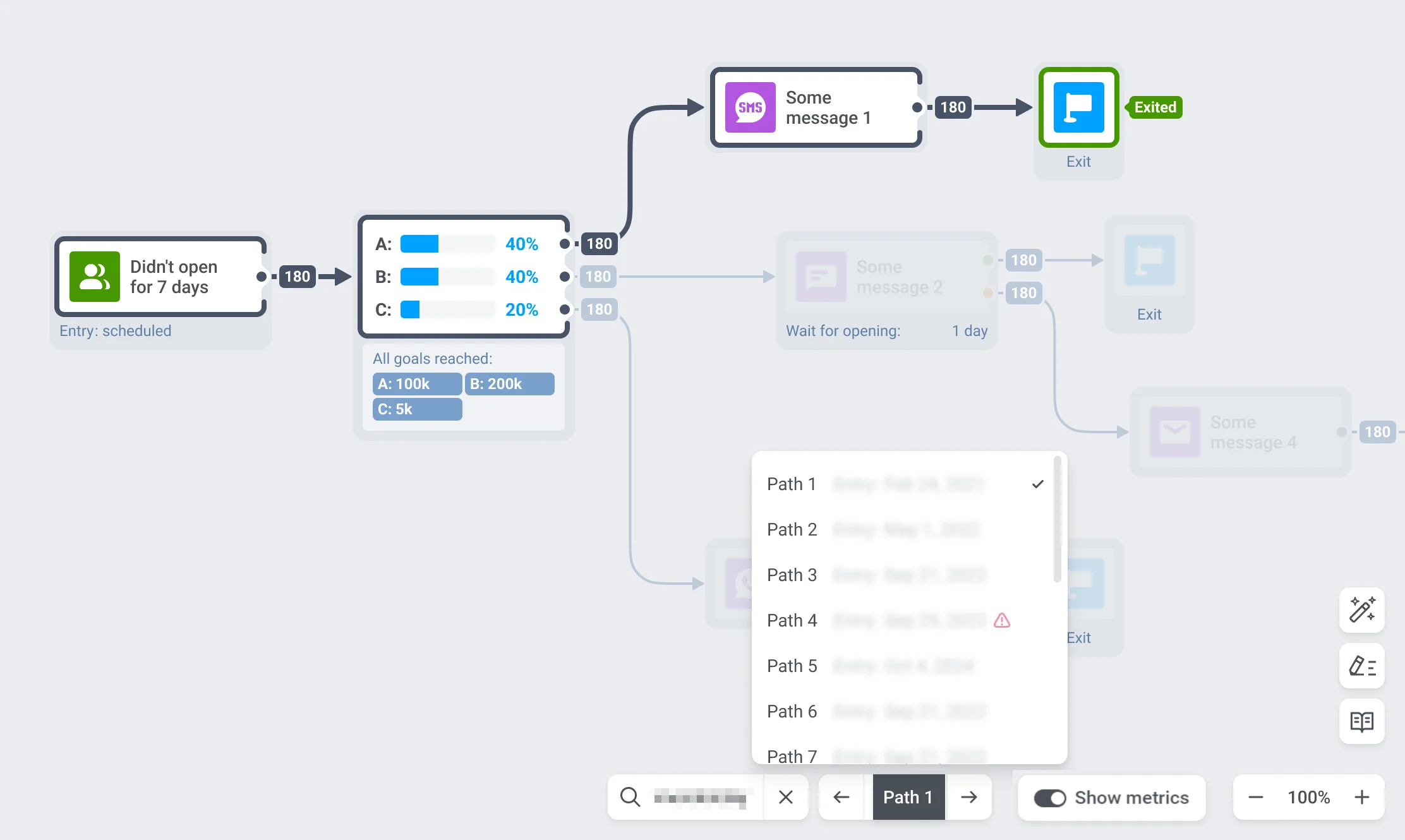
Si un usuario ha interactuado con la campaña varias veces, puede explorar las diferentes rutas que ha tomado utilizando el selector de rutas en la parte inferior de la pantalla.
La ruta de un usuario puede tener varios estados según la interacción del usuario y los cambios del journey.
- Si el usuario completó con éxito el journey y salió, no se muestra ninguna marca especial en la lista.
- Si el usuario abandonó, el flujo aún se puede ver y la ruta del usuario se marcará con un signo de exclamación.
- Si el journey fue modificado, la ruta permanecerá en la lista, pero no se podrá mostrar para su visualización.
Si el usuario no ha interactuado con la campaña, recibirá una notificación que indica que no se encontró al usuario.