Estadísticas de SMS y mensajería
Pushwoosh realiza un seguimiento de los envíos de SMS, WhatsApp, Viber y Telegram de la misma manera que lo hace con los pushes y los correos electrónicos: como una página de Estadísticas de mensajes que se abre para un mensaje enviado.
Ábrala desde Campañas → Mensajes únicos, o desde Estadísticas detalladas en el elemento de mensaje en un Journey. Haga clic en el nombre del mensaje para abrir sus estadísticas.
Estadísticas detalladas de SMS y mensajería
Anchor link toUtilice las Estadísticas de mensajes para comprobar el rendimiento de un envío específico de SMS o mensajería.
La página tiene tres pestañas: Resumen, Cronología y Errores.
Si el mismo envío también se dirigió a otros canales, aparecen pestañas de canal sobre Resumen / Cronología / Errores, etiquetadas por canal (por ejemplo, SMS o WhatsApp). Un mensaje de un solo canal no muestra pestañas de canal.
Pestaña Resumen
Anchor link toUtilice la pestaña Resumen para comprobar el alcance, la entrega y las aperturas (cuando la plataforma los informa) de este envío.
Si el mensaje tiene el estado FAIL, la pestaña Resumen muestra guiones en lugar de números y un aviso con el motivo por el que no se envió. Consulte Por qué falló un mensaje.
Rendimiento de la campaña
Anchor link toLas tarjetas que vea dependen del canal:
- Siempre: Audiencia y Enviados
- Abiertos: solo cuando la plataforma informa de las aperturas. Hoy en día es WhatsApp. Viber y Telegram no lo muestran. Los SMS nunca lo muestran: los SMS no tienen un evento de apertura para rastrear.
Pase el ratón sobre el ⓘ en cualquier tarjeta para ver la fórmula exacta.
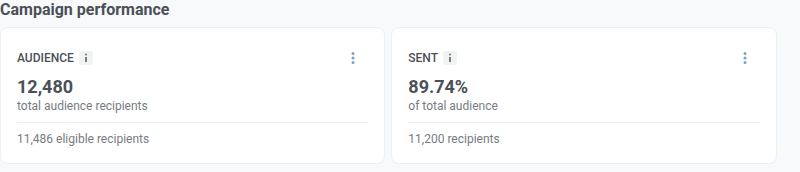
| Tarjeta | Lo que muestra |
|---|---|
| Audiencia | Cuántas personas seleccionó para este envío y cuántas permanecieron elegibles después de las exclusiones. |
| Enviados | De todas las personas a las que se dirigió, qué parte aceptó el proveedor de mensajería para el envío. Aceptado significa que el proveedor se encargó del envío, no que el mensaje ya haya llegado. |
| Abiertos | De los destinatarios enviados, qué parte abrió el mensaje. Solo cuando la plataforma informa de las aperturas. |
Distribución de campañas
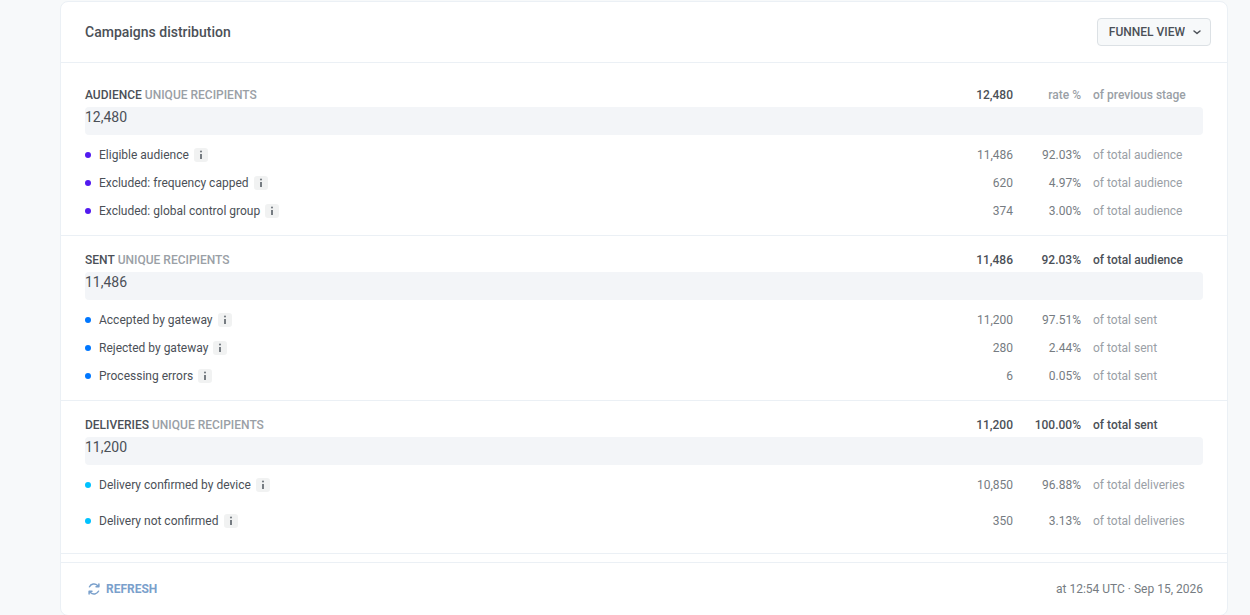
Anchor link toDistribución de campañas desglosa este envío en pasos:
- Audiencia: a quién se dirigió
- Enviados: quién fue aceptado para el envío
- Entregas: quién recibió una confirmación de entrega
- Abiertos: quién abrió (solo cuando la plataforma informa de las aperturas, actualmente WhatsApp)
De lo contrario, incluso para los SMS, el embudo se detiene en Audiencia → Enviados → Entregas.
Puede ver el mismo desglose de dos maneras: como un embudo (por defecto) o como una tabla. Haga clic en Vista de tabla para abrir la tabla. Haga clic en Vista de embudo para volver.
Haga clic en Actualizar para recargar los números. La línea “Actualizado a las…” que aparece al lado muestra cuándo se cargaron por última vez las estadísticas (siempre en UTC).
Cómo leer el embudo
Anchor link to- Siga la ruta hacia abajo a lo largo de los pasos que aparecen para este canal.
- El gran porcentaje en un paso es la parte que lo alcanzó desde el paso anterior.
- La lista debajo de un paso muestra cómo se dividen esas personas (por ejemplo, aceptados vs. rechazados).
- Si falta una fila, nadie cayó en ese grupo en este envío.
- La tarjeta Enviados y el paso del embudo Enviados pueden no coincidir: la tarjeta cuenta a todos los que usted seleccionó, el paso del embudo cuenta solo a las personas elegibles.
Qué incluye cada paso
Anchor link toQuiénes permanecieron elegibles y quiénes quedaron fuera (por ejemplo, por el límite de frecuencia o un grupo de control global).
Las personas elegibles se dividen en:
- Aceptado por la pasarela: el proveedor comenzó a procesar el envío, no que haya llegado.
- Rechazado por la pasarela: un problema del lado del proveedor. Los detalles están en la pestaña Errores.
- Errores de procesamiento: un fallo del lado de Pushwoosh. Más información
Quién recibió una confirmación de entrega (no una apertura).
- Normalmente: confirmado y no confirmado.
- Los SMS y WhatsApp suelen mostrar los detalles de la entrega.
- Viber y Telegram a menudo no envían confirmaciones de entrega, por lo que las filas de entrega vacías suelen significar “sin datos de confirmación”, no un envío fallido.
Quién abrió, cuando se muestra este paso (actualmente WhatsApp).
Pestaña Cronología
Anchor link toUtilice la pestaña Cronología para ver el rendimiento de este envío hora por hora (o día por día), no solo los totales en Resumen. Por ejemplo, puede detectar cuándo llegaron las confirmaciones de entrega después de que usted enviara, o cuándo se acumularon los rechazos. El gráfico tiene cuatro líneas:
- Aceptado por la pasarela: el proveedor se encargó del envío.
- Rechazado por la pasarela: el proveedor rechazó el envío.
- Confirmaciones de entrega: el proveedor o el dispositivo informaron de la entrega. Esto no es una apertura.
- Aperturas: alguien abrió el mensaje (cuando la plataforma informa de las aperturas).
Una tabla de resumen debajo del gráfico totaliza cada métrica para la ventana seleccionada.
Para configurar el gráfico:
- Establezca el rango de tiempo. Las horas están en UTC. Para un rango corto, el gráfico muestra los puntos por hora. Para un rango más largo, agrupa los puntos por día (o un paso mayor).
- Elija Comparar métricas para trazar las cuatro líneas juntas, o Comparar plataformas para comparar plataformas para una métrica.
Estos controles se aplican al gráfico, a la tabla de resumen y a la tabla Eventos de abajo. No cambian las tarjetas de Resumen ni el embudo.
Eventos personalizados después de leer un mensaje de WhatsApp
Anchor link toPara WhatsApp, la tabla Eventos debajo del gráfico muestra los eventos personalizados que su aplicación o sitio web envió después de que los destinatarios leyeran este mensaje. Solo se completa si su aplicación o sitio web envía eventos a Pushwoosh.
Cada evento se asigna al mensaje en el que el usuario hizo clic por última vez en las 72 horas anteriores al evento:
- Qué cuenta como clic: Leer el mensaje.
- Clics en otros mensajes: Cuentan los clics en todos los mensajes de la misma aplicación, por lo que un evento que sigue a un clic en un mensaje posterior se asigna a ese mensaje posterior, no a este.
- Límites: Cada evento se asigna a un solo mensaje.
| Columna | Qué muestra |
|---|---|
| Evento | El nombre del evento. |
| Aciertos | Cuántos eventos se asignaron a este mensaje. Cuenta cada evento que el usuario envía después de leerlo, hasta que hace clic en otro mensaje o pasan 72 horas. |
| Únicos | Cuántos usuarios distintos enviaron el evento al menos una vez. |
Los eventos se vinculan al mensaje por User ID, no por dispositivo. Si un número de teléfono está registrado con un User ID distinto del que su aplicación o sitio web usa para la misma persona, los eventos de esa persona aparecen aquí como 0.
El rango de tiempo filtra los eventos, no las lecturas. Una lectura anterior al inicio del rango sigue contando para un evento dentro del rango. Cada fila tiene un icono de exportación que descarga como CSV los dispositivos detrás de esa fila, contados con la misma regla.
SMS no tiene clics ni aperturas, por lo que un envío de SMS muestra Los eventos no están disponibles para SMS en lugar de la tabla. Los envíos de Viber y Telegram no tienen tabla Eventos.
Pestaña Errores
Anchor link toUtilice la pestaña Errores para ver por qué se rechazaron los envíos. Consulte Cómo leer la pestaña Errores para saber qué muestra la pestaña y qué no muestra, y Errores de envío para saber qué significa cada código de error.
Panel de contenido
Anchor link toEl panel de Contenido de la derecha muestra el mensaje tal como lo vieron los destinatarios. WhatsApp utiliza una burbuja de chat. SMS y Viber utilizan por ahora una vista previa de tarjeta simple.
Entrega y configuración debajo de la vista previa muestra cómo se configuró este envío. Para los SMS, estos valores provienen de cuando creó el SMS único:
- Estado: si este envío ha finalizado (Hecho) o todavía se está procesando
- Fecha de envío: cuándo se envió realmente este mensaje
- Programación: inmediata o hora seleccionada
- Segmento objetivo: la audiencia que estableció
- Plataformas objetivo: las plataformas que seleccionó para este canal
Para la configuración de WhatsApp, consulte Enviar un mensaje de WhatsApp único. Para Viber, consulte Enviar mensajes de Viber.
Haga clic en Mostrar todas las propiedades solo si necesita detalles técnicos. El ID de solicitud es para Soporte o sus desarrolladores cuando rastrean este envío exacto. Los envíos de Journey y algunos envíos automatizados a menudo no tienen un ID de solicitud. Omítalo cuando solo esté comprobando el rendimiento.
Copiar el código del mensaje
Anchor link toPara obtener un ID para Soporte o sus desarrolladores al rastrear este envío:
- En la parte superior de la página, haga clic en Código del mensaje.
- El ID se copia en su portapapeles.
Normalmente no lo necesita para leer las estadísticas.
Exportar destinatarios y crear un segmento
Anchor link toExportar destinatarios
Anchor link toExportar destinatarios requiere el permiso Personal data en su rol.
Para descargar los destinatarios como CSV desde la parte superior de la página:
- Haga clic en Exportar estadísticas.
- Confirme la descarga.
También puede hacer clic en Exportar lista desde:
- El menú de tres puntos (⋮) de una tarjeta en Resumen
- Una fila de error en la pestaña Errores
Tanto Exportar estadísticas como Exportar lista extraen del mismo registro por destinatario, que cubre solo los últimos 30 días. Los destinatarios más antiguos no están en el archivo. El cuadro de diálogo de confirmación indica este límite antes de que comience la descarga.
Crear un segmento a partir de Enviados
Anchor link toUtilice esto cuando quiera volver a enviar un mensaje a las mismas personas, por ejemplo, a todos los que el proveedor aceptó para el envío.
- En Resumen, busque la tarjeta Enviados.
- Haga clic en el menú de tres puntos (⋮) de esa tarjeta.
- Haga clic en Crear segmento.
- En el cuadro de diálogo Crear segmento, introduzca un nombre en Nombre del segmento.
- Haga clic en Crear.
El nuevo segmento incluye a las personas de esa tarjeta.