Fuentes de noticias
Fuentes de noticias mantiene una lista de fuentes RSS o Atom para su aplicación. Una vez que se registra una fuente, Pushwoosh comprueba si tiene artículos nuevos según la frecuencia que usted configure, por lo que un bloque de Noticias en correo electrónico, un preset de push de Fuente de noticias, o un preset de Fuentes de noticias en SMS pueden obtener los artículos más recientes en el momento del envío en lugar de quedar obsoletos entre campañas.
Para abrirlo, vaya a Contenido → Fuentes de noticias para la aplicación en el Panel de Control de Pushwoosh.
Prerrequisitos
Anchor link to- Una URL de fuente RSS 2.0 o Atom pública a la que Pushwoosh pueda acceder sin necesidad de iniciar sesión.
Registrar una fuente
Anchor link to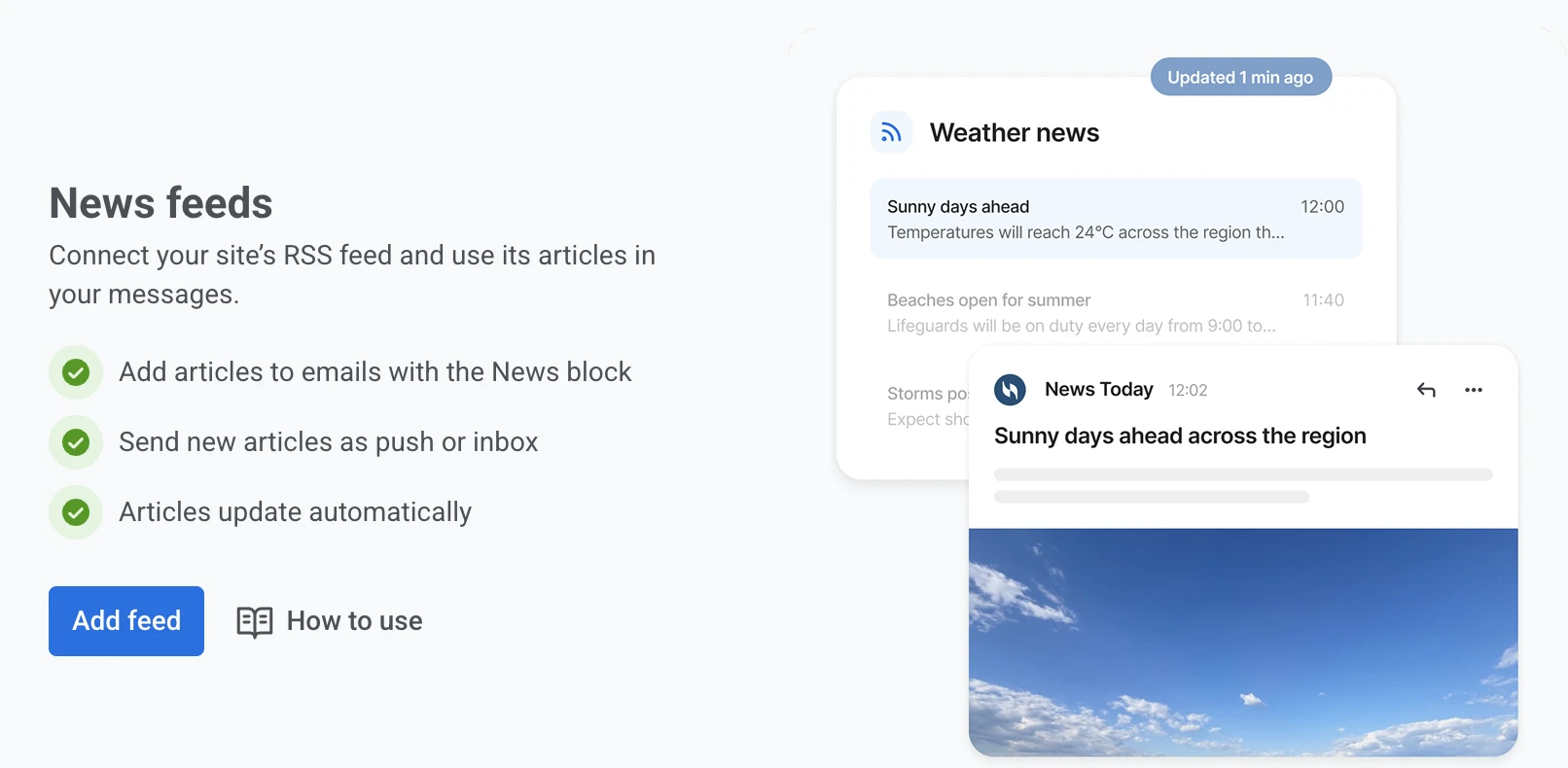
- Haga clic en Añadir fuente.
- Ingrese la URL de la fuente en URL de la fuente.
- Haga clic en Comprobar fuente. Pushwoosh lee la URL sin guardar nada todavía.
- Ajuste el Nombre si es necesario. Se rellena con el propio título de la fuente una vez que la comprobación tiene éxito, y es lo que verá al elegir esta fuente en un bloque de Noticias o en un preset de Fuentes de noticias.
- En Buscar artículos nuevos cada, elija con qué frecuencia Pushwoosh busca artículos nuevos: cada 1, 15 o 30 minutos, o cada hora. Las fuentes nuevas empiezan con 15 minutos.
- Haga clic en Añadir fuente.
Compruebe la fuente antes de ponerle nombre, configurar el intervalo o añadirla. La comprobación informa uno de los siguientes resultados:
- Artículos encontrados: cuántos artículos devolvió la fuente, con los titulares de los tres más recientes.
- No pudimos leer esta fuente: la URL no es accesible o no devuelve datos RSS o Atom válidos. Abra la URL en un navegador para confirmar que devuelve la fuente, corríjala y vuelva a hacer clic en Comprobar fuente.
- La URL responde pero no contiene artículos: la fuente es accesible pero está vacía, por lo que no se puede guardar. Use la URL de una fuente que ya tenga artículos, o publique un artículo y vuelva a comprobarla.
Una vez que añade la fuente, Pushwoosh importa sus artículos de inmediato y luego busca artículos nuevos con el intervalo que eligió.
Si una fuente registrada más tarde se vuelve inaccesible o deja de devolver artículos, el contenido que la lee se sigue enviando. El bloque de Noticias en correo electrónico oculta su cuadrícula de tarjetas para los destinatarios afectados, mientras que el preset de push de Fuente de noticias y el preset de SMS de Fuentes de noticias recurren a lo que haya configurado en Si la fuente no devuelve nada.
Seguimiento de sus fuentes
Anchor link toCuando hay al menos una fuente registrada, la página muestra sus fuentes en una tabla. Use Buscar para encontrar una fuente por nombre o URL, y haga clic en el encabezado de la columna Nombre para ordenar la lista.
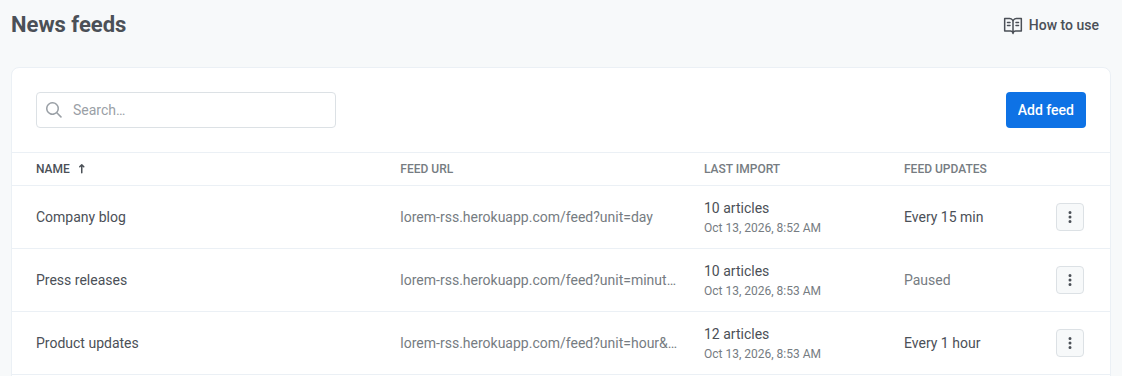
Para cada fuente, la tabla muestra:
- Última importación: cuántos artículos leyó la última importación y cuándo se ejecutó, o Aún no importada para una fuente que todavía no se ha importado.
- Actualizaciones de la fuente: con qué frecuencia Pushwoosh comprueba la fuente, por ejemplo Cada 15 min, o En pausa para una fuente desactivada.
Si la última importación falló, aparece Error: No se pudo leer esta fuente debajo del nombre de la fuente. Pase el cursor sobre el mensaje para ver el motivo, por ejemplo “la fuente devolvió HTTP 404”.
Gestionar una fuente
Anchor link to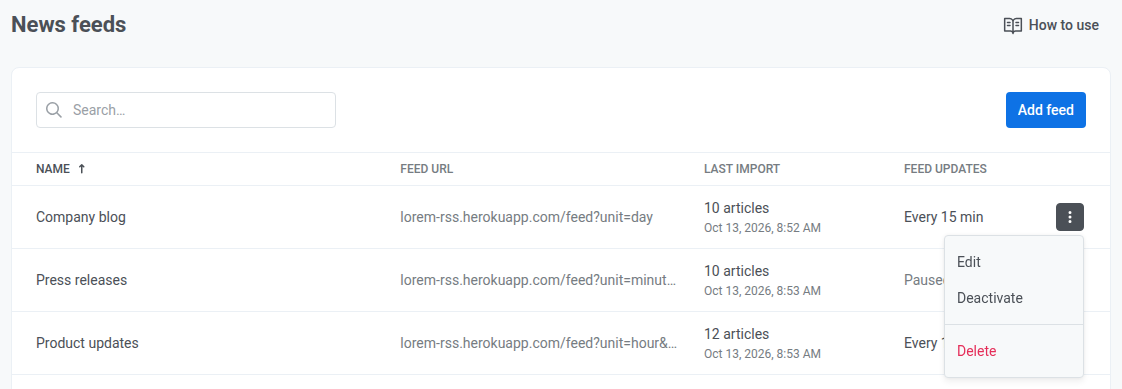
Haga clic en el menú de una fila (⋮) para gestionar una fuente:
- Haga clic en Editar, o en el nombre de la fuente, para cambiar su URL, su nombre o su intervalo de comprobación. Si cambia la URL, vuelva a hacer clic en Comprobar fuente antes de guardar.
- Haga clic en Desactivar para dejar de buscar artículos nuevos en la fuente. La fuente y sus artículos ya importados se conservan. Haga clic en Activar para reanudarla, lo que importa la fuente de inmediato y luego vuelve a comprobarla con su intervalo.
- Haga clic en Eliminar para quitar la fuente y sus artículos de los correos electrónicos que la leen. Esta acción no se puede deshacer, así que desactive la fuente si solo quiere pausarla. Una fuente que usa una campaña de fuente no se puede eliminar. Elimine primero esas campañas.