Turn on the sunset policy
Este contenido aún no está disponible en su idioma.
Back to Email setup overview.
The sunset policy stops marketing emails to contacts who haven’t opened or clicked your emails for a period you choose. It’s set for each project and is off by default. For how Pushwoosh decides a contact is inactive and which emails the policy skips, see Stop marketing emails to inactive contacts.
To turn on the sunset policy:
-
Go to Settings → Configure platforms and click Platform settings in the Emails row.
-
On the Sunset policy card, click Enable.

-
In What counts as activity?, choose Click or open, Click, or Open.
-
In How long before a contact becomes inactive?, choose 30, 90, 180, 365, or 730 days. The default is 180 days.
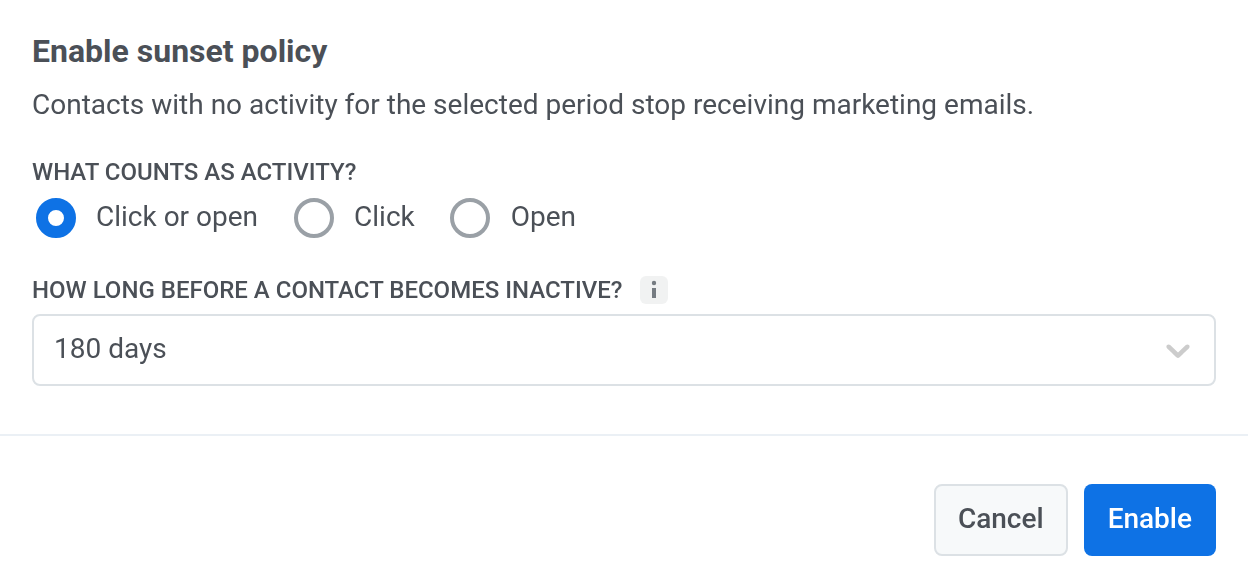
-
Click Enable.
The card now shows how many of your subscribed email contacts are inactive. The number updates once a day at 03:00 UTC and after each change to the settings.
Export inactive contacts
Anchor link toTo download the contacts the policy currently skips:
- On the Sunset policy card, open the menu.
- Click Export inactive contacts.
A ZIP archive with the CSV file downloads when the export is ready. If no contacts are inactive, there’s nothing to export, and a message says so.
Change the sunset policy settings
Anchor link to- On the Sunset policy card, click Settings.
- Change which activity keeps a contact active (Click or open, Click, or Open), the number of days without activity before a contact becomes inactive (30, 90, 180, 365, or 730), or both.
- Click Save.
Turn off the sunset policy
Anchor link to- On the Sunset policy card, open the menu.
- Click Disable….
- In the confirmation window, click Disable.
Marketing emails then go to all subscribed contacts again, including inactive ones.