Snowflake: Zeile einfügen
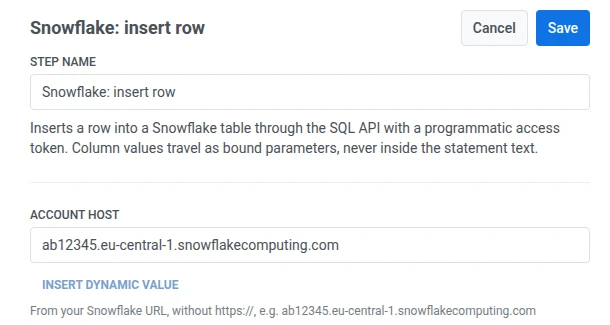
Verwenden Sie Snowflake: Zeile einfügen, um eine Zeile aus einem Journey-Schritt über die SQL-API mithilfe eines programmatischen Zugriffstokens in eine Snowflake-Tabelle zu schreiben. Spaltenwerte werden als gebundene Parameter übertragen, nicht innerhalb des SQL-Anweisungstextes, sodass ein Wert nicht aus seiner Spalte ausbrechen und die Funktionsweise der Anweisung ändern kann. Dieser Punkt authentifiziert sich mit seinem eigenen programmatischen Zugriffstoken. Er verwendet keine auf Kontoebene konfigurierte Integration, die an anderer Stelle in den Einstellungen eingerichtet wurde.
Typische Anwendungsfälle:
- Eine Berichtstabelle füllen: Fügen Sie pro erreichtem Journey-Schritt eine Zeile für ein nachgelagertes Dashboard oder eine geplante Abfrage ein.
- Ereignisse protokollieren, während sie stattfinden: Schreiben Sie rohe Journey-Daten direkt in das Warehouse, anstatt auf eine Batch-Pipeline zu warten.
- Mit vorhandenen Daten verknüpfen: Fügen Sie einen Geräte- oder Tag-Wert ein, den Ihre Snowflake-Tabellen mit Ihren eigenen Datensätzen verknüpfen können.
Den Punkt konfigurieren
Anchor link to- Ziehen Sie Snowflake: Zeile einfügen aus dem Abschnitt Integrationen des linken Panels auf die Arbeitsfläche.
- Doppelklicken Sie auf den Punkt und geben Sie einen Schrittnamen ein.
- Geben Sie unter Konto-Host den Host Ihres Snowflake-Kontos aus dessen URL ein, zum Beispiel
ab12345.eu-central-1.snowflakecomputing.com. Fügen Sie wederhttps://noch einen abschließenden Schrägstrich hinzu. Pushwoosh fügthttps://und den API-Pfad selbst hinzu.
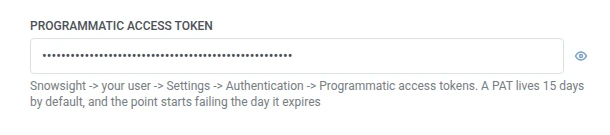
- Geben Sie unter Programmatisches Zugriffstoken ein Token aus Snowsight > Ihr Benutzer > Einstellungen > Authentifizierung > Programmatische Zugriffstoken ein. Es wird maskiert gespeichert, wie ein geheimer Webhook-Header.
- Geben Sie unter Tabelle die Zieltabelle als
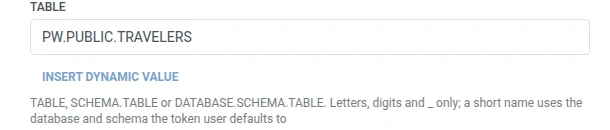
TABLE,SCHEMA.TABLEoderDATABASE.SCHEMA.TABLEein und verwenden Sie dabei nur Buchstaben, Ziffern und Unterstriche. Dieser Punkt fragt nicht separat nach einem Warehouse, einer Datenbank oder einem Schema: Ein reinesTABLEwird gegen die Standarddatenbank und das Standardschema des Token-Benutzers aufgelöst, und einDATABASE.SCHEMA.TABLE-Wert überschreibt diese.
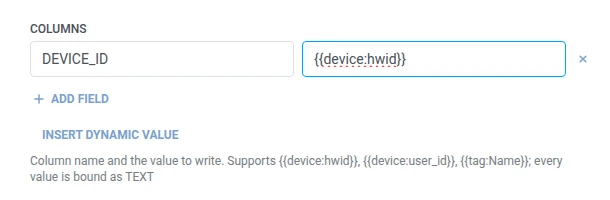
- Fügen Sie unter Spalten eine Zeile pro zu schreibender Tabellenspalte hinzu. Geben Sie den Spaltennamen und den Wert ein. Namen müssen nicht leer und eindeutig sein und unterliegen derselben Regel für Buchstaben/Ziffern/Unterstriche wie bei Tabelle. Ein Wert kann fester Text oder ein Traveler-Makro wie
{{tag:Name}}sein, dieselben Makros wie im Body eines Webhooks. Oder klicken Sie auf Dynamischen Wert einfügen, um ein Attribut auszuwählen, das ein früherer Schritt in dieser Journey erzeugt hat, zum Beispiel eine LLM-Antwort oder einen zugeordneten Webhook-Wert.
- Klicken Sie auf Speichern.
Antwort
Anchor link toDer Traveler fährt mit dem nächsten Schritt fort, den Sie auf der Arbeitsfläche verbinden.
Attribute nach Ausführung des Schritts
Anchor link to| Attribut | Inhalt |
|---|---|
snowflake_statement_handle | Der Handle der übermittelten Anweisung |
Verwendung in späteren Schritten
Anchor link toDer Traveler ist bereits unabhängig von diesem Attribut zum nächsten Schritt übergegangen. Speichern Sie es in einem Tag mit Benutzerprofil aktualisieren, wenn Sie den Status dieser Anweisung später über die eigene API von Snowflake überprüfen müssen.
Fehler und unerwartete Antworten
Anchor link toEine fehlgeschlagene Anfrage entfernt den Traveler aus der Journey. Siehe Fehler und fehlgeschlagene Anfragen.
Beispielszenario: Journey-Aktivitäten in Snowflake streamen
Anchor link toEin Team möchte Journey-Aktivitäten in derselben Snowflake-Tabelle haben, die ihr eigenes Reporting bereits abfragt.
- Fügen Sie Snowflake: Zeile einfügen direkt nach dem Schritt hinzu, den Sie protokollieren möchten. Setzen Sie Tabelle auf
PW.PUBLIC.TRAVELERS. Setzen Sie unter SpaltenDEVICE_IDauf{{device:hwid}}. - Klicken Sie auf Speichern.
Sobald dies ausgeführt wird, landet die Zeile in derselben Tabelle, aus der das Snowflake-Reporting des Teams bereits liest.