Facebook Messenger
Das Facebook Messenger-Element ermöglicht es Ihnen, Facebook Messenger-Nachrichten als Teil Ihrer Customer Journey an Benutzer zu senden.
Fügen Sie im Customer Journey Builder das Facebook Messenger-Element aus den Kanalelementen hinzu, verbinden Sie es nach Ihrem Eintritt (Entry) und öffnen Sie dann das Element, um die folgenden Einstellungen zu konfigurieren.
Auslöser für den Eintritt
Anchor link toWenn jemand mit Ihrer verbundenen Facebook-Seite interagiert, protokolliert Pushwoosh Ereignisse, die Sie zum Starten einer Journey verwenden können:
- Benutzer hat eine Nachricht gesendet (
PW_FBMessengerReceived): Verwenden Sie dies, wenn die Journey nach einem beliebigen eingehenden Text vom Benutzer starten soll. - Benutzer hat ein Menü angetippt, eine schnelle Antwort gegeben oder einen Empfehlungslink geöffnet (
PW_FBMessengerStarted): Dies kann für dieselbe Person mehr als einmal ausgelöst werden. Bauen Sie die Logik um diese spezifische Aktion herum auf, nicht nur um den Erstkontakt.
Fügen Sie in der Journey einen Trigger-basierten Eintritt (Trigger-based Entry) hinzu, öffnen Sie dessen Einstellungen und wählen Sie eines dieser Ereignisse aus. Erfahren Sie, wie Sie Eintritts-Elemente (Entry elements) konfigurieren
Nachrichteninhalte auswählen
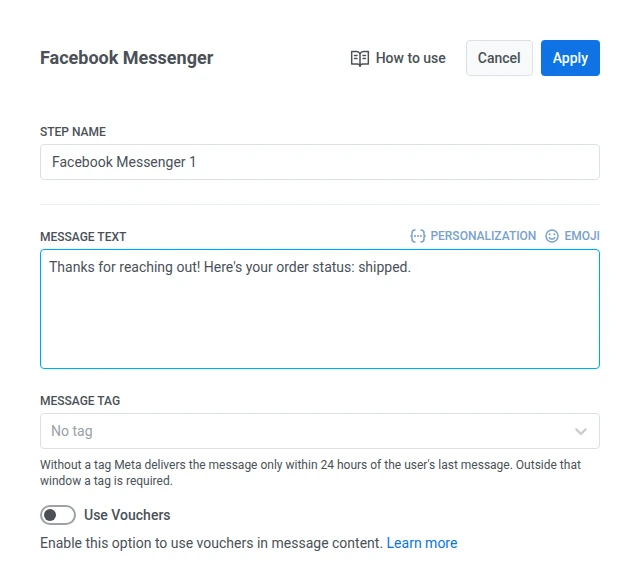
Anchor link toGeben Sie den reinen Textinhalt direkt in das Nachrichtenfeld ein.
Verwenden eines Nachrichten-Tags außerhalb des 24-Stunden-Fensters
Anchor link toWenn ein Benutzer Ihrer Seite eine Nachricht gesendet hat, können Sie innerhalb des 24-Stunden-Fensters, das diese Nachricht öffnet, mit benutzerdefiniertem Inhalt antworten. Lassen Sie Message tag auf No tag eingestellt, wenn Sie innerhalb dieses Fensters senden.
Außerhalb dieses Fensters verlangt Meta ein Message tag, das einem der genehmigten Anwendungsfälle entspricht:
- CONFIRMED_EVENT_UPDATE: eine Erinnerung oder ein Update zu einem Ereignis, an dem der Empfänger teilnehmen wird.
- POST_PURCHASE_UPDATE: ein Update im Zusammenhang mit einem Kauf, den der Empfänger bereits getätigt hat.
- ACCOUNT_UPDATE: ein nicht wiederkehrendes Update über eine Änderung am Konto des Empfängers.
- HUMAN_AGENT: eine Nachricht von einem menschlichen Agenten, der dem Empfänger antwortet.
Wählen Sie ein Tag, das dem tatsächlichen Grund für die Nachricht entspricht. Meta kann Sendungen ablehnen, die das falsche Tag verwenden.
Gutscheine verwenden
Anchor link toSie können Facebook Messenger-Nachrichten personalisieren, indem Sie einen Gutscheincode aus einem vordefinierten Pool anhängen. Dies ist nützlich für Werbeaktionen, Rabatte und Treueanreize. Fügen Sie dazu den Platzhalter {{voucher}} in Ihren Nachrichtentext ein.
Fügen Sie den Gutschein-Pool im Voraus hinzu. Erfahren Sie mehr über Gutscheine
Um einen Gutschein in Ihre Facebook Messenger-Nachricht aufzunehmen:
- Schalten Sie Use Vouchers im Facebook Messenger-Element auf EIN.
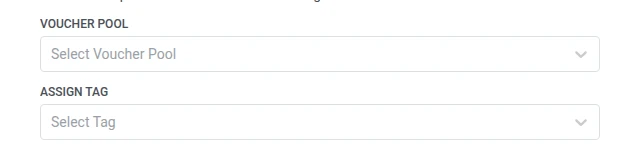
- Wählen Sie im Feld Voucher Pool den Pool aus, der Ihre verfügbaren Gutscheincodes enthält.
- (Optional) Verwenden Sie das Feld Assign Tag, um Benutzern, die einen Gutschein erhalten, ein Tag zuzuweisen. Dieses Tag kann zur Segmentierung oder für Berichte verwendet werden.
Einschränkungen
Anchor link to- Nur reiner Text, ohne Vorlagen, Schaltflächen oder Medienanhänge.
- Sie können nicht bestätigen, dass eine bestimmte ausgehende Messenger-Nachricht gelesen wurde. Meta meldet nur, dass die Konversation bis zu einem bestimmten Zeitpunkt gelesen wurde, nicht pro Nachricht.
- Der Kanal liefert erst, nachdem Meta die Messenger-Berechtigungen Ihrer Meta-App für die verbundene Seite genehmigt hat.
Nachdem Sie das Facebook Messenger-Element konfiguriert haben, klicken Sie auf Anwenden (Apply), um Ihre Einstellungen zu speichern. Starten Sie die Journey, wenn der Rest der Arbeitsfläche (Canvas) bereit ist.