Integration für eingehende Webhooks
Eingehende Webhooks ermöglichen es Drittanbieter-Diensten, Ereignisse direkt an Pushwoosh zu senden. Wenn ein Drittanbieter-Dienst einen Webhook auslöst, authentifiziert Pushwoosh die Anfrage, identifiziert den Benutzer und wendet die von Ihnen konfigurierte Zuordnung an: Füllen Sie Tags im Benutzerprofil aus, lösen Sie ein Pushwoosh-Ereignis aus oder beides. Ein ausgelöstes Ereignis kann dann eine Journey starten oder voranbringen.
Verwenden Sie eingehende Webhooks, um Tools wie CRMs, E-Commerce-Plattformen oder Analysedienste zu verbinden, ohne einen eigenen Server erstellen oder warten zu müssen.
Wenn die eingehende Kennung keinem bestehenden Benutzer entspricht, kann Pushwoosh den Benutzer erstellen, anstatt die Anfrage zu verwerfen. Aktivieren Sie das Kontrollkästchen zur automatischen Erstellung, das in Eingehende Daten zuordnen beschrieben ist.
Bevor Sie beginnen
Anchor link toBereiten Sie Folgendes vor, bevor Sie die Webhook-Einrichtung öffnen.
-
Entscheiden Sie, was der Webhook tun soll. Ein Webhook muss mindestens ein Tag, ein Ereignis oder beides zuordnen. Um ein Ereignis auszulösen, wählen Sie ein bestehendes aus Ihrem Projekt (zum Beispiel
CheckoutSuccess) oder erstellen Sie ein neues mit den Attributen, die Sie aus den eingehenden Daten füllen möchten. Tags können bestehenden Tags zugeordnet oder direkt bei der Einrichtung des Webhooks erstellt werden. -
Stellen Sie sicher, dass Ihr Drittanbieter-Dienst Webhooks senden kann. Der Dienst muss in der Lage sein, eine HTTP-POST-Anfrage an eine externe URL zu senden, wenn das für Sie relevante Ereignis eintritt, zum Beispiel eine neue Bestellung oder eine Formularübermittlung.
-
Besorgen Sie sich eine Beispiel-JSON-Payload von Ihrem Drittanbieter-Dienst. Dies ist ein kleines Beispiel für die Daten, die der Dienst bei jedem Ereignis sendet. Sie benötigen es, um Payload-Felder Tags und Ereignisattributen zuzuordnen.
Einen Webhook erstellen
Anchor link toWebhook-Einrichtung öffnen
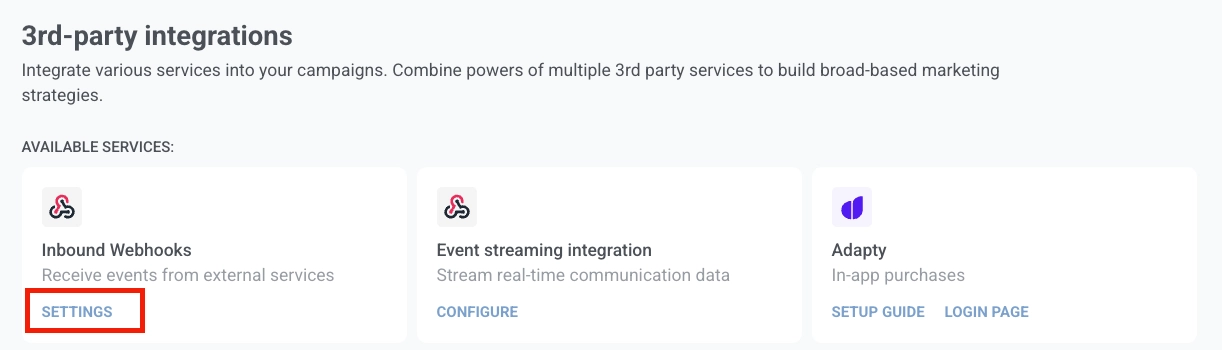
Anchor link to- Gehen Sie in Ihrem Pushwoosh-Konto zu Einstellungen → Integrationen → Eingehende Webhooks und klicken Sie auf Einstellungen.
- Klicken Sie auf Webhook erstellen, um den Einrichtungsbildschirm zu öffnen: Beispiel-Payload einfügen links, Webhook-Einrichtung rechts.
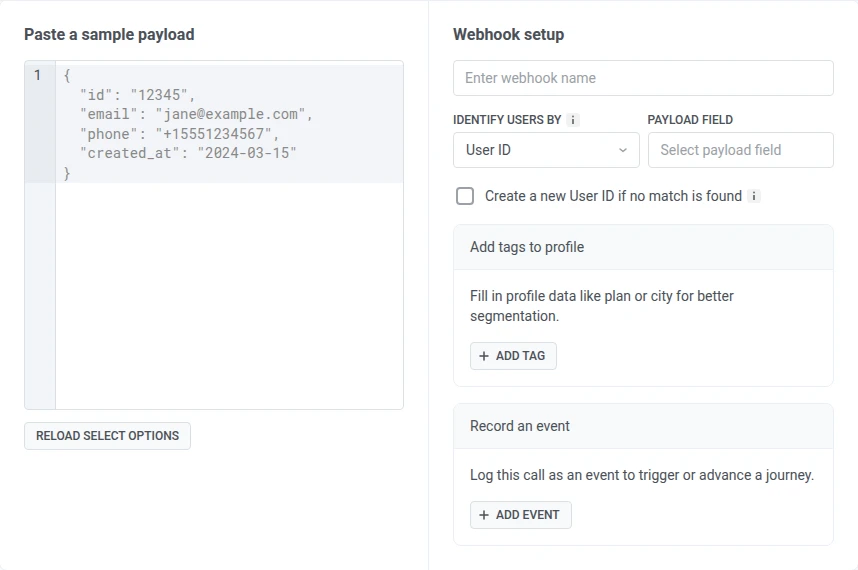
- Geben Sie einen Webhook-Namen ein, damit Sie den Webhook später in der Liste identifizieren können.
Eingehende Daten zuordnen
Anchor link to- Fügen Sie unter Beispiel-Payload einfügen eine Beispiel-JSON-Payload von Ihrem Drittanbieter-Dienst ein. Pushwoosh extrahiert die Felder und lädt sie in die Dropdown-Menüs für Payload-Felder.
Beispiel-Payload:
{ "id": "12345", "email": "jane@example.com", "phone": "+15551234567", "loyalty_tier": "gold", "order_number": "ORD-001", "price": 99.99}- Wählen Sie unter Benutzer identifizieren durch, wie Pushwoosh die eingehende Anfrage einem Benutzer zuordnen soll:
- User ID: Ihre interne Kennung, die einem Benutzer im System zugewiesen ist.
- Email: Zuordnung nach E-Mail-Adresse.
- Phone: Zuordnung nach Telefonnummer.
- HWID: eine Geräte-, Browser- oder E-Mail-Kennung.
- Token: Zuordnung nach einem Geräte-Push-Token.
- Wählen Sie im Payload-Feld das Feld aus, das den entsprechenden Wert enthält.
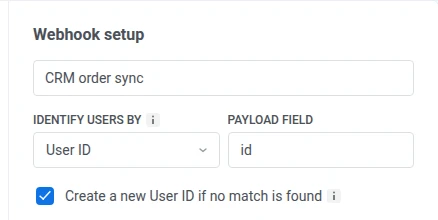
- Optional: Aktivieren Sie das Kontrollkästchen unter Payload-Feld, um automatisch einen neuen Benutzer zu erstellen, wenn keine Übereinstimmung gefunden wird, anstatt die Anfrage zu verwerfen. Die Beschriftung entspricht Ihrer Kennungswahl, zum Beispiel Neue User ID erstellen, wenn keine Übereinstimmung gefunden wird oder Neue E-Mail erstellen, wenn keine Übereinstimmung gefunden wird. Das Kontrollkästchen ist für HWID und Token deaktiviert, da Pushwoosh keine Geräte-, Browser- oder Push-Token-Kennung vor einer tatsächlichen SDK-Sitzung erstellen kann.
Jeder Webhook muss mindestens ein Tag zuordnen, ein Ereignis auslösen oder beides.
Tags zum Profil hinzufügen
Anchor link toVerwenden Sie Tags zum Profil hinzufügen, um Payload-Werte als Tags im Profil des zugeordneten Benutzers zu speichern. Füllen Sie Profildaten wie Tarifstufe oder Stadt für eine bessere Segmentierung aus.
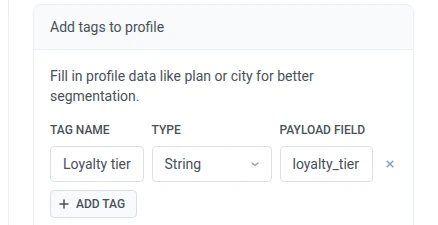
- Klicken Sie auf + Tag hinzufügen.
- Wählen Sie unter Tag-Name ein bestehendes Tag aus der Liste oder geben Sie einen neuen Namen ein. Pushwoosh zeigt Erstellen:
<name>, um zu bestätigen, dass ein neues Tag erstellt wird. - Wenn Sie ein bestehendes Tag ausgewählt haben, zeigt Typ dessen Typ an und kann nicht geändert werden. Wenn Sie ein neues Tag erstellt haben, öffnen Sie Typ und wählen Sie dessen Datentyp. Pushwoosh speichert es als benutzerspezifisches Tag dieses Typs.
- Wählen Sie im Payload-Feld das Feld aus Ihrer Beispiel-Payload aus, das den Wert enthält.
- Wiederholen Sie die Schritte 1–4 für jedes Tag, das Sie ausfüllen möchten.
Um eine Zeile zu entfernen, klicken Sie auf ×.
Ein Ereignis aufzeichnen
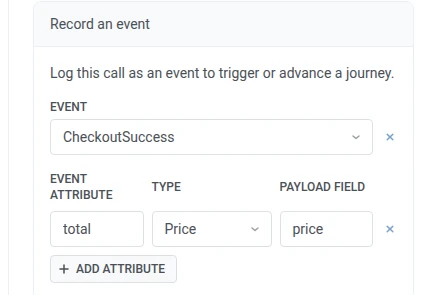
Anchor link toVerwenden Sie Ein Ereignis aufzeichnen, um ein Pushwoosh-Ereignis auszulösen, wenn der Webhook eine gültige Anfrage erhält. Ein ausgelöstes Ereignis kann eine Journey starten oder voranbringen.
- Wählen Sie unter Ereignis das auszulösende Pushwoosh-Ereignis aus.
- Klicken Sie auf + Attribut hinzufügen.
- Wählen Sie unter Ereignisattribut ein bestehendes Attribut des ausgewählten Ereignisses aus der Liste oder geben Sie einen neuen Namen ein. Pushwoosh zeigt Erstellen:
<name>, um zu bestätigen, dass ein neues Attribut erstellt wird. - Wenn Sie ein bestehendes Attribut ausgewählt haben, zeigt Typ dessen Typ an und kann nicht geändert werden. Wenn Sie ein neues Attribut erstellt haben, öffnen Sie Typ und wählen Sie dessen Datentyp.
- Wählen Sie im Payload-Feld das Feld aus Ihrer Beispiel-Payload aus, das den Wert enthält.
- Wiederholen Sie die Schritte 2–5 für jedes Attribut, das Sie ausfüllen möchten.
Um eine Zeile zu entfernen, klicken Sie auf ×.
Aktivieren und verbinden
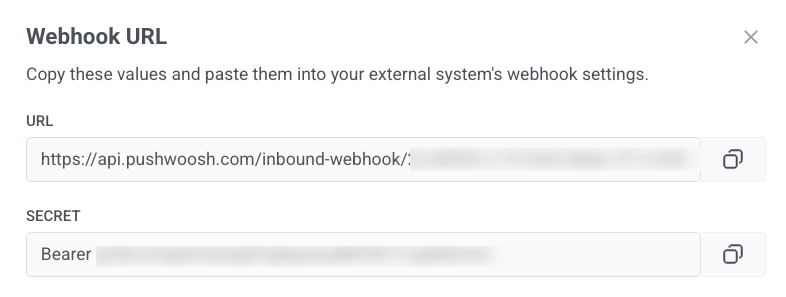
Anchor link to- Wenn die Konfiguration abgeschlossen ist, klicken Sie auf Webhook aktivieren. Das Fenster Webhook-URL öffnet sich.
-
Kopieren Sie die URL und legen Sie sie als Webhook-Ziel in Ihrem Drittanbieter-Dienst fest.
-
Kopieren Sie das Secret und fügen Sie es in Ihrem Drittanbieter-Dienst als Wert für den
Authorization-Header ein. Der Wert enthält das PräfixBearer, verwenden Sie ihn also unverändert. Pushwoosh lehnt jede Anfrage ab, bei der dieser Header fehlt oder nicht übereinstimmt.
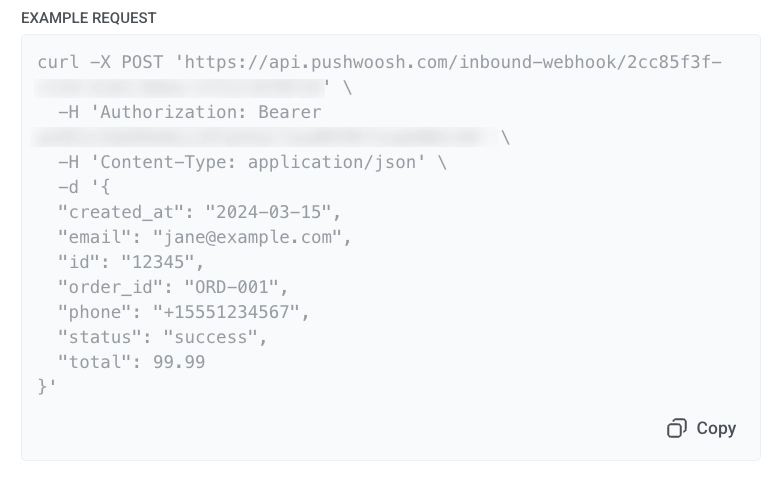
- Klicken Sie im Block Beispielanfrage auf Kopieren, um eine Beispiel-
POST-Anfrage zu kopieren. Verwenden Sie sie, um eine Testanfrage zu senden und zu bestätigen, dass Pushwoosh den Webhook akzeptiert, oder teilen Sie sie mit Ihrem Team als Vorlage für die Integration.
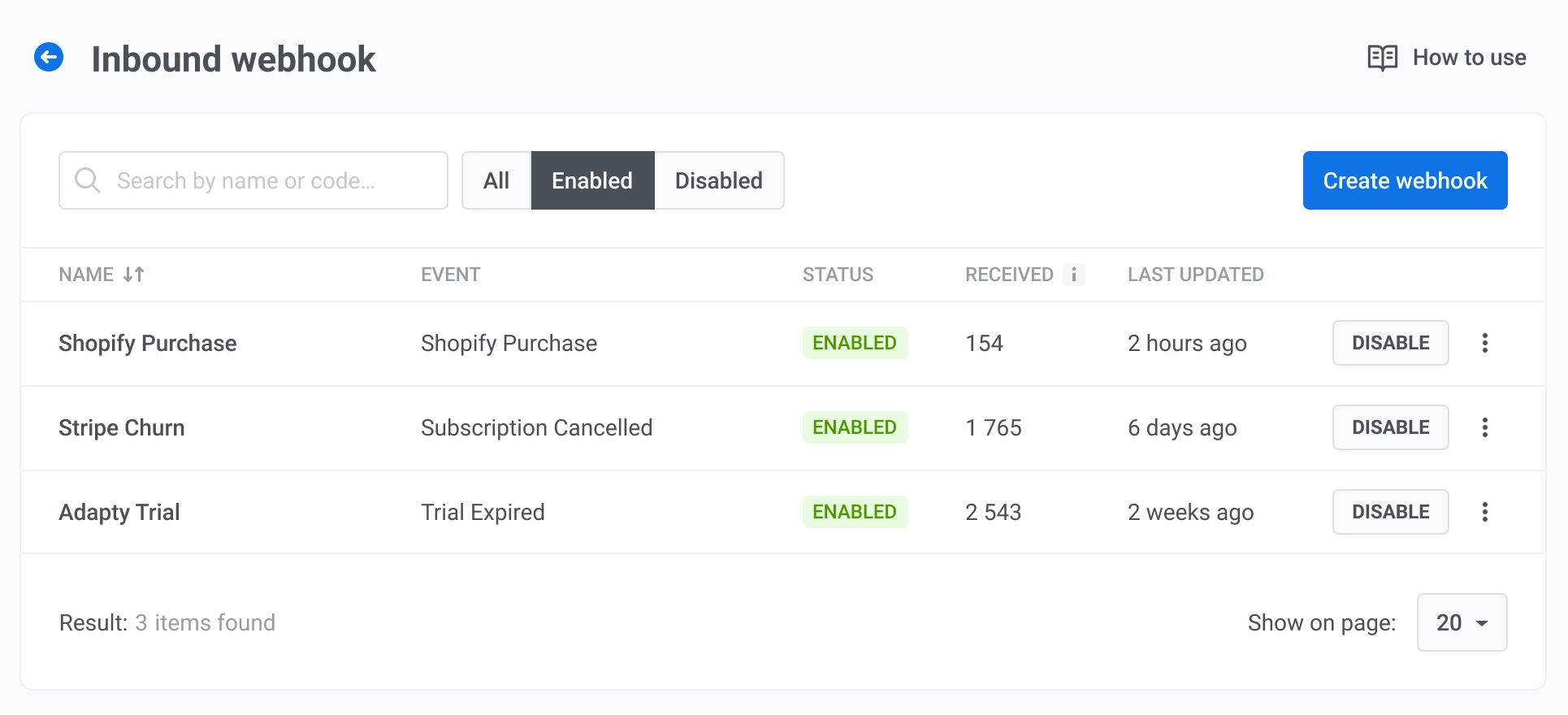
Nachdem Sie den Webhook aktiviert haben, erscheint er in der Webhook-Liste mit dem Status „Aktiviert“ und beginnt, Anfragen anzunehmen.
Webhook-Liste
Anchor link toDie Liste der eingehenden Webhooks zeigt jeden Webhook in Ihrem Projekt an.
Jede Zeile zeigt:
- Name: Webhook-Name.
- Status: Aktiviert oder Deaktiviert.
- Empfangen: Gesamtzahl der vom Webhook empfangenen eingehenden Anfragen.
- Zuletzt geändert: Zeitpunkt der letzten Änderung des Webhooks.
Webhooks verwalten
Anchor link toÖffnen Sie das Zeilenmenü, um:
- Einstellungen bearbeiten: öffnet die Webhook-Konfiguration, damit Sie den Namen, das Ereignis, die Feldzuordnung und die Benutzeridentifikation ändern können.
- URL kopieren: öffnet das Fenster Webhook-URL mit der URL und dem Secret, damit Sie sie erneut kopieren können.
- Aktivitätsprotokoll: öffnet das Anforderungsprotokoll für diesen Webhook.
- Löschen: entfernt den Webhook aus der Liste.
Für einen aktivierten Webhook klicken Sie auf Deaktivieren, um ihn zu deaktivieren, ohne die Konfiguration zu löschen. Für einen deaktivierten Webhook klicken Sie auf Aktivieren, um wieder Anfragen anzunehmen.
Aktivitätsprotokoll anzeigen
Anchor link toDas Aktivitätsprotokoll zeigt alle eingehenden Anfragen für den ausgewählten Webhook.
Zusammenfassungsfeld
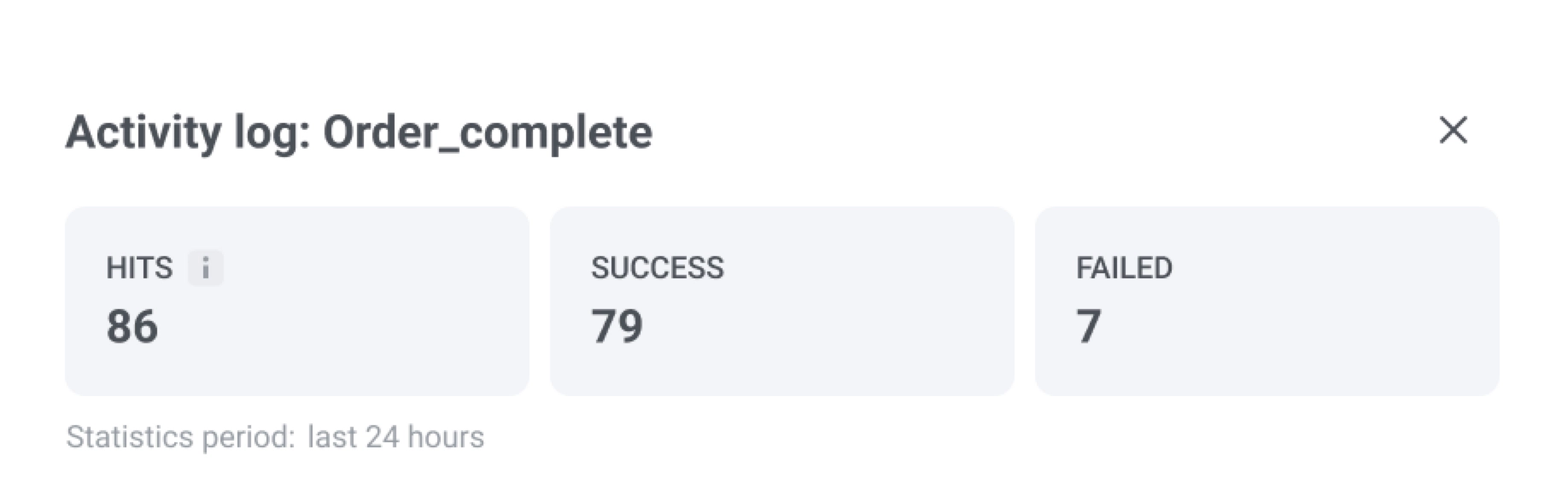
Oben können Sie die Zusammenfassung der letzten 24 Stunden einsehen:
- Gesamttreffer: Gesamtzahl der empfangenen eingehenden Anfragen.
- Warnung: Anfragen, bei denen der Benutzer identifiziert (oder erstellt) wurde, aber mindestens eine konfigurierte Tag- oder Ereigniszuordnung nicht angewendet werden konnte.
- Fehlgeschlagen: Anfragen, die überhaupt nicht verarbeitet wurden, zum Beispiel aufgrund eines falschen Secrets oder eines fehlenden Kennungsfeldes. Eine fehlgeschlagene Anfrage stoppt den Webhook nicht. Pushwoosh akzeptiert und verarbeitet weiterhin spätere Anfragen.
| Fehlergrund | Bedeutung |
|---|---|
| Authentifizierung abgelehnt | Das geteilte Secret stimmt nicht mit der Webhook-Konfiguration überein. Wenn fünf aufeinanderfolgende Anfragen mit diesem Fehler fehlschlagen, sendet Pushwoosh Ihnen eine Benachrichtigung. Aktualisieren Sie das Secret, um fortzufahren. Keine Reaktivierung erforderlich. |
| Feld für Benutzerkennung fehlt | Das für die Benutzeridentifikation zugeordnete Payload-Feld ist in der Anfrage nicht vorhanden. |
Anforderungseinträge
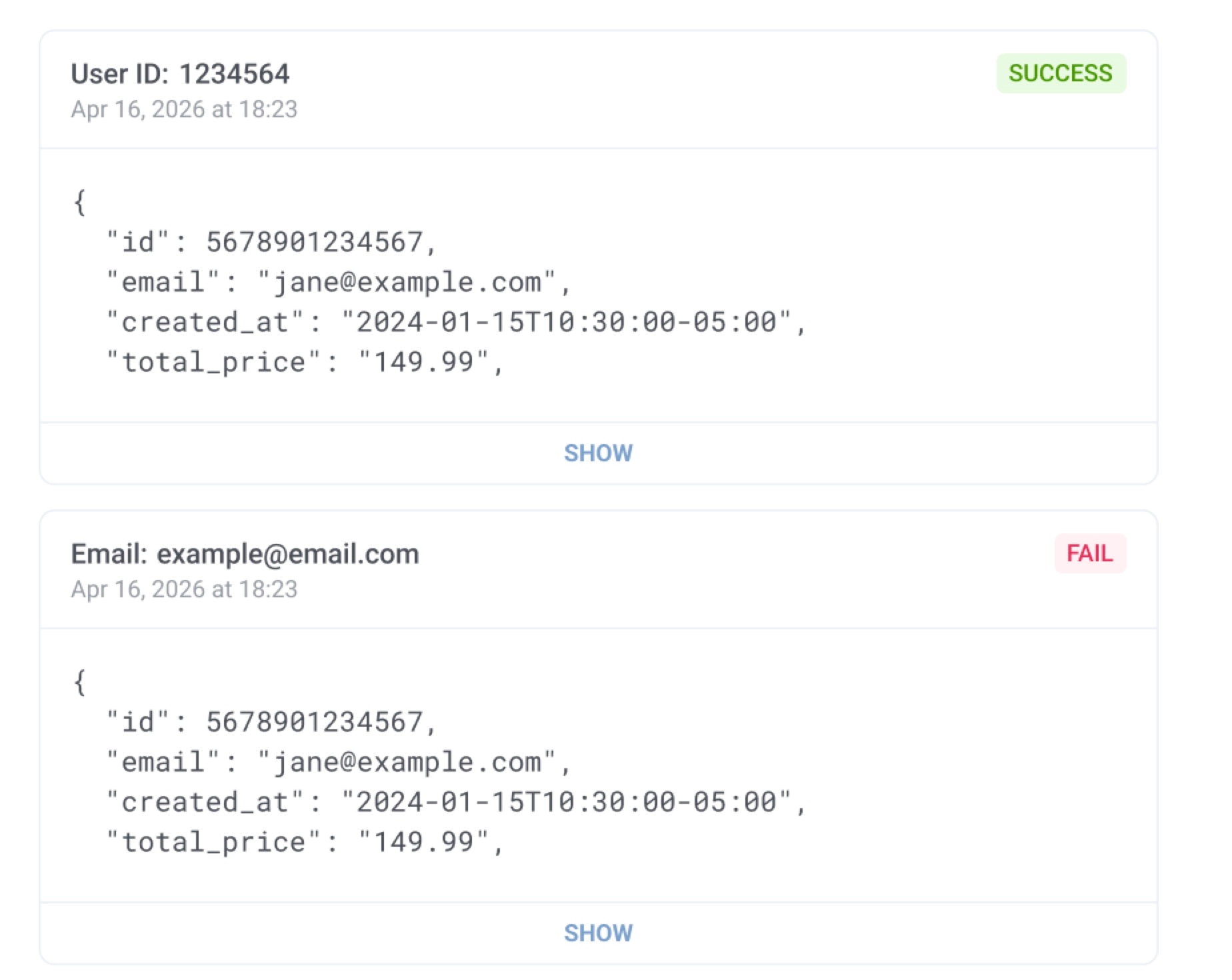
Jeder Eintrag zeigt ein Statussymbol, die Benutzerkennung (zum Beispiel User ID oder Email), den Zeitstempel der Anfrage und ein Häkchen für jede Fähigkeit, die Sie auf dem Webhook konfiguriert haben: User ID (oder Ihre gewählte Kennung), Tags und Ereignis. Ein Häkchen bedeutet, dass dieser Teil der Anfrage erfolgreich angewendet wurde; eine Anfrage kann eine Mischung aus abgehakten und fehlgeschlagenen Elementen aufweisen. Klicken Sie auf Anzeigen, um die vollständige empfangene JSON-Payload zu erweitern.
In Webhook ausgelöste Ereignisse und Tags im User Explorer anzeigen
Anchor link toWenn eine Webhook-Anfrage erfolgreich verarbeitet wird, zeichnet Pushwoosh das Ergebnis für den zugeordneten (oder neu erstellten) Benutzer im User Explorer auf. Wo das Ereignis erscheint, hängt davon ab, wie Sie den Benutzer identifiziert haben:
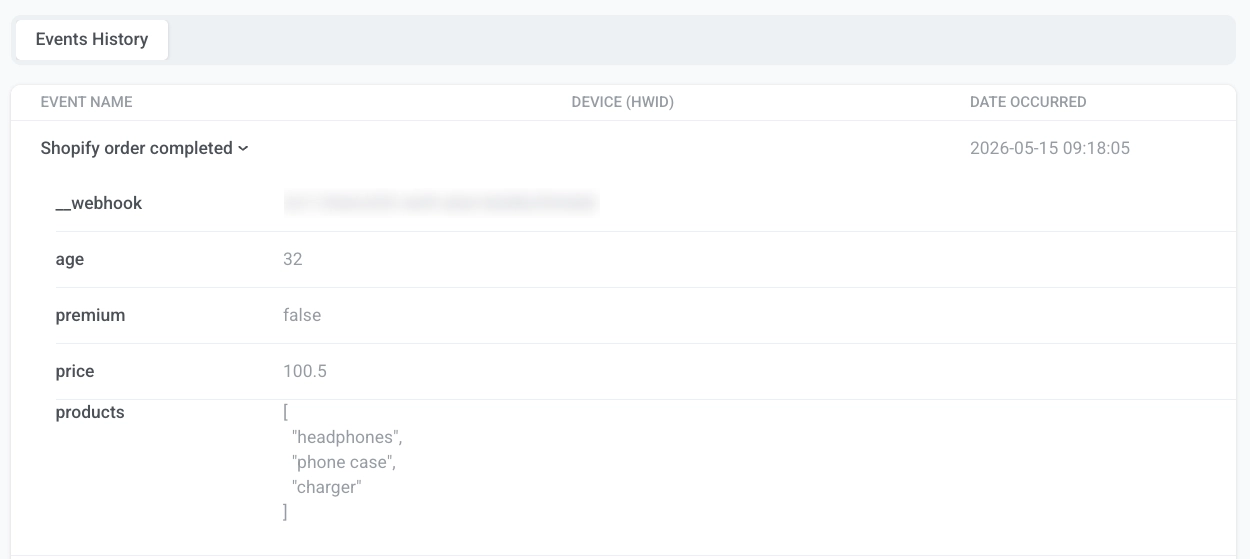
- User ID, Email oder Phone: Das Ereignis wird im Benutzerprofil aufgezeichnet. Öffnen Sie den Benutzer und gehen Sie zu Ereignisverlauf.
- HWID: Das Ereignis wird auf dem entsprechenden Gerät aufgezeichnet. Öffnen Sie den Benutzer, finden Sie das Gerät unter Aktive Benutzergeräte und gehen Sie zu dessen Registerkarte Ereignisverlauf.
Finden Sie das Ereignis nach Namen und erweitern Sie es, um die zugeordneten Attribute (zum Beispiel price oder products) und das __webhook-Attribut mit der Webhook-ID zu sehen. Zugeordnete Tags erscheinen beim selben Benutzer auf der Registerkarte Benutzerübersicht, unabhängig vom Kennungstyp.
Eingehende Webhooks mit Journeys verwenden
Anchor link toNachdem ein Webhook aktiviert ist und erfolgreich Ereignisse auslöst, verwenden Sie das ausgewählte Ereignis als triggerbasierten Journey-Einstieg. Wenn der Webhook eine gültige Anfrage erhält, löst Pushwoosh das zugeordnete Ereignis aus. Jede Journey, die dieses Ereignis als Einstiegstrigger verwendet, startet automatisch für den zugeordneten Benutzer.