Feature-Flags
Ein Feature-Flag ist ein Ein-/Aus-Schalter für eine Funktion in Ihrer App oder auf Ihrer Website. Sie legen ihn im Control Panel um, ohne neues Release.
Für jedes Flag wählen Sie, wer die Funktion erhält: Benutzer in einem Segment, einen Prozentsatz aller Benutzer oder beides. Zeigen Sie zum Beispiel einen neuen Bildschirm zuerst 10 % der Benutzer und erhöhen Sie dann den Prozentsatz. Wenn etwas schiefgeht, können Sie die Funktion mit der Schaltfläche Für alle abschalten für alle abschalten. Ein Flag kann außerdem Eigenschaften enthalten, etwa eine Schaltflächenfarbe oder ein Rabattlimit, die Sie pro Zielgruppe festlegen.
Bevor Sie beginnen
Anchor link to- Plan: Feature-Flags sind nur in Plänen verfügbar, die sie enthalten. In anderen Plänen erscheint Feature Flags nicht im Menü Zielgruppe. Wenden Sie sich zur Aktivierung an Ihren Account Manager.
- Zugriff: Feature Flags erscheint in jeder Anwendung, die Sie sehen können. Um Flags zu erstellen und zu ändern, benötigen Sie die Berechtigung Anwendungen ändern oder dieselbe Berechtigung für diese Anwendung in ihren App-spezifischen Berechtigungen.
- Einrichtung durch Entwickler: Ein Flag wirkt sich erst auf Benutzer aus, wenn Ihre Entwickler es im Code der App oder Website über seinen Schlüssel auslesen. Sie benötigen Web SDK 3.94.1 oder höher, Android SDK 6.16.0 oder höher oder iOS SDK 7.2.10 oder höher. In einer Anwendung, die noch keine Flags hat, zeigt die Seite Feature-Flags fertige Codebeispiele für Web, Android und iOS. Geben Sie diese zusammen mit dem Schlüssel des Flags an Ihre Entwickler weiter. Teilen Sie den Web SDK-Leitfaden, den Android SDK-Leitfaden oder den iOS SDK-Leitfaden mit ihnen.
Wenn Ihr Plan keine Feature-Flags mehr enthält, erhalten Geräte keine Flags mehr und Ihre App oder Website verwendet die in ihrem Code festgelegten Werte. Das Erstellen oder Wiederherstellen eines Flags schlägt dann mit der Meldung Feature-Flags sind in Ihrem Tarif nicht verfügbar fehl, zum Beispiel in einem Control Panel-Tab, der vor der Planänderung geöffnet wurde.
Wie ein Flag entscheidet, was jeder Benutzer erhält
Anchor link toJedes Flag hat eine Liste von Regeln. Jede Regel hat ein Segment, einen Prozentsatz der Benutzer, für die das Flag aktiviert ist (Rollout, %), und optionale Eigenschaftswerte. Für jedes Gerät prüft Pushwoosh die Regeln von oben nach unten:
- Es entscheidet die erste Regel, deren Segment auf das Gerät zutrifft. Eine Regel ohne Segment trifft auf jedes Gerät zu.
- Der Rollout, % der Regel entscheidet, ob das Flag für diesen Benutzer aktiviert ist. Bei 20 % erhalten es zwei von zehn Benutzern.
- Ein Benutzer, für den das Flag aktiviert ist, erhält die in dieser Regel festgelegten Eigenschaftswerte. Ein Benutzer, für den es deaktiviert ist, erhält die Standard-Eigenschaftswerte.
Sobald ein Gerät auf eine Regel zutrifft, werden die nachfolgenden Regeln übersprungen, auch wenn diese Regel das Flag für das Gerät deaktiviert. Ein Gerät, auf das keine Regel zutrifft, erhält das Flag deaktiviert.
Ein Benutzer erhält bei jedem Besuch dasselbe Ergebnis. Geräte, die mit derselben User ID angemeldet sind, erhalten dasselbe Ergebnis, wenn sie auf dieselbe Regel zutreffen, denn Pushwoosh prüft Segmente für jedes Gerät. Pushwoosh identifiziert einen Benutzer anhand der User ID oder, wenn keine User ID festgelegt ist, anhand der Geräte-ID. Wenn Sie den Prozentsatz erhöhen, behalten Benutzer, die das Flag bereits haben, es, und neue Benutzer kommen hinzu.
Ein Flag erstellen
Anchor link to-
Gehen Sie zu Zielgruppe → Feature Flags.
-
Klicken Sie auf Feature-Flag erstellen.

-
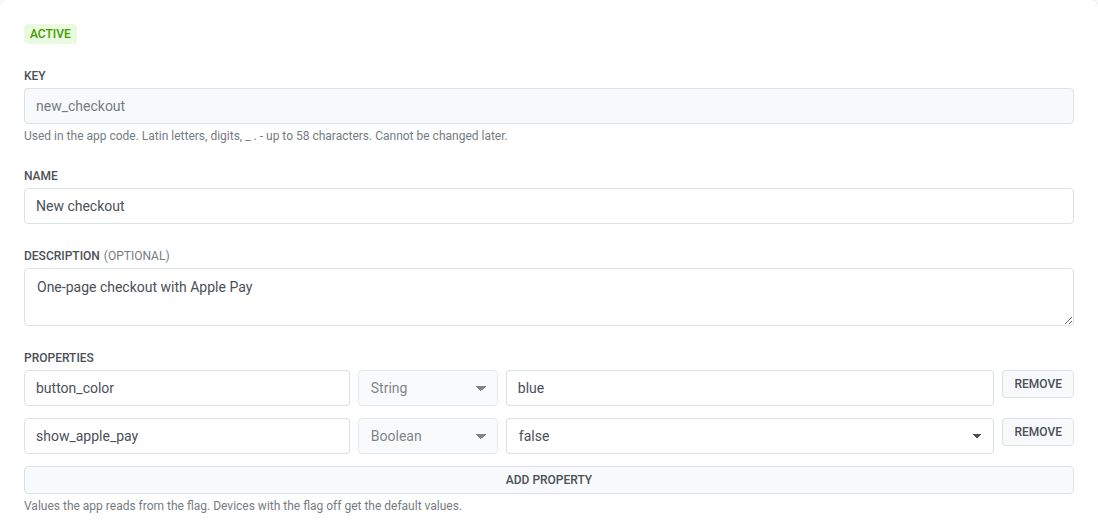
Geben Sie den Schlüssel ein, zum Beispiel
new_checkout. Der Schlüssel ist ein beliebiger Name Ihrer Wahl, aber Ihre Entwickler lesen das Flag im Code genau über diesen Schlüssel aus, einschließlich Groß- und Kleinschreibung. Stimmen Sie ihn mit ihnen ab, bevor Sie das Flag speichern. -
Geben Sie einen Name und optional eine Beschreibung ein, damit Ihr Team weiß, was das Flag steuert.
Für den Schlüssel gelten diese Regeln:
- Lateinische Buchstaben, Ziffern,
_,.und-, bis zu 58 Zeichen. - Sie können den Schlüssel später nicht ändern.
- Sie können keinen Schlüssel wiederverwenden, den ein anderes Flag der Anwendung hat, auch kein archiviertes, und keinen Schlüssel, der sich nur in der Groß- und Kleinschreibung unterscheidet, wie
New_Checkoutundnew_checkout.
Eigenschaften hinzufügen
Anchor link toEigenschaften sind Werte, die die App oder Website aus dem Flag ausliest, zum Beispiel der Text eines Banners oder die Anzahl der Artikel in einem Empfehlungsblock. Überspringen Sie diesen Schritt, wenn das Flag eine Funktion nur ein- und ausschaltet.
- Klicken Sie unter Eigenschaften auf Eigenschaft hinzufügen.
- Geben Sie den Eigenschaftsschlüssel ein, zum Beispiel
button_color. Verwenden Sie lateinische Buchstaben, Ziffern und_, bis zu 64 Zeichen. Der Eigenschaftsschlüssel ist ein beliebiger Name Ihrer Wahl, aber Ihre Entwickler lesen den Wert im Code genau über diesen Schlüssel aus, einschließlich Groß- und Kleinschreibung. Stimmen Sie ihn mit ihnen ab, bevor Sie das Flag speichern. - Wählen Sie den Typ: Zeichenkette, Zahl, Boolesch oder JSON. Nach dem Speichern des Flags können Sie den Typ nicht mehr ändern.
- Geben Sie den Standardwert ein. Benutzer, für die das Flag deaktiviert ist, erhalten diesen Wert.
Ein Flag kann bis zu 50 Eigenschaften haben.
Regeln hinzufügen
Anchor link to- Klicken Sie unter Regeln auf Regel hinzufügen.
- Geben Sie einen Regelname ein, zum Beispiel
Paying customers. - Wählen Sie unter Segment aus, für wen die Regel gilt. Lassen Sie das Feld leer, damit die Regel für alle Benutzer gilt.
- Geben Sie unter Rollout, % den Prozentsatz des Segments ein, für den das Flag aktiviert ist, von 0 bis 100 mit bis zu zwei Dezimalstellen.
- Ändern Sie unter Werte für Nutzer, für die diese Regel das Flag einschaltet die Eigenschaften, die für diese Benutzer von den Standardwerten abweichen sollen. Eigenschaften, die Sie nicht ändern, behalten ihre Standardwerte.
- Um eine weitere Zielgruppe hinzuzufügen, wiederholen Sie die Schritte. Ändern Sie die Reihenfolge mit Nach oben und Nach unten, denn es entscheidet die erste zutreffende Regel.
Ein Flag kann bis zu 10 Regeln haben.
Unter Rollout, % zeigt jede Regel, für etwa wie viele Geräte sie das Flag aktiviert, zum Beispiel ≈ 1.200 Geräte. Pushwoosh multipliziert die Größe des Regelsegments mit dem Prozentsatz. Bei einer Regel ohne Segment nimmt es alle Geräte der Anwendung. Verstehen Sie die Zahl als das Maximum, das die Regel erreichen kann, denn ein Gerät, das auf eine frühere Regel zutrifft, bleibt dort stehen.
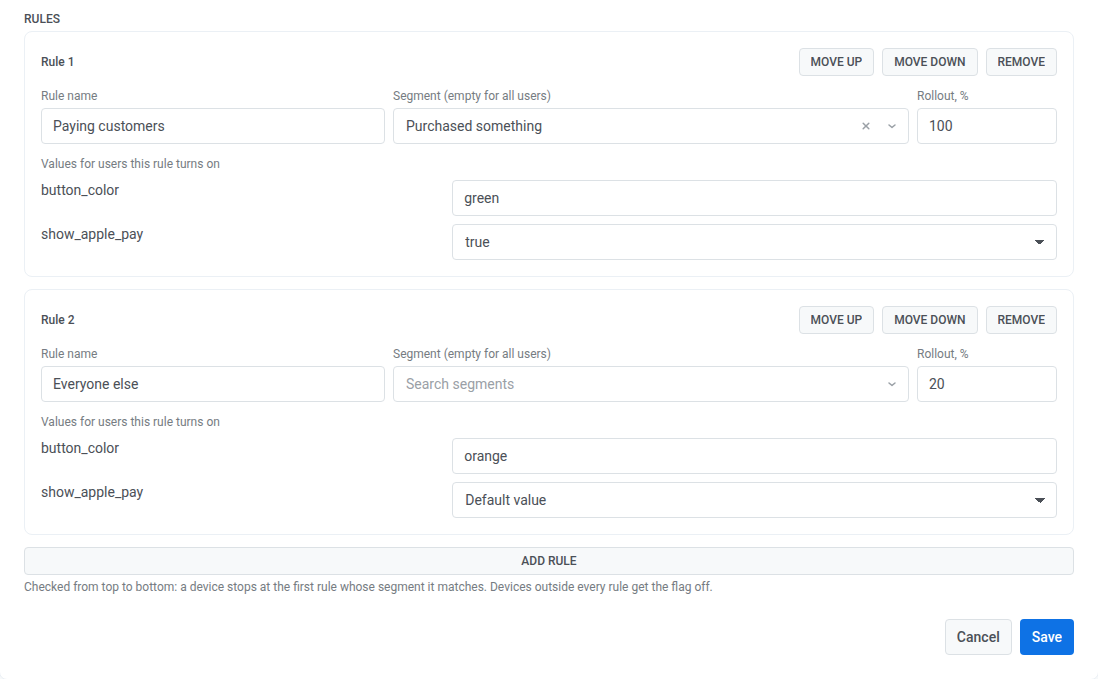
Um zum Beispiel allen zahlenden Kunden und 20 % aller anderen einen neuen Checkout zu geben, erstellen Sie zwei Regeln:
| Regel | Segment | Rollout, % | Werte für Nutzer, für die diese Regel das Flag einschaltet |
|---|---|---|---|
| Paying customers | Purchased something | 100 | button_color = green, show_apple_pay = true |
| Everyone else | — | 20 | button_color = orange |
Das Flag speichern
Anchor link toKlicken Sie auf Speichern. Das Flag wird mit dem Status Aktiv erstellt, und Geräte erhalten es, wenn sie das nächste Mal nach Flags fragen.
Flags verwalten
Anchor link toDie Flag-Liste zeigt für jedes Flag Name, Schlüssel, Status, Anzahl der Regeln und Zeitpunkt der letzten Aktualisierung. Um archivierte Flags zu sehen, aktivieren Sie Archivierte anzeigen. Um ein Flag zu öffnen, klicken Sie auf seinen Namen. Der Block SDK-Unterstützung oben in der Liste und auf jedem Flag zeigt den Anteil der Geräte der Anwendung mit einem älteren SDK, sofern ihre Geräte die SDK-Version melden. Diese Geräte erhalten keine Flags, bis die Benutzer die App aktualisieren.
Ein Flag hat einen von drei Status:
| Status | Was Benutzer erhalten | Aktionen |
|---|---|---|
| Aktiv | Das Flag arbeitet nach seinen Regeln. | Neu mischen, Für alle abschalten, Archivieren |
| Abgeschaltet | Das Flag ist für jeden Benutzer deaktiviert, mit Standard-Eigenschaftswerten. Regeln und Eigenschaften bleiben erhalten. | Wieder einschalten, Archivieren |
| Archiviert | Geräte erhalten das Flag nicht mehr, daher verwendet der Code die Werte, die Ihre Entwickler darin festgelegt haben. | Wiederherstellen |
Ein Flag ändern
Anchor link to- Öffnen Sie das Flag.
- Bearbeiten Sie Name, Beschreibung, Eigenschaften oder Regeln.
- Klicken Sie auf Speichern.
- Wenn Sie die Regeln oder die Standard-Eigenschaftswerte geändert haben, listet der Dialog Änderungen prüfen auf, was mit den Geräten geschieht. Prüfen Sie ihn und klicken Sie auf Speichern.
Der Dialog zeigt eine Zeile pro Änderung:
- Rollout einer Regel: etwa wie viele Geräte das Flag zusätzlich erhalten oder wie viele es verlieren.
- Werte einer Regel: etwa wie viele Geräte die neuen Werte erhalten, sowie der alte und der neue Wert jeder Eigenschaft.
- Neue oder entfernte Regel, ein anderes Segment oder eine neue Reihenfolge der Regeln: wohin Geräte wechseln. Zum Beispiel wechseln Geräte einer entfernten Regel zur nächsten Regel, die auf sie zutrifft.
- Standardwerte: die alten und neuen Werte, die Geräte mit deaktiviertem Flag erhalten.
Änderungen nur am Namen oder an der Beschreibung werden ohne den Dialog gespeichert.
Um eine Funktion schrittweise auszurollen, erhöhen Sie den Rollout, % einer Regel Schritt für Schritt.
Wenn jemand anderes das Flag gespeichert hat, während Sie es bearbeitet haben, überschreibt das Control Panel dessen Änderungen nicht und fordert Sie auf, das Flag neu zu laden. Klicken Sie auf Neu laden und nehmen Sie Ihre Änderungen erneut vor.
Ein Flag für alle abschalten
Anchor link toVerwenden Sie Für alle abschalten, wenn eine Funktion Probleme verursacht und Sie sie für alle stoppen müssen:
-
Öffnen Sie das Flag und klicken Sie auf Für alle abschalten.

-
Bestätigen Sie. Jedes Gerät erhält das Flag deaktiviert mit Standard-Eigenschaftswerten, wenn es das nächste Mal nach Flags fragt.
Solange Ihre Website oder App geöffnet ist, erhalten Geräte die Änderung innerhalb einer Stunde. Siehe, wie das Web SDK, das Android SDK und das iOS SDK nach Flags fragen.
Um das Flag mit seinen bisherigen Regeln wieder zu aktivieren, klicken Sie auf Wieder einschalten.
Eine andere Stichprobe von Benutzern wählen
Anchor link toNeu mischen ordnet jeden Benutzer einer neuen Gruppe zu, sodass derselbe Prozentsatz der Benutzer aus anderen Personen besteht. Verwenden Sie es, wenn Sie eine neue Stichprobe möchten, zum Beispiel um einen neuen Test zu starten.
- Öffnen Sie ein aktives Flag und klicken Sie auf Neu mischen.
- Bestätigen Sie. Einige Benutzer, für die das Flag aktiviert ist, verlieren es, und andere erhalten es, wenn ihre Geräte das nächste Mal nach Flags fragen, während die Prozentsätze gleich bleiben.
Ein Flag archivieren und wiederherstellen
Anchor link toArchivieren Sie ein Flag, wenn die Funktion vollständig ausgerollt oder aus dem Code entfernt ist. Ein archiviertes Flag zählt nicht zum Limit Ihres Plans für Flags pro Anwendung, und sein Schlüssel bleibt reserviert.
- Öffnen Sie das Flag und klicken Sie auf Archivieren.
- Bestätigen Sie.
Ein archiviertes Flag kann nicht bearbeitet werden. Um es zurückzuholen, aktivieren Sie in der Liste Archivierte anzeigen, öffnen Sie das Flag und klicken Sie auf Wiederherstellen. Ein wiederhergestelltes Flag kehrt mit dem Status Abgeschaltet zurück und erreicht Benutzer daher nicht von selbst. Klicken Sie auf Wieder einschalten, wenn Sie bereit sind.
Sehen, wer ein Flag geändert hat
Anchor link toDer Änderungsverlauf zeigt jede gespeicherte Version eines Flags: was geändert wurde, wer es geändert hat und wann. Jeder, der das Flag öffnen kann, kann seinen Verlauf sehen.
Der Verlauf wird für Änderungen ab dem 13. Oktober 2026 aufgezeichnet. Ein Flag ohne aufgezeichnete Änderungen zeigt Noch keine Änderungen. Bei einem Flag, das vor diesem Datum erstellt wurde, zeigt der älteste Eintrag keine Liste der Änderungen, da es keine frühere Version gibt, mit der er verglichen werden könnte.
- Öffnen Sie das Flag.
- Klicken Sie auf Verlauf.
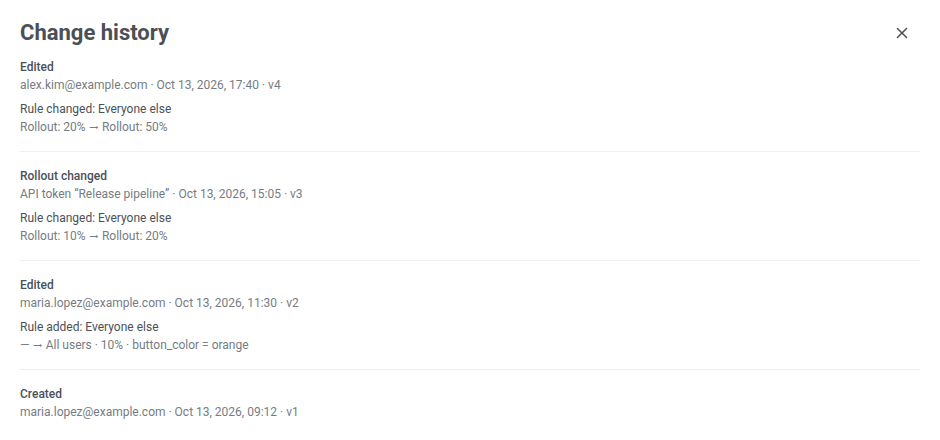
Der Bereich Änderungsverlauf listet die Versionen des Flags auf, die neueste zuerst. Jeder Eintrag zeigt:
- Die Aktion, zum Beispiel Bearbeitet.
- Wer die Änderung vorgenommen hat: die E-Mail-Adresse des Benutzers oder das API-Token, über das die Änderung kam, zum Beispiel API-Token „Release pipeline“, oder API-Token bei einem Token ohne Namen.
- Datum und Uhrzeit.
- Die Versionsnummer, zum Beispiel v4.
Um frühere Einträge zu laden, klicken Sie auf Mehr anzeigen.
| Aktion | Was geschehen ist |
|---|---|
| Erstellt | Das Flag wurde erstellt. |
| Bearbeitet | Jemand hat Änderungen am Flag gespeichert. |
| Rollout geändert | Der Rollout einer Regel wurde über die API oder den MCP-Server geändert. Im Control Panel wird eine Rollout-Änderung als Bearbeitet gespeichert. |
| Abgeschaltet | Jemand hat auf Für alle abschalten geklickt. |
| Wieder eingeschaltet | Jemand hat auf Wieder einschalten geklickt. |
| Archiviert | Das Flag wurde archiviert. |
| Wiederhergestellt | Das Flag wurde aus dem Archiv wiederhergestellt. |
| Nutzer neu gemischt | Jemand hat auf Neu mischen geklickt. |
Unter jedem Eintrag listet der Bereich auf, was sich geändert hat, als Wert vorher und nachher: Name, Beschreibung, Status, Eigenschaften, Reihenfolge der Regeln und jede hinzugefügte, entfernte oder geänderte Regel. Bei einer geänderten Regel zeigt er nur die Felder, die sich unterscheiden: Name, Segment, Rollout oder Werte. Eine Regel ohne Segment zeigt Alle Nutzer.
Benutzer nach Flag segmentieren
Anchor link toEine Feature-Flag-Bedingung in einem Segment findet die Geräte, die ein Flag aktiviert oder deaktiviert erhalten haben, auf eine seiner Regeln zugetroffen haben oder den Teil der App erreicht haben, den das Flag steuert. Verwenden Sie sie, um den Benutzern, die eine neue Funktion sehen, Nachrichten zu senden, zum Beispiel um Feedback einzuholen, oder um eine Journey um sie herum aufzubauen.
- Öffnen Sie den Segment-Builder, wie in Wie man Segmente erstellt beschrieben.
- Klicken Sie in der Liste der Bedingungen auf Feature-Flag.
- Wählen Sie unter Feature-Flag auswählen… das Flag. Archivierte Flags sind nicht in der Liste.
- Wählen Sie den Zustand:
- ist an: Geräte, die das Flag aktiviert erhalten haben.
- ist aus: Geräte, die das Flag deaktiviert erhalten haben.
- ist in Regel: Geräte, die auf das Segment einer Regel zugetroffen haben, unabhängig davon, ob der Rollout, % der Regel das Flag für sie aktiviert hat. Wählen Sie die Regel unter Regel auswählen….
- hat die Funktion gesehen (30 Tage): Geräte, die in den letzten 30 Tagen mindestens eine Impression des Flags gesendet haben, das heißt, die App hat
logImpressionfür diesen Flag-Schlüssel aufgerufen. Siehe Benutzer finden, die eine Funktion erreicht haben.
Feature-Flag erscheint im Segment-Builder nur in Plänen, die Feature-Flags enthalten. High Speed Delivery-Segmente, die nur Tag-Bedingungen enthalten können, können sie nicht verwenden.
Welche Geräte in welchem Zustand sind
Anchor link toDer Zustand eines Geräts richtet sich nach den Flags, die es zuletzt erhalten hat, und nach dem aktuellen Status des Flags:
- Ein Gerät, das das Flag nie angefordert hat, zum Beispiel weil sein SDK keine Flags ausliest, ist in keinem der Zustände.
- Nachdem Sie die Regeln oder den Rollout, % einer Regel geändert haben, wechselt ein Gerät erst in einen anderen Zustand, wenn es Flags erneut anfordert.
- Wenn Sie das Flag abschalten oder archivieren, werden ist an und ist in Regel innerhalb von etwa 10 Sekunden leer, ohne dass Geräte Flags erneut anfordern müssen. ist aus enthält dann jedes Gerät, das das Flag jemals erhalten hat.
Benutzer finden, die eine Funktion erreicht haben
Anchor link toSo finden Sie Benutzer, die die aktivierte Funktion gesehen haben:
- Fügen Sie hat die Funktion gesehen (30 Tage) für das Flag hinzu.
- Fügen Sie ist an für dasselbe Flag hinzu und verknüpfen Sie die beiden Bedingungen mit UND.
hat die Funktion gesehen (30 Tage) trifft auf Benutzer zu, die den Bildschirm oder Code erreicht haben, den das Flag steuert, unabhängig davon, ob das Flag für sie aktiviert oder deaktiviert war. Deshalb fügen Sie ist an hinzu: Damit bleiben nur die Benutzer übrig, die die neue Version erhalten haben. Das Ergebnis ist nah dran, aber nicht exakt. ist an spiegelt das Flag wider, das ein Gerät zuletzt erhalten hat, und seine Impression kann von einem früheren Besuch stammen, bei dem das Flag deaktiviert war.
Das Segment bleibt leer, wenn die App keine Impressions protokolliert. Wie Sie sie protokollieren, lesen Sie unter Log impressions im Leitfaden zum Web SDK, Android SDK oder iOS SDK.
Das Abschalten oder Archivieren des Flags leert diesen Zustand nicht. Ein Gerät verlässt ihn 30 Tage nach seiner letzten Impression.
Flag-Segmente in Journeys verwenden
Anchor link toEin Segment mit einer Feature-Flag-Bedingung funktioniert in einem Zielgruppenbasierten Einstieg und in einem Bedingungs-Split. Trennen Sie zum Beispiel Benutzer, die einen neuen Checkout erhalten haben, von denen, die ihn nicht erhalten haben, und senden Sie jeder Gruppe eine eigene Nachricht.
Limits
Anchor link toDas Control Panel und die API setzen diese Limits beim Speichern eines Flags durch:
| Limit | Wert |
|---|---|
| Regeln pro Flag | 10 |
| Eigenschaften pro Flag | 50 |
| Größe der Eigenschaften eines Flags (Schlüssel, Typen und Standardwerte) | 10.000 Bytes |
| Verschachtelungstiefe eines JSON-Werts | 5 Ebenen |
| Flags pro Anwendung | Durch Ihren Plan festgelegt, archivierte Flags zählen nicht |
| Daten, die ein Gerät für alle Flags der Anwendung erhält | 64 KB |
Flags über die API verwalten
Anchor link toIhre Entwickler können Flags mit der Feature Flags API aus ihren eigenen Systemen erstellen und ändern, und KI-Assistenten, die über den Pushwoosh MCP-Server verbunden sind, können Flags mit denselben Operationen verwalten.