Liquid in in-apps
Dieser Inhalt ist noch nicht in Ihrer Sprache verfügbar.
Write Liquid in the content of an in-app to show each user their own data: their Tag values, the attributes of the event that triggered the in-app, and their User ID. For example, greet the user by name and show the promo code passed in the event.
Where Liquid works in in-apps
Anchor link toLiquid works only in an in-app that a journey shows with the In-App element. Both Show in-app modes work: On next app launch and On event.
Write the Liquid in one of these places:
- The text of a built-in editor block, such as an HTML block or a Text block. Text in every language of the in-app works.
- The
index.htmlfile of an uploaded HTML archive. - A text field of a native in-app.
Add Liquid to an in-app
Anchor link toTo add Liquid, write it in the in-app editor, then select the in-app in a journey.
-
Open the in-app in the built-in editor.
-
Add an HTML block, or select an existing one.
-
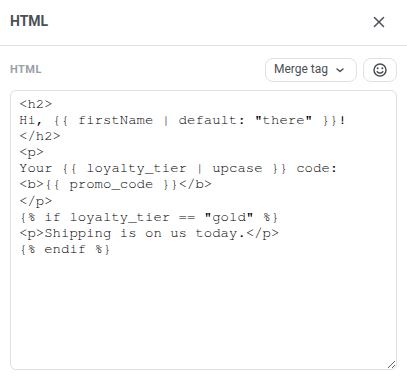
In the HTML field, type the Liquid code by hand.
-
Click Save.
-
In the In-App element of your journey, select the in-app in Media Source.
-
If the in-app uses event attributes, choose On event in Show in-app and select the event.
The editor preview shows the Liquid code as written. Each user sees their own values.
In this example, firstName and loyalty_tier are Tags, and promo_code is an attribute of the event that shows the in-app:
<h2>Hi, {{ firstName | default: "there" }}!</h2><p>Your {{ loyalty_tier | upcase }} code:<b>{{ promo_code }}</b></p>{% if loyalty_tier == "gold" %}<p>Shipping is on us today.</p>{% endif %}Hi, Anna!
Your GOLD code: AUTUMN-42
Shipping is on us today.
Data you can use
Anchor link toThese values are available in the Liquid of an in-app:
| Value | What it is | How to write it |
|---|---|---|
| Tag | A piece of user data stored in Pushwoosh, such as the user’s name. The in-app shows the value it has when the in-app is shown. | {{ loyalty_tier }} |
| Event attribute | An attribute of the event selected in On event mode of the In-App element. If an attribute has the same name as a Tag, the attribute value is used. | {{ promo_code }} |
| User ID | The ID your app assigns to the user. | {{ userid }}, in lowercase |
| HWID | The hardware ID of the user’s device in Pushwoosh. | {{ hwid }}, in lowercase |
Write variable names
Anchor link toFollow these rules when you type a variable name:
- Type the name exactly as it is in Pushwoosh, including capital letters. A name that doesn’t match, for example
{{ firstname }}for the TagfirstName, shows as empty text. - Write Tag and attribute names without spaces:
{{ LoyaltyTier }}for a Tag namedLoyalty Tier. - To show a fallback instead of empty text, add the
defaultfilter:{{ firstName | default: "there" }}.
Change how a value looks
Anchor link toTo change how a value looks, add a Liquid filter. All standard filters work, for example upcase, capitalize, date, and truncate, and so does the Pushwoosh timezone filter.
Limitations of Liquid in in-apps
Anchor link toIn an in-app, Liquid has these limits:
- If you send the in-app as an Instant in-apps campaign (Campaigns > Instant in-apps), Liquid isn’t applied and users see the code as written. Use Dynamic content placeholders instead.
{% include %}isn’t supported. Write the full code in the in-app itself.- Connected content isn’t supported. Use the values from Data you can use instead.
- If the in-app archive is larger than 1 MB, Liquid isn’t applied and the user sees the code as written.
- If the Liquid code has an error, for example an unclosed
{% if %}, the user sees the in-app with the code as written. Check the in-app on your own device before you launch the journey.