Mit AI Assistant arbeiten
Auf dieser Seite erfahren Sie, wie Sie mit AI Assistant zu arbeiten beginnen und die Änderungen prüfen, genehmigen oder rückgängig machen, die er in Ihrem Konto vornimmt.
Erste Schritte
Anchor link toZustimmung erteilen
Anchor link toDamit AI Assistant in Ihrem Konto handeln kann, erteilen Sie zuerst Ihre Zustimmung. Ohne Zustimmung kann er weiterhin Fragen beantworten und die Dokumentation durchsuchen, aber er kann Ihre Kontodaten nicht lesen und keine Änderungen vornehmen.
-
Melden Sie sich bei Ihrem Pushwoosh-Konto an.
-
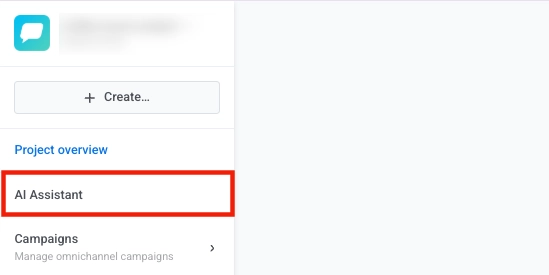
Klicken Sie auf die Schaltfläche AI Assistant.
-
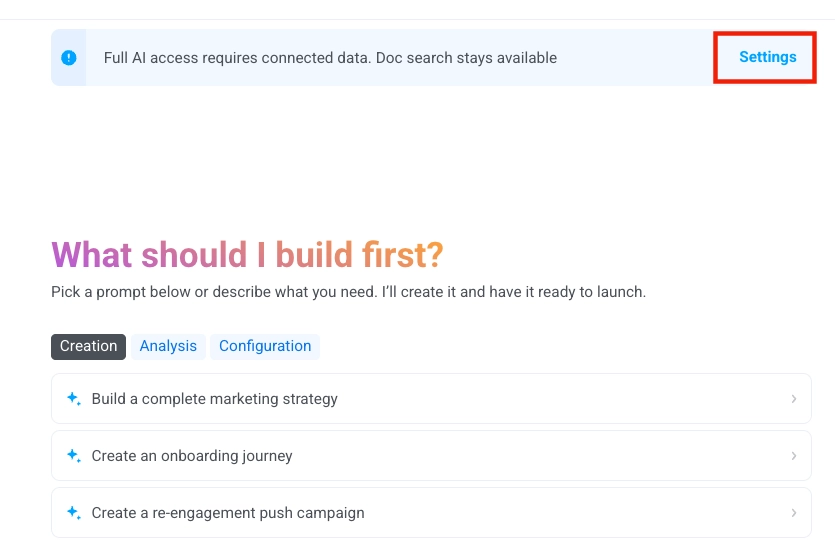
Klicken Sie oben im Chat-Fenster auf das Zahnrad-Symbol.
-
Wählen Sie Datenverarbeitung aus dem Menü.
-
Wählen Sie im Fenster zur Zustimmung zur Datenverarbeitung Vollständige Automatisierung.
-
Klicken Sie auf Anwenden.

Modi „Vollständige Automatisierung“ und „Allgemeiner Assistent“
Anchor link toWas AI Assistant tun kann, hängt davon ab, ob Sie Ihre Zustimmung erteilt haben:
| Modus | Was AI Assistant tun kann |
|---|---|
| Vollständige Automatisierung (Zustimmung erteilt) | Liest Ihre Kontodaten und nimmt in Ihrem Namen Änderungen vor. Ihre Prompts, generierten Antworten und Tool-Aufrufe werden über autorisierte KI-Unterauftragsverarbeiter verarbeitet. |
| Allgemeiner Assistent (keine Zustimmung) | Beantwortet Fragen, erklärt, wie Funktionen arbeiten, durchsucht die Pushwoosh-Dokumentation und Best Practices und gibt Hinweise auf Grundlage Ihrer Beschreibung. Er kann nicht auf Ihre Kontodaten zugreifen, keine Kampagnen erstellen und keine Änderungen vornehmen. |
Um den Modus zu wechseln, klicken Sie oben im Chat auf das Zahnrad-Symbol, wählen Sie Datenverarbeitung, wählen Sie einen Modus und klicken Sie auf Anwenden.
Eine Konversation beginnen
Anchor link to-
Klicken Sie auf den Chat-Namen oben im AI Assistant-Fenster.
-
Wählen Sie Neue Konversation aus dem Dropdown-Menü.

-
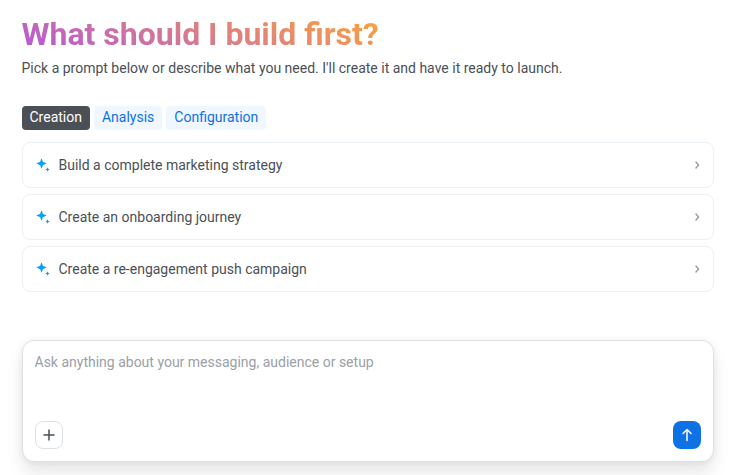
Wählen Sie einen vorgeschlagenen Prompt aus oder geben Sie Ihre eigene Anfrage in die Chat-Eingabe ein. Weitere Beispiele finden Sie in der Prompt-Bibliothek.
Während AI Assistant arbeitet
Anchor link toEine Antwort stoppen
Anchor link toUm AI Assistant mitten in einer Antwort anzuhalten, klicken Sie auf Generierung stoppen.
Eine unvollendete Anfrage fortsetzen
Anchor link toAI Assistant kann pro Anfrage nur eine begrenzte Anzahl von Schritten (Tool-Aufrufe und Antworten) ausführen, daher kann eine umfangreiche Anfrage auf halbem Weg anhalten. In diesem Fall erscheint ein Banner mit der Schaltfläche Fortfahren. Klicken Sie auf Fortfahren, damit AI Assistant die Anfrage dort fortsetzt, wo er aufgehört hat. Bis Sie auf Fortfahren klicken oder eine weitere Nachricht senden, bleibt die Anfrage unvollendet.
Platz in einer langen Konversation schaffen
Anchor link toDie Chat-Eingabe zeigt an, wie voll die Konversation ist. Wenn sie fast voll ist, klicken Sie in der Chat-Eingabe auf Kontext komprimieren. AI Assistant fasst die Konversation zusammen, um Platz für neue Nachrichten zu schaffen.
Aktionen vor der Ausführung genehmigen
Anchor link toAI Assistant bittet um Ihre Genehmigung, bevor er Nachrichten sendet oder Ihr Konto ändert. Er zeigt im Chat eine Entscheidungskarte an, und nichts ändert sich, bis Sie sie genehmigen.
Aktionen, die eine Genehmigung erfordern
Anchor link to- Senden von Nachrichten
- Aktualisieren oder Löschen von Objekten
- Ändern von Konfiguration, Abrechnung oder Zugriff
- Bearbeiten von E-Mail-Vorlagen
- Ändern von Frequency capping
- Erstellen von Objekten mit großer Reichweite: API-Token, Kontoeinladungen, Pop-ups, Rich Media und Drittanbieter-Integrationen
Aktionen, die ohne Genehmigung ausgeführt werden
Anchor link to- Erstellen der meisten neuen Objekte: Segmente, Journeys, Tags, Geozonen, Kampagnen, Gutschein-Pools, Testgeräte und mehr. Ein auf diese Weise erstelltes Segment oder eine Journey beginnt als Entwurf und wirkt sich erst auf Benutzer aus, wenn Sie es bzw. sie starten. Andere erstellte Objekte, etwa ein Tag oder eine Geozone, werden sofort wirksam, da sie etwas Neues hinzufügen, anstatt bestehende Daten zu ändern oder zu entfernen.
- Aktivieren der Testgeräte-Registrierung aus der App. Sie schaltet sich nach 1 Stunde selbst ab.
- Jede Aktion im einmaligen Onboarding-Chat.
Eine Aktion genehmigen oder ablehnen
Anchor link to-
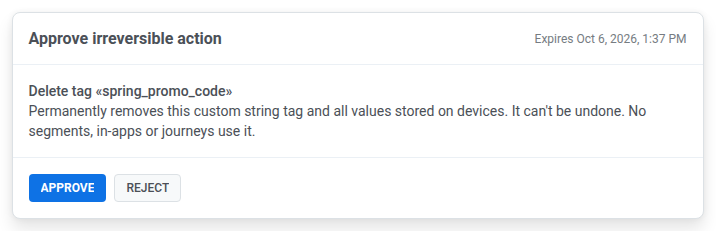
Lesen Sie die Entscheidungskarte, die im Chat erscheint. Sie zeigt die Aktion, warum AI Assistant sie ausführen möchte, und eine Warnung, wenn die Aktion nicht rückgängig gemacht werden kann. Beim Senden einer Nachricht oder beim Starten einer Journey zeigt sie außerdem an, wie viele Benutzer erreicht werden, sobald dies bekannt ist. Nach Ihrer Genehmigung wird die Aktion sofort ausgeführt, ohne zweite Bestätigung.
-
Klicken Sie auf Genehmigen, um die Aktion auszuführen, oder auf Ablehnen, um sie abzubrechen. In beiden Fällen meldet AI Assistant das Ergebnis in derselben Nachricht.
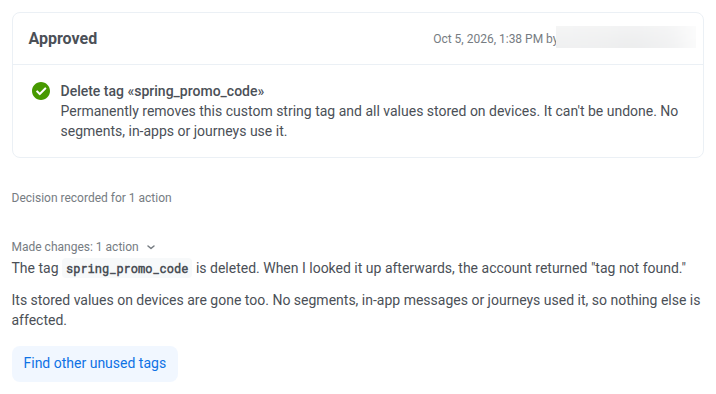
Die Aktion wird mit den Berechtigungen der Person ausgeführt, die sie genehmigt. Sobald über eine Karte entschieden wurde, zeigt sie an, wer sie wann genehmigt oder abgelehnt hat.
Um eine abgelehnte Aktion später auszuführen, bitten Sie AI Assistant, sie erneut vorzuschlagen.
Mehrere Aktionen auf einmal genehmigen
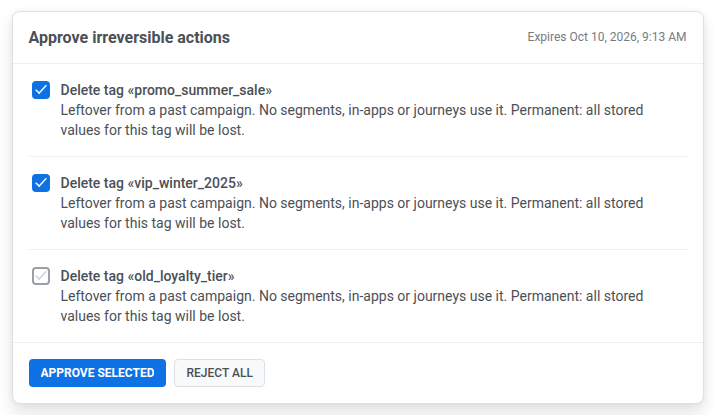
Anchor link toWenn AI Assistant in einer Antwort mehrere Aktionen vorschlägt, erscheinen sie auf einer Karte, mit einem Kontrollkästchen neben jeder Aktion. Anfangs sind alle Kontrollkästchen aktiviert. Die Genehmigungsschaltfläche lautet Alle genehmigen, wenn alle Aktionen ausgewählt sind, und Auswahl genehmigen, wenn nur einige ausgewählt sind.
- Um alle Aktionen auf der Karte auszuführen, klicken Sie auf Alle genehmigen.
- Um nur einige davon auszuführen, deaktivieren Sie die Kontrollkästchen der Aktionen, die Sie nicht möchten, und klicken Sie dann auf Auswahl genehmigen. Die abgewählten Aktionen werden abgelehnt, und die Karte wird als Teilweise genehmigt markiert.
- Um alle Aktionen auf der Karte abzubrechen, klicken Sie auf Alle ablehnen.
Wann eine Karte abläuft
Anchor link toEine unbeantwortete Karte läuft nach 24 Stunden ab oder sobald Sie in derselben Konversation eine neue Nachricht senden. Eine neue Nachricht lässt alle ausstehenden Karten in dieser Konversation ablaufen, und die Ablaufzeit wird auf jeder Karte angezeigt. AI Assistant muss eine abgelaufene Aktion erneut vorschlagen. Genehmigen oder lehnen Sie ausstehende Karten daher ab, bevor Sie Ihre nächste Nachricht senden.
Alle ausstehenden Karten anzeigen
Anchor link toDas Panel Entscheidungen listet ausstehende Karten aus allen Konversationen im aktuellen Projekt auf. So öffnen Sie es:
-
Klicken Sie oben im Chat auf das Zahnrad-Symbol.
-
Wählen Sie Vorschlagskarten anzeigen.
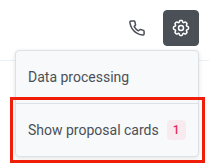
Wenn nichts aussteht, zeigt das Panel „Nichts wartet auf eine Entscheidung“ an. Um eine Karte aus dem Panel zu genehmigen oder abzulehnen, klicken Sie darauf auf Im Chat öffnen und entscheiden Sie im Chat.
Prüfen, was AI Assistant getan hat
Anchor link toDie Konversation ist die einzige Aufzeichnung dessen, was AI Assistant getan hat. Es gibt kein separates Aktivitätsprotokoll. Für jede Anfrage zeigt die Konversation:
- Aktionszählungen wie Erstellt · 3 Aktionen oder Fehlgeschlagen · 1 Aktion
- Einen Abschnitt Begründung
Bevor Sie sich auf ein Ergebnis verlassen, stellen Sie sicher, dass es dem entspricht, was Sie angefordert haben. Wenn nicht, bitten Sie AI Assistant, es anzupassen, und ergänzen Sie die Details, die in Ihrer ersten Anfrage fehlten.
Durch das Löschen einer Konversation wird diese Aufzeichnung endgültig entfernt. Bewahren Sie daher Konversationen mit wichtigen Änderungen auf.
Eine Änderung rückgängig machen
Anchor link toUm etwas rückgängig zu machen, das AI Assistant getan hat, bitten Sie ihn, die gegenteilige Änderung vorzunehmen. Bitten Sie ihn zum Beispiel, eine Journey zu pausieren, die er fortgesetzt hat, oder ein Segment zu löschen, das er erstellt hat. Sie können die Änderung auch selbst im Control Panel vornehmen.
Einige Änderungen können nicht rückgängig gemacht werden, da gesendete Nachrichten und gelöschte Objekte endgültig verloren sind. Prüfen Sie vor dem Löschen eines Segments, dass keine Journey es verwendet. Beim Löschen eines Segments, das von einer Journey verwendet wird, wird keine Warnung angezeigt, und die Journey verliert ihr Einstiegssegment.
Dateien anhängen
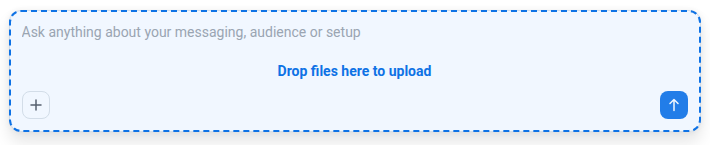
Anchor link toUm Ihrer Anfrage Dateien hinzuzufügen, klicken Sie in der Chat-Eingabe auf + oder ziehen Sie die Dateien auf die Chat-Eingabe.
- Formate:
.p12,.pem,.p8,.cer,.json,.txt,.pdfund.csv. - Größe: bis zu 10 MB pro Datei.
- Anzahl der Dateien: Sie können mehrere Dateien gleichzeitig anhängen.
Per Sprache fragen
Anchor link toStellen Sie eine kurze Frage per Sprache, anstatt zu tippen, zum Beispiel, wie eine Kampagne abgeschnitten hat oder warum eine Journey ins Stocken geraten ist.
-
Klicken Sie auf das Telefonsymbol oben im Chat-Fenster, um einen Sprachanruf zu starten.

-
Stellen Sie Ihre Frage.
-
Klicken Sie erneut auf das Telefonsymbol, um den Anruf zu beenden.
Was der Anruf beibehält, hängt davon ab, wo Sie ihn starten:
- In einer geöffneten Konversation: Der Anruf setzt sie mit demselben Kontext fort, und Sie können jederzeit wieder zum Tippen wechseln.
- Bevor Sie eine Konversation öffnen: Der Anruf beginnt ohne Kontext und speichert kein Transkript.
Konversationen verwalten
Anchor link toKonversationen werden automatisch gespeichert und bleiben verfügbar, nachdem Sie die Seite neu geladen oder den Tab gewechselt haben. Verwenden Sie das Dropdown-Menü mit dem Chat-Namen oben im Fenster, um zwischen ihnen zu wechseln oder sie zu löschen.
Zwischen Konversationen wechseln
Anchor link to-
Öffnen Sie das Dropdown-Menü mit dem Chat-Namen.
-
Klicken Sie auf den Namen einer bestehenden Konversation, um zu ihr zu wechseln.

Der Name der aktuellen Konversation wird in der Titelleiste des Dropdown-Menüs angezeigt.
Eine Konversation aus einer Benachrichtigung öffnen
Anchor link toWenn Sie den Tab verlassen, während AI Assistant noch arbeitet, erhalten Sie eine Web-Push-Benachrichtigung, sobald er fertig ist oder sein Schrittlimit erreicht. Klicken Sie auf die Benachrichtigung, um den Chat in dieser Konversation zu öffnen.
Eine Konversation löschen
Anchor link to- Öffnen Sie das Dropdown-Menü mit dem Chat-Namen.
- Fahren Sie mit der Maus über die Konversation, die Sie löschen möchten.
- Klicken Sie auf das Papierkorb-Symbol, um sie zu entfernen.