Write push text with AI or from a link
Dieser Inhalt ist noch nicht in Ihrer Sprache verfügbar.
Don’t start from a blank field. Give a few keywords, and AI composer drafts the push text for you. Or take the title, message, and banner image from the web page your push promotes. Both options are in the push content editor, below the push message field.
Generate the text with AI composer
Anchor link toAI composer helps you create engaging push notification messages. With it, you can:
- Generate compelling push notification content quickly
- Create variations for A/B testing
- Maintain consistent brand voice across campaigns
- Localize content for multiple languages
Open the push content editor and click the AI composer button just below the push message field.
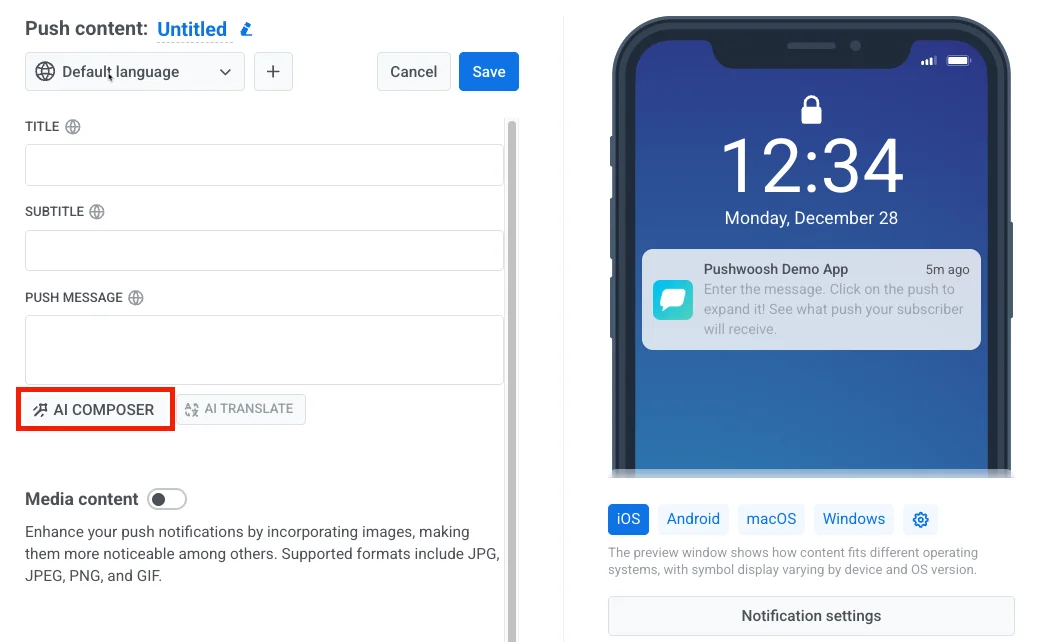
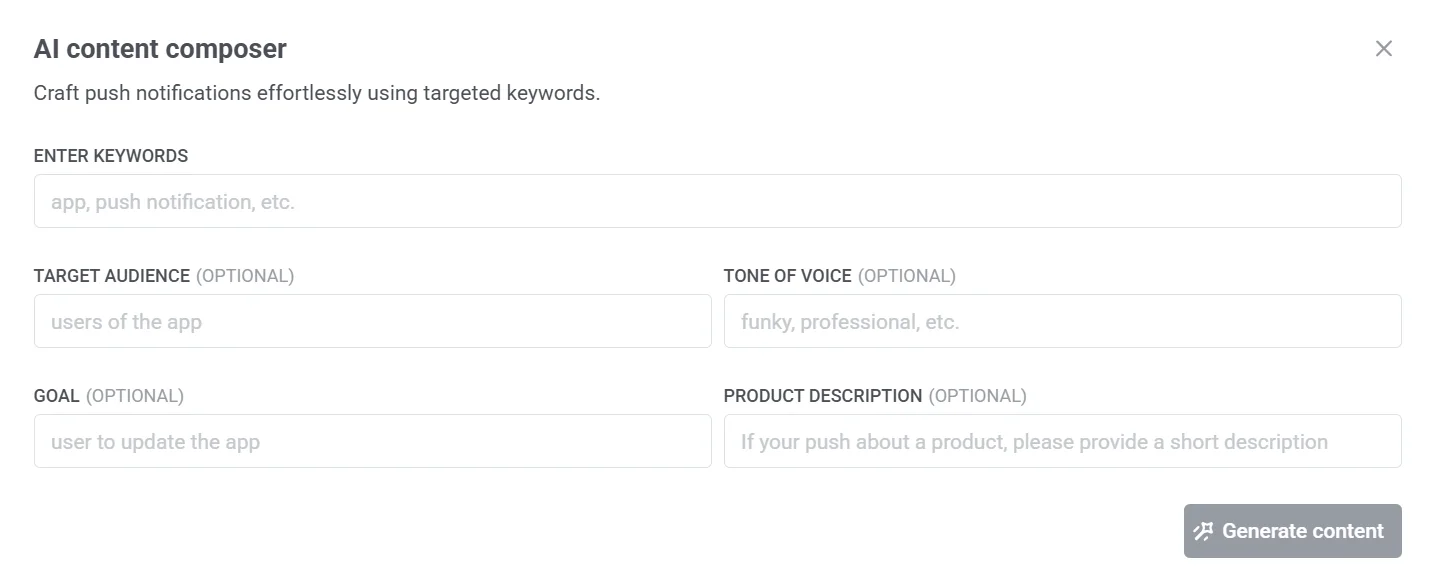
In the window that opens, you’ll see a form with several input fields.
-
Describe Your Message (Required)
Start by entering key terms related to your message, such as app, push notification, discount, etc. These keywords help guide the content generation. -
Target audience (Optional)
Specify who the message is for, e.g., “new users,” “active users,” or “users of the app.” This helps tailor the tone and content. -
Set the tone of voice (Optional)
Define the tone you want the message to have, such as professional, casual, or fun. This helps ensure the notification aligns with your brand voice. -
Set the goal (Optional)
Clarify the purpose of the message, e.g., “get users to update the app” or “encourage a purchase.” This helps focus the messaging. -
Add the product description (Optional)
If your push notification is about a specific product, include a short description to provide more context for the generated content. -
Once all relevant fields are filled out, click Generate content to receive a ready-to-use push notification message.
-
If you’re satisfied with the generated text, click Copy to message to insert it into your push notification. If you’d like a different version, click Generate again to create new text.
Example: notify users about a new app update
Anchor link toImagine, you’ve just released a new version of your fitness app that includes performance improvements and a refreshed interface. You want to notify your active iOS users about the update using a friendly and engaging tone.
To do this efficiently, you use the AI composer. Here’s how you fill out the form:
-
Describe Your Message: app update, new version, faster performance
-
Target audience: active users on iOS
-
Tone of voice: friendly and encouraging
-
Goal: encourage users to download the latest app version
-
Product description: A fitness app that helps users track workouts easily
After clicking Generate content, the AI returns a push notification like:
Title: Time to upgrade!
Subtitle: Get faster performance
Message: Update to the new version now!
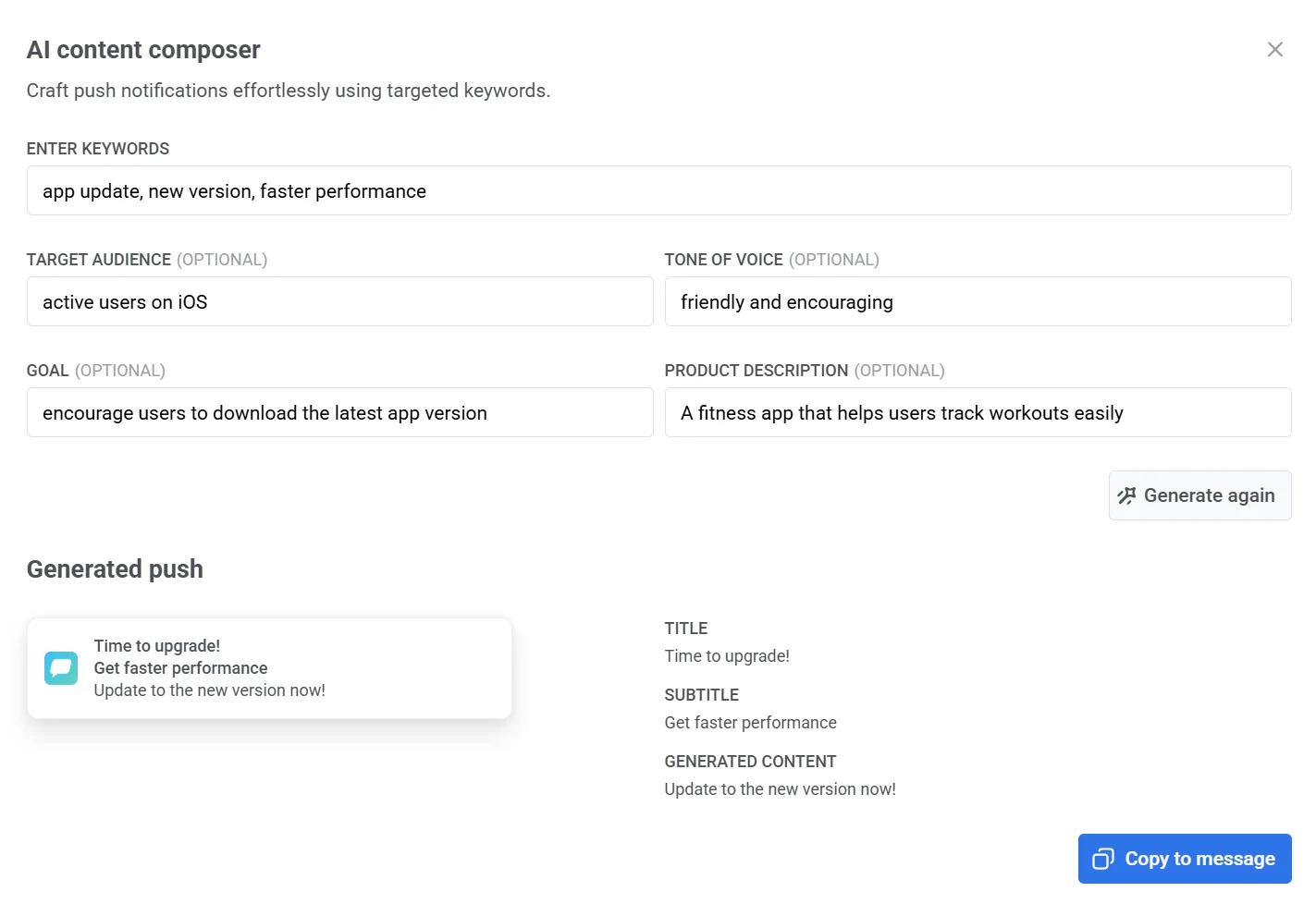
You can fine-tune the message if needed or use it as-is and send it to your selected audience.
Fill the text from a link
Anchor link toIf your push promotes an article, a product, or an offer that already has its own web page, you don’t need to retype the page’s text and picture. Pushwoosh can take the push title, message, and banner image from that page. In the push content editor, this is the Fill from link option. It uses the same title, description, and image that appear when the page is shared on social networks.
Fill from link step by step
Anchor link toPushwoosh reads the page from the link that the push opens when users tap it, called the on-click action. Set that link first, then the content fills in.
- In the push content editor, set up the on-click action with the link of the page you want to take content from. The link must start with
http://orhttps://and have no Liquid tag or template in it. Enter it as a web page URL or in the Deep link or URL field. App deep links such asmyapp://can’t be read. - With the default language selected in the language selector, leave the push title and push message empty. About half a second after you add the link, Pushwoosh fills both fields, plus the banner image, from the page.
- If the fields stay empty, the page has no link preview data. Pushwoosh doesn’t show an error for this automatic fill, so enter the title and message yourself.
- To fill another language, or to pull fresh content into fields that already have text, click Fill from link, next to AI composer, below the push message field.
Finish and use the push
Anchor link toThe filled text is a starting point. Polish it, save the preset, and send it:
- Check the filled title, message, and banner, and edit them if needed.
- Finish the push content in the editor: add buttons or custom data if you need them, then preview and save the preset.
- Use the saved preset as the content of a one-time push or of a Push element in a journey.