Web campaign statistics
Ce contenu n'est pas encore disponible dans votre langue.
The statistics page of a web campaign shows how visitors moved from loading the page to seeing the campaign and, for a web form, to submitting it. For a form with an email field, you can also export everyone who subscribed through the campaign.
View web campaign statistics
Anchor link to- Go to Campaigns → Web campaigns.
- Click the campaign name. You can also open the three-dot menu on its row and choose View statistics.
To copy the campaign code, click Campaign code at the top of the page. To change the campaign, click Campaign settings.
Read the funnel
Anchor link toThe Overview tab shows the campaign’s numbers for its whole lifetime. Pushwoosh counts every occurrence, not unique visitors, so a visitor who returns or submits twice is counted twice.
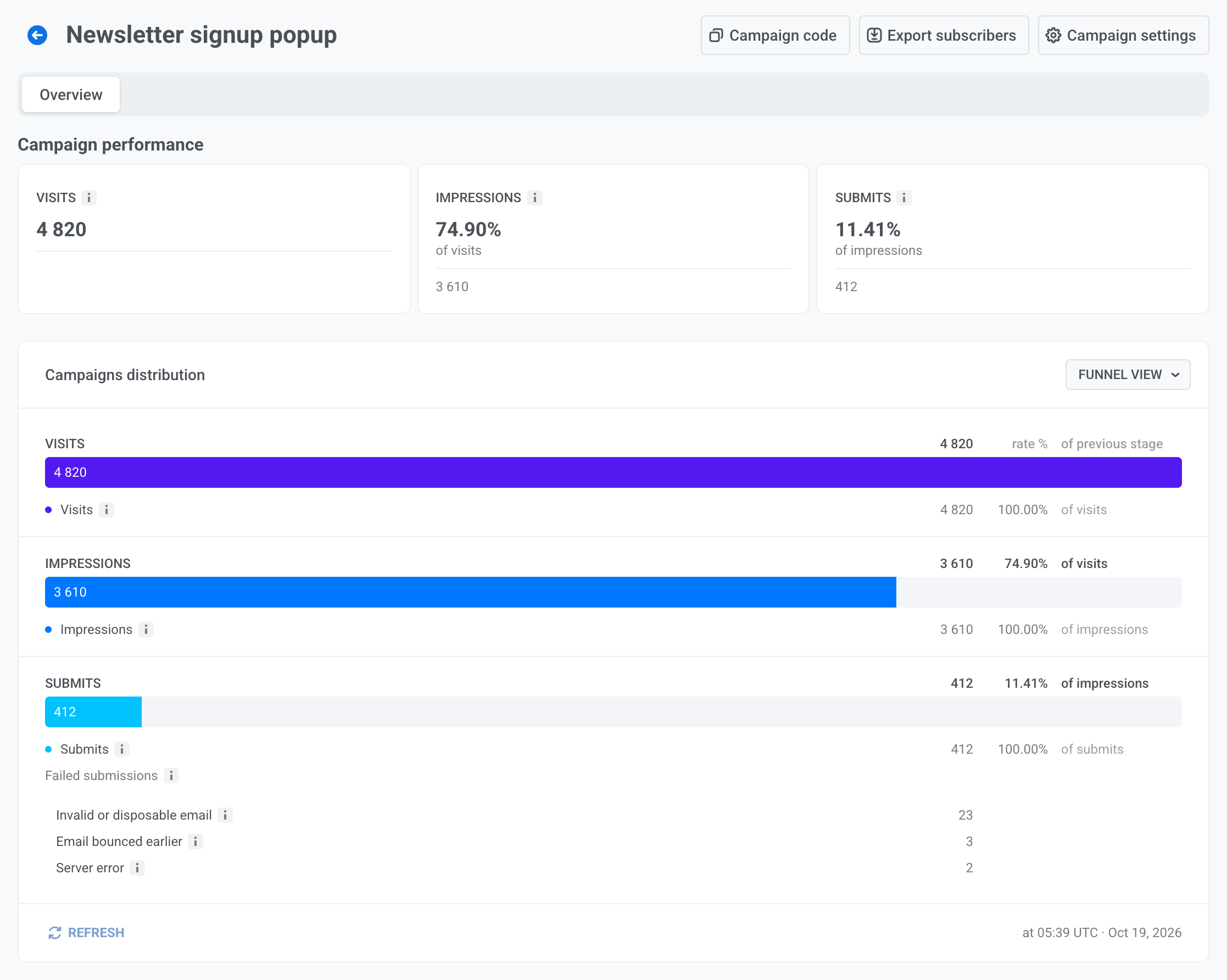
Each card and funnel step shows its share of the previous step, for example Submits as a percentage of Impressions.
To see the numbers as a table, open the Funnel view menu and choose Table view. Click Refresh to load the latest numbers.
What each step counts
Anchor link toThe table says what every card and funnel step counts.
| Step | What it counts |
|---|---|
| Visits | The page loads where the campaign was ready to show. |
| Impressions | The times visitors actually saw the campaign. |
| Submits | The times visitors submitted the form. Shown only for campaigns with a web form. |
| Confirmed | The times visitors confirmed their email by the link in the double opt-in email. Shown only for a web form while double opt-in is on in the project. |
A campaign with regular web content shows only Visits and Impressions. Confirmed follows the current double opt-in setting, so turning double opt-in off hides it for earlier confirmations too.
What counts as a visit
Anchor link to- A Popup counts a visit once the visitor matches its audience, device, pages, and frequency settings, before the display delay runs out.
- An Inline campaign counts a visit once its block is placed in the page element.
- A page load where the frequency setting holds the popup back, or where no element matches, isn’t a visit.
- A campaign set to Only via WebSDK call counts a visit when your site shows it.
Why impressions are lower than visits
Anchor link toA Popup counts an impression when it’s shown, and an Inline campaign when it scrolls into view. A visitor can leave the page before the delay runs out or without scrolling to the block, so Impressions is usually lower than Visits.
Failed submissions
Anchor link toUnder Submits, Failed submissions lists the submissions Pushwoosh rejected, grouped by reason and sorted by count:
| Reason | What it means |
|---|---|
| Invalid or disposable email | The address is malformed or uses a disposable email domain. The visitor sees the field’s invalid email text. |
| Email bounced earlier | An email to this address bounced before. The visitor sees the field’s invalid email text. |
| Field values rejected | The submitted values don’t match the form as it’s saved now: the request has a field the form no longer has, a required field is empty, or the consent checkbox isn’t selected. The Web SDK checks the fields before it sends them, so this usually means the form was edited while visitors still had the earlier version open, or the request didn’t come from the Web SDK. A few such failures right after you edit a live form are expected. |
| No verified sender domain | Double opt-in is on, but your account has no verified sending domain, so the confirmation email can’t be sent. To fix it, verify a sending domain. |
| Not included in the plan | Your plan doesn’t include email, so the address couldn’t be subscribed. With double opt-in on, this check happens when the visitor clicks the confirmation link, and such failures aren’t counted here. |
| Server error | Pushwoosh couldn’t process the submission. |
| Unknown reason | The reason wasn’t recorded. |
For the two invalid email reasons, the visitor sees the field’s invalid email text. For all other reasons, the visitor sees the Submit error text and can submit again. Submissions that never reach Pushwoosh, for example because the visitor went offline, aren’t counted.
Export subscribers
Anchor link toExport subscribers appears for a campaign whose web form has an Email input, if you have access to personal data.
-
Click Export subscribers.
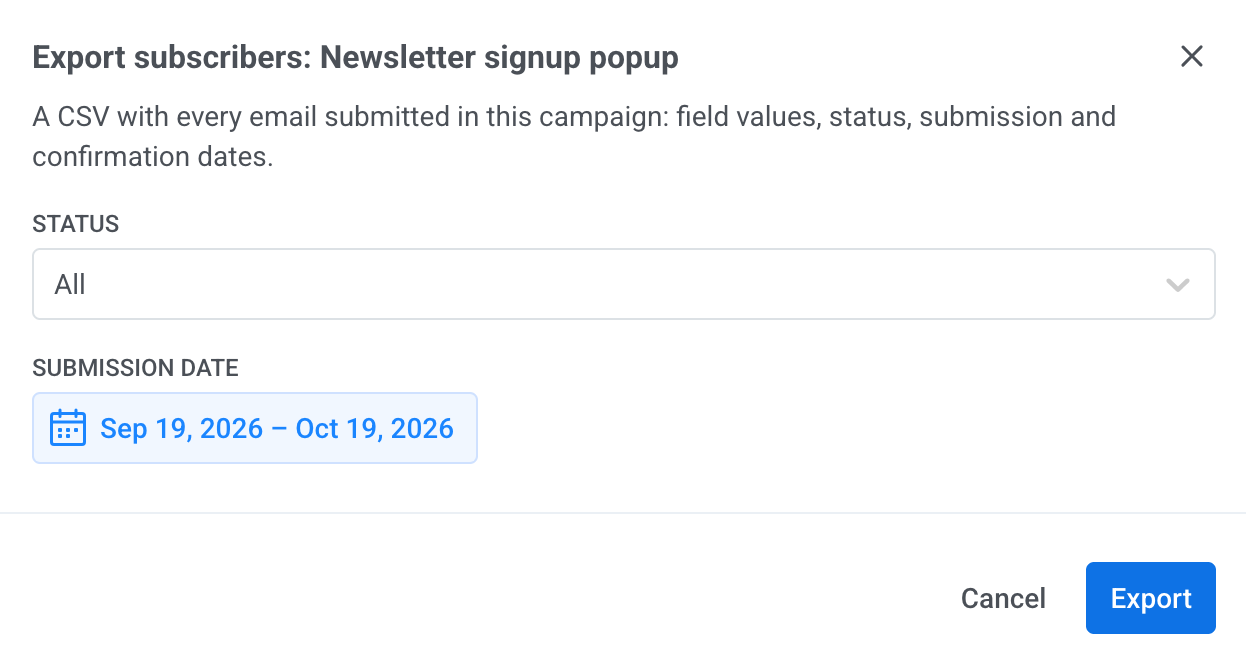
-
In Status, choose All, Confirmed, Pending, or Expired. Pending addresses haven’t confirmed double opt-in yet. Expired addresses didn’t confirm within 24 hours.
-
In Submission date, set the period. By default it’s the last 30 days. The period applies to the date of each address’s latest submission.
-
Click Export.
A banner under the page header shows the export progress and then the file. Keep the page open until the file is ready. The banner also shows the latest export of this campaign when you come back to the page.
What the file contains
Anchor link toThe CSV file has one row per email address submitted in the campaign, with these columns:
email- One column per tag that appears in the exported rows, in alphabetical order. A cell holds the value from the address’s latest submission and is empty if that submission left the field empty.
status:confirmed,pending, orexpired. It’s empty for an address whose email bounced earlier.submitted: the date of the latest submission.confirmed: the date the address was confirmed. Without double opt-in, an address is confirmed as soon as it’s submitted, so this is the date of its first submission.
A visitor who submits the form in two campaigns appears in the export of each campaign.