Créer et gérer un groupe de contrôle
Créez des groupes de contrôle pour votre application, puis modifiez leurs paramètres ou supprimez-les plus tard depuis la page de chaque groupe.
Créer un groupe de contrôle
Anchor link toCréez un groupe de contrôle pour commencer à exclure une part de vos utilisateurs des messages marketing. Une application peut avoir plusieurs groupes, par exemple un par marché. Les autres groupes continuent de fonctionner tels quels lorsque vous en ajoutez un. Découvrez comment plusieurs groupes de contrôle fonctionnent ensemble
Ouvrir la boîte de dialogue Ajouter un groupe de contrôle
Anchor link to- Naviguez vers Paramètres > Groupes de contrôle.
- Cliquez sur Ajouter un groupe de contrôle.

Nommer le groupe
Anchor link toDans Nom, saisissez un nom qui distingue le groupe des autres, par exemple le marché qu’il mesure. Le nom est obligatoire et doit respecter ces règles :
- 64 caractères maximum.
- Pas de deux-points (
:). - Unique au sein de l’application.
Vous pourrez renommer le groupe plus tard.
Définir la taille du groupe
Anchor link toDéfinissez la Taille du groupe : la part d’utilisateurs exclus des messages marketing, de 1 % à 20 %.

Choisir un mode
Anchor link toLe mode définit combien de temps les mêmes utilisateurs restent dans le groupe, et ce qui se passe ensuite.
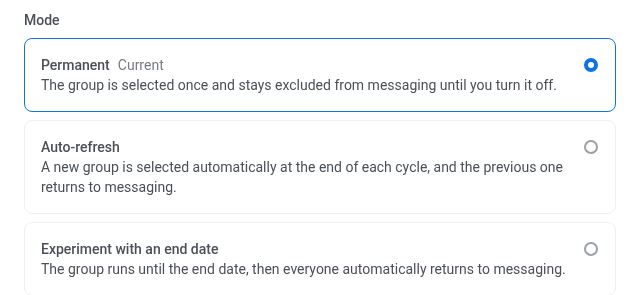
- Permanent : le groupe est sélectionné une seule fois et reste exclu des messages jusqu’à ce que vous le désactiviez.
- Actualisation automatique : un nouveau groupe est sélectionné automatiquement à la fin de chaque cycle, et le précédent recommence à recevoir des messages. Définissez Actualiser tous les sur 1 mois, 2 mois ou 3 mois.
- Expérience avec date de fin : le groupe fonctionne jusqu’aux dates Du–Au que vous définissez, puis tout le monde recommence automatiquement à recevoir des messages. Au doit être au moins 30 jours après Du.
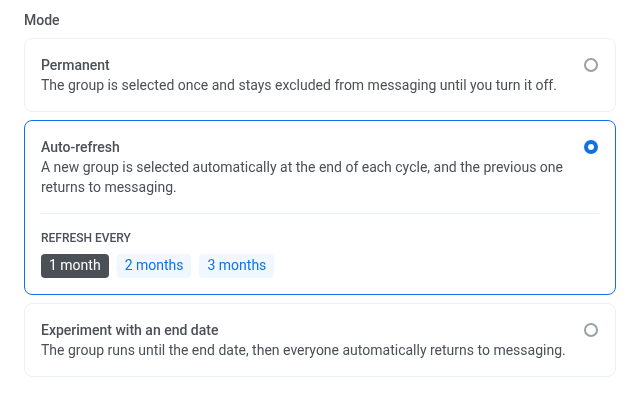
Pour voir comment chaque mode apparaît sur la page du groupe, consultez Analyser l’impact du groupe de contrôle.
Limiter le groupe de contrôle par pays
Anchor link toFacultatif. La portée par pays limite les appareils exclus. Pushwoosh sélectionne d’abord les utilisateurs selon la taille du groupe, puis n’exclut que ceux de leurs appareils qui se trouvent dans les pays que vous choisissez. Dans Pays, sélectionnez les pays, ou laissez ce champ vide :
- Pays vide : chaque utilisateur sélectionné par la formule de pourcentage est exclu, quel que soit son emplacement.
- Pays non vide : seuls les appareils dont le tag système Pays correspond à l’un des pays sélectionnés sont exclus. Un appareil en dehors des pays sélectionnés continue de recevoir des messages marketing, même si son utilisateur est l’un de ceux sélectionnés par la formule de pourcentage.

Limiter le groupe de contrôle par tag
Anchor link toFacultatif. La portée par tag fonctionne comme la portée par pays ci-dessus, mais selon la valeur d’un tag : parmi les utilisateurs sélectionnés selon la taille du groupe, seuls les appareils ayant les valeurs de tag que vous choisissez sont exclus. Si vous définissez les deux, Pushwoosh applique Pays et Tag ensemble.
- Dans Tag, sélectionnez un tag de type chaîne ou booléen. Pays n’apparaît pas dans cette liste : la portée par pays utilise plutôt le champ Pays ci-dessus.
- Choisissez une ou plusieurs valeurs qui placent un utilisateur dans la portée. Un tag booléen propose true et false. Un tag de type chaîne suggère les valeurs existantes et accepte également les vôtres.

- Tag de portée vide : chaque utilisateur sélectionné par la formule de pourcentage est exclu, quel que soit le tag.
- Tag de portée non vide : seuls les appareils dont la valeur de ce tag fait partie des valeurs choisies sont exclus. Un appareil avec une valeur différente, ou sans aucune valeur pour ce tag, continue de recevoir des messages marketing, même si son utilisateur est l’un de ceux sélectionnés par la formule de pourcentage.
Un utilisateur rejoint ou quitte l’audience du groupe chaque fois que la valeur de son tag change, et les statistiques ne comptent que les utilisateurs qui correspondent à la portée aujourd’hui. Limitez la portée avec un tag qui change rarement, comme le marché ou la cohorte d’inscription, afin que le groupe mesure la même audience dans le temps.
La portée par tag, avec Pays, s’applique partout où le groupe intervient : Taille du groupe ne compte que les utilisateurs compris dans la portée, seuls les appareils compris dans la portée sont exclus des messages, et Exporter les utilisateurs n’inclut que les utilisateurs compris dans la portée.
Vérifier les chevauchements avec d’autres groupes
Anchor link toSi les pays et les valeurs de tag que vous avez choisis correspondent à des utilisateurs d’un autre groupe activé, la boîte de dialogue affiche un avertissement qui nomme les groupes qui se chevauchent. Vous pouvez tout de même créer le groupe. Les utilisateurs qui correspondent aux deux groupes sont exclus par chacun d’eux, ce qui fausse les statistiques des deux groupes.
Pour éviter un chevauchement, choisissez des pays que l’autre groupe ne couvre pas, ou des valeurs différentes du même tag. Deux groupes ne se chevauchent pas lorsque :
- Les deux groupes sont limités à des pays et n’en partagent aucun.
- Les deux groupes sont limités par le même tag et ne partagent aucune valeur.
Un groupe avec Pays vide et sans tag couvre tous les utilisateurs, il chevauche donc tous les autres groupes activés.
Vérifier et créer le groupe
Anchor link toVérifiez les paramètres et cliquez sur Créer. Créer reste désactivé tant que le nom n’est pas valide et, si vous avez sélectionné un tag dans Limiter le groupe de contrôle par tag, tant que vous n’avez pas choisi au moins une valeur. La page du groupe s’ouvre, et le groupe commence immédiatement à exclure ses membres des messages marketing, selon le mode que vous avez choisi.
Vous pourrez modifier la taille, le mode, les pays et le tag plus tard depuis la page du groupe. Voir Gérer le groupe de contrôle.
Gérer le groupe de contrôle
Anchor link toParamètres > Groupes de contrôle liste chaque groupe de l’application avec son Audience : Tous les utilisateurs, ou les pays et les valeurs de tag auxquels le groupe est limité. Un groupe activé dont l’audience correspond à d’autres groupes activés affiche Chevauche N groupes sous son nom.
Cliquez sur la ligne du groupe pour accéder à sa propre page, où les sections ci-dessous s’appliquent.
Modifier la taille et les pays du groupe de contrôle
Anchor link toVous pouvez ajuster la taille d’un groupe de contrôle, et les pays qu’il exclut, à tout moment depuis sa page.
-
Cliquez sur Paramètres du groupe de contrôle en haut à droite. Le bouton affiche également le pourcentage actuel du groupe, par exemple Paramètres du groupe de contrôle : 10 %.
-
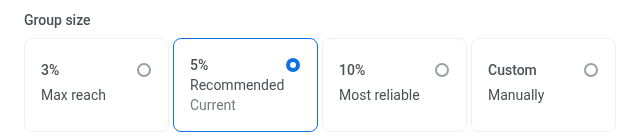
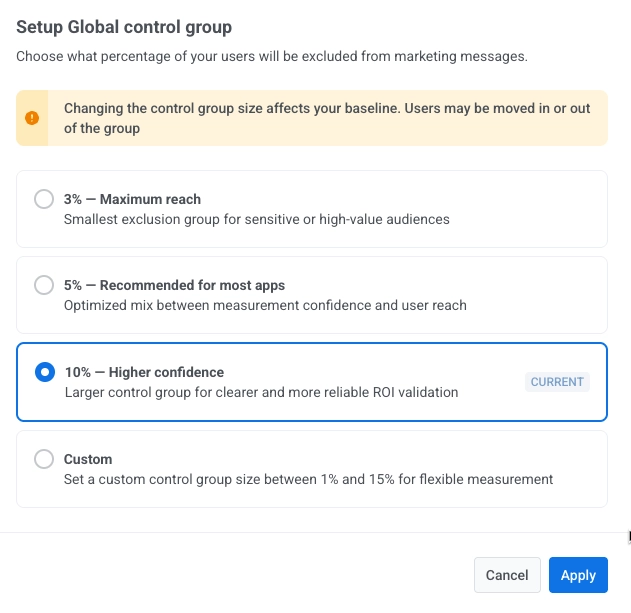
Choisissez un nouveau pourcentage :
- 3 % (Portée maximale) : le plus petit groupe d’exclusion pour les audiences sensibles ou à haute valeur.
- 5 % (Recommandé pour la plupart des applications) : mélange optimisé entre la confiance de la mesure et la portée des utilisateurs.
- 10 % (Confiance supérieure) : groupe de contrôle plus grand pour une validation du ROI plus claire et plus fiable.
- Personnalisé (1 %–20 %) : définissez une taille de groupe de contrôle personnalisée pour une mesure flexible.
-
Facultatif : changez le mode.
-
Dans Pays, sélectionnez un ou plusieurs pays pour limiter le groupe de contrôle, ou laissez ce champ vide pour exclure des utilisateurs de l’ensemble de votre audience.
-
Facultatif : changez la portée par tag. Si vous sélectionnez un tag, Appliquer reste désactivé tant que vous n’avez pas choisi au moins une valeur.
-
Si la boîte de dialogue signale que l’audience chevauche d’autres groupes, vérifiez le chevauchement avant de continuer.
-
Cliquez sur Appliquer pour confirmer les modifications.
Ce qui change lorsque vous modifiez le groupe
Anchor link toChaque paramètre affecte différemment le groupe et ses résultats.
Taille du groupe
Anchor link toL’appartenance est recalculée pour l’ensemble de votre base d’utilisateurs, pas seulement pour les nouveaux utilisateurs :
- Agrandir le groupe ajoute des utilisateurs jusqu’à atteindre le nouveau pourcentage. Personne qui s’y trouve déjà n’est retiré.
- Réduire le groupe supprime juste assez de membres pour atteindre le nouveau pourcentage.
Cela rend les résultats plus difficiles à comparer avec les campagnes précédentes, donc ne modifiez la taille que lorsque c’est nécessaire.
Autres paramètres
Anchor link to- Mode : le cycle actuel du groupe se clôt et un nouveau commence. Les utilisateurs exclus restent les mêmes jusqu’au prochain remaniement, redimensionnement ou renouvellement Actualisation automatique.
- Pays : la mesure de l’uplift redémarre, car l’audience comparée devient différente. Les utilisateurs du groupe restent les mêmes. Seul change le fait de savoir lesquels de leurs appareils sont exclus du marketing.
- Portée par tag : la mesure de l’uplift redémarre, comme lorsque vous modifiez Pays.
Renommer le groupe de contrôle
Anchor link toLe renommage ne change que le nom que vous voyez dans Pushwoosh. Les utilisateurs du groupe, son cycle actuel et ses statistiques restent les mêmes.
- Cliquez sur le menu à trois points en haut à droite.
- Sélectionnez Renommer.
- Saisissez le nouveau nom et cliquez sur Enregistrer. Les mêmes règles de nommage s’appliquent que lors de la création d’un groupe.
Recalculer la taille du groupe
Anchor link toLa Taille du groupe affiche un nombre enregistré que Pushwoosh met à jour environ une fois par jour. Juste après avoir modifié la taille du groupe, ou lorsque de nombreux nouveaux utilisateurs rejoignent votre application, ce nombre peut être obsolète.
Pour le mettre à jour immédiatement, cliquez sur Recalculer à côté de la taille du groupe.
Remanier le groupe de contrôle
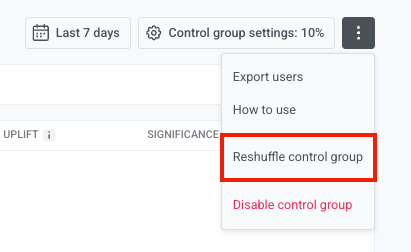
Anchor link toRemanier le groupe de contrôle sélectionne un nouvel ensemble aléatoire d’utilisateurs, en gardant le même pourcentage. Tous les membres actuels du groupe le quittent, et un ensemble différent d’utilisateurs prend leur place. Utilisez cette option lorsque les mêmes personnes ont été exclues de vos messages marketing pendant une longue période.
-
Cliquez sur le menu à trois points en haut à droite.
-
Sélectionnez Remanier le groupe de contrôle.
-
Confirmez dans la boîte de dialogue qui apparaît.
Exporter les utilisateurs du groupe de contrôle
Anchor link toL’exportation des utilisateurs du groupe de contrôle nécessite l’autorisation Personal data dans votre rôle.
Pushwoosh n’ajoute pas de tag aux utilisateurs du groupe de contrôle. Exportez depuis cette page pour une liste ponctuelle, ou appelez CheckControlGroupMembership pour vérifier un lot d’ID utilisateur par programmation.
Le fichier n’inclut que les utilisateurs du groupe compris dans ses pays et sa portée par tag.
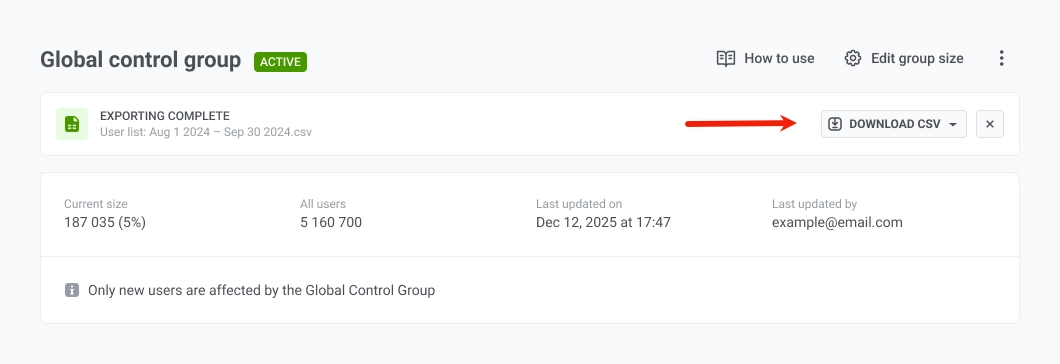
- Cliquez sur le menu à trois points en haut à droite.
- Sélectionnez Exporter les utilisateurs.
- Lorsque l’exportation est terminée, cliquez sur Télécharger le CSV pour enregistrer le fichier.
Désactiver un groupe de contrôle
Anchor link to- Cliquez sur le menu à trois points en haut à droite.
- Sélectionnez Désactiver le groupe de contrôle.
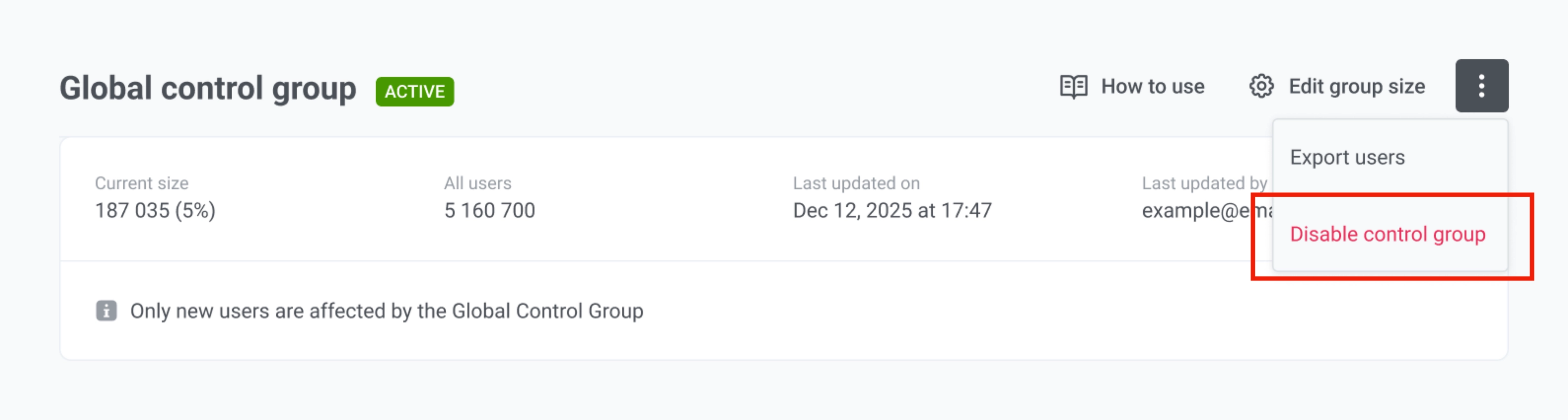
La désactivation empêche immédiatement ce groupe d’exclure des utilisateurs, et ceux-ci recommencent à recevoir des messages marketing, sauf si un autre groupe activé les exclut. S’il ne reste aucun groupe activé, les messages marketing sont envoyés à tous les utilisateurs. Le groupe conserve ses paramètres et l’historique de ses statistiques. Si vous le réactivez plus tard sans le remanier, Pushwoosh reproduit exactement le même groupe, car l’appartenance est calculée par la même formule. Pour obtenir un groupe différent après la réactivation, remaniez-le.
Supprimer le groupe de contrôle
Anchor link toLa suppression d’un groupe de contrôle le supprime ainsi que sa configuration de manière permanente. Le groupe cesse d’exclure des utilisateurs, et toutes ses statistiques sont perdues. Les autres groupes de l’application continuent de fonctionner. S’il ne reste aucun groupe activé, les messages marketing sont envoyés à tous les utilisateurs.
- Cliquez sur le menu à trois points en haut à droite.
- Sélectionnez Supprimer le groupe.
- Dans la boîte de dialogue qui apparaît, cliquez sur Supprimer pour confirmer. Cette action est irréversible.