Envoyer des messages Telegram dans un Customer Journey
Utilisez ce guide pour envoyer des messages Telegram dans le Customer Journey Builder.
L’utilisation de Telegram via Pushwoosh vous aide à gérer Telegram dans le cadre de vos parcours omnicanal, de votre segmentation et de votre analytique en un seul endroit.
Avant de commencer
Anchor link to- Créez un bot Telegram dans @BotFather ou utilisez-en un existant.
- Configurez Telegram dans Paramètres > Configurer les plateformes et vérifiez le jeton. En savoir plus
Créer un journey
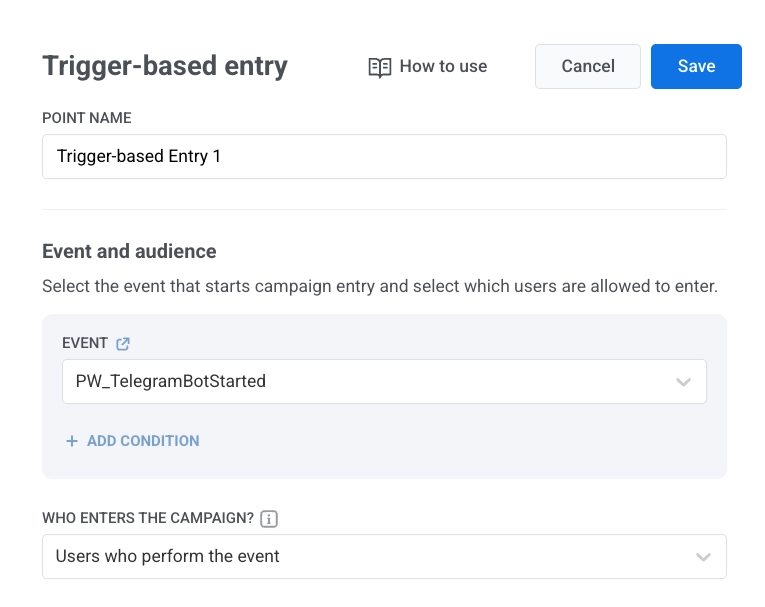
Anchor link to- Ajoutez l’élément Trigger-based entry.
- Sélectionnez TelegramBotStarted comme événement.
- Ajoutez l’élément Telegram au canevas.
Configurer le contenu du message
Anchor link toDans l’élément Telegram :
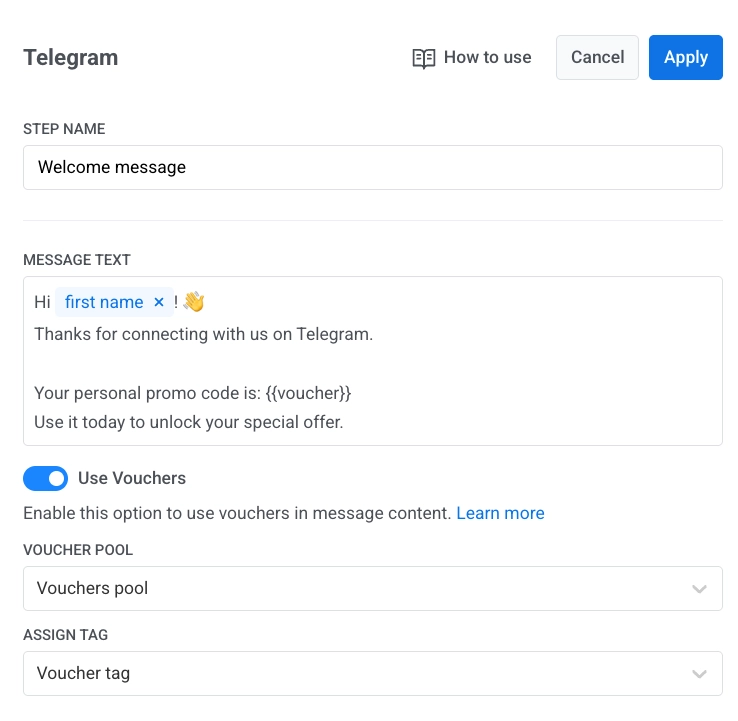
- Saisissez le nom de l’élément.
- Saisissez votre message dans Texte du message. Le message ne doit contenir que du texte et ne pas dépasser 4096 caractères.
- Facultatif. Ajoutez des tags ou des placeholders Liquid pour personnaliser le contenu. Contenu dynamique et Liquid dans les journeys
- Facultatif. Activez Utiliser des bons, sélectionnez un Pool de bons et définissez Attribuer un tag. En savoir plus
- Cliquez sur Appliquer.
Finaliser et lancer le journey
Anchor link toTerminez le journey, en finissant chaque branche par un élément Exit ou en la laissant sans connexion sortante. Lorsque la campagne est prête, cliquez sur Lancer la campagne.
Accessibilité et statistiques
Anchor link toSi l’envoi échoue en raison d’un problème de réseau temporaire, Pushwoosh réessaie automatiquement.
Si Telegram renvoie bot blocked ou chat not found, Pushwoosh marque l’utilisateur comme inaccessible pour Telegram :
bot blockedapparaît dans les Statistiques sous le nom de Ignorés qui ont bloqué le bot.chat not foundapparaît dans les Statistiques sous le nom de Ignorés pour ceux dont le chat n’a pas été trouvé.
En savoir plus sur les statistiques Telegram
Consulter les données utilisateur dans User Explorer
Anchor link toLorsqu’un utilisateur commence une conversation avec votre bot, Pushwoosh crée un profil dans User Explorer avec Telegram comme plateforme et l’ID utilisateur Telegram.
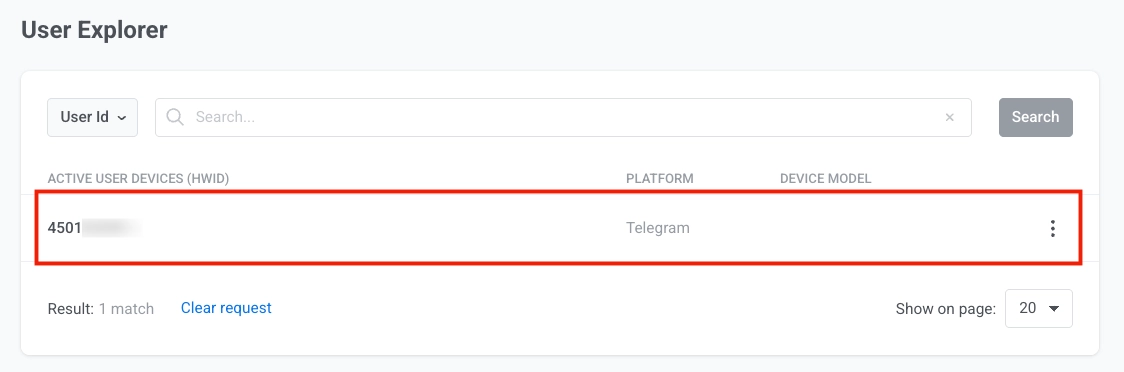
Le profil inclut :
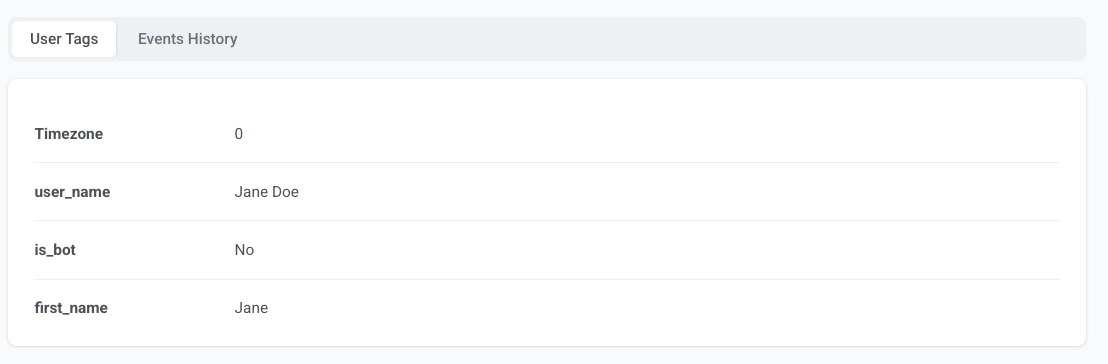
- les tags utilisateur reçus de Telegram
- des événements tels que
PW_TelegramBotStarted.