Navigation et commandes du canevas
Le panneau Paramètres du canevas contrôle la manière dont vous effectuez des panoramiques, zoomez et sélectionnez des éléments sur le canevas du Customer Journey. Ouvrez-le en cliquant sur l’icône d’engrenage dans le coin inférieur droit du canevas.
Quels sont les schémas de contrôle disponibles ?
Anchor link toUn schéma de contrôle est un ensemble de comportements prédéfinis pour le canevas : ce que fait un glissement avec le bouton gauche, ce que fait la molette de défilement, et si les nouvelles étapes s’alignent sur une grille. Choisissez-en un dans le menu déroulant Schéma de contrôle en haut du panneau.
| Moderne (recommandé) | Classique | |
|---|---|---|
| Glissement du bouton gauche sur le canevas | Sélectionne une zone | Déplace le canevas |
| Molette de défilement & trackpad | Le trackpad déplace le canevas, la molette de la souris zoome (détecte automatiquement l’appareil) | La molette de défilement zoome sur le canevas |
| Zoom | Ctrl/⌘ + défilement, pincement du trackpad, molette de la souris | Molette de défilement |
| Aligner sur la grille | Activé | Désactivé |
Les comptes existants conservent le schéma qu’ils utilisaient déjà ; les nouveaux comptes commencent avec le schéma Moderne. La modification de n’importe quel paramètre individuel sous le menu déroulant (mode de glissement, mode de la molette, l’un des interrupteurs d’inversion ou l’alignement sur la grille) fait passer le menu déroulant à Configuration personnalisée. Choisissez à nouveau un préréglage pour réinitialiser tous ces paramètres à leurs valeurs par défaut.
Comment configurer le panoramique et le zoom
Anchor link toDeux menus déroulants sous Schéma de contrôle vous permettent d’affiner le panoramique et le zoom indépendamment du préréglage :
- Glissement du bouton gauche sur le canevas : choisissez si le glissement avec le bouton gauche de la souris dessine un rectangle de sélection (Sélectionne une zone) ou déplace le canevas (Déplace le canevas).
- Molette de défilement & trackpad : choisissez Détection auto (le défilement du trackpad déplace le canevas, une molette de souris zoome), Déplacer le canevas (trackpad) pour toujours déplacer quel que soit l’appareil, ou Zoomer sur le canevas (molette de souris) pour toujours zoomer.
Deux interrupteurs inversent la direction par défaut pour les préférences de “défilement naturel” de macOS :
- Inverser le défilement inverse la direction du panoramique du trackpad/de la molette.
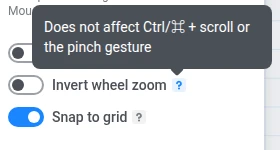
- Inverser le zoom inverse uniquement la direction d’un zoom simple avec la molette de la souris. Cela n’affecte pas le défilement avec
Ctrl/⌘ou le geste de pincement du trackpad, car ce sont des raccourcis distincts et aucun système d’exploitation n’inverse un geste de pincement.
Quel que soit le schéma, vous pouvez toujours effectuer un panoramique avec Espace + glisser, un glissement avec le bouton droit de la souris ou le bouton du milieu de la souris, et zoomer sur le curseur avec Ctrl/⌘ + défilement ou un pincement du trackpad.
Aligner sur la grille s’applique à la fois lors du glissement d’une étape et lors de l’ajout d’une nouvelle : l’étape s’aligne sur la cellule libre la plus proche afin que les étapes ne se chevauchent jamais. Désactivez cette option pour positionner les étapes librement.
Raccourcis clavier du canevas
Anchor link toLa section Souris et clavier du panneau répertorie tous les raccourcis du canevas, regroupés en trois onglets : Canevas, Sélection et Actions. Les raccourcis s’adaptent à vos paramètres actuels de glissement et de molette ainsi qu’à votre système d’exploitation (⌘/⇧/⌫ sur macOS, Ctrl/Shift/Suppr ailleurs).
Raccourcis courants du canevas :
| Action | Raccourci |
|---|---|
| Zoom avant / arrière | Ctrl/⌘ + / Ctrl/⌘ − |
| Zoom à 100 % | Ctrl/⌘ 0 |
| Ajuster à l’écran | Shift 1 |
| Afficher/Masquer la mini-carte | Shift M |
| Afficher/Masquer l’interface utilisateur | Ctrl/⌘ \ |
| Tout sélectionner / Désélectionner | Ctrl/⌘ A / Échap |
| Dupliquer une étape | Ctrl/⌘ D |
Comment utiliser la mini-carte
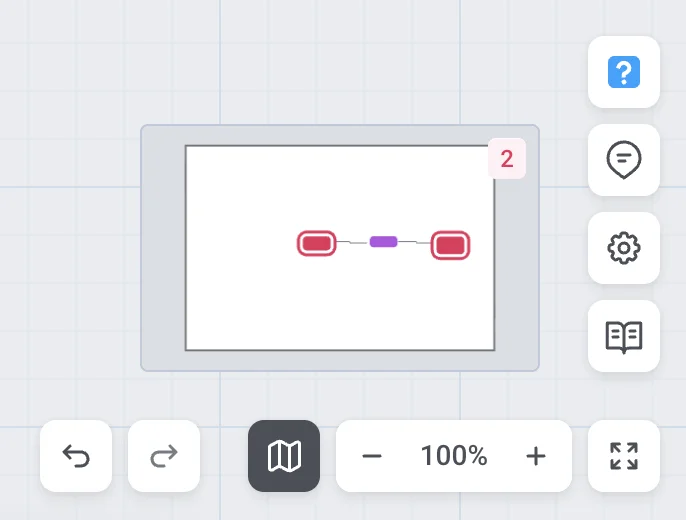
Anchor link toLa mini-carte vous donne un aperçu de l’ensemble du parcours et un moyen rapide de sauter à n’importe quelle partie de celui-ci. Elle se trouve dans le coin inférieur droit du canevas, au-dessus des commandes de zoom, et montre chaque étape comme un point coloré (coloré par son groupe), avec chaque connexion dessinée comme une flèche le long de son itinéraire réel. Un rectangle marque la zone actuellement visible sur le canevas. Elle reste visible en mode Masquer l’interface utilisateur.
Affichez ou masquez la mini-carte avec le bouton à côté des commandes de zoom ou le raccourci Shift + M ; votre choix est mémorisé dans ce navigateur.
- Cliquez n’importe où sur la mini-carte pour centrer le canevas sur ce point.
- Faites glisser le rectangle de la fenêtre d’affichage pour déplacer le canevas.
- Faites défiler sur la mini-carte pour zoomer en avant et en arrière sur le canevas — cela respecte le paramètre inverser le zoom.
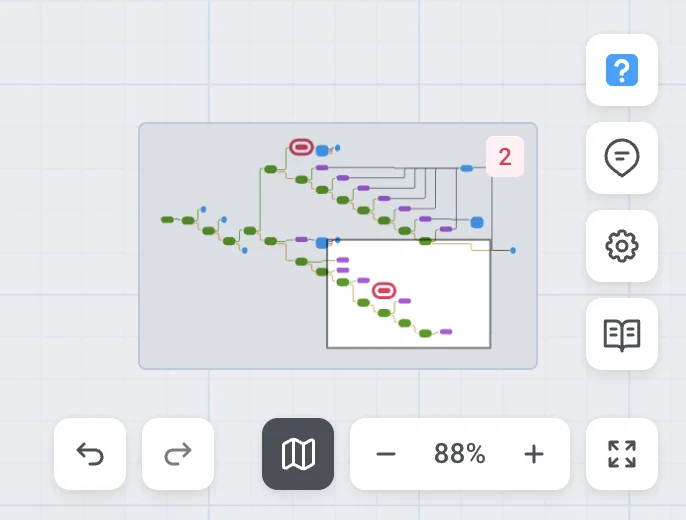
Un badge rouge sur la mini-carte indique combien d’étapes nécessitent encore une configuration ; il est purement informatif et n’est pas cliquable.
Sur un parcours plus grand, le badge et les points cerclés permettent de repérer facilement les étapes qui nécessitent une attention particulière sans avoir à faire défiler le canevas pour les trouver :
À quoi sert Afficher/Masquer l’interface utilisateur ?
Anchor link toAppuyez sur Ctrl/⌘ + \ pour masquer l’en-tête, la barre latérale et tous les boutons, laissant un canevas épuré pour les présentations ou les captures d’écran. Appuyez à nouveau sur la même combinaison, appuyez sur Échap, ou cliquez sur le bouton dans le coin du canevas pour faire réapparaître l’interface utilisateur. Le rechargement de la page la restaure également, car le mode canevas épuré n’est pas mémorisé entre les chargements de page.
Comment afficher les métriques sur le canevas
Anchor link toPour une campagne lancée ou terminée, un interrupteur Afficher les métriques se trouve en bas du panneau des paramètres du canevas. Activez-le pour que les statistiques en direct restent affichées sous chaque étape en même temps ; quel que soit l’état de l’interrupteur, le survol d’un seul élément affiche également ses statistiques.
Lorsque les métriques sont activées et que la campagne n’est pas un brouillon ou en pause, un bouton de sélection d’objectif apparaît dans la barre supérieure. Si la campagne a plus d’un objectif, Tous les objectifs est le premier élément de ce menu ; si elle n’a qu’un seul objectif, cet objectif est sélectionné automatiquement et Tous les objectifs n’est pas affiché. Pour en savoir plus sur la lecture de ces statistiques, consultez les statistiques du Customer Journey.