Segments externes
Les segments externes vous permettent de cibler des personnes déjà stockées dans votre propre base de données, comme votre CRM ou votre entrepôt de données, au lieu de les exporter vers un fichier CSV et de le télécharger à nouveau chaque fois que la liste change. Pour une base de données, vous fournissez à Pushwoosh une requête SQL qui renvoie les bons ID utilisateur, et Pushwoosh continue de réexécuter cette requête pour maintenir le segment à jour. Vous pouvez aussi utiliser une audience Google Analytics 4, qui ne nécessite aucune requête. Une fois configuré, vous pouvez utiliser ces utilisateurs de la même manière que n’importe quel autre segment.
La configuration d’une connexion touche votre base de données de production. Avant de commencer, demandez à votre développeur ou administrateur de base de données de :
- Préparer un utilisateur en lecture seule (ou, pour BigQuery, un compte de service en lecture seule)
- Confirmer la requête que vous prévoyez d’utiliser
- Si la base de données est derrière un pare-feu, demandez au support Pushwoosh quelles adresses IP autoriser
Créer un segment externe
Anchor link toNommer le segment et choisir la base de données
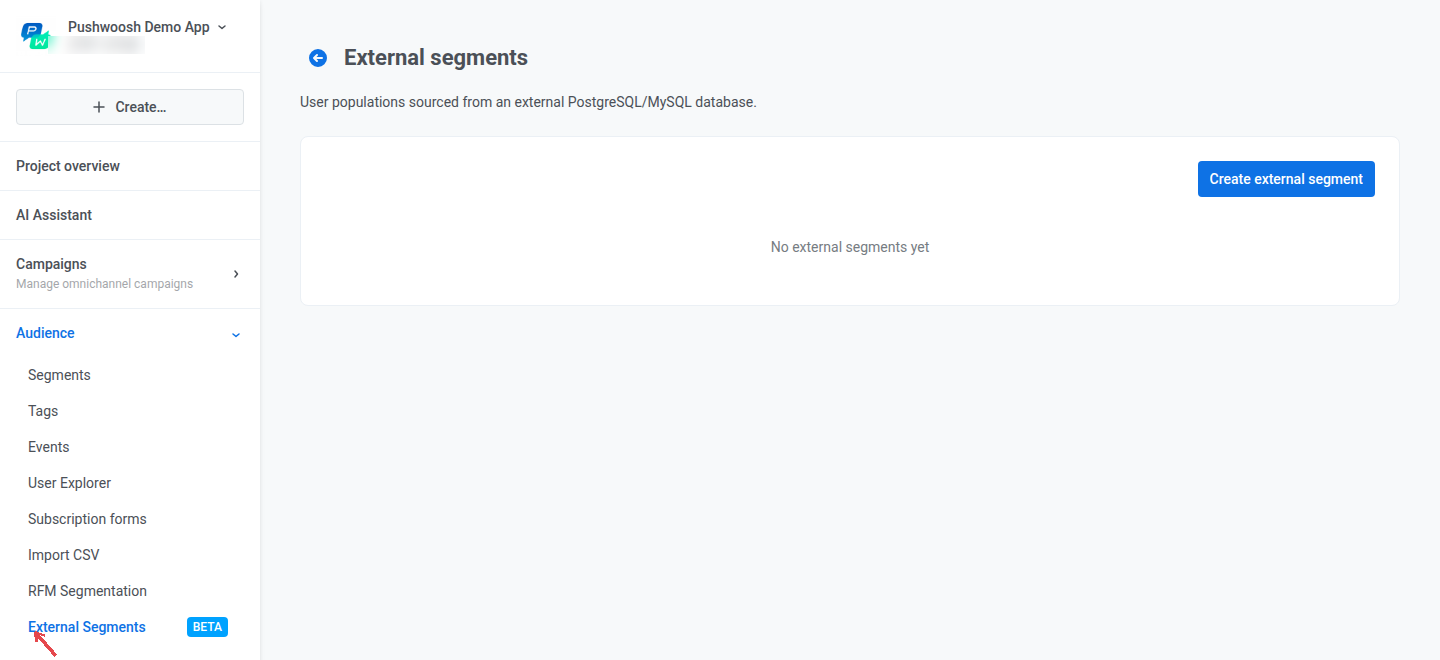
Anchor link to- Allez dans Audience → Segments externes.
- Cliquez sur Créer un segment externe.
- Saisissez un Nom pour le segment (jusqu’à 100 caractères).
- Choisissez le Type de base de données : PostgreSQL, MySQL, Google BigQuery, Microsoft SQL Server / Fabric, ou Google Analytics 4 audience.

Remplir les champs de connexion
Anchor link toPostgreSQL et MySQL
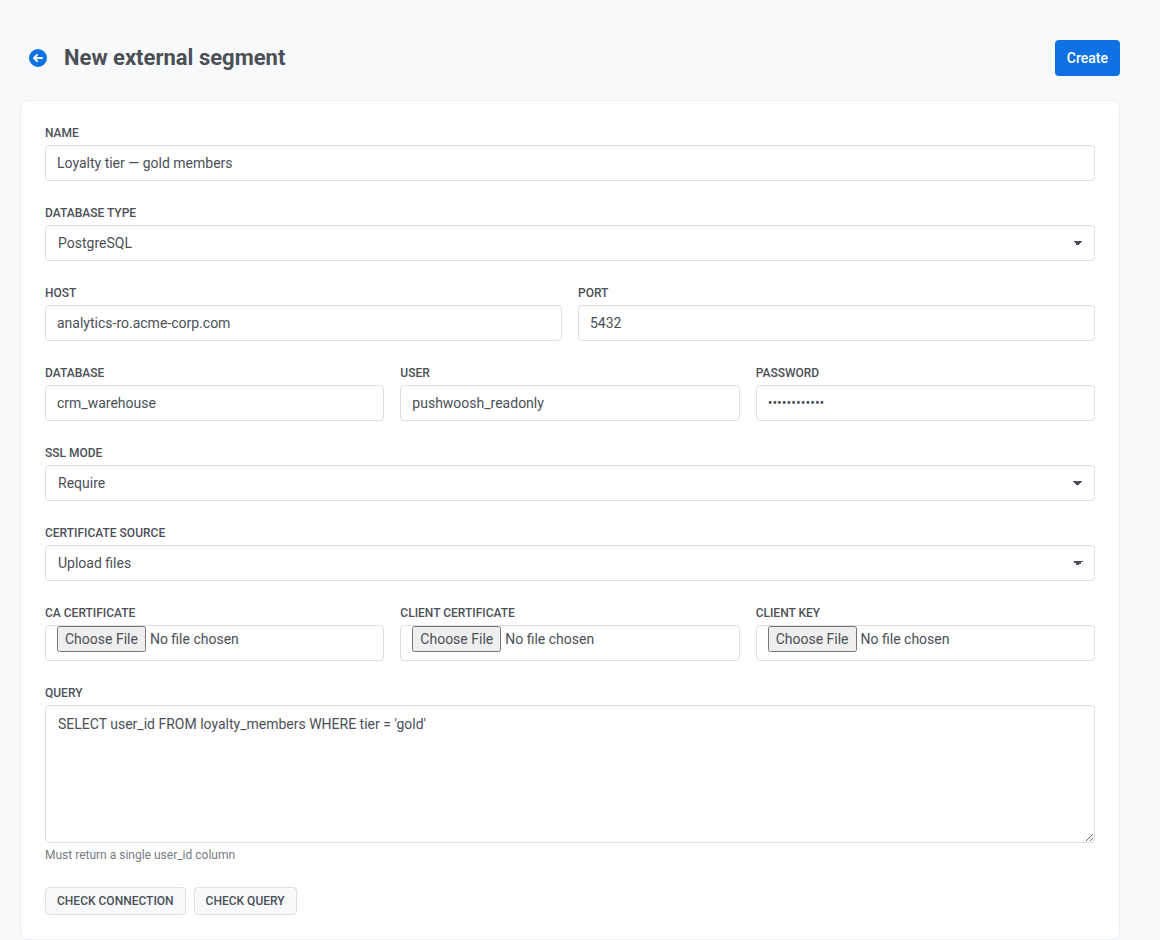
Anchor link toPour PostgreSQL et MySQL, remplissez :
- Hôte et Port : l’adresse de votre serveur de base de données. Pushwoosh requiert un hôte accessible publiquement et rejette les adresses privées, internes ou de bouclage lorsque vous vérifiez la connexion ou enregistrez le segment.
- Base de données : le nom de la base de données.
- Utilisateur et Mot de passe : les identifiants d’un compte en lecture seule.
- Mode SSL (PostgreSQL uniquement, car les connexions MySQL n’utilisent pas TLS) définit comment SSL/TLS, le protocole qui chiffre la connexion, s’applique à votre connexion de base de données. Demandez à votre administrateur de base de données quel mode utiliser :
- Désactivé : pas de chiffrement.
- Requis : chiffre la connexion, mais ne vérifie pas l’identité du serveur de base de données.
- Vérifier la CA : chiffre la connexion et vérifie que le certificat du serveur a été émis par une autorité de certification (CA) de confiance.
- Vérification complète : identique à Vérifier la CA, et vérifie également que le certificat correspond au nom d’hôte de votre base de données. L’option la plus forte.
- Pour tout mode autre que Désactivé, fournissez le Certificat CA sous Source du certificat (Téléverser des fichiers ou Coller le PEM), plus un Certificat client et une Clé client si votre base de données les requiert.
BigQuery
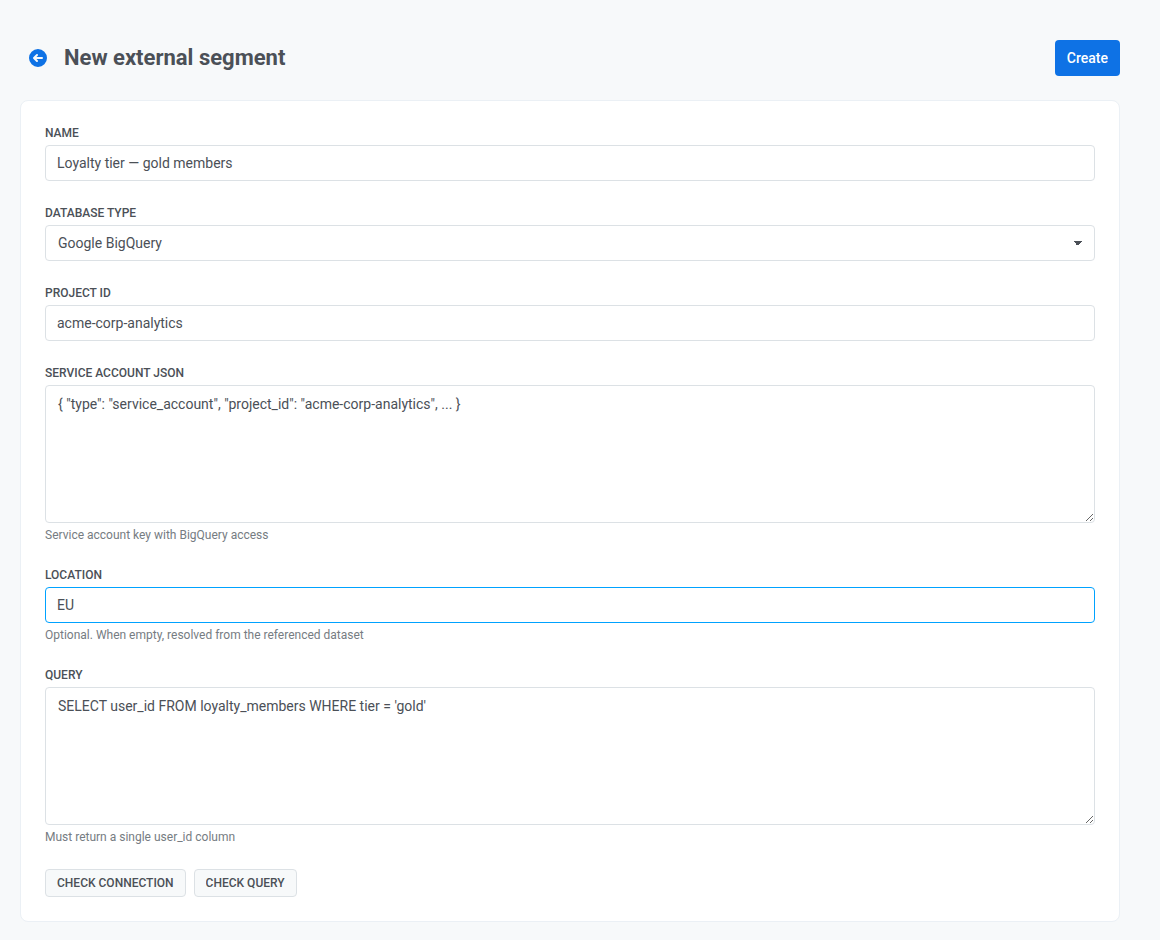
Anchor link toPour Google BigQuery, remplissez :
- Project ID : le projet GCP qui contient votre jeu de données.
- Service account JSON : la clé d’un compte de service avec un accès en lecture à BigQuery.
- Emplacement : la région du jeu de données (par exemple,
EU,US, oueurope-west3). Laissez vide pour résoudre automatiquement l’emplacement à partir du jeu de données.
SQL Server / Fabric
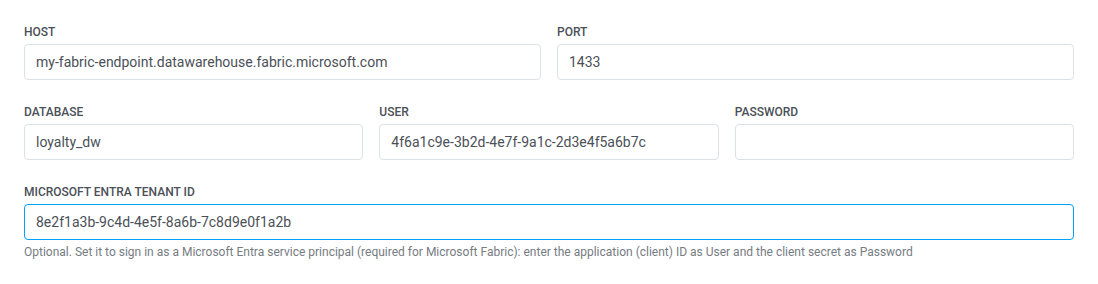
Anchor link toPour Microsoft SQL Server / Fabric, remplissez :
- Hôte et Port : l’adresse de votre serveur de base de données, ou votre point de terminaison d’analyse SQL Fabric. Pushwoosh requiert un hôte accessible publiquement et rejette les adresses privées, internes ou de bouclage lorsque vous vérifiez la connexion ou enregistrez le segment.
- Base de données : le nom de la base de données.
- Utilisateur et Mot de passe : les identifiants d’un compte en lecture seule.
- ID de locataire Microsoft Entra : optionnel. Laissez vide pour une connexion SQL Server. Pour Microsoft Fabric, dont le point de terminaison d’analyse SQL n’a pas de connexions SQL, définissez-le pour vous connecter en tant que principal de service à la place. Saisissez son ID d’application (client) comme Utilisateur et son secret client comme Mot de passe.
Google Analytics 4 audience
Anchor link toUn segment Google Analytics 4 audience tire ses utilisateurs d’une audience que vous avez créée dans Google Analytics ; il n’a donc pas de requête. Remplissez :
- ID de propriété GA4 : l’ID de la propriété Google Analytics, affiché dans Google Analytics sous Admin → Property details.
- Service account JSON : la clé d’un compte de service disposant du rôle Viewer sur cette propriété. Attribuez le rôle dans Google Analytics sous Admin → Property access management, et activez Google Analytics Data API et Admin API dans le projet Google Cloud du compte de service.
- Audience : cliquez sur Charger les audiences, puis choisissez l’audience. Si la liste est vide, créez d’abord une audience dans Google Analytics.
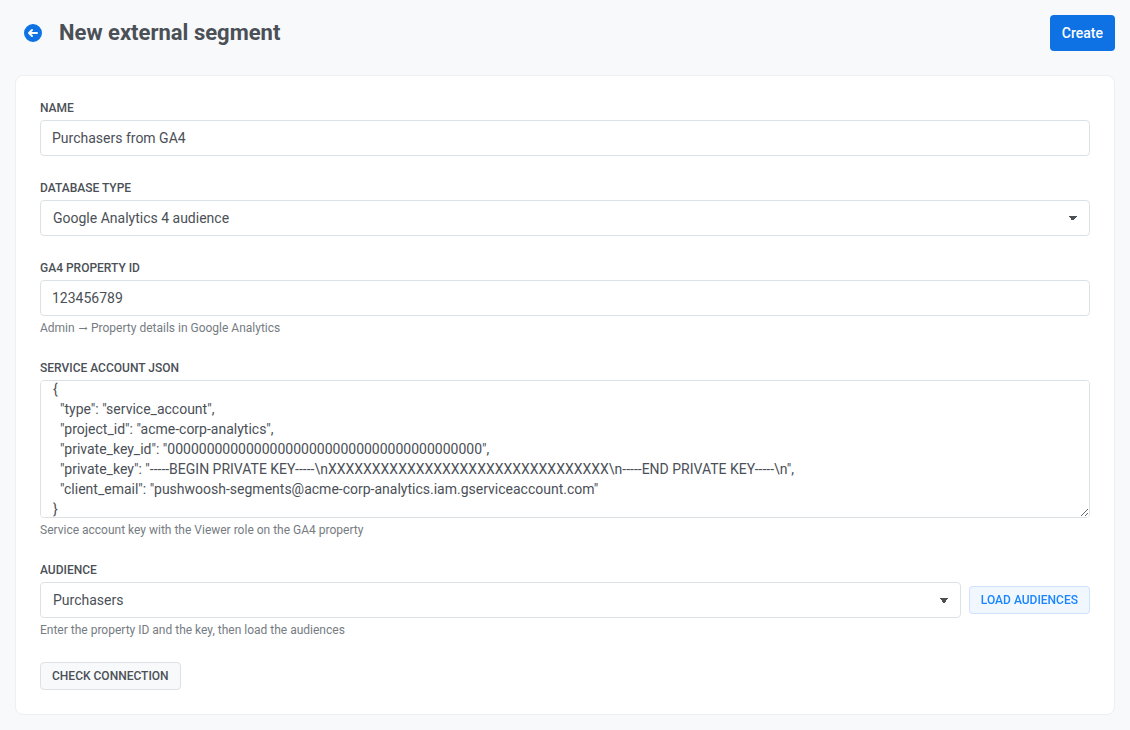
Pour la configuration côté Google Analytics, consultez Intégration de Google Analytics. Cliquez ensuite sur Vérifier la connexion. Lorsque la vérification réussit, cliquez sur Créer.
Saisir la requête
Anchor link toPour tous les types de base de données sauf Google Analytics 4 audience :
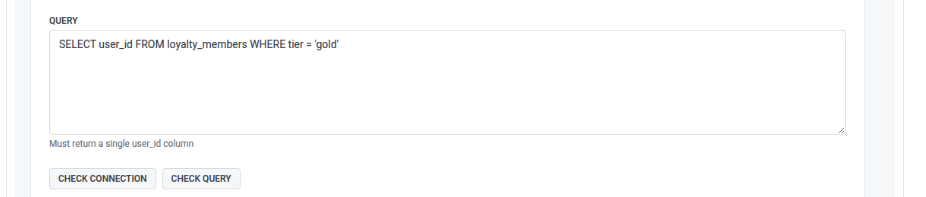
- Saisissez la Requête. Elle doit retourner une seule colonne nommée
user_id, avec une ligne par utilisateur que vous souhaitez dans le segment. Par exemple :
SELECT user_id FROM loyalty_members WHERE tier = 'gold'- Cliquez sur Vérifier la connexion pour confirmer que Pushwoosh peut atteindre la base de données (expire après 30 secondes).
- Cliquez sur Vérifier la requête pour confirmer que la requête s’exécute et retourne la bonne colonne (expire également après 30 secondes).
Vérifier et créer
Anchor link toLorsque les deux vérifications réussissent, cliquez sur Créer. Pushwoosh enregistre le segment et l’ajoute immédiatement à la liste des Segments externes.
Comment le segment reste à jour
Anchor link toPushwoosh n’exécute pas votre requête selon un calendrier fixe. Au lieu de cela, il rafraîchit le segment en fonction de la date de sa dernière utilisation :
- Si les données du segment ont moins d’une heure, Pushwoosh utilise les données actuelles telles quelles.
- Si elles ont plus d’une heure, Pushwoosh continue d’utiliser les données actuelles pendant qu’il se rafraîchit en arrière-plan.
- Si elles ont plus de trois heures, Pushwoosh attend un nouveau rafraîchissement avant d’utiliser le segment.
Un segment Google Analytics 4 audience suit les mêmes règles, avec 24 heures et 72 heures au lieu d’une heure et trois heures. Google Analytics met à jour l’appartenance aux audiences environ une fois par jour.
En pratique, cela signifie qu’un segment que vous utilisez régulièrement (par exemple, dans un Journey récurrent) reste à jour, tandis qu’un segment que vous touchez rarement peut prendre un moment pour se rafraîchir la première fois que vous l’utilisez à nouveau.
Si un rafraîchissement échoue (par exemple, la base de données devient inaccessible ou la requête commence à générer des erreurs), Pushwoosh enregistre l’erreur, mais le statut du segment dans la liste des Segments externes ne change pas de lui-même. Après avoir résolu le problème de votre côté, ouvrez le segment et cliquez sur Vérifier la connexion pour confirmer la correction. L’erreur est effacée automatiquement la prochaine fois que les données du segment se rafraîchissent avec succès.
Utiliser un segment externe
Anchor link toUne fois que vous l’avez créé, le segment externe apparaît automatiquement dans Audience → Segments sous le même nom, prêt à être utilisé comme n’importe quel autre segment, par exemple comme audience d’une campagne ou d’un Journey.
Pour le combiner avec d’autres conditions, ajoutez-le comme filtre :
- Allez dans Audience → Segments → Créer un segment.
- Cliquez sur Ajouter un filtre par : → Segment.
- Sélectionnez votre segment externe par son nom.
Le même filtre Segment est disponible dans les filtres composés et lorsque vous choisissez l’audience dans l’Entrée basée sur l’audience. Pour en savoir plus sur la combinaison de segments, consultez Créer des segments à partir de segments existants.
Vérifier le nombre de personnes dans le segment
Anchor link toLa liste des Segments externes n’affiche pas de nombre de membres. Ouvrez l’enveloppe du segment dans Audience → Segments (voir Utiliser un segment externe) et calculez sa taille à cet endroit.
Gérer les segments externes
Anchor link toDans la liste des Segments externes, chaque ligne affiche :
- Le nom du segment.
- Code : l’identifiant utilisé pour référencer le segment dans les appels API.
- Le type de base de données.
- L’hôte, ou la propriété pour une Google Analytics 4 audience.
- Le statut, valide ou invalide.
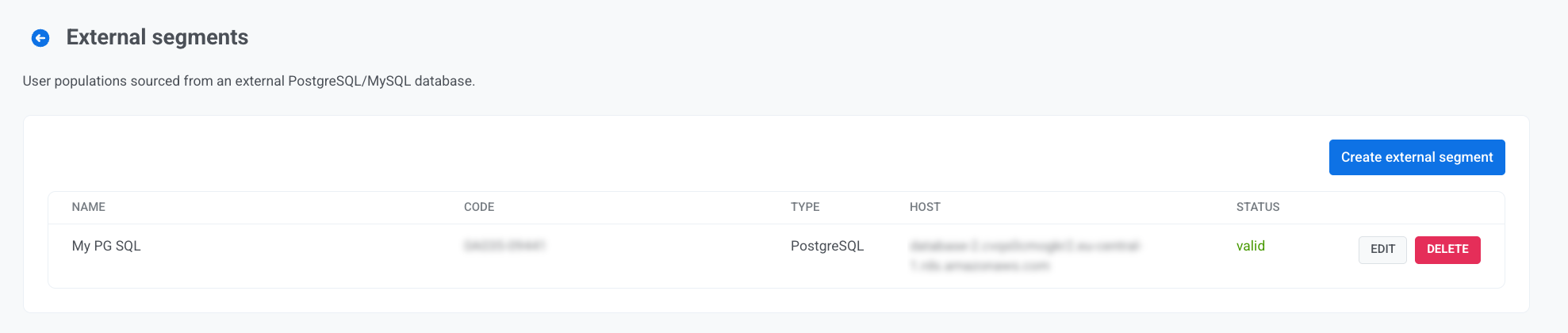
- Cliquez sur Modifier pour changer la connexion ou la requête. Le type de base de données ne peut pas être modifié après la création. Créez plutôt un nouveau segment.
- Cliquez sur Supprimer pour retirer un segment. Pushwoosh bloque la suppression tant que le segment est utilisé par une campagne, un Journey, un filtre ou un formulaire popup. Supprimez d’abord ces références, puis supprimez le segment. Cette action est irréversible.