Statistiques des éléments de Journey
Pour afficher les métriques de chaque élément de parcours sur le canevas, ouvrez les Paramètres du canevas (l’icône en forme d’engrenage dans le coin inférieur droit du canevas) et activez Afficher les métriques en bas du panneau. Alternativement, vous pouvez survoler l’élément pour voir les métriques.
Progression de l’audience
Anchor link toPushwoosh vous permet de suivre votre audience au fur et à mesure de sa progression dans le parcours avec une visualisation en temps réel sur le canevas. Un nombre sur la flèche suivant chaque élément de parcours indique le nombre total de clients qui ont terminé cette étape particulière.
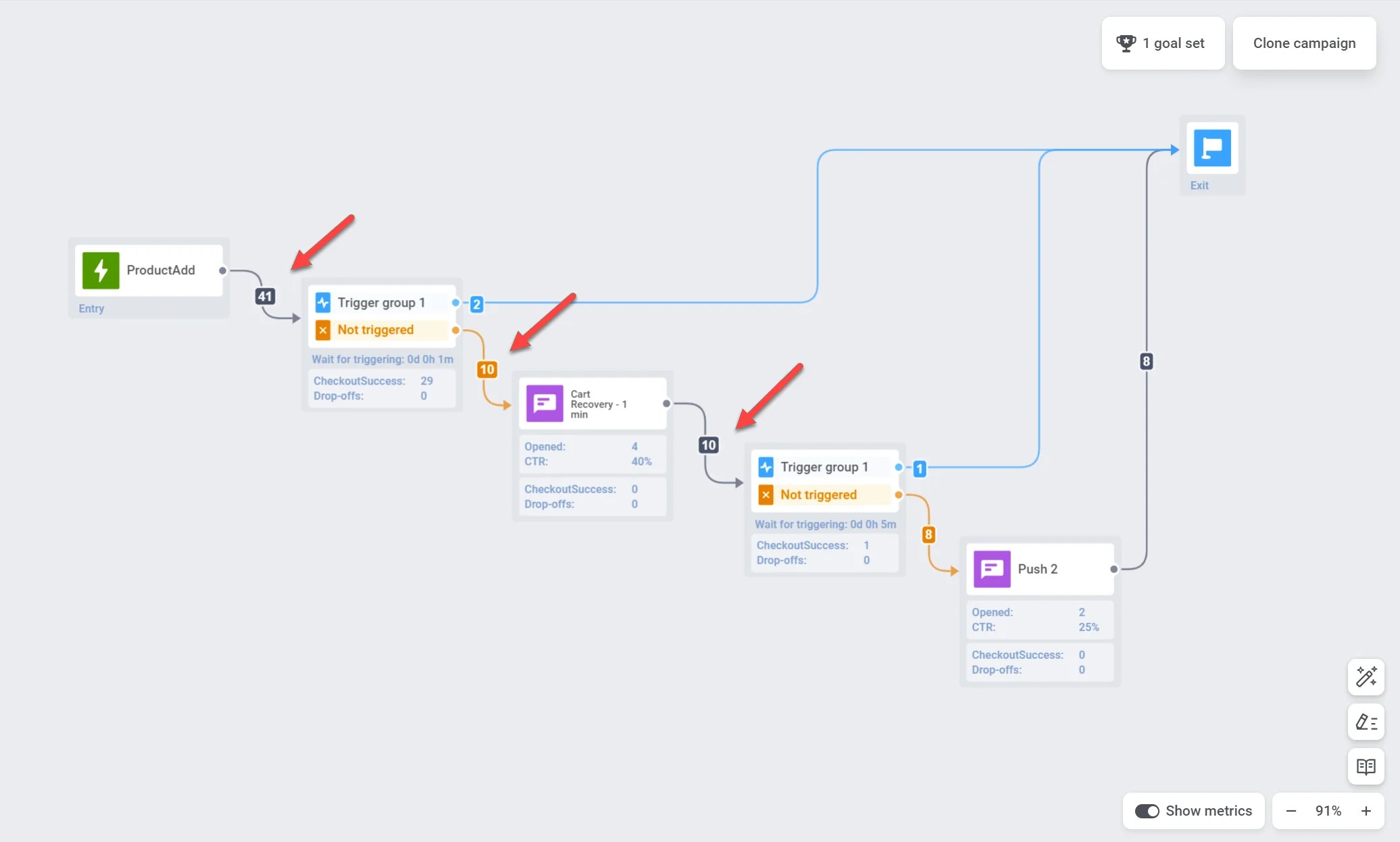
Statistiques pour chaque point de communication
Anchor link toVous pouvez obtenir des informations sur la performance de chaque point de communication grâce à des métriques telles que :
Notifications push et e-mails
Anchor link to| Objectifs atteints | Indique le nombre d’utilisateurs qui ont atteint l’Objectif de Conversion à ce point précis. |
| Ouverts | Affiche le nombre de fois où le message a été ouvert par les utilisateurs. |
| CTR | Représente le pourcentage d’utilisateurs qui ont cliqué sur le message. |
| Abandons | Représente le nombre de messages qui n’ont pas pu être envoyés pour une raison quelconque (par ex., un jeton push expiré ou une adresse e-mail invalide). |
| Sortis par Objectifs de Conversion ou Événements d’annulation | Nombre d’utilisateurs qui ont quitté le parcours à ce point en raison de l’atteinte d’un objectif de conversion ou du déclenchement d’un événement d’annulation. |
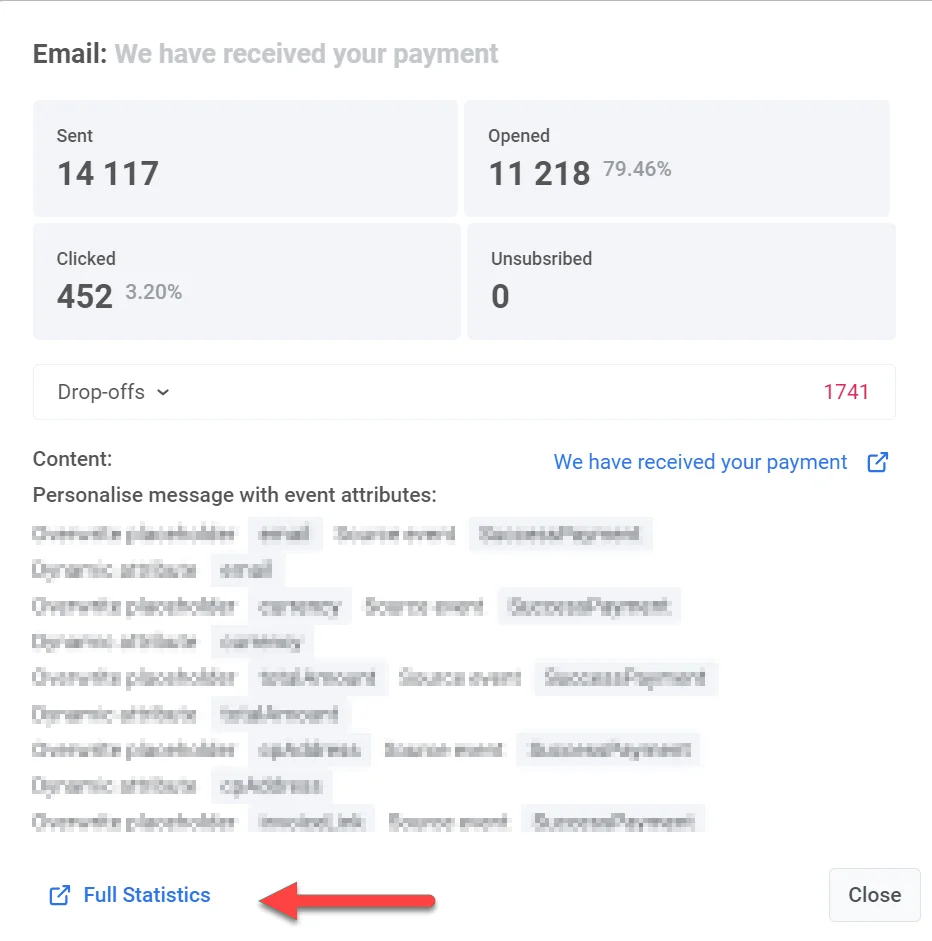
Pour des informations plus approfondies sur l’efficacité de chaque message, double-cliquez sur un élément de message sur le canevas. Une fenêtre de statistiques détaillées apparaîtra, affichant les métriques clés du message telles que :
- le nombre de messages envoyés
- le nombre de messages ouverts
- le taux de conversion
- le nombre d’entrées
- le nombre d’abandons,
- le nombre de clics, etc.
Pour voir les raisons des abandons et le nombre d’abandons pour chaque cause, développez le bloc Abandon.
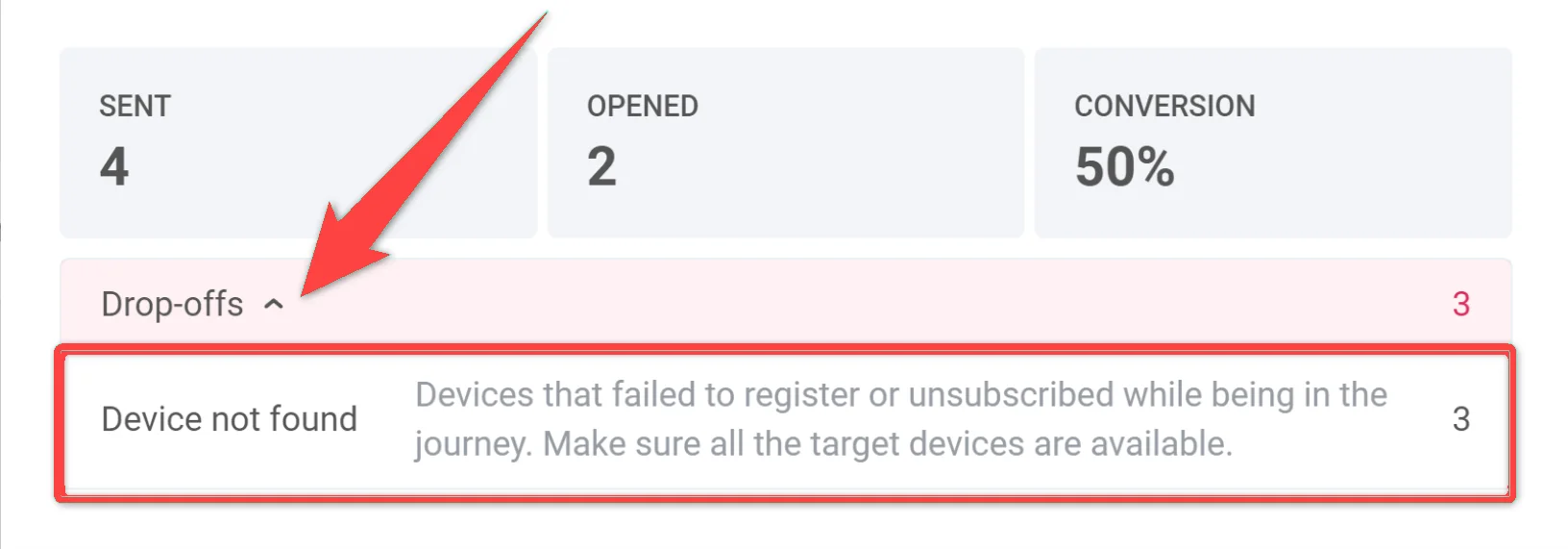
Pour accéder à des statistiques encore plus complètes pour un message, cliquez sur Statistiques détaillées en bas de la fenêtre.
In-apps
Anchor link to| Objectifs atteints | Indique le nombre d’utilisateurs qui ont atteint l’Objectif de Conversion à ce point précis. |
| Abandons | Représente le nombre de messages in-app qui n’ont pas pu être affichés aux utilisateurs. |
Pour une compréhension plus détaillée de la performance de votre message in-app, double-cliquez sur l’élément de message, puis, dans la fenêtre qui apparaît, cliquez sur le nom de l’in-app. Cela ouvrira des statistiques complètes sur le message.
| Objectifs atteints | Indique le nombre d’utilisateurs qui ont atteint l’Objectif de Conversion à ce point précis. |
| Envoyés | Indique le nombre de messages envoyés. |
Telegram
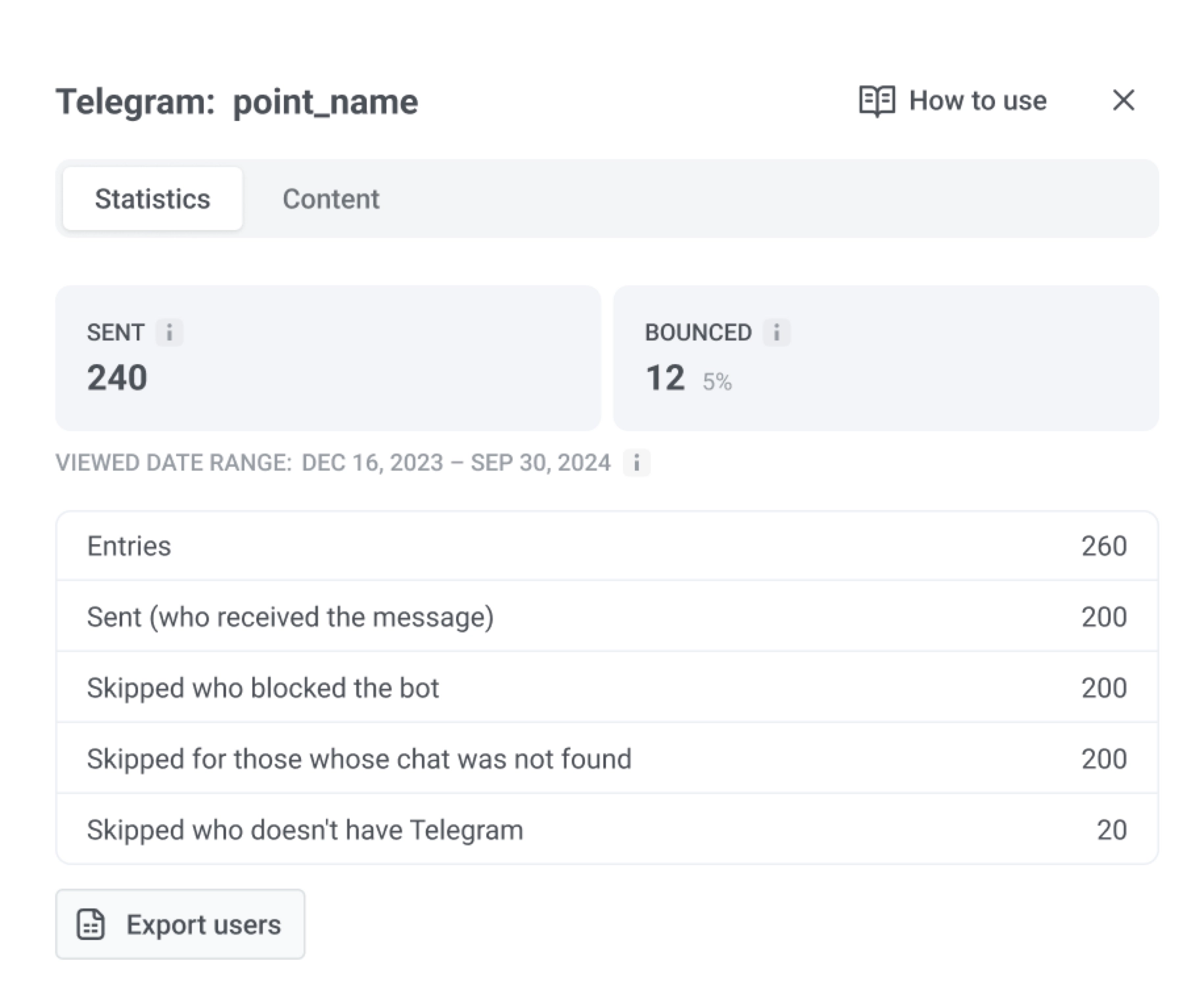
Anchor link to| Envoyés | Indique le nombre de messages Telegram envoyés. |
| Rejetés | Indique le nombre de messages Telegram qui n’ont pas pu être livrés. |
| Entrées | Indique le nombre d’utilisateurs qui ont atteint l’élément Telegram. |
| Envoyés (qui a reçu le message) | Indique le nombre d’utilisateurs qui ont reçu avec succès le message Telegram. |
Vous pouvez également consulter Plage de dates consultée : depuis le début et cliquer sur Exporter les utilisateurs. Exporter les utilisateurs nécessite l’autorisation Personal data dans votre rôle.
Synchronisation d’audience
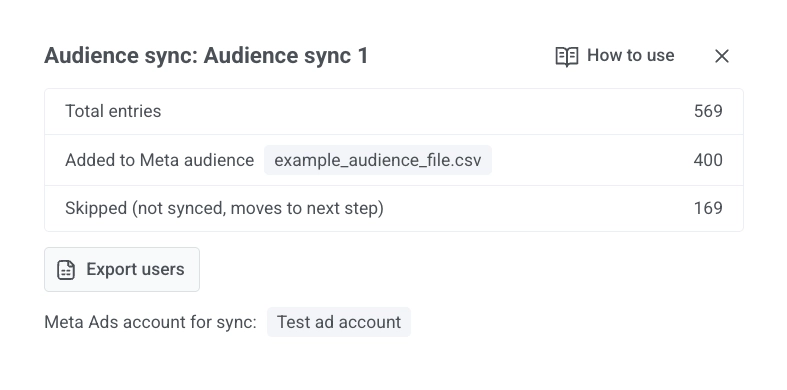
Anchor link toPour un élément de Synchronisation d’audience, la vue des statistiques inclut :
| Total des entrées | Indique combien d’utilisateurs ont atteint cette étape du parcours. |
| Ajoutés à l’audience Meta | Indique combien d’utilisateurs Meta a fait correspondre et ajoutés à l’audience que vous avez sélectionnée. |
| Retirés de l’audience Meta | Indique combien d’utilisateurs Meta a fait correspondre et retirés de l’audience que vous avez sélectionnée. |
| Ignorés (non synchronisés, passent à l’étape suivante) | Indique combien d’utilisateurs n’ont pas été synchronisés. Ils continuent vers la prochaine étape du parcours. |
Vous pouvez Exporter les utilisateurs depuis cette vue. L’écran montre également quel compte Meta Ads a été utilisé pour la synchronisation.
Statistiques des tests A/B/n
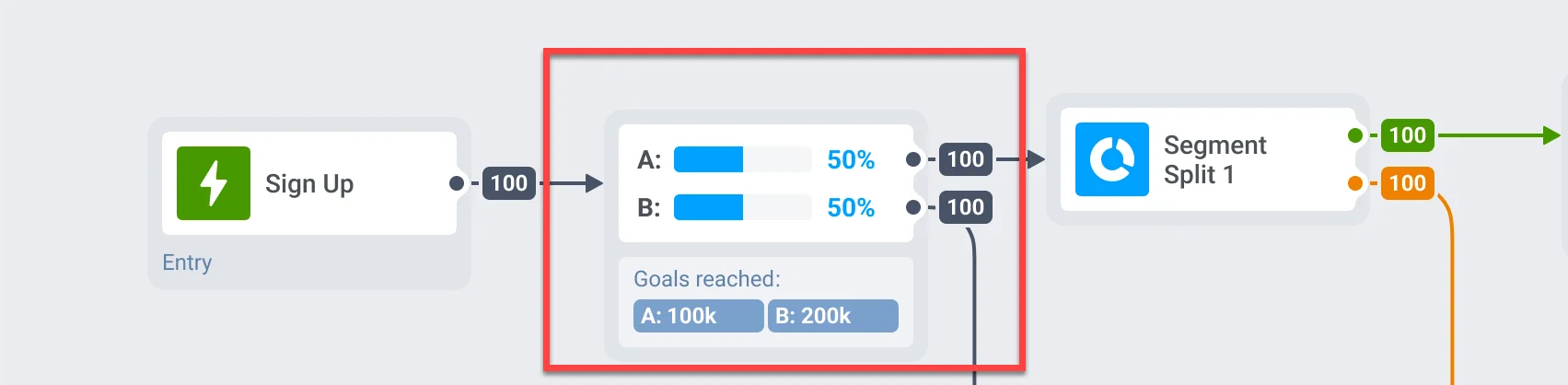
Anchor link toSi vous effectuez des tests A/B/n sur différents éléments de votre parcours client, vous pouvez rapidement identifier la variante la plus performante de chaque élément.
Toujours en attente
Anchor link toLa métrique Toujours en attente dans Pushwoosh Customer Journey s’applique aux étapes Délai et Attente de Déclencheur. Elle aide à surveiller le flux d’utilisateurs, à identifier les retards et à optimiser la configuration de votre parcours client.
Attente de déclencheur
Anchor link toAffiche le nombre d’utilisateurs qui attendent actuellement de déclencher un événement spécifique. Ces utilisateurs sont entrés dans l’étape mais n’ont pas encore rempli les conditions requises dans la période d’attente définie.
Délai
Anchor link toReflète les utilisateurs qui sont encore dans la période d’attente avant de passer à l’étape suivante.
Exporter les statistiques pour chaque étape de votre parcours client
Anchor link toVous pouvez exporter les utilisateurs qui sont passés par chaque étape de votre parcours client, y compris des éléments comme les notifications push, les e-mails, les messages in-app, l’Attente de Déclencheur, la Division par Condition, etc. Cela vous permet d’analyser la performance des éléments de campagne individuels.
Pour exporter les statistiques :
- Ouvrez la campagne que vous souhaitez suivre dans le Constructeur de Parcours Client.
- Cliquez sur l’étape spécifique du parcours pour laquelle vous souhaitez exporter les statistiques.
- Cliquez sur Exporter les statistiques.
- Spécifiez la plage de dates pour les données que vous souhaitez exporter et cliquez sur Démarrer l’exportation.
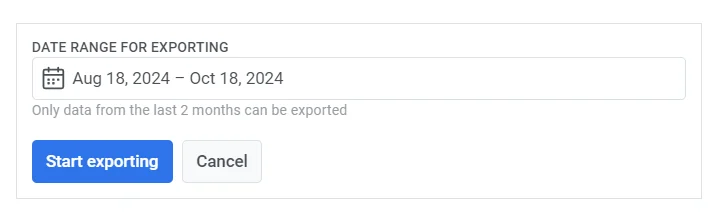
- Une fois le processus d’exportation terminé, Pushwoosh affichera un message de confirmation. Cliquez sur le fichier pour télécharger les données exportées, ou choisissez d’exporter une autre période si nécessaire.
