AI Assistant prompt library
Ce contenu n'est pas encore disponible dans votre langue.
Writing clear, specific prompts helps AI Assistant provide accurate, relevant, and actionable responses. Use the following strategies and examples to improve your results. Example prompts are grouped by task, the same way as the suggested prompts in a new conversation: Creation, Analysis, and Configuration.
Prompting strategies and best practices
Anchor link to| Do | Don’t | Why |
|---|---|---|
| Be specific about what you want | Give vague instructions | Clear requests get accurate results |
| Include identifiers (application codes, campaign names, journey UUIDs, segment names) | Reference resources vaguely | Lets AI Assistant target the right object |
| Write detailed prompts with background, outcome, and constraints | Give one-line requests | More context means fewer follow-up rounds |
| Use consistent naming for events, journeys, tags, and campaigns | Mix naming conventions | Avoids confusion when AI Assistant looks things up |
| Add clear descriptions to custom events, segments, and tags | Leave them undocumented | Helps AI Assistant interpret them correctly |
| Verify results after every action or response | Assume it worked | Catches mistakes before they compound |
| Read each step before moving on, especially for permanent changes | Rush through multi-step actions | Permanent changes need review before they happen |
| Review a Decision card’s reason before approving it | Approve without reading | The card is your last chance to catch a mistake |
Effective and less effective prompts
Anchor link to| Effective prompt | Less effective prompt |
|---|---|
| ”Create a segment for users who abandoned cart in the last 7 days." | "Fix my pushes." |
| "Show me push notification statistics for campaign ‘Summer Sale’ from June 1 to 15." | "Show me stats." |
| "Help me debug why my iOS push notifications aren’t delivering." | "Something’s wrong." |
| "Journey ‘Welcome Flow’ (UUID: abc-123) stopped sending emails yesterday at 3 PM." | "My journey isn’t working." |
| "Build a segment for users who viewed a product but did not purchase in the last 14 days. The goal is to target them with a follow-up email." | "Help me target users.” |
Creation
Anchor link toBuild something new. The chat’s own starter prompts for this category: “Build a complete marketing strategy”, “Create an onboarding journey”, “Create a re-engagement push campaign”.
Segments and audience
Anchor link to“Create a segment of users who have not opened the app in the last 30 days and have made at least one purchase in the past, excluding those who have unsubscribed from notifications.”
What AI Assistant does: builds the segment with the filter conditions described.

Check after: confirm the segment size looks reasonable and that excluded users (here, unsubscribed users) are actually excluded.
Customer journeys
Anchor link toBuild a journey from a description
Anchor link to“Create a journey that starts when a customer adds shoes to their cart and leaves without making a purchase.
Wait 1 hour to check if a purchase occurs. If it does, send a thank you message and exit the journey. If not, send a first reminder and wait 23 more hours.
If the customer completes the purchase during this period, send a thank you message and exit. If they still haven’t purchased, send a second reminder with a discount, wait 1 more hour, and then exit the journey.”
What AI Assistant does: builds the full journey with the branching logic described.

Check after: open the journey in the builder and confirm the branches, delays, and messages match your intent before activating it.
Edit a journey you already created
Anchor link toIn the same conversation, ask for a change to the journey. AI Assistant edits the existing journey and its messages instead of creating new ones.
“Now change the discount on the second reminder from 10% to 15%.”
What AI Assistant does: shows a Decision card with a before/after table for exactly what changes (push title, push text, step name), and flags what to check: the new discount code has to exist in your store, and a bigger discount costs more margin per order. Nothing changes until you approve.
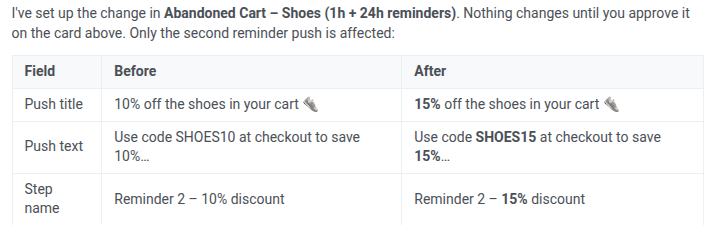
Check after: open the journey and confirm it still has the same two messages, with only the second one’s content changed.
Content
Anchor link toGenerate an email template
Anchor link to“Create email content for an online store aimed at reactivating previous purchasers by offering special incentives such as discounts or exclusive offers. The goal is to encourage repeat purchases and re-engage customers who haven’t shopped recently. Focus on clear, compelling messaging that highlights the value of the offer and includes a strong call to action.”
What AI Assistant does: saves the generated email as a template and replies with a link to open it in the email editor. It doesn’t add images itself, but an image block’s Generate with AI panel in the editor can, from a short description you write there.

Check after: review the copy, images, and links in the editor before sending a test.
Edit an existing email template
Anchor link toOnce a template exists, you don’t need to recreate it from scratch to make changes. Ask AI Assistant to edit specific parts (content blocks, subject, preheader, sender, or palette), and it updates the saved template in place.
“In the ‘Win-back: 20% off for returning customers’ email template, change the subject line to mention the 20% discount more directly, and replace the ‘Free gift wrapping’ card with a new one about easy, no-hassle returns.”
What AI Assistant does: proposes both changes as a single Decision card, with the old and new subject lines and the replaced card’s text spelled out. The template updates once you approve it. The rest of the content stays untouched.
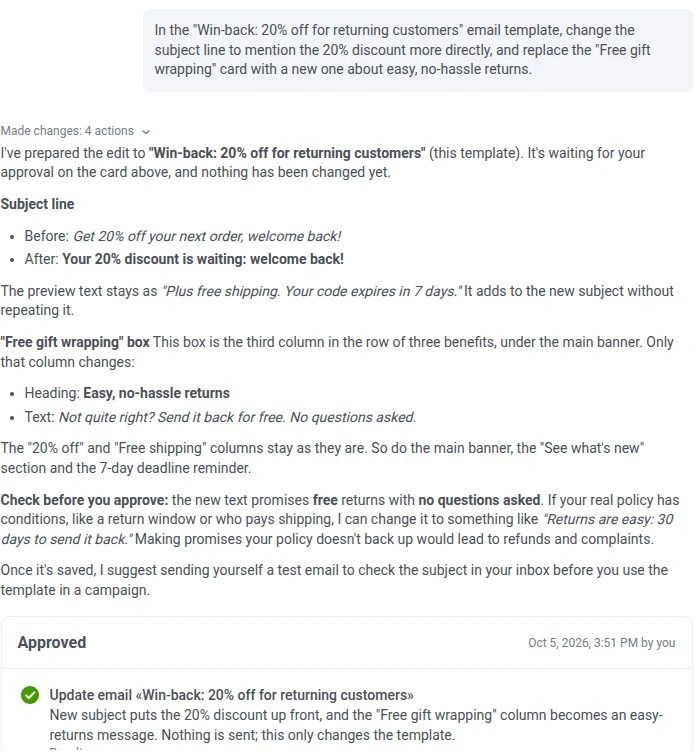
Check after: confirm the subject line and the replaced card look right, and that nothing else in the template changed.
In-app messages and rich media
Anchor link to“Create an in-app message that shows on app launch, with the headline ‘Welcome back!’, a close button, and one CTA button labeled ‘See what’s new’ linking to the app’s home screen.”
What AI Assistant does: proposes a Decision card with the full content and layout, including any guessed values (such as a deep link) flagged for you to confirm. The in-app saves once you approve. It isn’t shown to anyone until it’s also attached to a trigger, such as an app-launch event in a journey. AI Assistant doesn’t add images to an in-app. The editor’s own Image field only accepts a URL or a file from media storage, with no built-in generator.
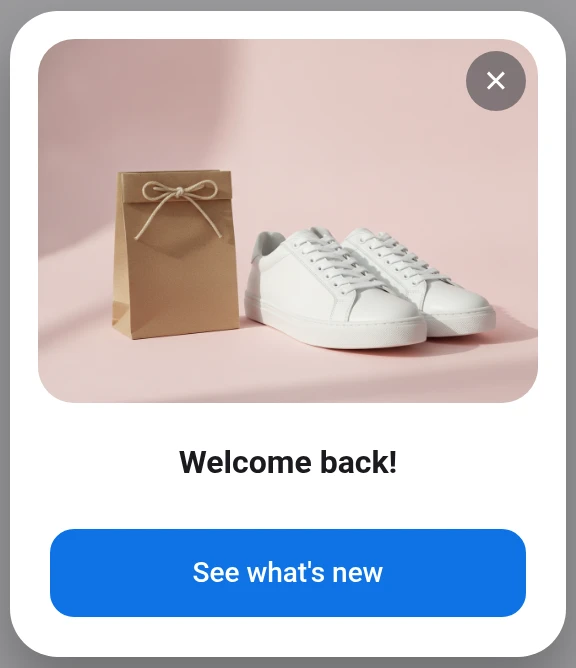
Check after: confirm the content and any links are correct, then attach it to a trigger before it can reach users.
Vouchers and promo codes
Anchor link to“Create a voucher pool named ‘Spring Sale’ with 10 single-use promo codes, no expiration date.”
What AI Assistant does: creates the pool and codes directly, then reports back the generated codes and how many are still unused. Pushwoosh guarantees each code goes to only one user. It doesn’t track whether a code was actually redeemed, so enforcing single redemption is up to your own checkout or backend.
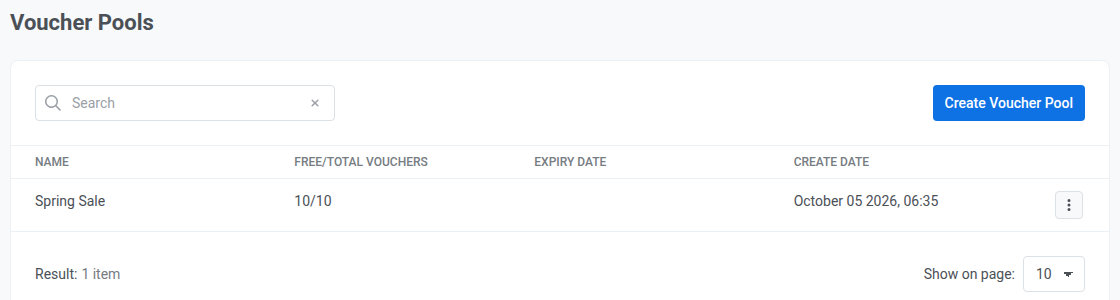
Check after: confirm the pool has the expected code count before using it in a message or journey.
Geozones
Anchor link to“Create a circular geozone named ‘Downtown Store’ centered at [latitude], [longitude] with a 500 meter radius.”
What AI Assistant does: creates the geozone directly and reports back its status and range. Without a message, it only sets up the zone’s entry event. Pick the message and audience separately in a journey. A minimum gap between repeat entries (cooldown) is required by the API, with no default. If you don’t specify one, AI Assistant picks a value rather than leaving it unset, so a person lingering near the zone’s edge doesn’t retrigger it repeatedly.

Check after: confirm the location and radius match what you intended, and that the app has location permission and the SDK’s location feature enabled.
Analysis
Anchor link toInvestigate data. Starter prompts: “Diagnose underperforming campaigns”, “Analyze revenue by segment and channel”, “Find drop-off points in user journey”.
Analytics and dashboards
Anchor link toGet a campaign performance report
Anchor link to“Generate a comprehensive report of message delivery rates, open rates, and click-through rates for all push notification campaigns launched in this app, segmented by campaign type and message content.”
What AI Assistant does: returns the report broken down by campaign type and message content, with delivery, open, and click-through rates for each, and flags data-quality caveats it finds along the way, such as push click-through rate being calculated from opens (Pushwoosh has no separate push click count) or a delivery count that’s under-reported because of a missing iOS setting.
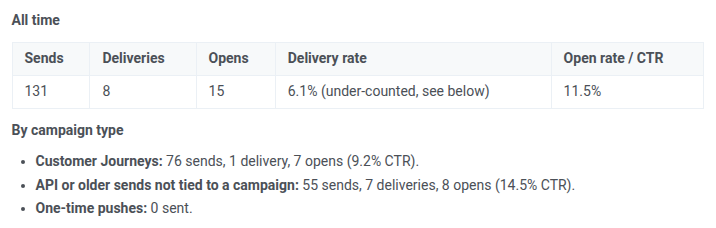
Check after: spot-check a couple of campaigns against numbers you already know.
Build a dashboard
Anchor link to“Create a dashboard for this in-app campaign only: impressions, clicks on the bottom button, and completions of event X by unique users.”
What AI Assistant does: asks which in-app you mean and for the real event name if either is missing, flags that dashboards can’t filter by in-app directly or count clicks on a single button, then builds the closest match: the three requested metrics as widgets (using an “interactions” proxy for the button-click metric), plus a trend chart.
Check after: confirm the dashboard is scoped to only this in-app, and that the interactions widget isn’t double-counted as the exact button click.
Recalculate a segment
Anchor link to“Recalculate the segment ‘High-value churners’ and tell me how many users match now.”
What AI Assistant does: starts a recalculation and reports the updated user count once it’s ready.
Check after: compare the new count against what you’d expect given recent activity.
Revenue analysis
Anchor link toCalculate week-over-week growth
Anchor link to“Pull delivery and revenue numbers for the last 30 days and calculate week-over-week growth.”
What AI Assistant does: returns delivery and revenue totals for the period, along with the week-over-week growth rate, when the account has revenue data to compute one from. If nothing is tracked (no connected payment provider, no revenue-bearing event firing), it says so instead of reporting a rate.
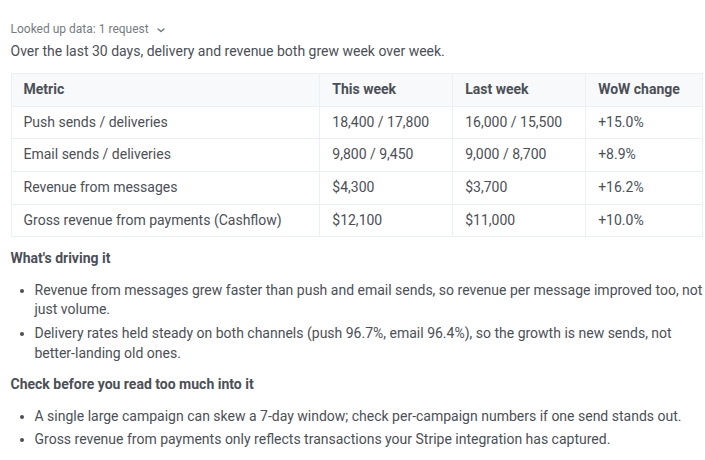
Check after: check the date range matches what you asked for.
Compare a journey against its control group
Anchor link to“Compare this journey’s revenue against its control group.”
What AI Assistant does: checks whether the journey has its own holdout split and whether a revenue-bearing event is set up. If either is missing, it explains exactly what to add rather than guessing a result. If the account only has an account-wide control group, it says that group measures all marketing at once and isn’t a substitute for a journey-level holdout.
Check after: confirm the holdout percentage and that it’s attached to the journey itself, not relying only on the account-wide control group.
Find campaigns with no revenue
Anchor link to“Find campaigns from the last 30 days that haven’t generated any revenue.”
What AI Assistant does: checks whether revenue is tracked at all before answering. If it isn’t, every campaign would trivially match, so it reports the tracking gap and the account’s real send activity instead of a meaningless “all campaigns” list.
Check after: if revenue tracking is already set up, confirm the date range and that paused or draft campaigns aren’t included unless you asked for them.
Account strategy
Anchor link to“Analyze my account and propose a revenue-focused plan: target segments, channels, and campaign timeline.”
What AI Assistant does: audits the account for what could block revenue (tracking gaps, unreachable audience, empty segments) before building the plan. When the audit comes back clean, as it does here, it moves straight to which segments to target, which channels to use, and a campaign timeline, for you to review before acting on any of it.
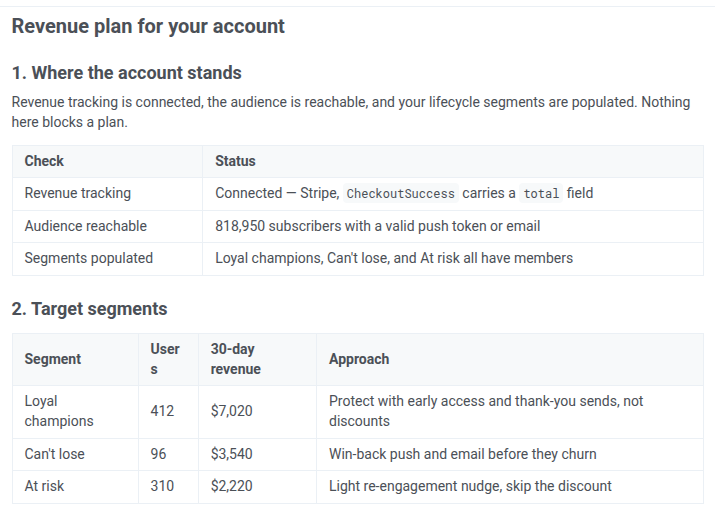
Check after: confirm the suggested segments and timeline make sense for your current campaigns, and address any data gaps the audit flags before trusting later numbers.
Configuration
Anchor link toSet something up. Starter prompts: “Set up mobile SDK (iOS/Android)”, “Set up web SDK”, “Set up email sending”.
Delivery settings
Anchor link to“Set push frequency capping for this app to 1 message per user per week.”
What AI Assistant does: proposes the new push frequency-capping limit for the whole application as a Decision card. The limit changes once you approve it. Frequency capping applies per application and channel, not per segment or campaign.
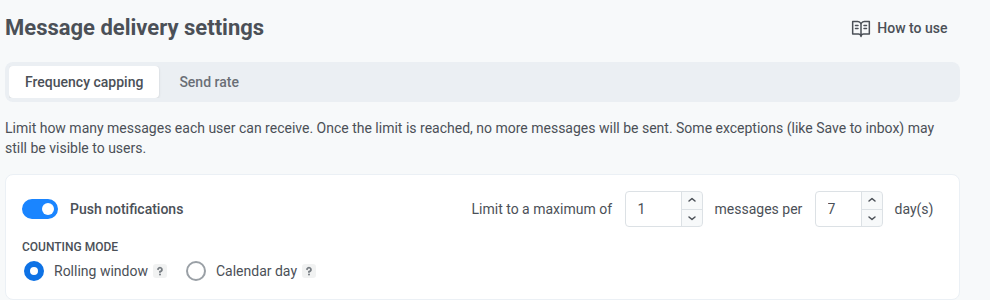
Check after: confirm the new limit in the application’s frequency-capping settings, and check it doesn’t starve a multi-step journey of its later messages.
Test devices
Anchor link to“Register my phone as a test device for push testing on iOS.”
What AI Assistant does: turns on Add test devices from the app on the Test Devices page for 1 hour. The time left is shown next to the toggle. While it’s on, opening the app isn’t enough by itself: send it to the background and bring it back to the foreground 6 times within 30 seconds, and the phone registers itself. If you already know the phone’s push token or device ID (HWID), add it to your prompt, and AI Assistant registers the device directly.

Check after: confirm the new device appears in the test device list with the right platform.
Integrations
Anchor link to“Create a webhook integration that posts to [your server URL] when a message is sent.”
What AI Assistant does: checks the app’s current webhook setup first, since each app has only one and creating a new one replaces it, then proposes a Decision card with the target URL, covered events, and auth header state. The card says so if it would overwrite something. The integration starts firing only after you approve it.
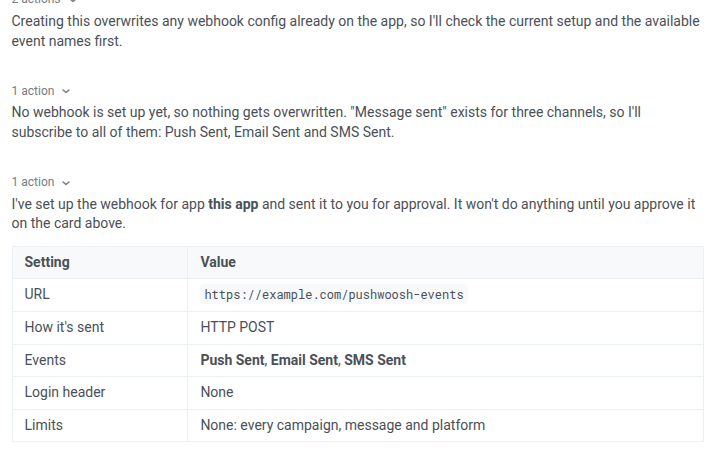
Check after: confirm the target URL, covered events, and scope (all messages vs. specific ones) match what you intended, and add an auth header if your server should verify the calls are really from Pushwoosh.
Users and access
Anchor link to“Invite [email] to this account with [group] access.”
What AI Assistant does: proposes a Decision card naming the group the invite assigns. Permissions are per group, each with See, Modify, and Send push rights per application. A group isn’t a fixed role with hardcoded capabilities, so what a group can actually do depends on how your account has configured it. The invite email only goes out once you approve.
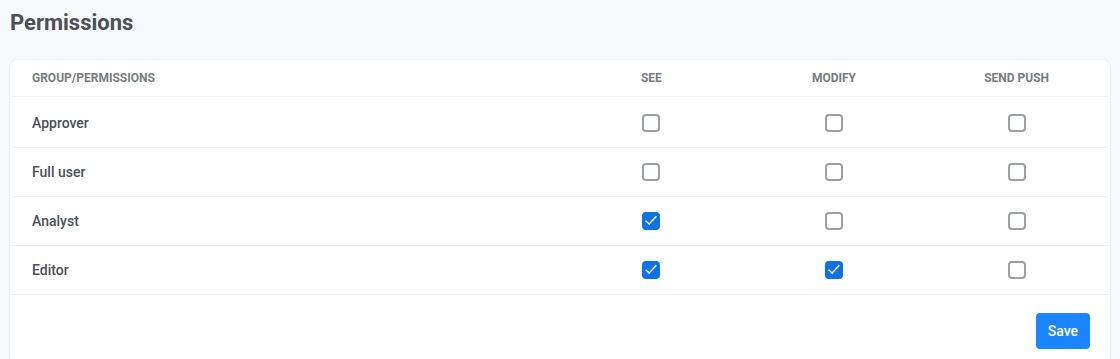
Check after: open the group’s permissions (as in the screenshot above) and confirm See, Modify, and Send push are set the way you want for this person, application by application.
Support
Anchor link to“Open a support ticket about this issue and include the details from this conversation.”
What AI Assistant does: creates a support ticket and confirms once it’s submitted, as an alternative to navigating to Pushwoosh Support yourself.
Check after: note the ticket number. Pushwoosh Support follows up from there.
Related
Anchor link toFor diagnosing a specific problem, like a stalled journey or a failed delivery, see Troubleshoot with AI Assistant, which has prompt templates organized by issue type.