Intégration Singular
Aperçu de l’intégration
Anchor link toSingular est une plateforme d’analyse marketing et d’attribution. Connectez-la à Pushwoosh pour attribuer les ouvertures d’applications de vos campagnes push et mesurer les performances des notifications push dans Singular aux côtés d’autres canaux marketing. Vous pouvez également envoyer des données d’attribution de Singular à Pushwoosh via des postbacks et les utiliser pour la segmentation et la messagerie.
Cas d’utilisation
Anchor link to- Attribution des notifications push : Attribuez les ouvertures d’applications des campagnes push Pushwoosh dans Singular lorsque les utilisateurs appuient sur vos notifications.
- Analyse des performances des campagnes : Comparez les résultats des campagnes push avec d’autres canaux marketing dans le tableau de bord d’analyse de Singular.
- Optimisation du ROI : Identifiez vos campagnes push les plus performantes dans Singular et appliquez ces informations lors de la planification de nouvelles campagnes dans Pushwoosh.
- Segmentation dans Pushwoosh : Utilisez les données d’installation et d’événements in-app des postbacks Singular pour créer des segments et personnaliser les campagnes dans Pushwoosh.
Prérequis
Anchor link to- Compte Pushwoosh actif
- Compte Singular actif
- SDK Singular intégré dans votre application
- Code d’application et Jeton d’accès API de votre compte Pushwoosh
Type d’intégration
Anchor link to- Source (Pushwoosh → Singular) : Les données d’attribution sont transmises des charges utiles des notifications push sur l’appareil à Singular via le lien de suivi Singular.
- Destination (Singular → Pushwoosh) : Singular envoie des données d’attribution à Pushwoosh via des postbacks. Pushwoosh les stocke sous forme de tags et d’événements pour la segmentation et l’analyse.
Comment ça marche
Anchor link toAttribution des notifications push (Pushwoosh → Singular)
Anchor link to- Pushwoosh envoie une notification push avec le lien de suivi Singular comme lien profond.
- L’utilisateur appuie sur la notification.
- L’application transmet le lien au SDK Singular.
- Singular enregistre l’ouverture comme étant attribuée à votre campagne push.
Postbacks (Singular → Pushwoosh)
Anchor link to- Un utilisateur installe l’application, se réengage à partir d’un lien suivi ou déclenche un événement in-app que Singular attribue.
- Singular envoie un postback à Pushwoosh avec les données d’attribution.
- Pushwoosh stocke les données sous forme de tags et d’événements sur le profil de l’utilisateur.
- Vous utilisez ces données pour la segmentation, l’analyse et les campagnes dans Pushwoosh.
Configurer le lien pour votre application
Anchor link toCommencez l’intégration de Pushwoosh et Singular en créant un lien partenaire dans Singular. Cette étape est requise que vous utilisiez les postbacks, l’attribution des notifications push, ou les deux.
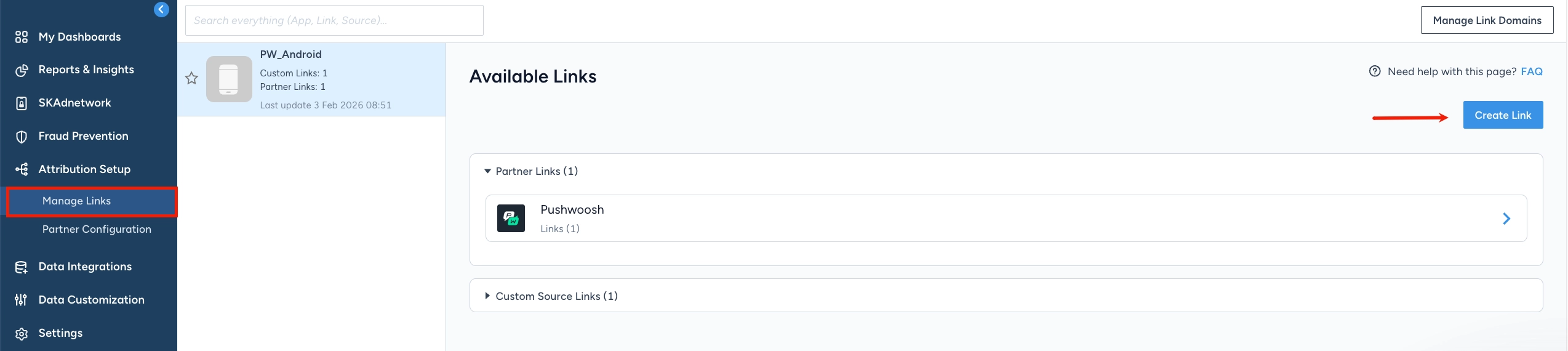
- Dans votre compte Singular, allez à Configuration de l’attribution → Gérer les liens.
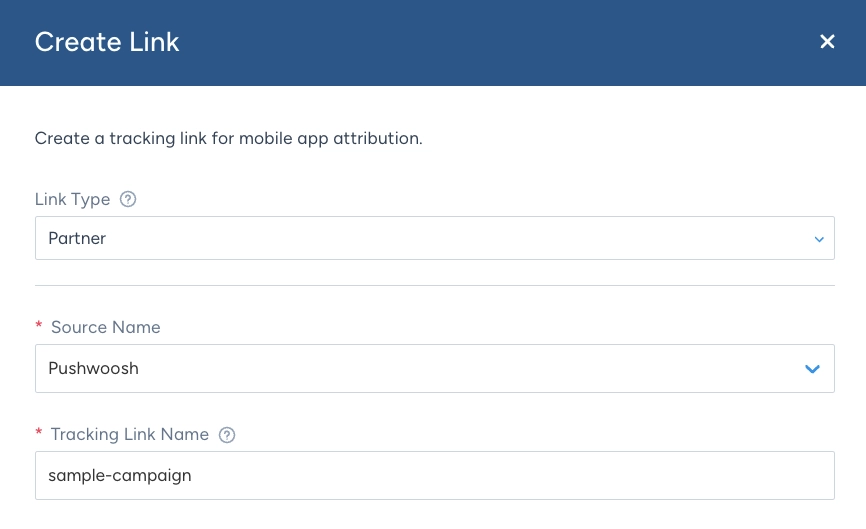
- Choisissez Type de lien → Partenaire et sélectionnez Pushwoosh comme Nom de la source. Saisissez un Nom du lien de suivi afin de pouvoir identifier ce lien dans les analyses de Singular. Il apparaît dans les rapports sous le nom de Nom du traqueur.
-
Dans Paramètres du lien et redirections, définissez pour quelle application ce lien est destiné et où les utilisateurs sont dirigés lorsqu’ils appuient dessus. En savoir plus.
-
Dans Paramètres d’attribution, configurez les méthodes et les fenêtres d’attribution pour le lien. En savoir plus.
-
Cliquez sur Générer.
-
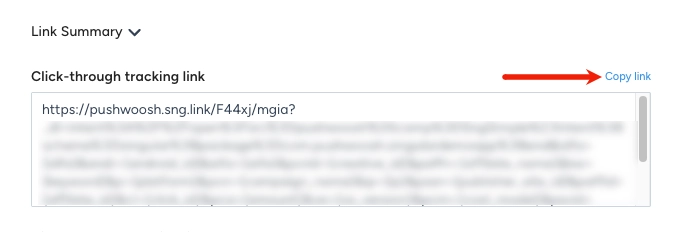
Dans Résumé du lien, examinez les liens générés. Si vous configurez l’attribution des notifications push, copiez le Lien de suivi par clic. Vous l’utiliserez dans Pushwoosh.
Configurer l’attribution des notifications push dans Pushwoosh
Anchor link toAjoutez le lien de suivi Singular à vos notifications push.
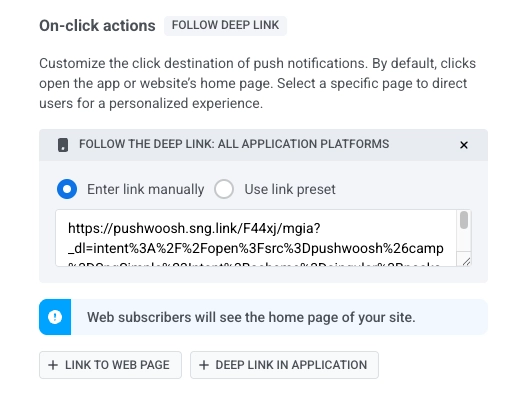
Collez le Lien de suivi par clic de votre Résumé du lien dans Actions au clic → Lien profond dans l’application dans un préréglage Push.
Configurer les postbacks
Anchor link toSingular collecte des données d’attribution sur l’origine des utilisateurs et leurs actions dans l’application. Avec les postbacks, vous envoyez automatiquement ces données à Pushwoosh.
Par exemple, si Singular enregistre qu’un utilisateur a installé l’application à partir d’une campagne publicitaire spécifique, Pushwoosh peut recevoir cette information sous forme de tag ou d’événement. Vous pouvez ensuite créer un segment d’utilisateurs de cette campagne et leur envoyer une notification push ciblée dans Pushwoosh.
- Dans Singular, allez à Configuration du partenaire.
- Créez une nouvelle configuration ou modifiez-en une existante.

- Saisissez votre Code d’application et votre Jeton d’accès API Pushwoosh.
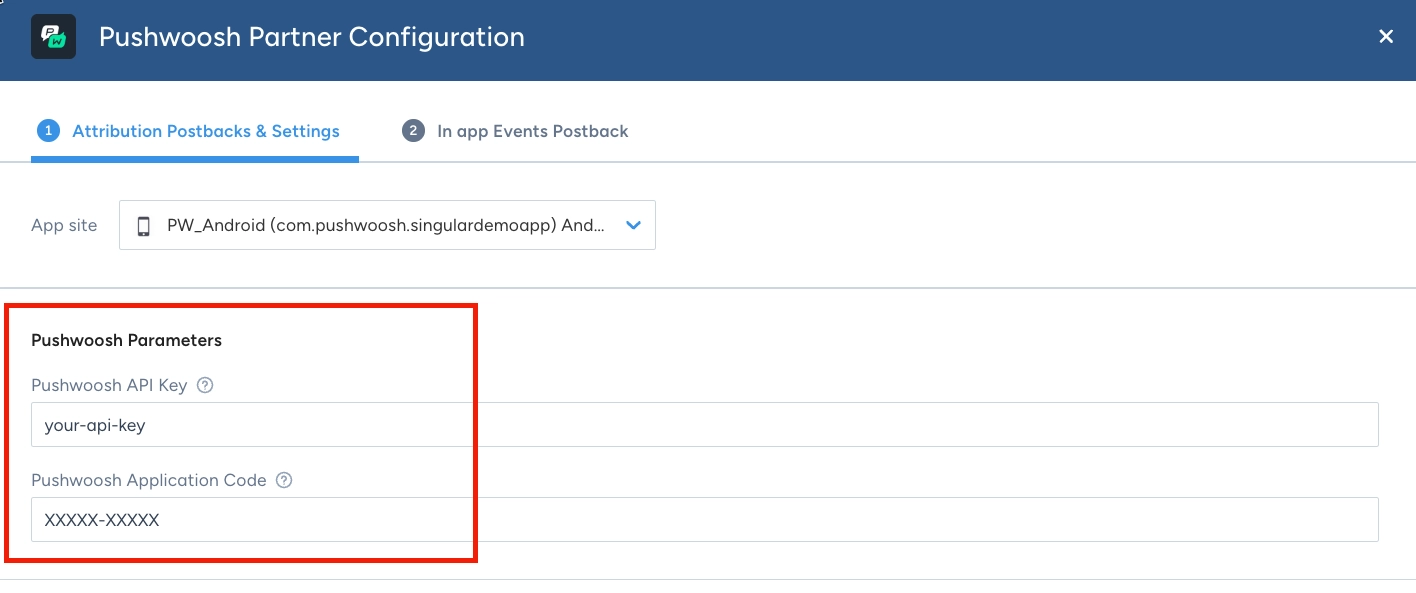
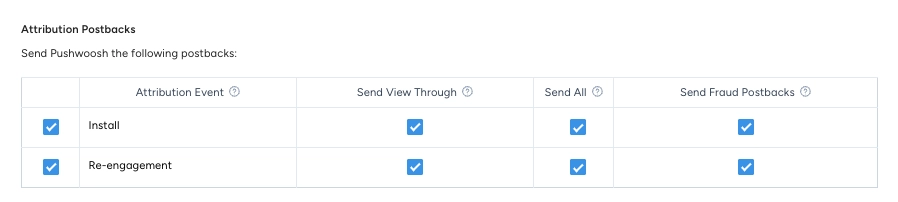
- Dans Postbacks d’attribution, sélectionnez les événements que Singular envoie à Pushwoosh :
-
Installation : nouvelles installations d’applications attribuées dans Singular. Pushwoosh utilise ces données pour enregistrer d’où viennent les utilisateurs.
-
Réengagement : ouvertures d’applications attribuées à un lien suivi. Activez cette option si vous souhaitez que les données de source de réengagement soient disponibles dans Pushwoosh pour la segmentation.
Apprenez à configurer les paramètres des partenaires et les postbacks dans le centre d’aide de Singular.
-
Dans Paramètres des fenêtres d’attribution, sous Installations, choisissez combien de temps Singular peut attendre après qu’un utilisateur a cliqué sur votre lien de suivi ou vu une publicité avant de cesser de créditer l’installation à Pushwoosh. En savoir plus.
-
Sous Réengagements, choisissez combien de temps Singular peut attendre après un clic ou une vue de publicité avant de cesser de créditer l’ouverture à Pushwoosh. Activez Remplacer la fenêtre d’inactivité au niveau de l’application pour ce partenaire pour définir la durée d’inactivité de l’utilisateur avant que cette ouverture ne soit comptée comme un réengagement. En savoir plus.
-
Ouvrez l’onglet Postback des événements in-app et ajoutez les événements que Pushwoosh doit recevoir (par exemple
__SESSION__*pour les sessions). Activez Envoyer tout pour inclure les utilisateurs de n’importe quelle source. -
Enregistrez la configuration.
Ce que Pushwoosh reçoit
Anchor link toAprès avoir enregistré, Singular envoie des postbacks lorsque les événements configurés se produisent. Pushwoosh traite chaque postback en Tags d’appareil et en un Événement sur le profil de l’utilisateur.
Pushwoosh écrit ou met à jour ces tags sur l’appareil correspondant :
| Tag | Source |
|---|---|
| Version de l’OS | version de l’OS de l’appareil |
| Version de l’application | version de l’application |
| Modèle de l’appareil | modèle de l’appareil |
| Pays | pays d’attribution |
| Ville | ville d’attribution |
Pushwoosh enregistre un événement sur le profil de l’utilisateur. Le nom de l’événement dépend du type de postback :
- Événements in-app : le nom de l’événement Singular que vous avez configuré (par exemple, un événement de session).
- Postback d’installation ou d’attribution : si le postback ne porte pas de nom d’événement, Pushwoosh enregistre
Singular Attribution Event. Utilisez ce nom d’événement lorsque vous créez des segments d’utilisateurs nouvellement attribués.
Les données de campagne et de revenus voyagent avec l’événement en tant qu’attributs d’événement. Vous pouvez les utiliser pour la segmentation et le filtrage dans Pushwoosh :
| Attribut | Description |
|---|---|
| Nom de la campagne / ID de la campagne | campagne attribuée |
| Nom de la sous-campagne / ID de la sous-campagne | sous-campagne attribuée |
| Nom de la création / ID de la création | création attribuée |
| Montant / Revenu / Devise | valeur monétaire de l’événement, le cas échéant |
| Pays / Ville | emplacement signalé avec l’événement |
Vérifier les postbacks
Anchor link toAprès que Singular a envoyé un postback pour un événement configuré, vérifiez que Pushwoosh l’a bien reçu :
- Ouvrez Audience → Événements et confirmez que l’événement apparaît.
- Ouvrez le profil de l’utilisateur dans l’Explorateur d’utilisateurs et allez à l’historique des événements. Confirmez que l’événement et ses attributs (par exemple, le nom de la campagne) sont enregistrés pour cet utilisateur.
- Les événements apparaissent généralement en quelques minutes.
Dépannage
Anchor link toLe lien de suivi Singular n’est pas capturé
Anchor link to- Vérifiez que le Lien de suivi par clic est défini dans Actions au clic → Lien profond dans l’application, et non dans Données personnalisées.
- Confirmez que le SDK Singular est configuré pour gérer les charges utiles des notifications push. Consultez les guides Android et iOS.
Le lien profond ouvre l’application mais navigue vers l’écran d’accueil
Anchor link to- Confirmez que le paramètre
_dlà l’intérieur du lien de suivi Singular est correctement encodé en URL. - Vérifiez que le gestionnaire de liens profonds de votre application est correctement enregistré pour le schéma utilisé (par exemple,
myapp://). - Sur Android, vérifiez que l’
Activitycorrecte a le filtre d’intention pour votre schéma de lien profond dansAndroidManifest.xml.
L’attribution apparaît dans Singular mais la mauvaise campagne est créditée
Anchor link to- Assurez-vous que le SDK Singular traite la charge utile de la notification push avant ou pendant l’initialisation, comme décrit dans les guides du SDK Singular.
- Confirmez que vous utilisez le bon Lien de suivi par clic du Résumé du lien pour cette campagne.
Démarrage à chaud (application déjà ouverte) : attribution non enregistrée
Anchor link to- Confirmez que votre application gère les appuis sur les notifications push lorsqu’elle est déjà en cours d’exécution en arrière-plan, comme décrit dans les guides du SDK Singular.
- C’est la cause la plus fréquente d’attribution manquante pour les démarrages à chaud.