Envoyer des messages Viber
Ce guide vous explique comment envoyer des messages Viber dans Pushwoosh via Customer Journey ou l’API.
Envoyer des messages Viber via Customer Journey
Anchor link toPushwoosh vous permet d’intégrer la messagerie Viber dans les Customer Journeys. Suivez ces étapes pour la configurer :
-
Allez dans Campaigns > Customer Journey Builder dans la barre latérale principale.
-
Cliquez sur Build a journey from scratch.
-
Ajoutez un élément Entry pour définir qui entre dans le parcours. Apprenez à configurer les éléments Entry
-
Ajoutez un élément Viber et connectez-le au reste de votre flux (par exemple, le déclencheur d’entrée et les étapes suivantes).
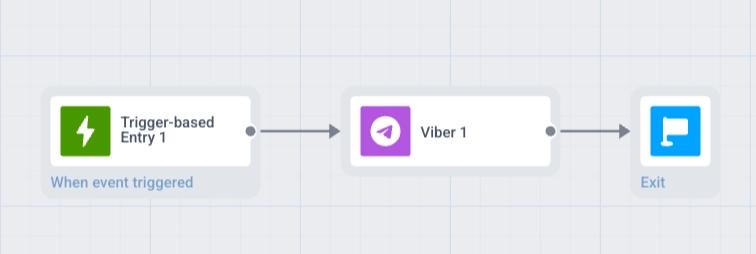
- Cliquez sur l’élément Viber pour ouvrir son panneau de configuration. Choisissez le contenu Template ou Freeform, définissez le Type de message, configurez le Frequency capping, et ajoutez éventuellement des Vouchers. En savoir plus sur l’élément Viber
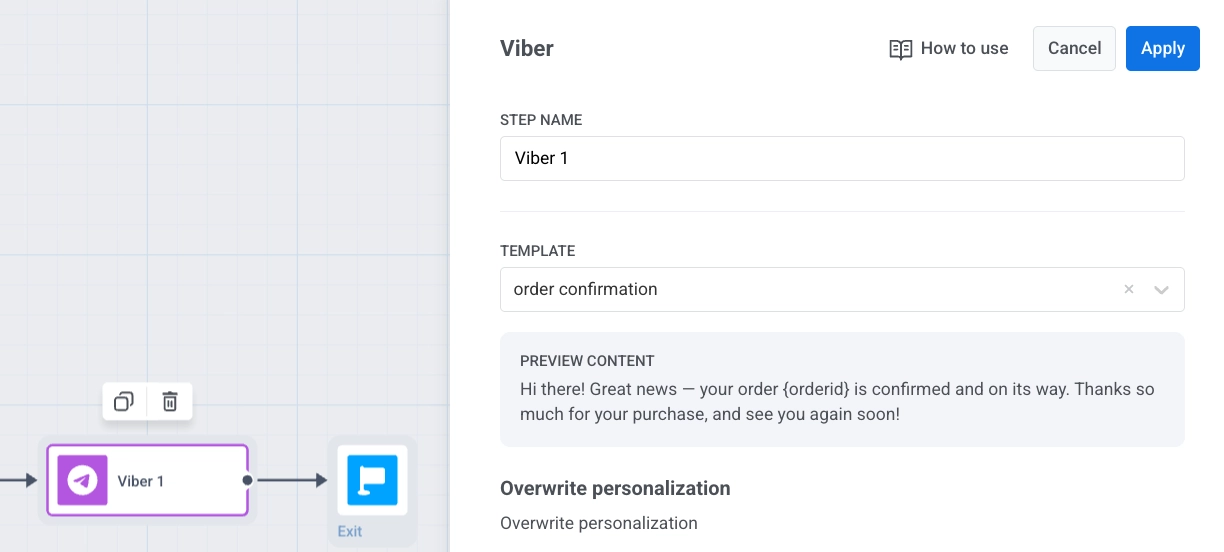
-
Cliquez sur Save pour enregistrer les paramètres de l’élément.
-
Terminez la configuration du parcours, en terminant chaque branche par un élément Exit ou en la laissant sans connexion sortante. Lorsque vous êtes prêt, cliquez sur Launch journey pour l’activer.
Envoyer des messages Viber via l’API
Anchor link toEnvoyez des messages Viber en utilisant la méthode Notify dans la Messaging API v2.