Сохранение push-уведомления в inbox
Save to Inbox сохраняет копию вашего push в inbox приложения при отправке уведомления. Пользователи по-прежнему получают push-баннер. Если они его закроют, пропустят или откроют приложение позже, они смогут найти то же сообщение в inbox и обработать его тогда.
Типичные сценарии использования:
- Промо или скидка, которую пользователь может закрыть, а потом открыть позже в приложении
- Напоминание, которое должно оставаться доступным несколько дней после push
- Любой push, который остается важным после исчезновения баннера
Временные метки inbox используют часовой пояс устройства каждого пользователя.
Предварительные требования
Anchor link toЧтобы Save to Inbox работал:
- Message inbox должен быть настроен в приложении. Поделитесь руководством по мобильному message inbox с вашими разработчиками.
- Обзор продукта и путь настройки см. в Начало работы с message inbox.
Включение Save to Inbox
Anchor link toВключите переключатель при создании push. Название в Панели управления зависит от того, откуда вы отправляете:
- Одноразовые сообщения: Save message to Inbox
- Элемент Push в Customer Journey: Save to inbox
Одноразовый push
Anchor link toИспользуйте этот путь, когда отправляете одноразовый push из раздела Campaigns.
- Перейдите в Campaigns > One-time messages.
- Начните одноразовый push.
- На шаге Content включите Save message to Inbox.
Заголовок и текст сообщения в inbox берутся из push-пресета. Затем настройте срок хранения, иконку и действие по нажатию в разделе Настройка параметров inbox.
Customer Journey
Anchor link toИспользуйте этот путь, когда отправляете push из journey.
- Откройте ваш journey и выберите элемент Push на холсте.
- В настройках элемента включите Save to inbox.
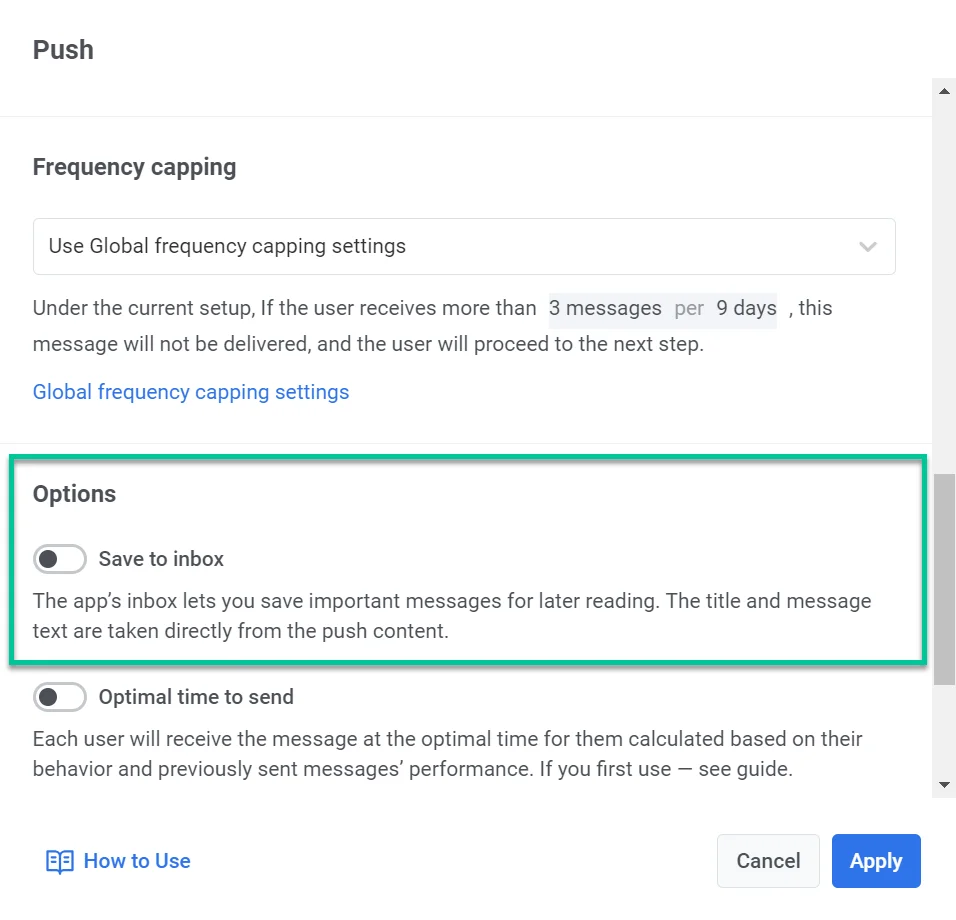
- Настройте параметры inbox ниже, затем нажмите Apply.
Настройка параметров inbox
Anchor link toПосле включения переключателя настройте, как выглядит и ведет себя копия в inbox.
Remove from Inbox
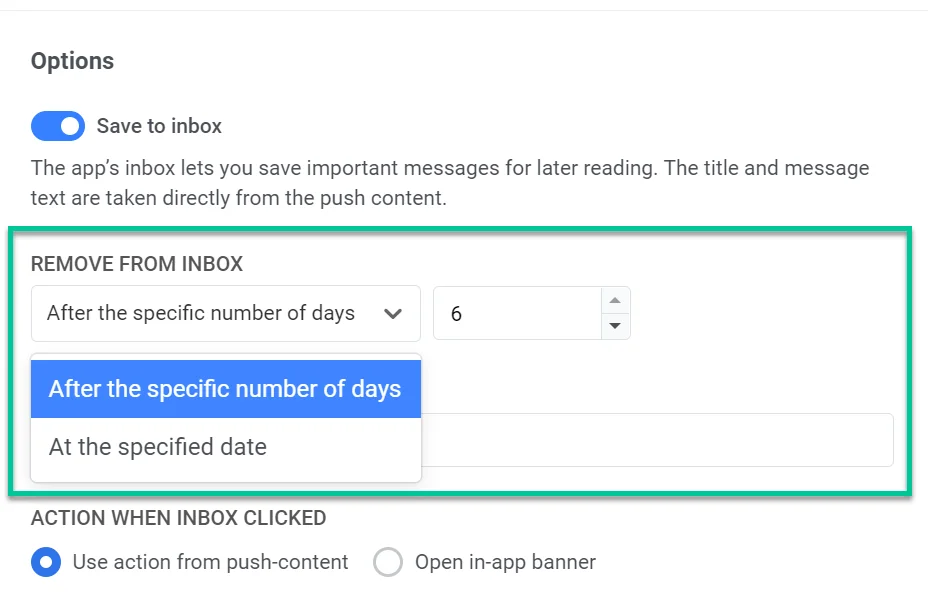
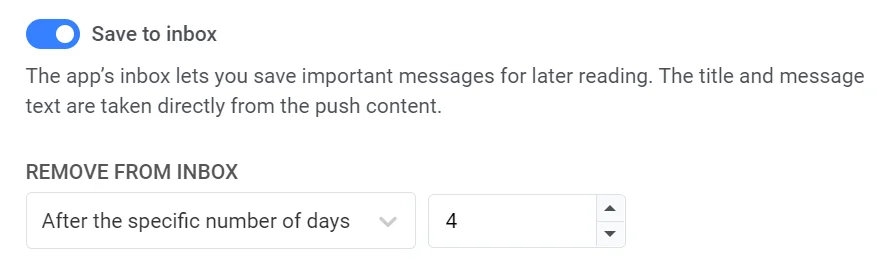
Anchor link toВ Remove from Inbox выберите, как долго сообщение остается:
- Количество дней (например, 3 дня).
- Конкретную дату.
Максимальный срок хранения — 30 дней.
Иконка сообщения
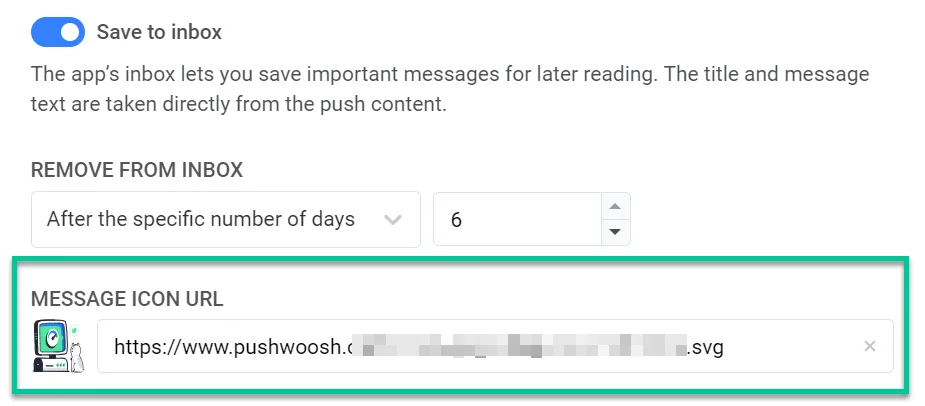
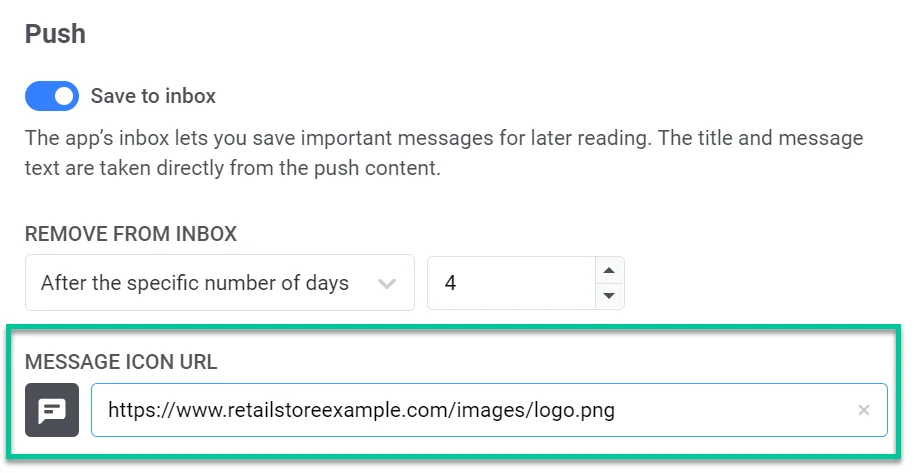
Anchor link toУкажите URL иконки, чтобы сообщение было легко заметить в списке inbox. Если оставить поле пустым, используется иконка по умолчанию.
Действие при нажатии на inbox
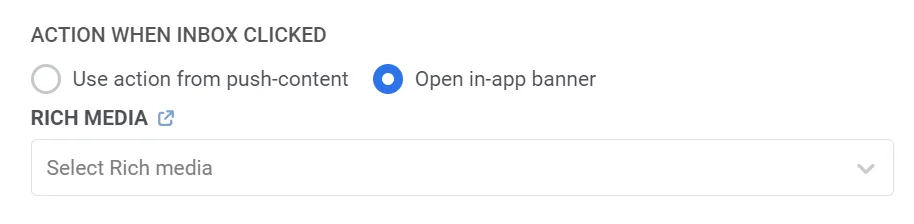
Anchor link toВыберите, что происходит при нажатии пользователя на строку inbox:
- Use the action you set in the push content: то же самое диплинк, URL или экран, что и у push.
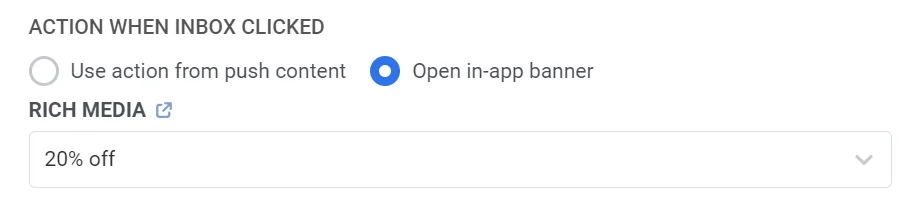
- Open in-app banner: открыть выбранный вами in-app. Сначала создайте Rich media, затем выберите его из списка.
Пример сценария
Anchor link toОтправьте короткоживущий промо-push, который остается в inbox четыре дня, а затем открывает in-app с промокодом.
- Создайте journey с входом на основе аудитории для сегмента ваших постоянных клиентов.
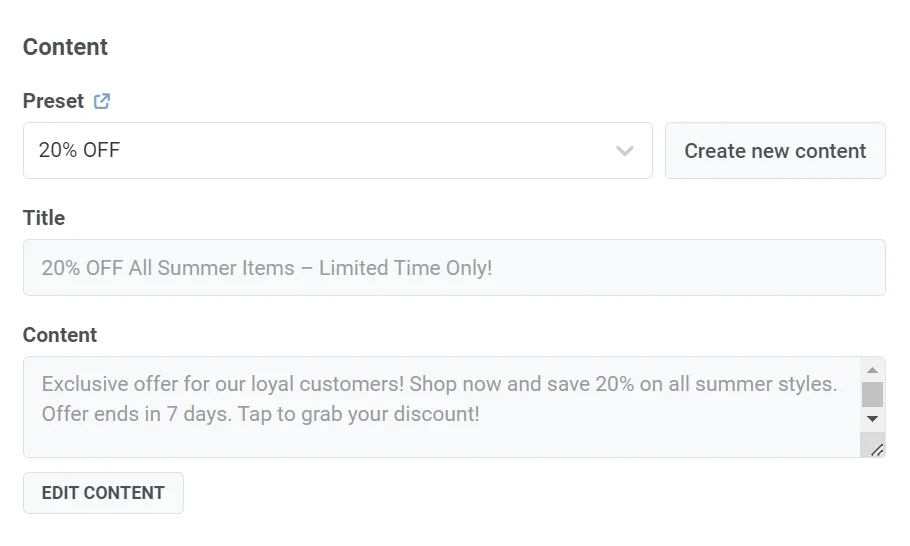
- Добавьте элемент Push и укажите заголовок и текст промо.
- Включите Save to inbox. В Remove from Inbox укажите 4 days.
- При желании укажите URL иконки (например, логотип вашего магазина).
- В Action when inbox clicked выберите Open in-app banner и укажите Rich media с промокодом.
- Нажмите Apply, затем завершите остальную часть journey.
Отслеживание статистики сообщений inbox
Anchor link toПанель управления не показывает процент открытий inbox для push с Save to Inbox. Получите его методом API getMessageLog, отфильтровав по actions: ["inbox_opened"]. Всё, что Панель управления показывает для этого push, см. в статистике сообщений для push.
Чтобы увидеть, что сейчас находится в inbox конкретного пользователя, откройте User Explorer → Inbox.