Создание Brand book
Brand book позволяет один раз сохранить ваш логотип, цвета, шрифты, настройки блоков по умолчанию и голос бренда, чтобы вы могли применять единый стиль к любому шаблону email-сообщения или in-app, а не настраивать его каждый раз с нуля.
Открытие Brand book
Anchor link toОткройте Brand book из любого из этих мест:
- Content → Email Content: нажмите Brand book в шапке, рядом с How to use. Brand book также предлагается на пустом экране списка, пока вы еще не создали ни одного email-контента. Она открывает Brand book напрямую, без открытия или создания шаблона email-сообщения.
- Drag-and-drop редактор email-сообщений: откройте меню ⋮ и выберите Brand book, либо нажмите кнопку Brand book, закрепленную внизу вкладки Blocks или Settings.
- Встроенный редактор in-app сообщений: откройте меню ⋮ и выберите Brand book.
Все эти варианты открывают один и тот же Brand book для текущего приложения, поэтому неважно, какой из них вы используете. Другое приложение в вашем аккаунте будет иметь свой собственный отдельный Brand book.

Принятие набора фирменного стиля, предложенного на основе вашей истории email-сообщений
Anchor link toPushwoosh может автоматически создать для вас набор фирменного стиля на основе шаблонов и сообщений, которые ваше приложение уже отправляло, и предложить его в качестве готовой отправной точки вместо пустого Brand book.
Как только приложение отправит достаточное количество email-шаблонов и сообщений, Pushwoosh просканирует их на предмет общего стиля: цветов, шрифтов, логотипа и тональности. Как вы увидите предложение, зависит от того, откуда вы открываете Brand book.
Сохранение предложения в редакторе
Anchor link to- Откройте редактор email-сообщений, in-app сообщений или облачной страницы. Предложение откроется во всплывающем окне, где будет указано, на скольких шаблонах и сообщениях оно основано.
- Проверьте предложенные цвета, шрифты, логотип и тональность.
- Выберите способ сохранения:
- Save to Brand book сохраняет предложение как есть.
- Review & edit открывает Brand book с предложением, заполненным в форме, чтобы вы могли скорректировать его перед сохранением.
Ничего не будет сохранено, пока вы не нажмете Save to Brand book во всплывающем окне или Save brand в форме.
Чтобы решить позже, отложите предложение.
Когда логотип не может быть выбран автоматически
Anchor link toЕсли во всплывающем окне отображается метка «логотип не найден», Pushwoosh не смог с уверенностью выбрать один логотип. Вместо этого он показывает до трех изображений-кандидатов из ваших email-сообщений:
- Выберите одно из них, чтобы добавить его в набор фирменного стиля.
- Оставьте выбор пустым, чтобы сохранить набор с текущим логотипом вашего Brand book без изменений.
Вы также можете установить логотип вручную позже в разделе «Логотип» ниже.
Когда недостаточно данных о голосе бренда
Anchor link toЕсли во всплывающем окне появился баннер «Тональность была пропущена», ваше приложение не отправило достаточное количество email-текстов для определения надежной тональности, поэтому поле «Тональность» останется пустым. Заполните раздел «Голос бренда» самостоятельно после сохранения набора или подождите, пока приложение отправит больше email-сообщений.
Отложить предложение
Anchor link toЧтобы решить позже, нажмите Not now, клавишу Esc или кликните за пределами всплывающего окна. Ничего не применяется, и всплывающее окно не откроется снова само по себе.
Когда будете готовы, откройте Brand book. Предложение будет ждать там в виде баннера с пометкой «ожидает». Просмотрите и сохраните его из баннера.
Сохранение предложения из списка Email Content
Anchor link to- Откройте Brand book из Content → Email Content. Предложение отображается в виде баннера внутри панели.
- Нажмите Review, чтобы заполнить форму предложением.
- При необходимости скорректируйте поля, затем нажмите Save brand.
Review заполняет два поля по-разному:
- Logo: заполняется наиболее вероятным кандидатом, только если вы еще не установили логотип. Уже существующий логотип остается без изменений. Установите свой собственный в разделе «Логотип» ниже, если вам нужен другой.
- Brand voice: заменяется значением из предложения, если оно есть, даже если вы уже установили свое собственное значение. Если в предложении нет голоса бренда, Brand voice остается как есть, без отдельного уведомления. Если поле остается пустым, заполните его самостоятельно в разделе «Голос бренда».
Нажмите ×, чтобы вместо этого закрыть баннер. Если закрыть панель, не нажав ни то, ни другое, баннер останется на месте до следующего раза — так же, как при отложенном предложении из всплывающего окна.
Настройка вашего бренда
Anchor link toОпределите, как ваш бренд выглядит и звучит в шаблонах: логотип, цвета, шрифты, настройки блоков по умолчанию и голос бренда. Просканируйте свой сайт, чтобы автоматически заполнить большинство полей, или настройте их самостоятельно в разделах ниже.
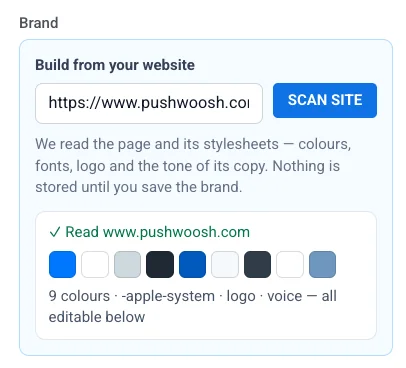
Создать на основе вашего сайта
Anchor link toПросканируйте свой сайт, чтобы автоматически заполнить большинство полей бренда.
- Введите свой домен в поле «Создать на основе вашего сайта».
- Нажмите «Сканировать сайт».
Pushwoosh считывает страницу и ее таблицы стилей для определения цветов, шрифтов, логотипа и тональности текста. Он всегда заполняет палитру и шрифты ниже, а также заполняет логотип и «Голос бренда», если сайт их предоставляет. Ничего не будет сохранено, пока вы не нажмете «Сохранить бренд».
Голос бренда
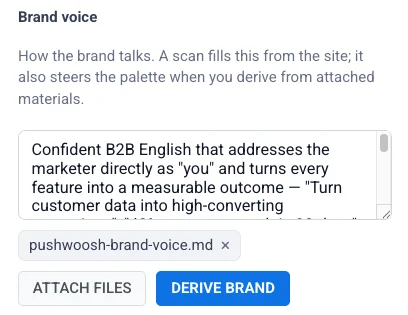
Anchor link toОпишите, как ваш бренд общается с клиентами, либо написав это самостоятельно, либо позволив Pushwoosh извлечь это из файла.
- Напишите сами: введите голос вашего бренда в поле «Голос бренда». Сканирование сайта заполняет это поле автоматически, если сайт предоставляет эту информацию.
- Сформировать из файла: нажмите «Прикрепить файлы», чтобы прикрепить один файл (изображение, PDF-файл брендбука, веб- или текстовый файл), затем нажмите «Сформировать бренд», чтобы сгенерировать из него палитру, шрифты и голос. Ваш текущий логотип будет автоматически использован в качестве источника, если вы не прикрепите изображение.
Логотип
Anchor link toЕсли вы сканировали свой сайт выше, поле «Логотип» уже может быть заполнено. Используйте шаги ниже, чтобы добавить или изменить его вручную.
- Нажмите «Выбрать логотип».
- Выберите логотип из вашего Медиахранилища или вставьте URL-адрес размещенного изображения.
С этого логотипа начинает блок Логотип-хедер в редакторе email-сообщений. Чтобы задать, как этот хедер выглядит по умолчанию, откройте аккордеон Logo header под Логотипом:
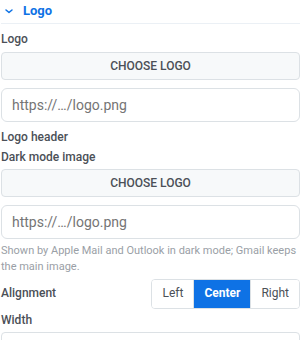
- Dark mode image: показывается в Apple Mail и Outlook в темном режиме. Gmail сохраняет основное изображение.
- Alignment: слева, по центру или справа.
- Width: ширина логотипа в px.
- URL: адрес, чтобы сделать логотип кликабельным.
- Background: включите, чтобы задать цвет фона за логотипом.
- Padding: включите, чтобы добавить пространство вокруг логотипа. Используйте All sides для равномерного отступа или включите More options, чтобы установить каждую сторону отдельно.
- Bottom border: включите, чтобы нарисовать линию под хедером, затем задайте ее Width и цвет.
Как эти настройки по умолчанию попадают в ваши email-сообщения:
- Каждый блок Logo header в email-сообщении изначально выглядит так же и подхватывает ваши изменения здесь при следующем применении бренда.
- Хедер, который вы отредактировали прямо на холсте, вместо этого сохраняет свой собственный вид, пока вы его не сбросите.
- Чтобы записать правку с холста сюда, используйте Save to Brand book на этом хедере. См. Logo header.
- Логотип в футере email-сообщения тоже берется отсюда. Если Logo задан, при применении бренда логотипом футера становится Logo, а изображением футера для темного режима — Dark mode image выше. Если Dark mode image пуст, в темном режиме футер тоже показывает основной логотип. Остальные поля футера остаются как есть. См. Настройка стилей и футера для всего письма.
Цвета, шрифты и настройки блоков по умолчанию
Anchor link toЕсли вы сканировали свой сайт выше, палитра и шрифты уже могут быть заполнены. Настройте цвета, шрифты и настройки блоков по умолчанию в раскрывающихся разделах под «Логотипом» (те же опции стиля, что и на вкладке «Настройки» редактора email-сообщений). Узнать больше
Сохранение и применение вашего бренда
Anchor link toНажмите «Сохранить бренд», чтобы сохранить ваши настройки.
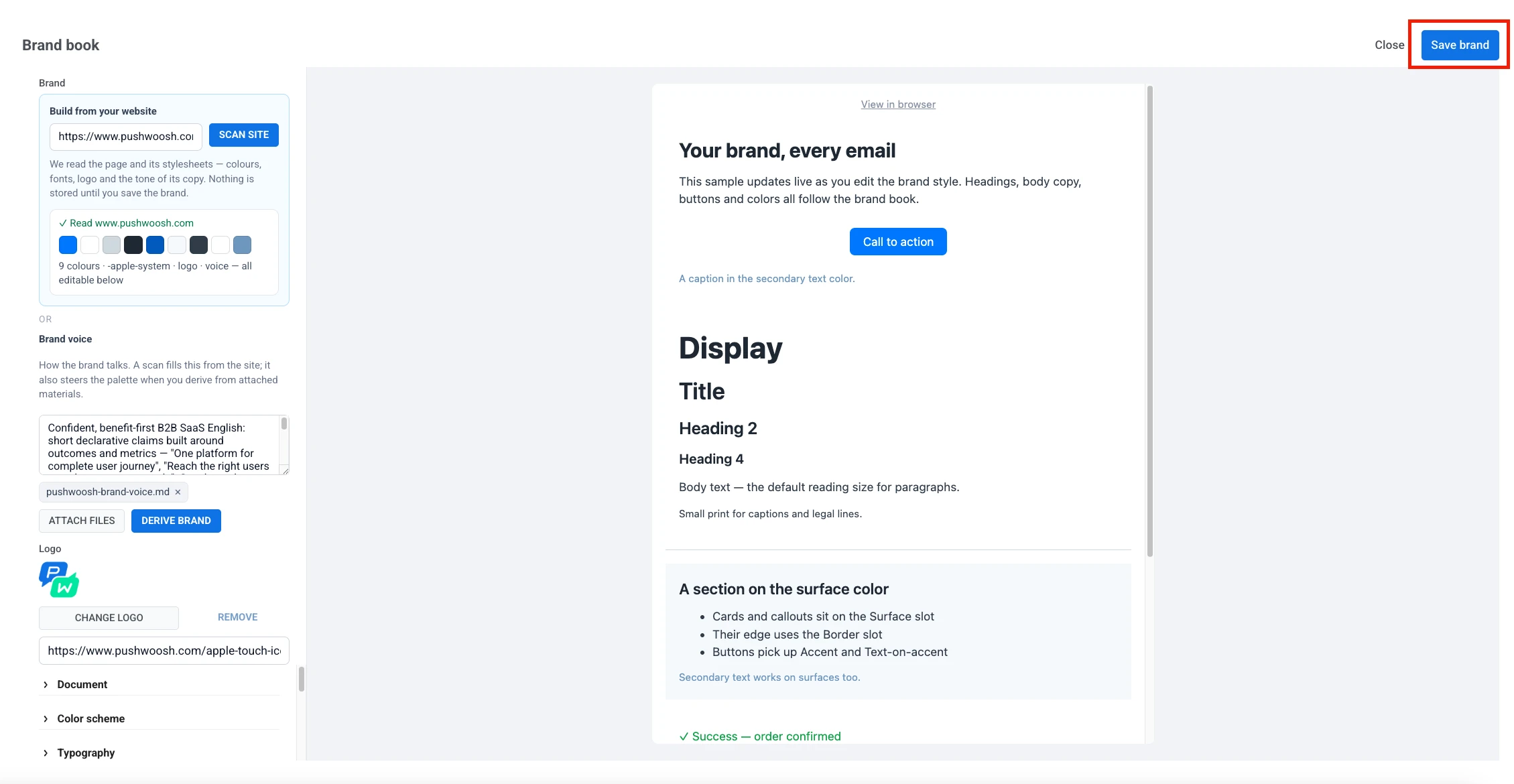
Если вы открыли Brand book из шаблона email-сообщения или in-app, который вы редактировали, вам будет предложено применить к нему бренд:
- Применить: перекрашивает цвета и заменяет шрифты и настройки блоков по умолчанию на ваш сохраненный бренд. Сам контент не затрагивается.
- Not now: сохраняет бренд на потом, не изменяя то, что вы редактируете.
Если вы вместо этого открыли Brand book из списка Email Content, применять бренд не к чему — открытого шаблона нет. Save brand сохраняет ваши настройки и закрывает панель.
Вы можете применить сохраненный бренд к любому другому шаблону email-сообщения или in-app таким же образом. Откройте для него Brand book и сохраните снова.
Применение или сброс стилей бренда
Anchor link toИспользуйте эти опции, чтобы обновить уже созданный шаблон в соответствии с вашим последним сохраненным брендом.
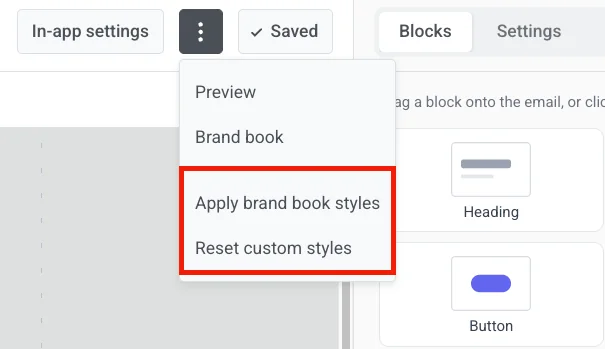
Во время редактирования шаблона email-сообщения или in-app откройте меню ⋮ и используйте опции в разделе «Стили бренда»:
- Применить стили Brand book: примените ваш сохраненный бренд к шаблону, не открывая Brand book. Недоступно, пока вы не сохраните бренд хотя бы один раз.
- Сбросить пользовательские стили: удалите переопределения стилей, чтобы цвета, шрифты и интервалы снова соответствовали Brand bookу. Контент и макет остаются без изменений.
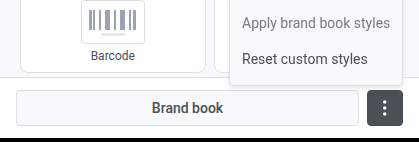
В drag-and-drop редакторе email-сообщений те же два действия доступны в один клик: нажмите ⋮ рядом с кнопкой Brand book, закрепленной внизу вкладки Blocks или Settings.
Подтверждайте каждое действие при появлении запроса. Используйте «Отменить» в верхней панели, чтобы отменить его.