События-конверсии
События-конверсии — это события, которые считаются конверсиями для ваших кампаний. Каждое из них также может отслеживать доход, который Pushwoosh собирает в едином формате для атрибуции, аналитики и сегментации.
Что такое события-конверсии
Anchor link toСобытия, связанные с доходом, редко бывают одинаковыми. Ваш SDK может вызывать PW_InAppPurchase, ваш бэкенд может отправлять кастомное событие OrderPlaced, а Stripe или Shopify доставляют свои собственные события-вебхуки. Без общего формата таргетинг или отчетность по доходу означают написание отдельной логики для каждого источника.
Pushwoosh решает эту проблему с помощью PW_Conversion — встроенного события с фиксированным набором полей:
value: сумма транзакцииcurrency: код валюты по ISO 4217transaction_idиproduct_id: необязательные идентификаторы
PW_Conversion охватывает покупки, продления подписок и платежи со сторонних платформ, независимо от того, откуда исходит исходное событие, связанное с деньгами. Как только доход поступает в виде PW_Conversion, RFM-сегментация, Customer Journeys, дашборды и ManyMoney AI считывают одни и те же нормализованные данные, независимо от того, какой источник их сгенерировал.
На этой странице под событиями-конверсиями понимается PW_Conversion, а также события по умолчанию и кастомные события, которые вы выбрали для учета в качестве конверсий.
Конверсии и доход
Anchor link toКаждое событие-конверсия учитывается на вкладке Конверсии в Project overview, где видно, какие кампании к нему привели. Выбранное вами событие учитывается одним из двух способов:
- Только конверсия: Pushwoosh считает, сколько раз событие произошло после ваших сообщений, например
signup_completedилиtrial_started. - Конверсия с доходом: Pushwoosh также считывает цену и валюту из атрибутов события и записывает сумму как
PW_Conversion.
PW_Conversion всегда присутствует в списке и всегда отслеживает доход. Удалить его нельзя.
Как доход попадает в Pushwoosh
Anchor link toВы получаете запись PW_Conversion одним из трёх способов:
- Отправить его напрямую из вашего кода: ваше приложение или бэкенд отправляет
PW_Conversionпосле покупки. - Отслеживать доход для существующего события в Control Panel: укажите Pushwoosh атрибуты цены и валюты события покупки, которое вы уже отправляете, и он будет генерировать записи
PW_Conversionбез изменения вашего кода. Вы можете отслеживать доход для нескольких событий в каждом приложении. - Отправить атрибуты
__amountи__currencyв любом событии: при первом поступлении такого события Pushwoosh добавляет его в ваши события-конверсии с уже включенным отслеживанием дохода — без какой-либо настройки в Control Panel. См. Automatic revenue mapping.
Сценарии использования
Anchor link toПосле настройки событий-конверсий эти данные становятся доступными везде в Pushwoosh, где важен доход:
- Смотрите, какие кампании и Journey приводят к конверсиям и сколько дохода они приносят, на вкладке Конверсии в Project overview.
- Создавайте RFM-сегменты для ценных пользователей на основе суммы и давности трат, без кастомной логики для каждого события.
- Установите
PW_Conversionв качестве цели конверсии (Conversion Goal) в Customer Journey, чтобы видеть, какие сценарии действительно приводят к покупкам, а не просто к кликам или открытиям. - Просматривайте доход в дашбордах и отчетах без создания кастомной логики для каждого события покупки.
- Объединяйте доход от событий покупки из SDK и вебхуков платежных систем (Stripe, Shopify) в один набор данных вместо отдельного анализа каждого источника.
- Позвольте ManyMoney AI использовать реальные данные о транзакциях в своих рекомендациях и оптимизациях кампаний.
Как настроить события-конверсии
Anchor link toСобытия-конверсии настраиваются для каждого приложения. Доход может поступать из вашего кода, из событий, которые вы уже отправляете, или из обоих источников. Следуйте инструкциям для того способа, который подходит для вашей реализации.
Отправка PW_Conversion из вашего кода
Anchor link toЭтот способ подходит, когда вы можете добавить или изменить код события в вашем приложении или на бэкенде. После каждой покупки отправляйте PW_Conversion через метод postEvent. Его доход попадает в RFM-сегментацию, Journey и дашборды без какой-либо настройки в Control Panel. Если есть только PW_Conversion, на вкладке Конверсии в Project overview вместо статистики отображается баннер Узнайте, какие кампании приносят конверсии. Чтобы видеть конверсии на этой вкладке, выберите хотя бы одно другое событие, как описано ниже.
Добавьте вызов postEvent в то место вашего приложения или бэкенда, где завершается покупка.
Пример для JavaScript:
Pushwoosh.postEvent("PW_Conversion", { value: 49.99, currency: "USD", transaction_id: "ord_18274", product_id: "sku_premium_m"});После настройки событий-конверсий в Control Panel примеры для JavaScript, Swift, Objective-C и Java также доступны по кнопке Код на баннере Отслеживание конверсионных событий в Audience > Events.
Атрибуты для вызова postEvent
Anchor link toВ следующей таблице перечислены атрибуты, которые вы можете передать при отправке PW_Conversion.
| Поле | Тип | Обязательно | Описание |
|---|---|---|---|
value | number | Да | Денежная сумма транзакции. |
currency | string (ISO 4217) | Да | Код валюты транзакции, например USD или EUR. |
transaction_id | string | Нет | Уникальный идентификатор транзакции. Рекомендуется для вашего собственного учета. Pushwoosh сохраняет его как есть, но не использует для дедупликации дохода. |
product_id | string | Нет | Идентификатор купленного продукта или тарифа. |
Выбор событий-конверсий и отслеживание их дохода
Anchor link toЭтот способ подходит, когда данные о конверсиях или покупках уже проходят через события, которые вы отправляете, и вы не хотите изменять свой код. Вы можете выбрать до 100 событий для каждого приложения, не считая PW_Conversion. Если выбрать больше, при нажатии Сохранить появится ошибка.
-
Перейдите в Audience > Events и нажмите Настроить события на баннере Узнайте, какие кампании приносят конверсии. Также можно начать с вкладки Конверсии в Project overview.

-
В окне Выберите конверсионные события отметьте хотя бы одно событие, которое считается конверсией, и нажмите Далее.
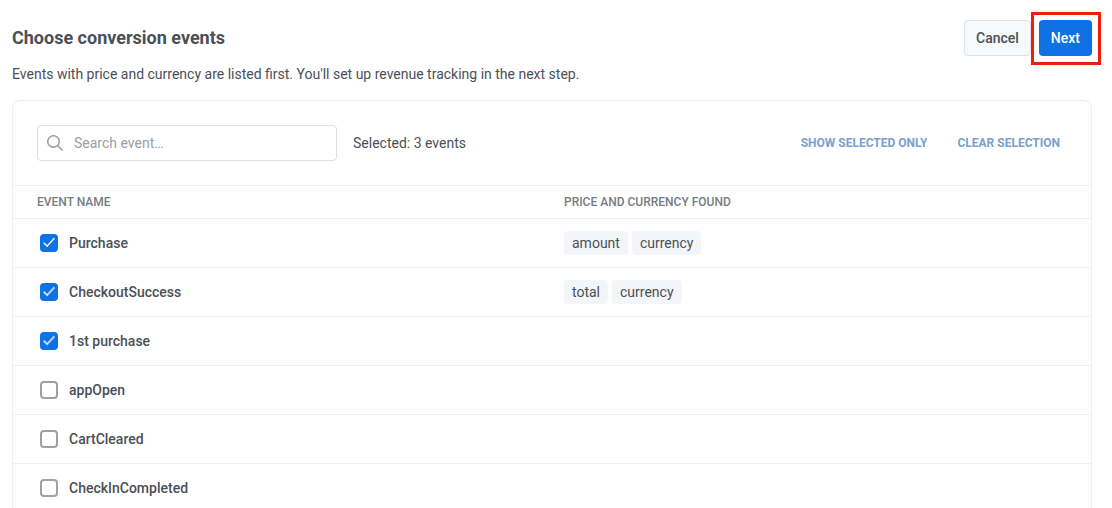
События, у которых уже есть цена и валюта, отображаются первыми, а в столбце Найдены цена и валюта показаны названия этих атрибутов. Pushwoosh ищет такие события раз в день.
-
В окне Список конверсионных событий настройте доход для событий, у которых есть цена.
PW_Conversionотображается первым с меткой По умолчанию и всегда отслеживает доход. Для событий, у которых найдены цена и валюта, Pushwoosh сам подставляет эти атрибуты, и они сохраняются вместе со списком. Открывать для них диалоговое окно не нужно.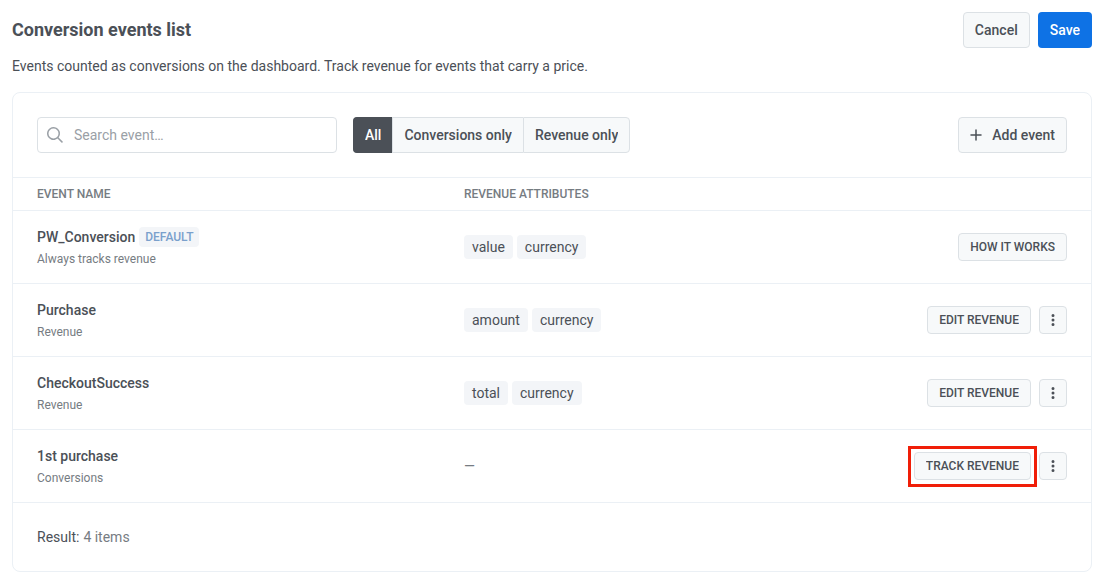
Чтобы настроить доход для любого другого события, нажмите Отслеживать выручку (или Изменить выручку, чтобы изменить настройку) и заполните диалоговое окно Выручка для события:
- В поле Цена выберите атрибут, в котором хранится сумма транзакции.
- В поле Валюта выберите атрибут, в котором хранится код валюты.
- При необходимости выберите атрибуты ID транзакции и ID товара.
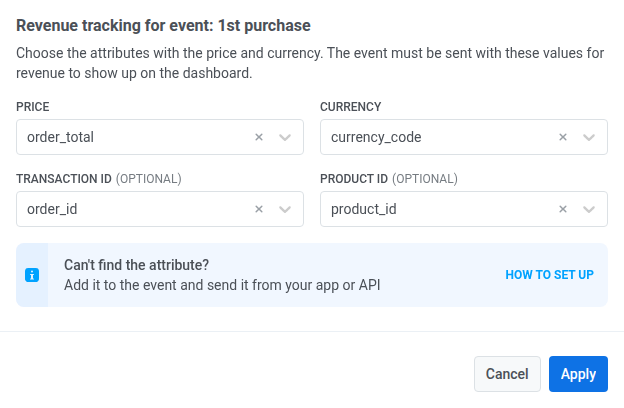
Нажмите Применить. События без дохода по-прежнему учитываются как конверсии.
-
Нажмите Сохранить.
Чтобы изменить список позже, нажмите значок Настройки конверсионных событий (шестеренка) на баннере Отслеживание конверсионных событий в Audience > Events. Там вы можете:
- Добавить еще одно событие с помощью Добавить событие.
- Прекратить отслеживание дохода для события с помощью Остановить учёт выручки… в меню действий события. Оно по-прежнему учитывается как конверсия.
- Удалить событие с помощью Убрать событие… в меню действий события. Оно больше не учитывается как конверсия.
Мониторинг событий-конверсий
Anchor link toКогда выбрано хотя бы одно событие, баннер Отслеживание конверсионных событий на странице Audience > Events суммирует активность по конверсиям для выбранного приложения:
- Сколько событий-конверсий отслеживают доход, включая
PW_Conversion. - Сколько из них учитываются только как конверсии.
- Сколько раз все события-конверсии сработали за последние 7 дней.

На баннере вы можете:
- Нажать значок Код, чтобы открыть примеры интеграции
PW_Conversion. - Нажать значок Настройки конверсионных событий, чтобы изменить список.
- Нажать Дашборд конверсий, чтобы увидеть, какие кампании привели к конверсиям, на вкладке Конверсии в Project overview.