Показ In-App контента определенным пользователям
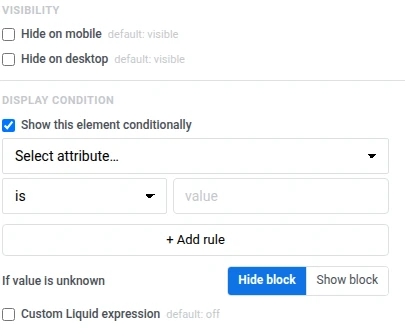
У каждого блока во встроенном редакторе и у каждого элемента внутри него есть две настройки на правой панели, которые определяют, кто его видит: Visibility и Display condition.
Показ или скрытие контента в зависимости от устройства
Anchor link toОткройте настройки блока или элемента и используйте Hide on mobile или Hide on desktop в разделе Visibility, чтобы показывать его только для одной ширины предпросмотра, соответствующей ширине телефона (360, 390, 393 или 430 пикселей) и планшета (768 пикселей) переключателя телефон/десктоп на верхней панели.
Показ контента определенным пользователям
Anchor link toУсловие отображения (display condition) показывает или скрывает блок для определенных пользователей на основе их тегов (Tags). Каждый пользователь получает один и тот же шаблон In-App, но видит только те блоки, которые предназначены для него.
Вы можете добавить условие отображения к любому блоку или элементу на холсте.
Чтобы установить условие отображения:
- Выберите блок или элемент на холсте.
- На правой панели в разделе Display condition включите Show this block conditionally (Show this element conditionally, если вы выбрали элемент внутри блока).
- Выберите тег, оператор и значение (например, is и true).
- Нажмите + Add rule, чтобы добавить больше правил.
- В разделе If value is unknown выберите Hide block или Show block. Это определяет, что произойдет, если у пользователя нет значения для тега.
Пример: предложение для возврата ушедших пользователей
Anchor link toПредложение для возврата, которое появляется только для пользователей, которые давно не совершали покупок, чтобы активные покупатели не видели скидку, которая им не нужна.
| Условие | Что видит пользователь |
|---|---|
RFM Recency ≥ 90 | Блок Card для возврата пользователя с предложением скидки |
| Любое другое значение | Блок Card остается скрытым |
Чтобы настроить этот сценарий:
- Добавьте блок Card с предложением для возврата (изображение, заголовок и кнопка с промокодом).
- Выберите Card на холсте и в разделе Display condition включите Show this block conditionally.
- Установите правило
RFM Recency≥90. - В разделе If value is unknown выберите Hide block — новые пользователи без истории покупок не должны видеть сообщение для возврата, предназначенное для ушедших пользователей.
Пользователь, который сделал последний заказ 120 дней назад, увидит предложение. Пользователь, который сделал заказ на прошлой неделе или еще не имеет истории заказов, никогда не увидит этот блок.
Создание пользовательского условия на Liquid
Anchor link toЕсли конструктора правил недостаточно, напишите условие самостоятельно на Liquid.
- Выберите блок или элемент на холсте.
- В разделе Display condition включите Custom Liquid expression.
- Введите ваше условие. Например, чтобы показать блок пользователям из Германии или VIP-подписчикам:
Country == "DE" or VIPПользовательское выражение заменяет любые правила, установленные в конструкторе над ним.
Имена тегов с пробелами преобразуются автоматически. Например, Last Order становится LastOrder.