Рекламный инвентарь
Ad inventory содержит кампании и креативы, которые ваш аккаунт продает рекламодателям для email Ad slot и Спонсируемых push-уведомлений. Один и тот же список используется и для email, и для push.
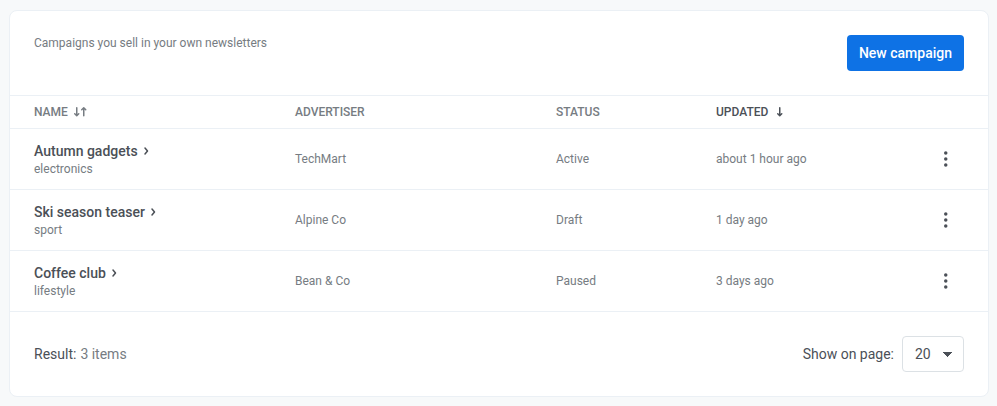
Проверьте Spent в каждой строке, чтобы увидеть, сколько раз кампания была отправлена на данный момент (email и push вместе), по сравнению с ее Sends limit. Spent считает, сколько раз была отправлена реклама, а не деньги:
"120 of 500"— когда для кампании установлен лимит"120, no limit"— когда Sends limit равен0"3 of 2 · limit reached"— когда кампания достигла своего максимума
Инвентарь является общим для всех приложений в вашем аккаунте, а не ограничен одним. Откройте его из другого приложения — вы увидите те же кампании и креативы.
Добавление кампании
Anchor link to- Перейдите в Content → Ad inventory. Также можно открыть
https://app.pushwoosh.com/applications/<code>/email-ads, заменив<code>на код вашего приложения. - Нажмите New campaign.
- В поле Name введите внутреннее название кампании, например “September sponsor”.
- В поле Advertiser укажите, кто купил слот.
- Необязательно укажите тег Category. Ad slot может находить кампанию по этому тегу вместо ID.
- Выбирайте Category, когда нужно менять рекламодателей в инвентаре без редактирования email-шаблона.
- Выбирайте Campaign ID в Ad slot, когда нужна одна конкретная кампания.
- См. Ad slot, чтобы узнать, как эти поля работают вместе.
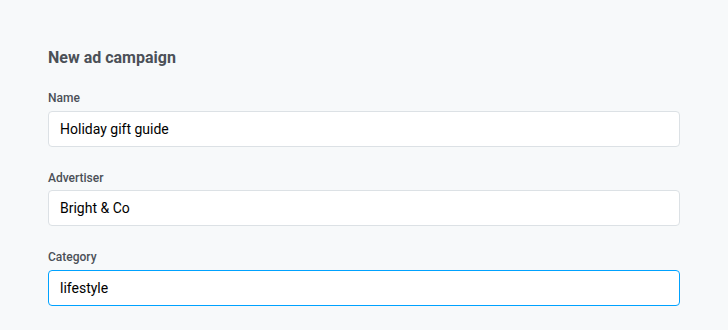
- Установите Status в одно из значений:
- Draft — пока у кампании нет ни одного креатива
- Active — когда кампания должна показываться в письмах или push-уведомлениях
- Paused или Finished — чтобы остановить кампанию (поведение одинаковое, можно вернуть в Active)
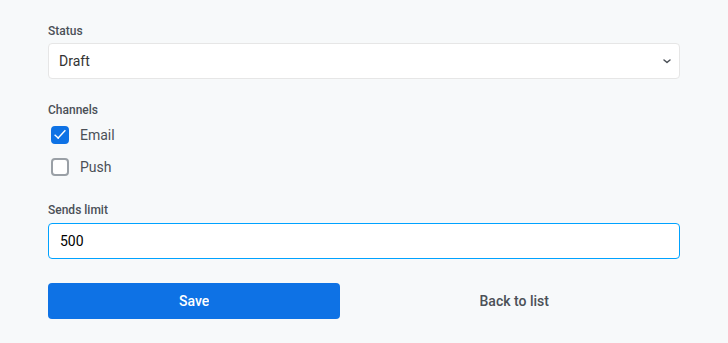
- В разделе Channels включите Email, Push или оба варианта.
- Оставьте оба выключенными при создании кампании, чтобы сохранить ее только для email.
- Включите Push, если будете использовать Спонсируемое push-уведомление.
- Включите оба, если одна и та же кампания должна показываться и в email, и в push.
- После сохранения при редактировании держите включенным хотя бы один канал, иначе сохранить не получится.
- Установите Sends limit, если хотите ограничить максимальное количество отправок кампании. Оставьте
0, если ограничение не нужно.- Счетчик учитывает каждое письмо и каждый push, в которых использована эта кампания.
- Когда счетчик достигает лимита, кампания перестает использоваться в новых отправках. Status может оставаться Active.
- Проверяйте Spent в списке, чтобы видеть, насколько близко к лимиту, в том числе когда лимит уже достигнут.
- Если включены оба канала — Email и Push, они делят один лимит на двоих.
- Нажмите Save. Pushwoosh оставит вас на странице кампании, чтобы вы могли сразу добавить креативы.
Добавление креативов в кампанию
Anchor link toЧтобы кампания могла что-то показывать, ей нужен хотя бы один креатив. Держите кампанию в статусе Draft, пока не сохраните хотя бы один креатив. Если вы установите Active без единого креатива, Ad slot все равно сможет выбрать эту кампанию, но показывать будет нечего, поэтому слот будет выглядеть так же, как если бы подходящая кампания не нашлась.
- Нажмите Add creative.
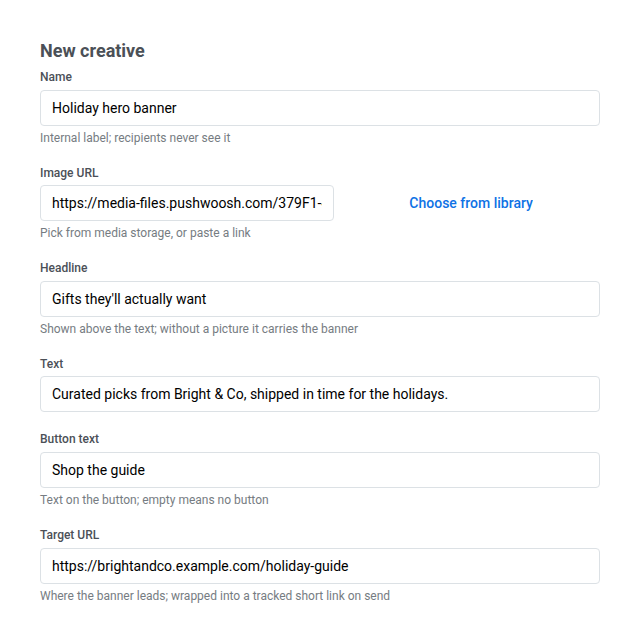
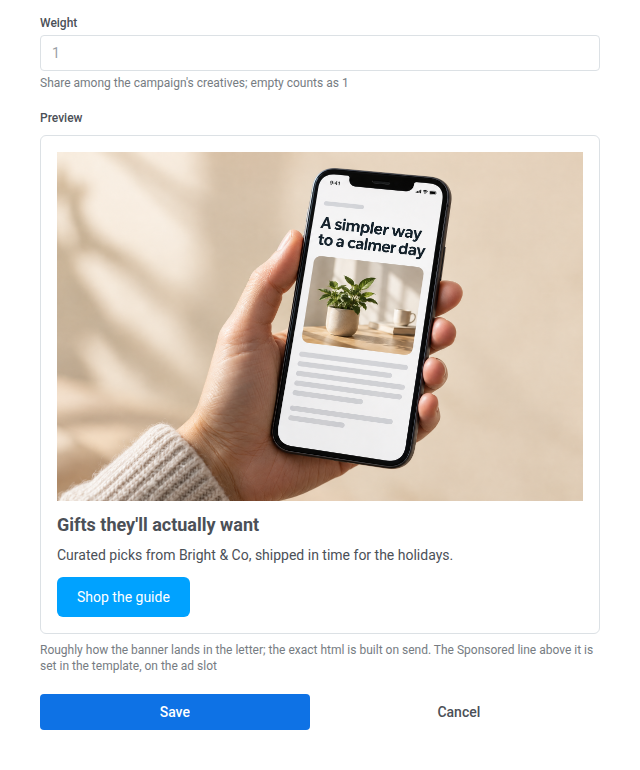
- В поле Name (обязательное) введите внутреннее название креатива.
- В поле Image URL вставьте ссылку на изображение для рекламы, либо нажмите Choose from library рядом с полем, чтобы загрузить изображение в Media storage (
.jpg,.jpeg,.png,.gifили.webp) и использовать его вместо ссылки. Обязательно, если Headline пусто. - В поле Headline введите заголовок рекламы. Обязательно, если Image URL пусто.
- В поле Text введите основной текст рекламы.
- В поле Button text введите текст кнопки. Оставьте поле пустым, если кнопка не нужна.
- В поле Target URL (обязательное) укажите страницу, которую должна открывать реклама.
- Установите Weight, если у кампании больше одного креатива.
- Для каждой отправки Pushwoosh использует креатив с наибольшим Weight.
- Оставьте поле пустым, чтобы использовать значение по умолчанию — 1.
- Используйте более низкий вес для запасного креатива. Чтобы позже переключиться на него, увеличьте его Weight либо удалите более тяжелый креатив.
- Нажмите Save.
Использование кампании
Anchor link toПосле того как сохранен хотя бы один креатив, установите Status в Active. Затем разместите кампанию там, где получатели должны увидеть рекламу:
- Для email откройте письмо в редакторе Drag & drop, добавьте блок Ad slot и укажите в нем эту кампанию через Campaign ID или Category.
- Для push создайте пресет Спонсируемое push-уведомление и выберите эту кампанию в выпадающем списке Campaign. Сначала включите канал Push на кампании, иначе она не появится в этом списке.
Просмотр отчета по кампании
Anchor link toОткройте кампанию и прокрутите до Report, чтобы просмотреть каждый креатив за период с даты создания кампании по сегодняшний день.

- Проверьте Letters and sends, чтобы увидеть, в скольких письмах использован этот креатив и сколько отдельных email-рассылок это охватывает. Push в эту строку не входит. Чтобы увидеть email и push вместе, проверьте Spent в списке Ad inventory. Для открытий push используйте Push taps.
- Проверьте Opens, чтобы увидеть, сколько человек открыли письмо, в процентах от отправленных писем.
- Проверьте Clicks, чтобы увидеть, сколько человек кликнули по креативу, сколько событий клика это включает, и долю в процентах от открытий.
- После того как креатив был отправлен по push, проверьте Push taps, чтобы увидеть, сколько устройств открыли спонсируемый push, из общего числа нажатий.
Если кампания еще не была отправлена ни в одной рассылке, отобразится сообщение “Пока нет данных для отчета”.
Управление кампаниями и креативами
Anchor link toВ списке Ad inventory:
- Нажмите на название кампании, чтобы открыть ее.
- Нажмите на three-dot menu (⋮) рядом с кампанией, чтобы Edit или Delete ее. Удаление кампании удаляет и ее креативы.
- На странице кампании нажмите Edit или Delete рядом с креативом, чтобы изменить или удалить его.
Имея только See email ads, вы можете открывать кампании и просматривать их поля, но не можете создавать, редактировать или удалять. В списке креативов отображаются только Name и Weight каждого креатива. Его Image URL, Headline, Text, Button text и Target URL отображаются только при открытии Edit, для которого нужно разрешение Modify email ads.