Отправка разовых SMS
Чтобы отправить разовое SMS в Pushwoosh, перейдите в раздел Кампании, выберите Разовые сообщения и нажмите Отправить сообщение > SMS.
Выберите контент SMS
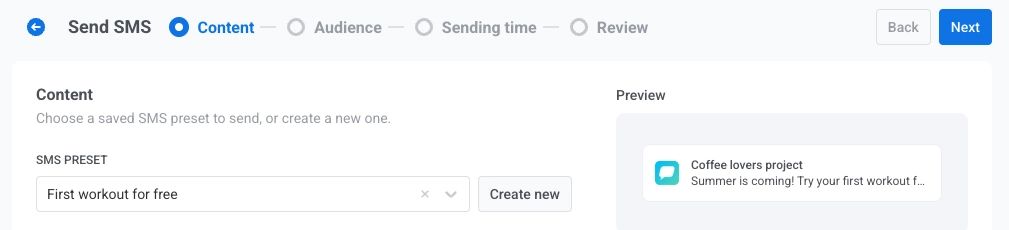
Anchor link toНа шаге Контент выберите пресет SMS, который вы хотите отправить. Текст сообщения берется из пресета, поэтому наличие пресета обязательно.
- Чтобы найти существующий пресет, воспользуйтесь полем поиска или откройте выпадающий список и выберите пресет. В предпросмотре справа будет показано, как будет выглядеть сообщение, включая миниатюры любых вложений MMS, которые есть в пресете.
- Чтобы создать новый пресет, нажмите Создать новый, создайте пресет и сохраните его. Новый пресет будет выбран автоматически.
Выберите тип сообщения
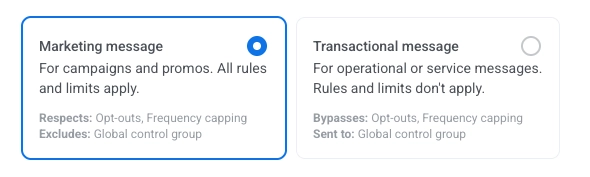
Anchor link toВыберите, как это SMS будет обрабатываться с точки зрения правил подписки и доставки:
- Маркетинговое сообщение: Учитывает ограничение частоты отправки. Не отправляется пользователям из контрольной группы.
- Транзакционное сообщение: Отправляется всем пользователям независимо от статуса подписки. Игнорирует ограничение частоты отправки. Доставляется пользователям из контрольной группы.
Узнайте, как тип сообщения влияет на доставку.
Выберите аудиторию для вашей SMS-кампании
Anchor link toНа шаге Аудитория определите, кто получит ваше SMS.
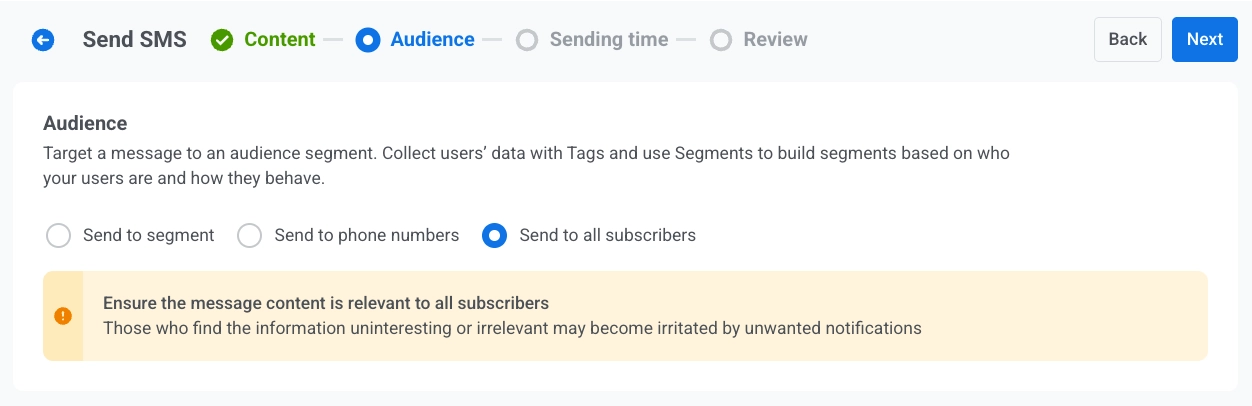
Отправить сегменту
Anchor link toНацельтесь на предопределенный сегмент вашей аудитории на основе тегов, событий или поведения. Выберите сегмент из выпадающего списка или нажмите Создать сегмент, чтобы создать или импортировать его.
Отправить списку телефонных номеров
Anchor link toОтправьте SMS на определенный список телефонных номеров, введенных непосредственно в форме. Телефонные номера, которых еще нет в вашем проекте, автоматически регистрируются как SMS-устройства и включаются в рассылку.
Отправить всем подписчикам
Anchor link toНацельтесь на всю вашу аудиторию, доступную для SMS.
После того как вы настроили аудиторию, нажмите Далее, чтобы перейти к шагу планирования.
Запланируйте отправку SMS
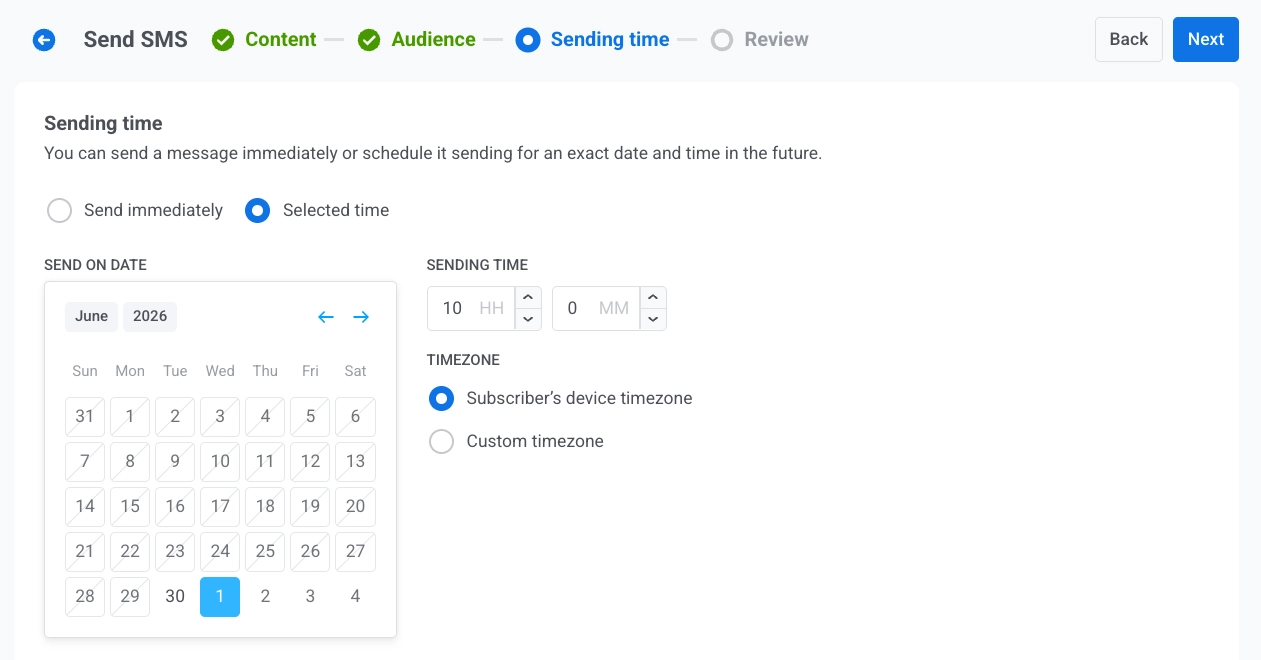
Anchor link toВыберите, когда отправить ваше SMS.
Отправить немедленно
Anchor link toОтправьте SMS сразу после завершения настройки кампании. Это идеально подходит для срочных или чувствительных ко времени сообщений.
Выбранное время
Anchor link toЗапланируйте отправку SMS на определенную дату и время.
- Установите дату и время: Используйте календарь, чтобы выбрать дату, затем укажите время в часах и минутах (24-часовой формат).
- Выберите часовой пояс:
- Часовой пояс устройства подписчика: SMS отправляется в указанное местное время для каждого получателя.
- Пользовательский часовой пояс: SMS отправляется в одно и то же время для всех получателей, что полезно для таргетинга на определенный регион.
Настройте параметры доставки сообщений
Anchor link toУстановите ограничение частоты отправки
Anchor link toИспользуйте Ограничение частоты отправки, чтобы ограничить, как часто пользователи получают SMS-сообщения, предотвращая избыточную отправку и уменьшая количество отписок. Выберите один из следующих вариантов:
-
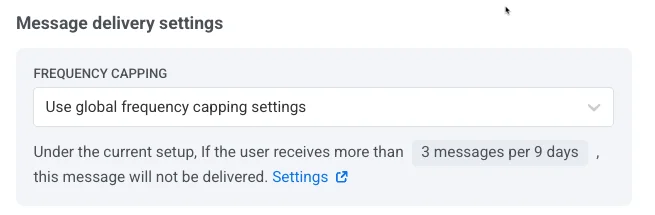
Использовать глобальные настройки ограничения частоты отправки
Примените лимиты для всего проекта, настроенные в глобальных настройках ограничения частоты отправки. Например, если глобальный лимит составляет 3 сообщения за 9 дней, дополнительные сообщения, превышающие этот лимит, будут пропущены.
-
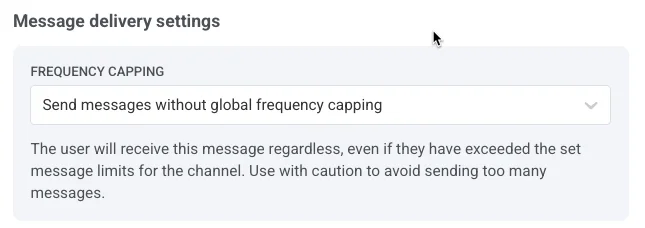
Отправлять сообщения без глобального ограничения частоты отправки
Пользователь получит это сообщение, даже если он превысил лимиты сообщений для канала. Используйте с осторожностью, чтобы избежать избыточной отправки.
-
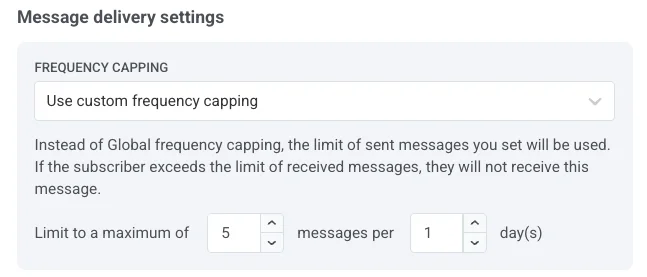
Использовать пользовательское ограничение частоты отправки
Установите пользовательский лимит сообщений для этого сообщения. Если пользователь превысит этот лимит, сообщение будет пропущено. В разделе Режим подсчета выберите, как подсчитываются отправленные сообщения:
- Скользящее окно: подсчитывает сообщения, отправленные за последние N×24 часа перед каждой отправкой, где N — количество дней в лимите. Например, при лимите в 3 сообщения за 2 дня сообщение, отправленное в понедельник в 9 утра, перестает учитываться в среду в 9 утра.
- Календарный день: подсчитывает сообщения, отправленные сегодня и в предыдущие N-1 календарных дней, начиная с полуночи. При том же лимите в 3 сообщения за 2 дня в среду учитывается каждое сообщение, отправленное начиная с полуночи вторника. Сразу после полуночи окно сдвигается на среду и четверг. Выберите Часовой пояс для ограничения, чтобы задать, когда наступает полночь. Если часовой пояс не выбран, календарные дни считаются по UTC.
Установите лимиты скорости отправки
Anchor link toНастройка Скорость отправки контролирует, как быстро сообщения доставляются вашей аудитории. Регулировка скорости отправки помогает управлять скоростью доставки, предотвращать перегрузку бэкенда и улучшать общую доставляемость.
Выберите один из следующих вариантов:
-
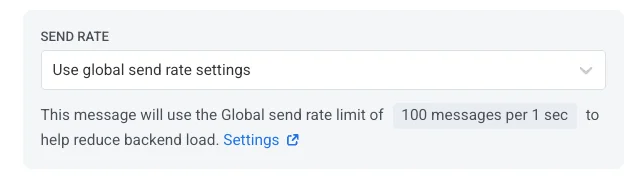
Использовать глобальные настройки скорости отправки
Применяет лимиты скорости отправки, настроенные в параметрах доставки сообщений вашего проекта. Если лимиты не установлены, все сообщения отправляются немедленно. Узнайте больше о глобальных лимитах скорости отправки
-
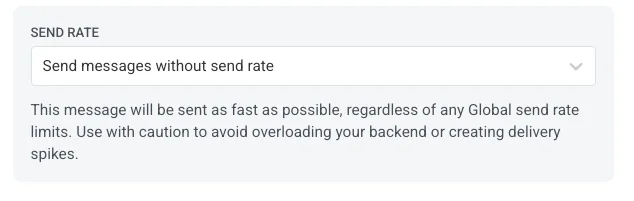
Отправлять сообщения без глобального ограничения скорости
Отправляет сообщения как можно быстрее, игнорируя любые глобальные лимиты скорости отправки. Используйте с осторожностью, чтобы избежать скачков в доставке.
-
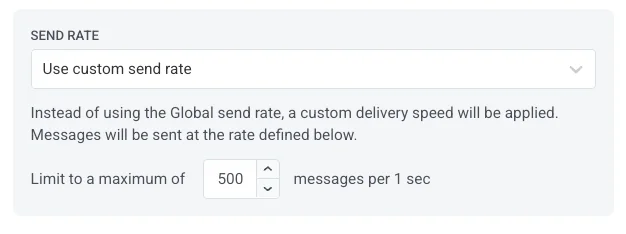
Использовать пользовательскую скорость отправки
Переопределяет глобальную скорость отправки только для этого сообщения. Укажите количество сообщений, отправляемых в минуту, для полного контроля над скоростью доставки.
После настройки опций нажмите Далее, чтобы перейти к шагу подтверждения.
Проверка и отправка
Anchor link toНа шаге Проверка проверьте предпросмотр и сводки по контенту, аудитории и расписанию. Если в выбранном пресете есть вложения MMS, в сводке по контенту будет указано «Отправлено как MMS с N изображением(ями)», а в предпросмотре будут миниатюры вложений. Внесите необходимые изменения перед отправкой.
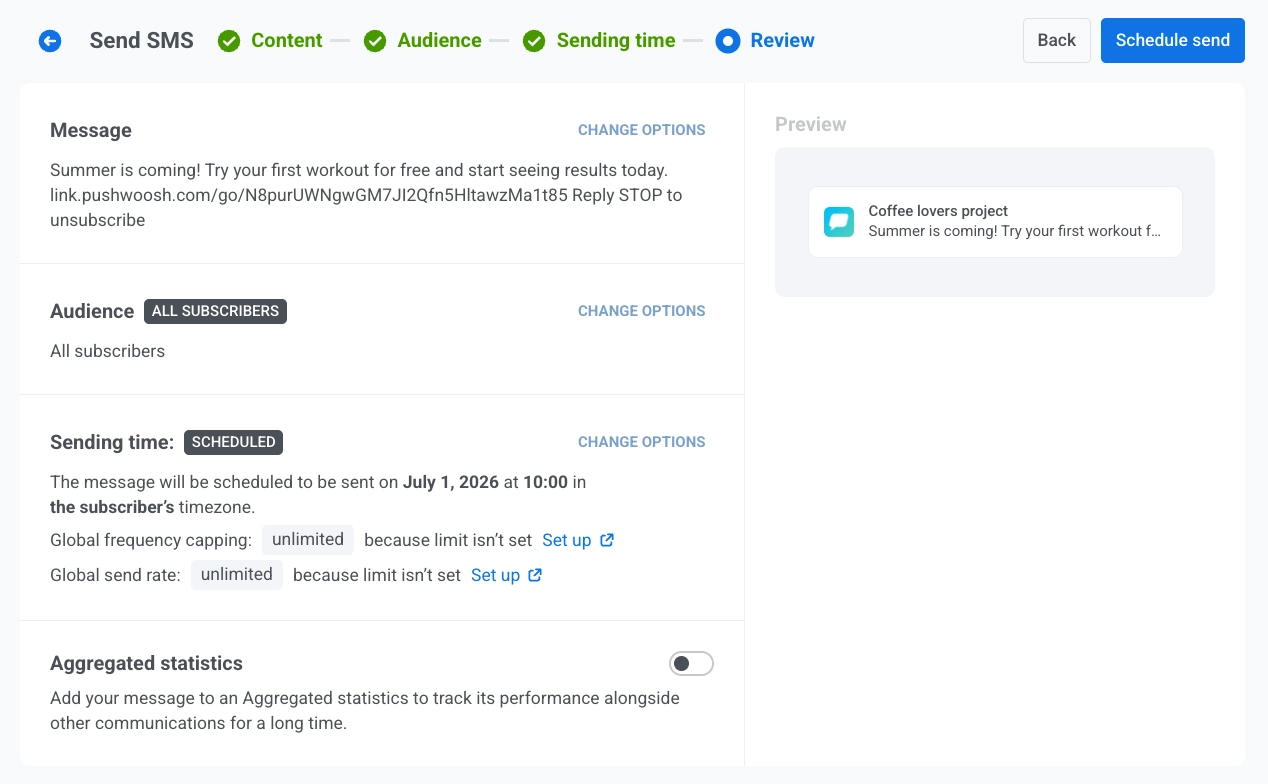
Нажмите Запланировать или Отправить сейчас, чтобы открыть диалог Send this SMS? с полем Campaign name: произвольная текстовая метка для этой одной отправки.
Campaign name предзаполняется собственным текстом пресета SMS (многострочное сообщение предзаполняется как одна строка). Если очистить поле, Message History вернется к именованию строки по пресету, как и до появления этого поля. Ограничьтесь 255 символами или меньше. Ввод сверх лимита обрезает текст без предупреждения.
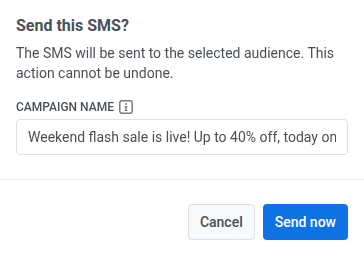
После установки имя кампании становится жирным заголовком этого сообщения в Message History и его CSV-экспорте, вместо названия пресета. Подтвердите еще раз в диалоге, чтобы завершить, в зависимости от выбранных вами опций планирования.
Отмена или редактирование запланированного SMS
Anchor link toДля SMS-сообщений, которые запланированы, но еще не отправлены (статус ОЖИДАЕТ), вы можете изменить или отменить их. Откройте список сообщений в Кампании → Разовые сообщения, затем откройте меню действий (⋮) для сообщения:
- Редактировать сообщение: открывает форму SMS с загруженными данными сообщения. Вы можете обновить контент, аудиторию, расписание и настройки доставки. В Review кнопка называется Apply changes вместо Запланировать или Отправить сейчас. Нажмите ее, затем подтвердите еще раз в диалоге Send this SMS?, чтобы сохранить изменения, включая любое изменение имени кампании.
- Rename: открывает небольшой диалог для установки или изменения имени кампании без повторного открытия полной формы редактирования. Тот же лимит в 255 символов, что и у поля Campaign name, которое вы устанавливаете при отправке. Очистите поле и сохраните, чтобы удалить имя. Строка вернется к своему прежнему заголовку по умолчанию.
- Удалить сообщение: отменяет запланированную доставку и изменяет статус на Отменено.
Пример сценария
Anchor link toПредставьте, что у вас есть интернет-магазин, и вы хотите отправить SMS-оповещение о срочной распродаже клиентам, совершившим покупку за последние 90 дней, запланировав его на утро начала распродажи.
1. Перейдите в Кампании, выберите Разовые сообщения, нажмите Отправить сообщение и выберите SMS.
2. На шаге Контент выберите пресет Оповещение о срочной распродаже:
"Срочная распродажа началась! Получите скидку 30% на все только сегодня. Покупайте: {сокращенная ссылка}"
Оставьте тип сообщения Маркетинговое, чтобы учитывалось ограничение частоты отправки.
3. На шаге Аудитория выберите Отправить сегменту и выберите Недавние покупатели (90 дней).
4. На шаге Расписание выберите Выбранное время, установите дату и время начала распродажи и выберите Часовой пояс устройства подписчика, чтобы каждый клиент получил сообщение в одно и то же местное время.
5. На шаге Проверка проверьте предпросмотр, сводки по аудитории и расписанию, затем нажмите Запланировать, чтобы завершить настройку кампании.