Общая статистика Journey
Раздел Статистика Journey предоставляет ключевые данные о производительности и инсайты для ваших кампаний Customer Journey. Используйте этот раздел для отслеживания вовлеченности пользователей, достижения целей, доставки сообщений и коэффициентов оттока с течением времени.
Этот раздел включает следующие аналитические дашборды:
-
Производительность: Показывает производительность каждой цели, включая количество и коэффициент конверсий.
-
Аудитория: Отображает количество пользователей, находящихся в данный момент в Journey, и тех, кто из него вышел.
-
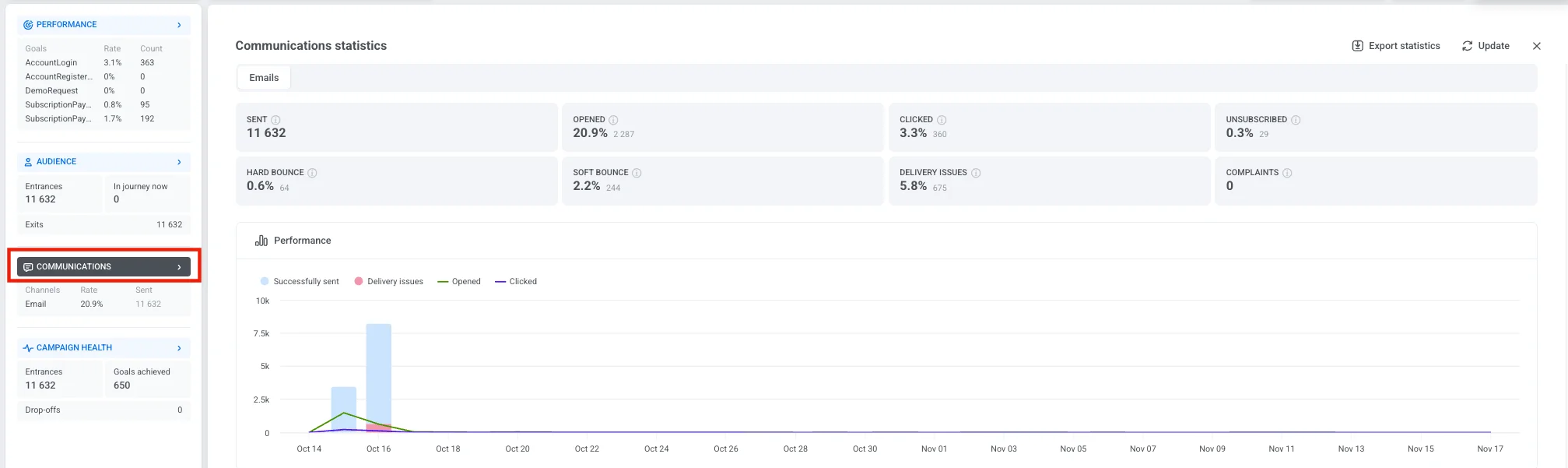
Коммуникации: Разбивает отправленные сообщения по каналам, таким как Push, Email, SMS, In-app, WhatsApp, Kakao, Telegram, Viber и Facebook Messenger.
-
Состояние кампании: Общая сводка активности кампании, включая общее количество входов, достигнутых целей и оттоков.
Чтобы просмотреть подробную статистику для любого дашборда, нажмите на название раздела в левой панели.
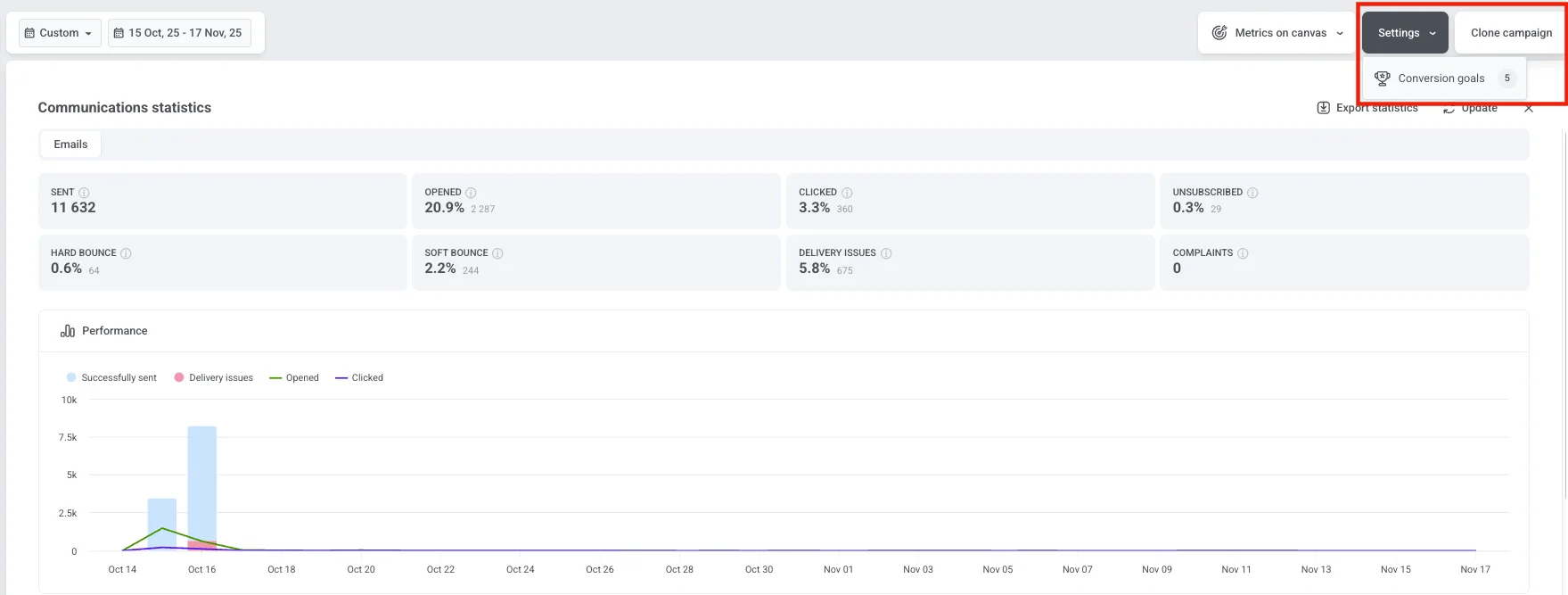
Вы также можете просмотреть количество целей конверсии, настроенных для вашей кампании. Чтобы увидеть подробную информацию о каждой цели, нажмите Настройки и выберите Цели конверсии.
Выберите период времени
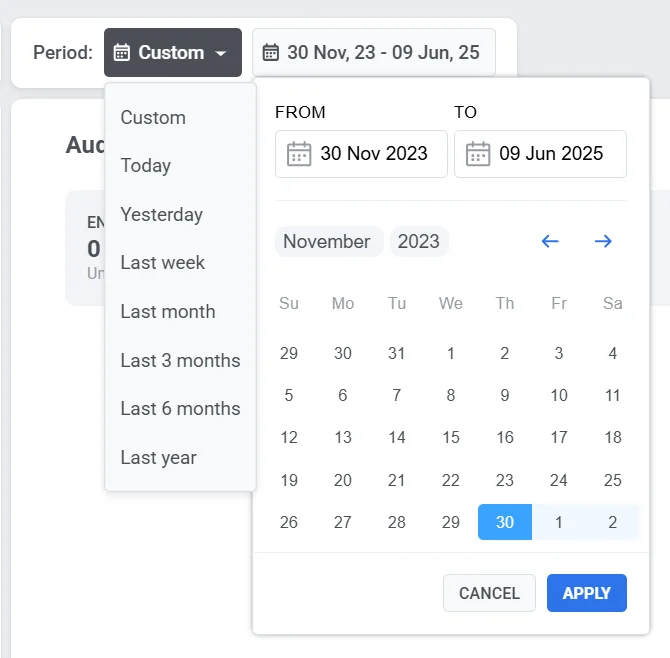
Anchor link toИспользуйте фильтр Период в верхней части дашборда для анализа данных за определенный временной диапазон.
По умолчанию дашборд отображает общую статистику с момента запуска кампании до настоящего времени. Чтобы просмотреть данные за другой период, нажмите на выпадающий список и выберите один из предустановленных вариантов (например, Сегодня, Вчера, 7 дней, 30 дней) или установите пользовательский диапазон дат.
Управление статусом кампании
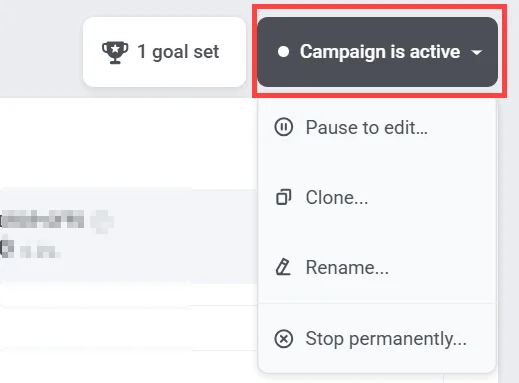
Anchor link toИспользуйте выпадающий список Статус кампании в правом верхнем углу для управления кампанией. Доступные опции включают:
-
Приостановить для редактирования
-
Клонировать
-
Переименовать
-
Остановить кампанию. Вы можете восстановить остановленную кампанию позже, чтобы возобновить редактирование.
Производительность
Anchor link toРаздел ‘Производительность’ показывает, насколько эффективно ваша кампания достигает своих целей. Он помогает оценить успешность кампании и определить области для улучшения.
Каждая цель отображается с двумя ключевыми метриками:
-
Коэффициент конверсии (%): Процент пользователей, достигших цели, по отношению к общему числу входов в кампанию.
-
Количество: Общее число пользователей, выполнивших цель.
Когда вы нажимаете на название раздела Производительность в левой панели, открывается окно Цели конверсии. В этом представлении содержится подробная информация обо всех целях, настроенных для вашего Journey, включая их метрики производительности и любые определенные условия.
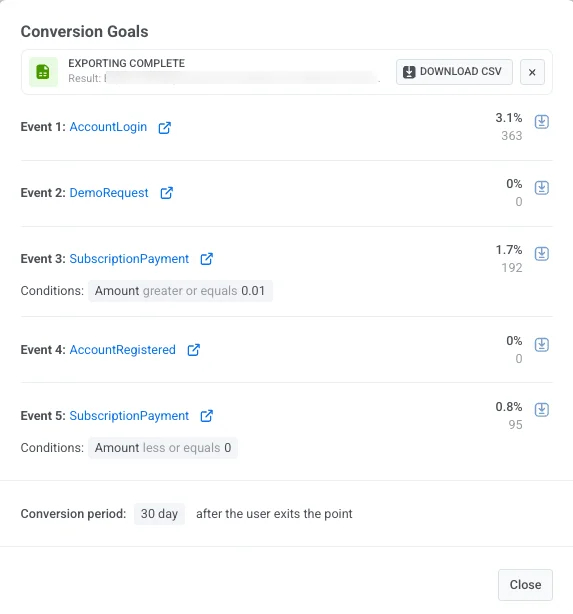
В этом окне вы можете:
- Просматривать данные о конверсиях для каждой цели.
- Просматривать условия цели.
- Видеть период конверсии, который показывает, как долго отслеживаются конверсии после того, как пользователь покидает точку цели (например, 30 дней после выхода).
- Чтобы сохранить статистику по цели, нажмите Скачать CSV рядом с любой целью, чтобы экспортировать ее данные в виде CSV-файла.
Аудитория
Anchor link toДашборд Аудитория предоставляет подробную информацию о том, как пользователи взаимодействуют с вашей кампанией. Он отслеживает активность пользователей на протяжении всего Journey, включая входы, выходы, ошибки и индивидуальные статусы пользователей.
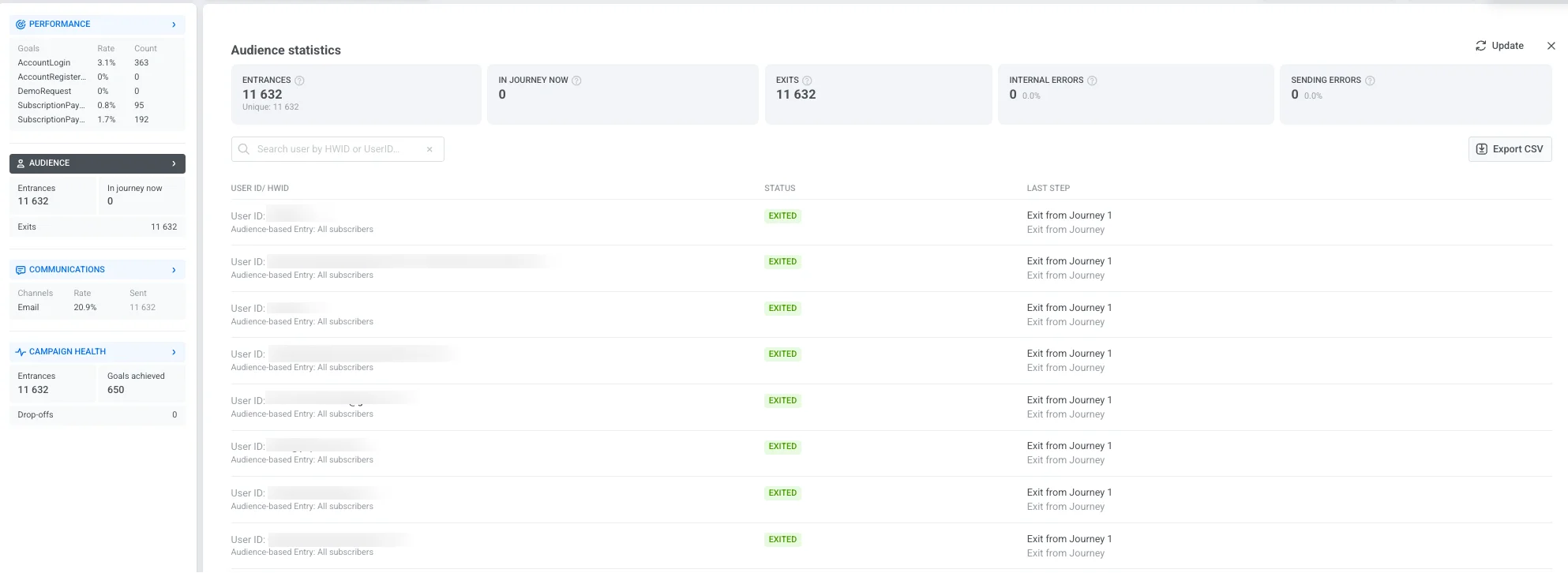
Дашборд включает следующие ключевые метрики:
| Входы | Общее количество пользователей, вошедших в кампанию за выбранный период времени, включая повторные входы. |
| Сейчас в Journey | Количество пользователей, активных в Journey в данный момент. |
| Выходы | Количество пользователей, завершивших или покинувших Journey. |
| Внутренние ошибки | Отток пользователей из Journey, вызванный техническими проблемами. |
| Ошибки отправки | Сбои доставки, вызванные техническими проблемами, такими как удаленное приложение, недействительный email/телефон или заблокированный шлюз. |
Если у ветки нет исходящего соединения и она заканчивается без элемента ‘Выход’, пользователи, дошедшие до ее конца, засчитываются в Выходы, а не в строки с ошибками.
Список пользователей ниже отображает индивидуальные записи Journey, помогая вам отслеживать конкретные случаи и устранять проблемы:
| User ID / HWID | Уникальный идентификатор для каждого пользователя. Используйте строку поиска, чтобы найти конкретного пользователя по HWID или User ID. |
| Статус | Указывает текущее состояние пользователя в Journey (например, В процессе, Вышел, Отвалился). |
| Последний шаг | Показывает последний выполненный шаг или точку, в которой пользователь покинул Journey. Если пользователь вышел из-за события отмены, в столбце отображается “Выход по событию отмены: [название события]” (например, “Выход по событию отмены: Корзина очищена”). |
Нажмите Экспорт CSV, чтобы загрузить полный список записей пользователей и их статусов для дальнейшего анализа.
Коммуникации
Anchor link toРаздел Коммуникации предоставляет подробную информацию о производительности каждого канала обмена сообщениями в вашей кампании. Он помогает оценить доставку сообщений, вовлеченность и потенциальные проблемы с доставкой, чтобы вы могли оптимизировать свою коммуникационную стратегию.
Чтобы открыть это представление, нажмите на название раздела Коммуникации в левой панели. Откроется окно Статистика коммуникаций, где вы сможете увидеть производительность ваших сообщений.
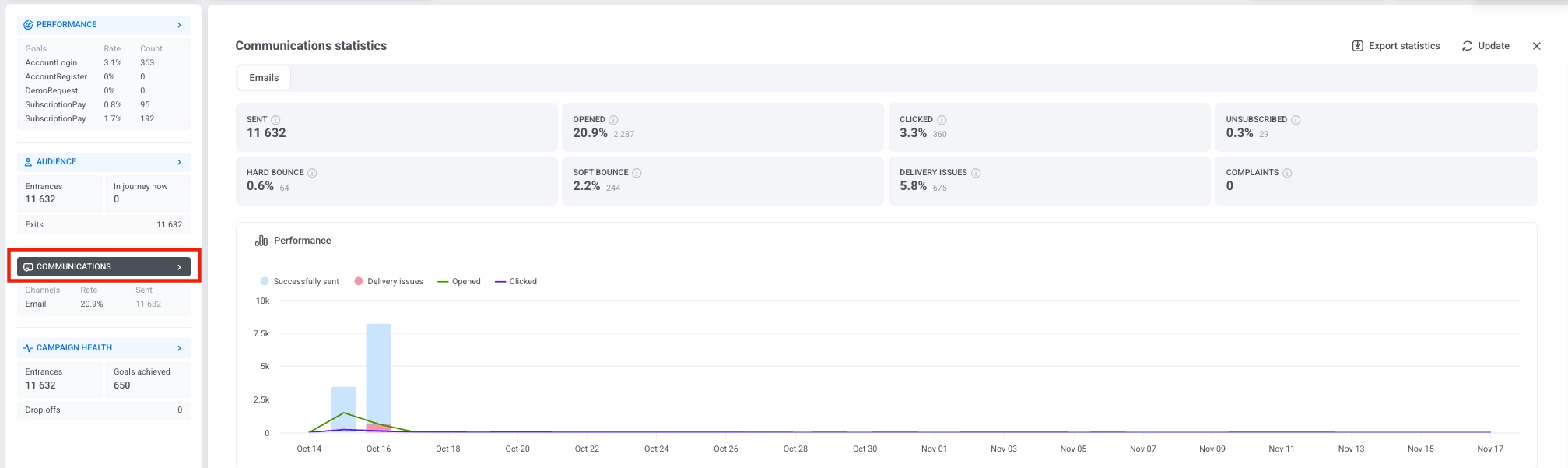
Если ваша кампания включает несколько каналов, в верхней части окна будут показаны отдельные вкладки. Выберите вкладку, чтобы переключаться между каналами и просматривать метрики для каждого из них.

Метрики по каналам
Anchor link toМетрики, отображаемые в окне ‘Статистика коммуникаций’, зависят от канала. Каждый канал отслеживает статистику, наиболее релевантную для данного типа сообщений.
Push, in-app и email
Anchor link to| Метрика | Что измеряет |
|---|---|
| Отправлено | Общее количество отправленных push-уведомлений, включая отправки отписавшимся пользователям и неудачные попытки отправки. |
| Получатели | Push-уведомления, успешно отправленные Pushwoosh на устройства с включенными push-уведомлениями: Отправлено минус неудачные отправки (например, устройства без действительного push-токена) и отправки отписавшимся пользователям. У каждого пользователя может быть несколько устройств, и каждое устройство считается отдельным получателем. |
| Открыто | Количество уникальных открытий сообщений, показанное в процентах от Получателей. Коэффициент открытий = открытия ÷ Получатели × 100% |
| Проблемы с доставкой | Количество сообщений, которые не могли быть доставлены, показанное в процентах от пользователей, вошедших в любой шаг push в Journey. |
| Метрика | Что измеряет |
|---|---|
| Показы | Количество раз, когда in-app сообщения были показаны пользователям. |
| Взаимодействия | Количество взаимодействий пользователей с in-app сообщениями, показанное в процентах от Показов. Коэффициент взаимодействий = Взаимодействия ÷ Показы × 100% |
| Проблемы с доставкой | Количество сообщений, которые не могли быть доставлены, показанное в процентах от пользователей, вошедших в любой шаг in-app в Journey. |
| Метрика | Что измеряет |
|---|---|
| Доставлено | Общее количество успешных доставок email, включая повторные доставки одному и тому же получателю. Коэффициент доставки = Доставлено ÷ получатели × 100% |
| Уникально доставлено | Количество уникальных пользователей, которым было успешно доставлено хотя бы одно сообщение, показанное как количество и как процент от получателей. Коэффициент уникальной доставки = уникальные доставки ÷ получатели × 100% |
| Отправлено | Общее количество отправленных email, включая неудачные попытки отправки. |
| Всего открыто | Общее количество открытий email, включая повторные открытия одним и тем же получателем, показанное в процентах от получателей. Коэффициент открытий = все открытия ÷ получатели × 100% |
| Уникально открыто | Количество уникальных получателей, открывших сообщение хотя бы один раз, показанное в процентах от получателей. Коэффициент уникальных открытий = уникальные открытия ÷ получатели × 100% |
| Кликнуто | Количество получателей, кликнувших на любую ссылку в email, показанное в процентах от получателей. Коэффициент кликов = клики по ссылкам ÷ получатели × 100% |
| Отписались | Количество получателей, отписавшихся от рассылки, показанное в процентах от получателей. Коэффициент отписок = отписки ÷ получатели × 100% |
| Жесткий отказ | Количество email, не доставленных из-за постоянных проблем (например, недействительный адрес), показанное в процентах от получателей. Коэффициент жестких отказов = жесткие отказы ÷ получатели × 100% |
| Мягкий отказ | Количество email, не доставленных из-за временных проблем (например, переполненный почтовый ящик или ошибка сервера), показанное в процентах от получателей. Коэффициент мягких отказов = мягкие отказы ÷ получатели × 100% |
| Жалобы | Количество получателей, пометивших email как спам, показанное в процентах от получателей. Коэффициент жалоб = отчеты о спаме ÷ получатели × 100% |
| Проблемы с доставкой | Количество сообщений, которые не могли быть доставлены, показанное в процентах от пользователей, вошедших в любой шаг email в Journey. |
SMS и мессенджеры
Anchor link to| Метрика | Что измеряет |
|---|---|
| Отправлено | Общее количество отправленных сообщений WhatsApp, включая неудачные попытки отправки. |
| Доставлено | Количество успешно доставленных сообщений, показанное в процентах от получателей — сообщения WhatsApp, успешно отправленные (Отправлено минус неудачные отправки). Коэффициент доставки = Доставлено ÷ получатели × 100% |
| Прочитано | Количество сообщений, прочитанных пользователями, показанное в процентах от получателей. Коэффициент прочтения = Прочитано ÷ получатели × 100% |
| Проблемы с доставкой | Количество сообщений, которые не могли быть доставлены, показанное в процентах от пользователей, вошедших в любой шаг WhatsApp в Journey. |
SMS, Kakao, Telegram, Viber и Facebook Messenger показывают одинаковые метрики. У каждого канала есть своя вкладка в окне ‘Статистика коммуникаций’.
| Метрика | Что измеряет |
|---|---|
| Отправлено | Общее количество сообщений, отправленных в канале, включая неудачные попытки отправки. |
| Доставлено | Количество успешно доставленных сообщений, показанное в процентах от Отправлено. Коэффициент доставки = Доставлено ÷ Отправлено × 100% |
| Проблемы с доставкой | Количество сообщений, которые не могли быть доставлены, показанное в процентах от пользователей, вошедших в любой шаг этого канала в Journey. |
Под метриками канала статистика каждого канала включает строку Ограничение частоты. Она показывает, как ограничение частоты повлияло на сообщения этого Journey за выбранный период:
- Подавления: количество сообщений, которые не были отправлены, потому что получатель уже достиг своего лимита по ограничению частоты.
- Затронутые пользователи: количество уникальных пользователей, у которых было подавлено хотя бы одно сообщение из-за ограничения частоты.
График Производительность визуализирует активность сообщений с течением времени, помогая выявлять тенденции вовлеченности и закономерности доставки.

Статистика на уровне сообщений
Anchor link toРаздел Сообщения под графиком ‘Производительность’ перечисляет все шаги коммуникации для выбранного канала. Используйте эту таблицу для сравнения производительности отдельных сообщений в этом канале и для понимания того, как каждое сообщение способствует достижению целей вашей кампании. На вкладках Kakao, Telegram, Viber и Facebook Messenger этой таблицы нет.
В верхней части таблицы выберите цель конверсии, чтобы увидеть, как каждое сообщение влияет на эту конкретную цель. Чтобы загрузить все данные на уровне сообщений, нажмите Экспортировать статистику канала для экспорта CSV-файла для анализа или отчетности.
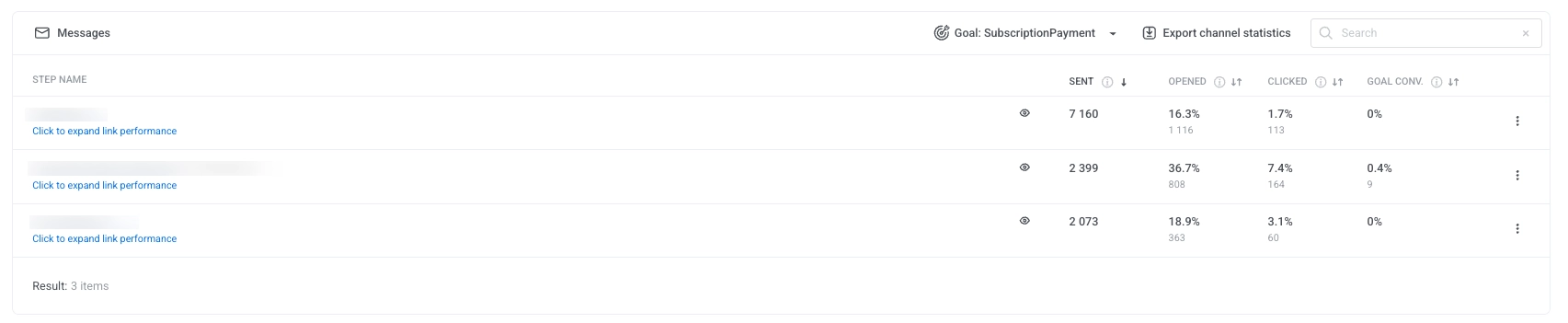
Для каждого сообщения в таблице отображается:
-
Отправлено: Общее количество отправленных сообщений.
-
Открыто: Процент и количество пользователей, открывших сообщение.
-
Кликнуто: Процент и количество пользователей, кликнувших на ссылки.
-
Конверсия по цели: Процент и количество пользователей, выполнивших выбранную цель конверсии после взаимодействия с сообщением.
Чтобы экспортировать данные для отдельного сообщения, нажмите на меню с тремя точками рядом с названием сообщения и выберите одну из следующих опций:
-
Экспортировать статистику точки: Загружает подробные метрики производительности для этого сообщения.
-
Экспортировать пользователей точки: Загружает список пользователей, взаимодействовавших с этим сообщением.
Для действия Экспортировать пользователей точки у вашей роли должно быть разрешение Personal data.
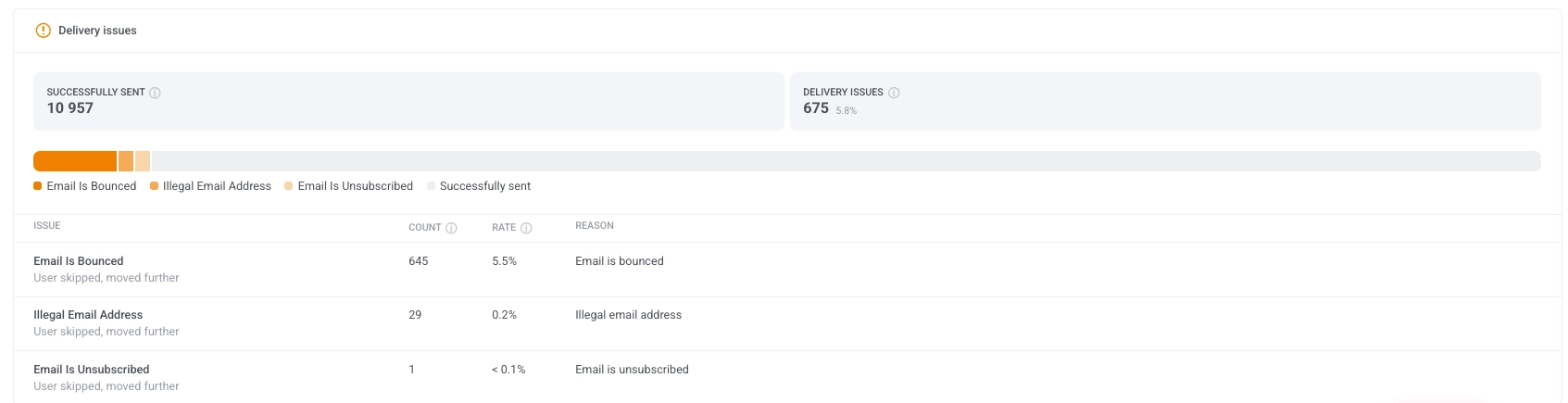
Проблемы с доставкой
Anchor link toРаздел Проблемы с доставкой предоставляет подробную разбивку неудачных или пропущенных доставок сообщений. Он помогает выявлять и устранять распространенные проблемы, которые могут мешать сообщениям доходить до пользователей.
Каждая проблема включает количество, коэффициент и причину, обеспечивая прозрачность надежности доставки.
События, принесенные сообщениями Journey
Anchor link toБлок События под вкладками каналов показывает, какие пользовательские события отправили пользователи после клика по сообщениям этого Journey и какие шаги их принесли. Он заполняется, только если ваше приложение или сайт отправляют события в Pushwoosh.
Каждое событие засчитывается сообщению, по которому пользователь кликнул последним в течение 72 часов до события. Что считается кликом, зависит от канала:
- Push и веб-push: нажатие, которое открывает уведомление
- App Inbox: открытие сообщения
- Email: клик по ссылке, кроме ссылки отписки. Открытие письма не учитывается.
- WhatsApp: прочтение сообщения
У SMS нет кликов, поэтому шаги SMS не приносят событий. Учитываются клики по всем сообщениям одного и того же приложения, включая сообщения вне этого Journey, поэтому событие засчитывается тому сообщению, по которому пользователь кликнул последним. Одно событие засчитывается только одному сообщению, а клики старше 72 часов не учитываются.
Блок содержит следующие столбцы:
| Столбец | Что показывает |
|---|---|
| Название события | Название события. События, заданные как цели конверсии, закреплены вверху со значком Цель, даже если их еще не отправил ни один пользователь. |
| События | Сколько событий засчитано сообщениям Journey за выбранный период. |
| Пользователи | Сколько различных пользователей отправили событие, сопоставленных по User ID. |
| % от получателей | Пользователи как доля от получателей Journey по всем каналам. |
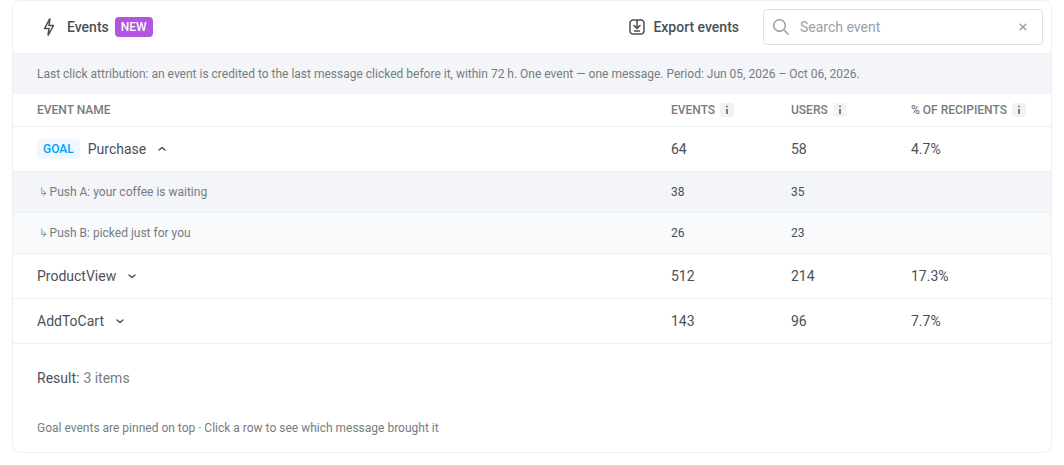
Строка над таблицей показывает период, который охватывает блок. Этот период соответствует фильтру Период на странице статистики и фильтрует события, а не клики. Клик до начала периода все равно учитывается для события внутри периода.
Чтобы работать с блоком:
- Узнать, какие шаги принесли событие: Нажмите на его строку. Строка развернется в шаги Journey, по сообщению которых пользователь кликнул последним, с метриками События и Пользователи для каждого шага. Шаг, удаленный из Journey, отображается как Удаленный шаг.
- Найти событие: Введите его название в поле Поиск события.
- Загрузить таблицу в формате CSV: Нажмите Экспортировать события. Файл включает разбивку каждого события по шагам.
Состояние кампании
Anchor link toДашборд Состояние кампании предоставляет общую сводку производительности вашей кампании, помогая быстро оценить вовлеченность пользователей, доставку сообщений и достижение целей.
Карточка Состояние кампании на левой панели показывает Входы, Достигнутые цели и Оттоки. Если у Journey нет целей конверсии или у цели не указано событие или приложение, в поле Достигнутые цели вместо числа отображается Не задано.
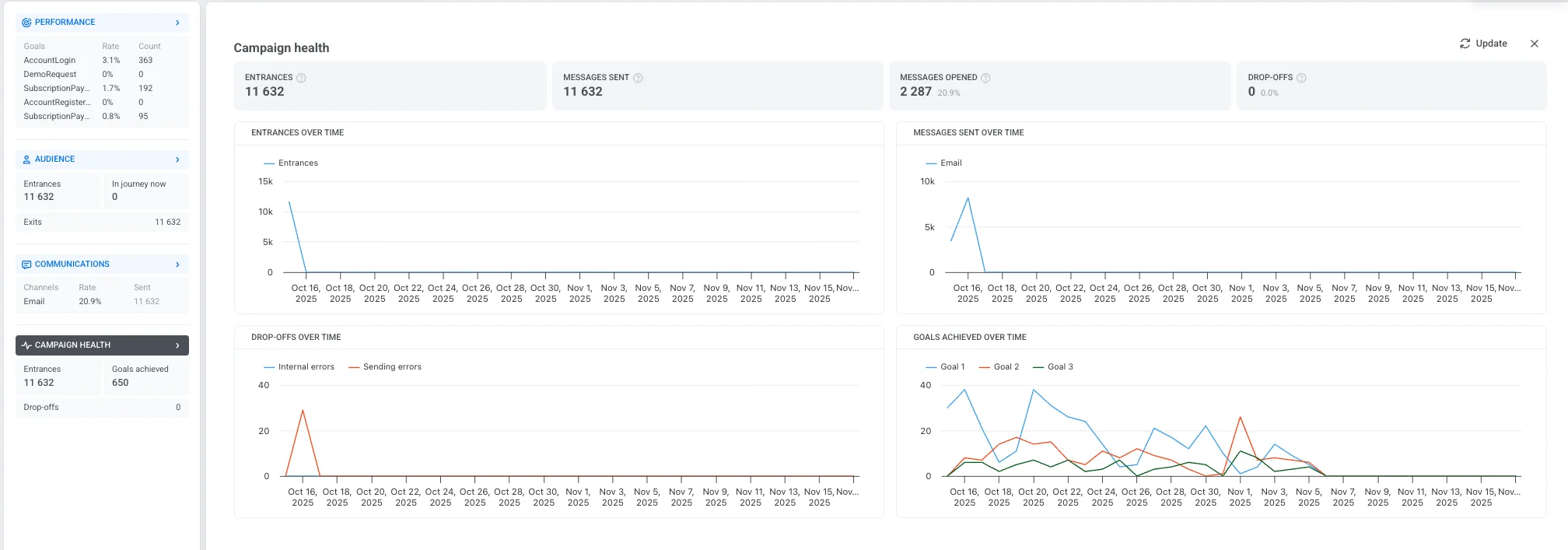
Он включает следующие ключевые метрики:
| Входы | Общее количество пользователей, вошедших в кампанию за выбранный период времени, включая повторные входы. |
| Отправлено сообщений | Общее количество сообщений, отправленных в рамках Journey. |
| Открыто сообщений | Количество и процент сообщений, которые были открыты пользователями. |
| Оттоки | Количество пользователей, удаленных из кампании из-за внутренних проблем. |
Графики ниже помогают визуализировать ключевые тенденции и поведение на протяжении всей кампании:
-
Входы с течением времени Отображает количество пользователей, входящих в кампанию каждый день.
-
Отправленные сообщения с течением времени Показывает ежедневный объем доставки сообщений по разным каналам.
-
Оттоки с течением времени Отслеживает, когда и почему пользователи покинули кампанию, с разбивкой по категориям:
-
Внутренние ошибки: Проблемы, связанные с системной логикой или условиями.
-
Ошибки отправки: Сбои, связанные с доставкой сообщений.
-
-
Достигнутые цели с течением времени Отображает, сколько пользователей выполнили цели кампании за выбранный временной диапазон.
Если в Journey есть один или несколько элементов Holdout Split, под графиками появляется отчет Прирост по цели относительно holdout, по одному для каждой точки. Он сравнивает конверсию по цели между пользователями, которые продолжили путь по Journey, и пользователями, которых исключили в этой точке.
Экспорт статистики кампании
Anchor link toPushwoosh позволяет экспортировать полную статистику кампании за выбранный диапазон дат в формате CSV. Это предоставляет подробные инсайты о производительности вашей кампании, помогая анализировать ключевые метрики и оптимизировать будущие кампании.
В зависимости от ваших потребностей, вы можете экспортировать данные для одного Journey, нескольких Journey с разными статусами или категориями, или даже для всех Journey сразу.
Чтобы экспортировать статистику кампании:
- Перейдите к Списку кампаний.
- Найдите нужную кампанию или используйте фильтры, чтобы сузить выбор ваших Journey по статусу, категории или другим критериям. Экспортированный CSV-файл будет отражать эти фильтры. Затем нажмите Экспортировать статистику.
Чтобы экспортировать статистику для всех ваших Journey, просто нажмите Экспортировать статистику.

- Выберите диапазон дат, за который вы хотите экспортировать данные, и нажмите Экспортировать.
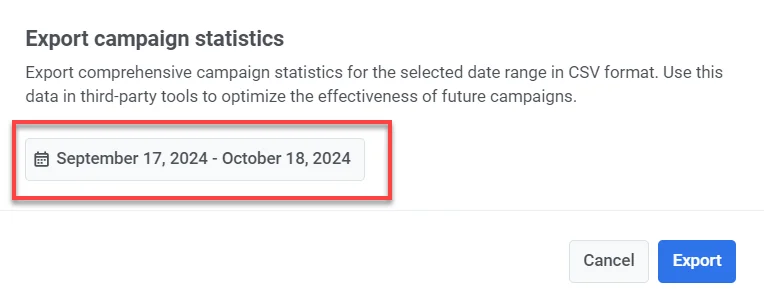
- Как только файл будет готов, нажмите Скачать CSV.
Информация, включенная в CSV-экспорт
CSV-файл будет содержать следующую информацию:
- Title: Название кампании или Journey.
- Status: Текущий статус Journey (например, завершено, активно).
- Created: Дата и время создания Journey.
- Category: Категория кампании (например, Черная пятница, Кофейная акция).
- Type: Тип Journey (например, AudienceBased, TriggerBased).
- UUID: Уникальный идентификатор для Journey.
- Total Reach: Общее количество пользователей, на которых нацелено Journey.
- Unique Users: Количество уникальных пользователей, получивших сообщения в Journey.
- Users Inside: Количество пользователей, все еще активных в Journey.
- Drop-off: Количество пользователей, покинувших или отвалившихся от Journey.
- Total Sends: Общее количество сообщений, отправленных по всем каналам (push, email, SMS и т.д.).
- Avg CTR: Средний коэффициент кликабельности по всем типам сообщений.
- Goals: Количество пользователей, достигших определенных целей в кампании.
- Push Sends: Количество отправленных push-уведомлений в Journey.
- Push CTR: Коэффициент кликабельности для push-уведомлений.
- Email Sends: Количество отправленных email-сообщений в Journey.
- Email CTR: Коэффициент кликабельности для email-сообщений.
- Email Clicks: Общее количество кликов по ссылкам в email.
- Email Unsubscribes: Количество пользователей, отписавшихся от вашей email-рассылки.
- SMS Sends: Количество отправленных SMS-сообщений в Journey.
- SMS Deliveries: Количество успешно доставленных SMS-сообщений.
- WhatsApp Sends: Количество отправленных сообщений WhatsApp в Journey.
- WhatsApp Opens: Количество сообщений WhatsApp, открытых пользователями.
- In-App Shows: Количество in-app сообщений, показанных пользователям.
- In-App Interaction: Количество пользователей, взаимодействовавших с in-app сообщениями (например, нажали кнопку).
- In-App Skips: Количество пользователей, пропустивших или закрывших in-app сообщение без взаимодействия.