Каталог товаров
Каталог товаров хранит данные о ваших товарах в одном месте в Pushwoosh: названия, цены, изображения, наличие и ссылки. Подключите фид, импортируйте CSV или добавьте товары вручную, а затем используйте их в блоках «Товары» в ваших email-сообщениях, вместо того чтобы копировать одни и те же данные в каждое сообщение. Когда ваш фид синхронизируется, цены и наличие обновляются автоматически, поэтому ваши кампании остаются актуальными без ручных правок.
Каталог создается для каждого приложения. Чтобы открыть его, перейдите в Контент → Каталог товаров для нужного приложения в панели управления Pushwoosh.
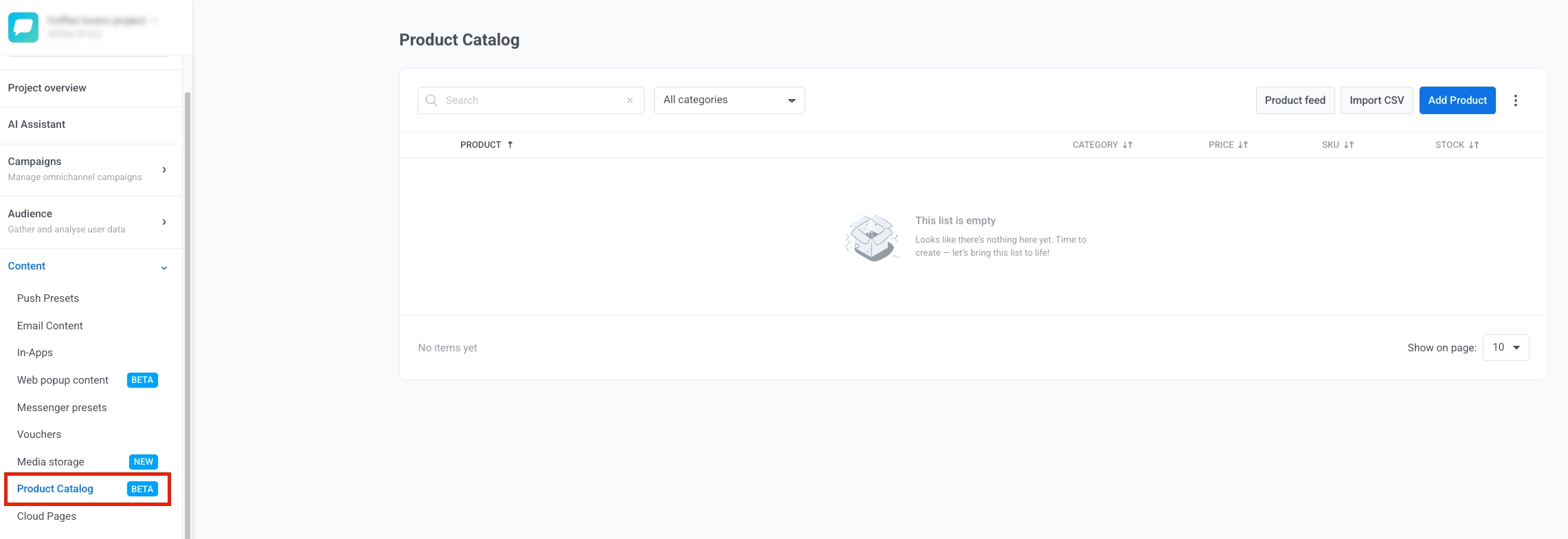
Способы пополнения каталога
Anchor link toЕсть четыре способа добавить товары в каталог. Используйте тот, который подходит для вашей конфигурации, или комбинируйте их:
- Установите приложение Shopify: если ваш магазин работает на Shopify, установка приложения Pushwoosh автоматически подключит фид товаров вашего магазина к каталогу — не нужно вводить URL фида. Этот фид — это публичный
products.jsonShopify, который никогда не включает данные об остатках, поэтому каждый товар попадает с плейсхолдером «не отслеживается/неограниченно», описанным в разделе currentStock. - Подключите фид: укажите Pushwoosh URL вашего существующего фида товаров Google Merchant Center, YML или JSON, и он будет синхронизироваться автоматически. Это лучший вариант, если вы уже поддерживаете фид для другого канала (Google Shopping, Яндекс.Маркет, другой ESP и т. д.).
- Импортируйте CSV: одноразовая или повторяемая массовая загрузка, полезная, если у вас нет активного фида.
- Добавьте товары вручную: создавайте отдельные товары непосредственно в панели управления.
Подключите фид
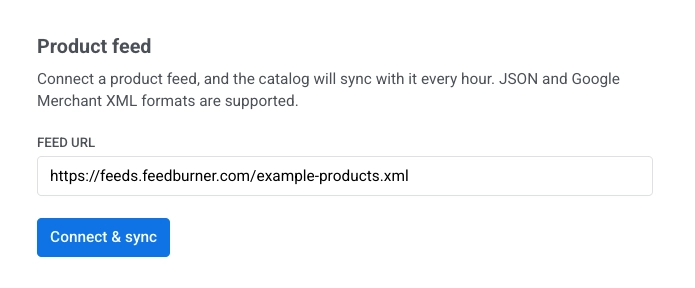
Anchor link to- Нажмите Подключить фид.
- Введите URL вашего фида в поле URL фида.
- Нажмите Проверить фид. Pushwoosh считывает URL, ничего не импортируя, и сообщает о том, что было найдено.
- Как только проверка найдет товары, нажмите Подключить и синхронизировать. Pushwoosh сопоставляет поля фида с каталогом (см. ниже) и сообщает, сколько товаров было добавлено, обновлено или удалено.
Панель открывается так, прежде чем вы введете URL фида:
Проверка сообщает одно из следующего:
- Количество и предпросмотр: количество товаров с предпросмотром до трех названий и цен, например, «8 товаров прочитано, 1 пропущен».
- Оценка минимального количества: проверка считывает только первую страницу фида с пагинацией — например, «прочитано более 250 товаров» для стандартного фида товаров Shopify, который ограничивает страницу 250 элементами. Подключение фида все равно импортирует все страницы.
- Пустой фид: URL отвечает, но ничего в нем не распознается как товар — например, он указывает на защищенный паролем или пустой магазин, или на неверный экспорт. Исправьте URL или содержимое фида, затем проверьте его снова. Такой фид не может быть подключен, так как он ничего не импортирует.
- Ошибка чтения: URL недоступен, требует входа в систему, который фид не может предоставить, или не возвращает действительные данные фида.
После подключения фид синхронизируется автоматически каждый час. Вы также можете в любое время нажать Синхронизировать сейчас, чтобы запустить немедленную синхронизацию. Например, запустите синхронизацию сразу после обновления фида для срочной распродажи. Если фид не изменился с последней синхронизации, Pushwoosh пропускает его повторную обработку и подтверждает, что изменений не было.
Каждая синхронизация сообщает:
- Импортировано: новые или обновленные товары.
- Удалено: товары, удаленные из каталога, потому что их больше нет в фиде.
- Пропущено: записи фида, которые не удалось сопоставить (отсутствуют обязательные поля и т. д.).
Нажмите Отключить фид, чтобы остановить синхронизацию. Уже импортированные товары остаются в каталоге — отключение их не удаляет.
Сопоставление полей Google Merchant XML
Anchor link toЕсли вы подключаете фид Google Merchant, его стандартные теги g: сопоставляются с полями каталога следующим образом:
| Поле фида | Поле каталога |
|---|---|
g:id | ID товара (id) |
title | Название |
description | Описание |
g:image_link | URL изображения |
link | URL товара |
g:price | Цена + валюта |
g:sale_price | Цена со скидкой |
g:product_type | Категория |
g:mpn / g:gtin | SKU |
g:availability | Наличие |
JSON-фид должен быть либо простым массивом товаров, либо объектом с массивом products, используя те же имена полей, что и в структуре CSV ниже (image_url, sale_price, stock и т. д.), а не имена полей каталога, показанные в разделе Поля каталога, которые используют другое соглашение об именовании.
Сопоставление полей YML
Anchor link toЕсли вы подключаете фид YML (Yandex Market Language), его поля <offer> сопоставляются с полями каталога следующим образом:
| Поле фида | Поле каталога |
|---|---|
offer/@id | ID товара (id) |
name, или typePrefix + vendor + model, если name отсутствует | Название |
description | Описание |
url | URL товара |
price | Цена — когда oldprice отсутствует или не больше, чем price |
oldprice | Цена, если она больше, чем price; price в этом случае становится ценой со скидкой, отображаемой рядом с зачеркнутой оригинальной ценой |
currencyId | Валюта |
categoryId | Категория, преобразованная в полный путь (Родитель > Потомок) |
Первый picture | URL изображения |
vendorCode или barcode | SKU |
available="false" | Наличие (0). Отсутствие атрибута available означает, что товар в наличии. |
Импортируйте CSV
Anchor link to- Подготовьте ваш CSV. Создайте файл со столбцами, указанными ниже.
Структура CSV-файла
| Столбец | Обязательный | Примечания |
|---|---|---|
id | Да | Уникальный идентификатор товара |
title | Да | Название товара |
description | Нет | Краткое описание товара |
image_url | Нет | Прямая ссылка на изображение товара |
url | Нет | Ссылка на страницу товара |
price | Нет | Оригинальная цена, десятичный формат (например, 22.00) |
sale_price | Нет | Цена со скидкой, оставьте пустым, если нет |
currency | Нет | 3-буквенный код: USD, EUR и т. д. |
category | Нет | Категория товара |
sku | Нет | Артикул (Stock keeping unit) |
stock | Нет | Количество единиц на складе. Оставляйте пустым только для товаров, которых действительно нет в наличии — см. предупреждение ниже. |
Первая строка должна быть заголовком. Используйте кодировку UTF-8 и значения, разделенные запятыми. Файл не может содержать столбцы, не входящие в этот список — неопознанный столбец приведет к сбою всего импорта, а не только этого столбца.
- Нажмите Импортировать CSV, скачайте шаблон, если вам нужны точные заголовки, и загрузите ваш файл.
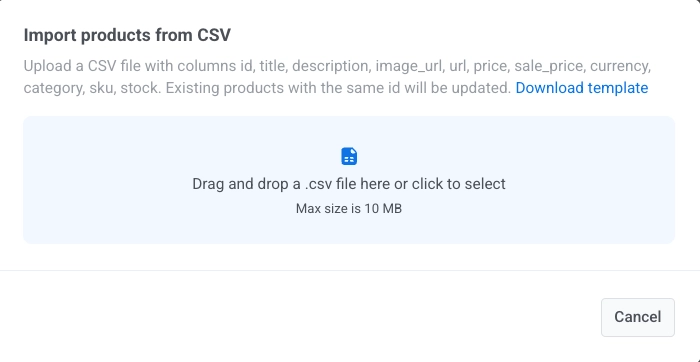
Товары сопоставляются и обновляются по столбцу id, поэтому повторная загрузка того же файла с измененными значениями обновляет существующие товары, а не дублирует их.
Добавьте товары вручную
Anchor link toДобавляйте по одному товару за раз, если вам не нужен фид или CSV.
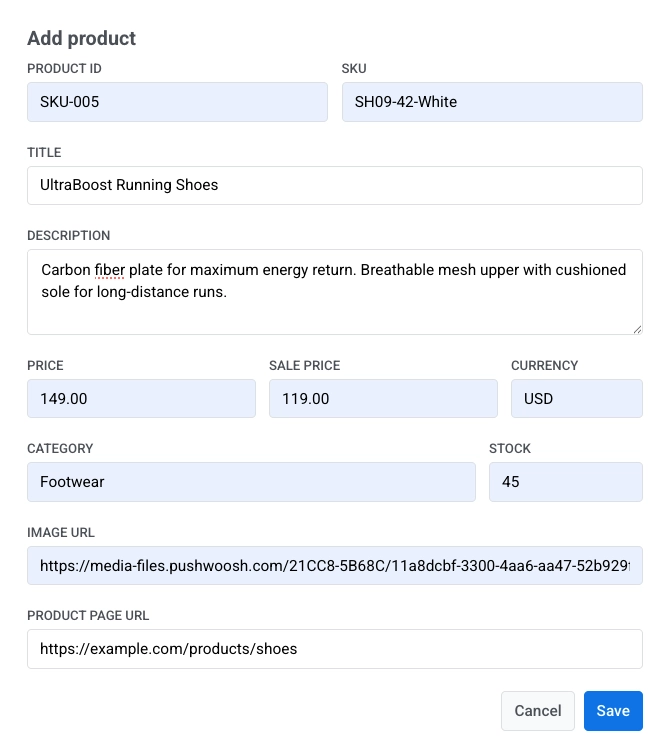
- Нажмите Добавить товар.
- Заполните данные о товаре. См. Поля каталога, чтобы узнать, что означает каждое поле.
- Нажмите Сохранить.
Управляйте вашим каталогом
Anchor link toПосле добавления или импорта товаров они появляются в списке каталога, где вы можете их просматривать и управлять ими.
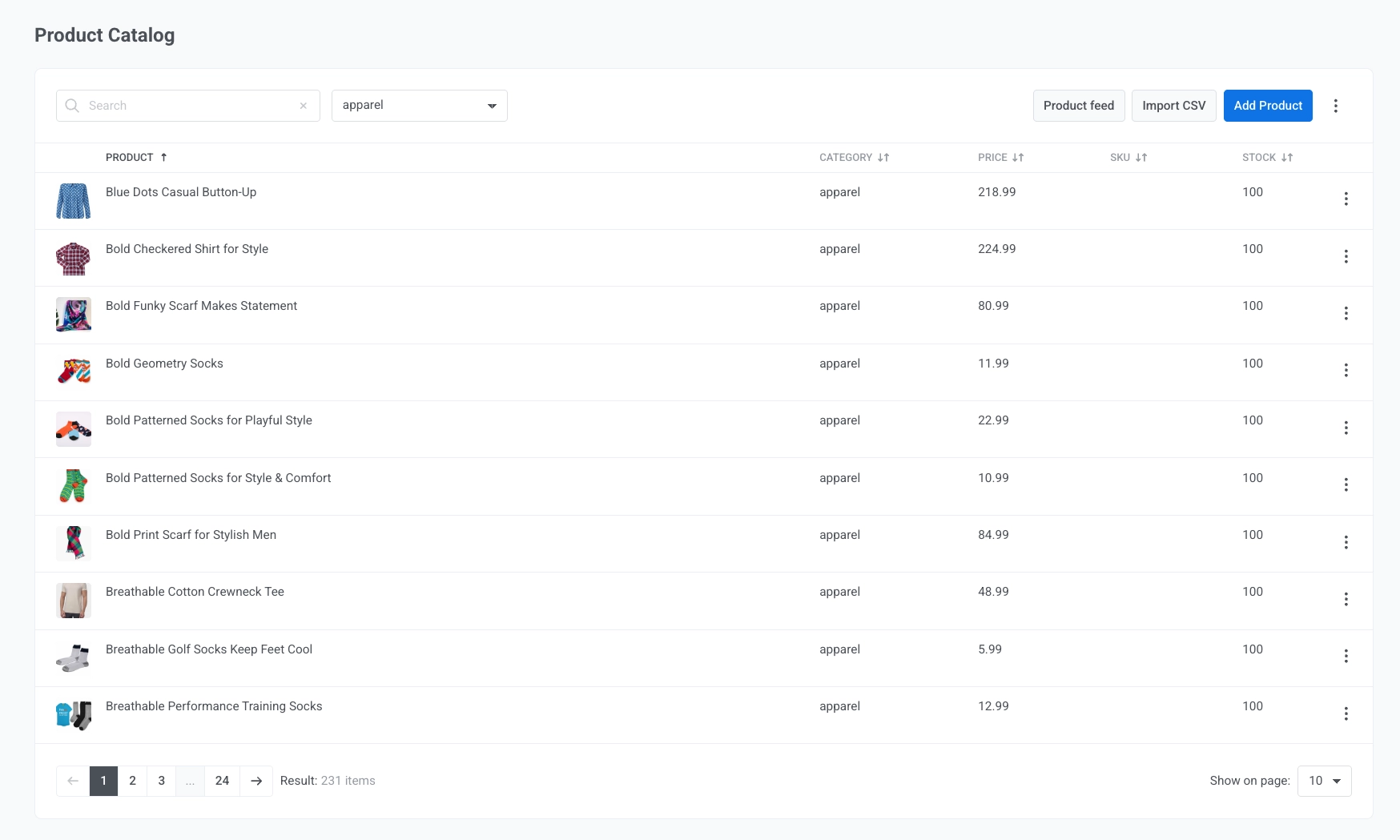
Используйте список каталога, чтобы:
- Искать товары по названию.
- Фильтровать их по категории.
- Просматривать детали товара, такие как категория, цена, SKU и наличие.
- Открыть меню ⋮ в строке товара и нажать Редактировать или Удалить.
- Открыть меню ⋮ в верхней панели и нажать Удалить все товары, чтобы удалить все товары из каталога.
Поля каталога
Anchor link toКаждый товар в каталоге имеет эти поля, независимо от способа его добавления:
| Поле | Описание |
|---|---|
| id | Стабильный идентификатор товара. Используется для сопоставления обновлений из фида или CSV, а также для ссылки на товар из блока «Товары». |
| title | Название товара. |
| description | Описание товара. |
| imageUrl | URL изображения товара. |
| url | Ссылка на страницу товара. |
| price | Обычная цена. |
| salePrice | Цена со скидкой, если есть. Отображается как зачеркнутая оригинальная цена рядом с ценой со скидкой в блоках «Товары». |
| currency | Код валюты для price и salePrice. |
| category | Категория товара, используется для фильтрации и для правил на основе категорий в блоке «Товары». |
| sku | Артикул / код товара. |
| currentStock | Количество на складе. 0 означает, что товар считается отсутствующим: он остается в каталоге, но не будет отображаться в блоках «Товары», которые используют правило каталога. Для не отслеживаемого или неограниченного количества установите высокое значение (99999 или больше) — в списке каталога оно отображается как ∞. |
Поддерживайте ваш каталог в актуальном состоянии
Anchor link toИспользуйте тот же метод, который вы выбрали для пополнения каталога, когда вам нужно добавить товары или обновить существующие:
- Фид: Pushwoosh автоматически синхронизирует подключенный фид каждый час. Откройте Подключить фид и нажмите Синхронизировать сейчас, чтобы немедленно обновить. Новые товары добавляются, измененные поля обновляются, а товары, удаленные из фида, удаляются из каталога. Если синхронизация считывает ноль товаров (например, фид не работает или его URL начинает возвращать пустой ответ), Pushwoosh пропускает эту синхронизацию, не очищая ваш каталог — существующие товары остаются, а в поле Последняя синхронизация отображается Синхронизация не удалась до тех пор, пока последующая синхронизация не пройдет успешно. См. Подключите фид.
- CSV: Загрузите обновленный файл через Импортировать CSV. Товары сопоставляются по id, поэтому новые строки добавляют товары, а измененные строки обновляют существующие без создания дубликатов. См. Импортируйте CSV.
- Вручную: Нажмите Добавить товар, чтобы создать новый элемент, или Редактировать в существующей строке, чтобы обновить один товар. См. Добавьте товары вручную.
Если вы вручную выбираете товары из каталога в блоке «Товары», нажмите Обновить из каталога в настройках блока, чтобы загрузить последние название, описание, цену и изображение в ваш email.
Что вы можете делать с вашим каталогом
Anchor link toКак только в вашем каталоге появятся товары, используйте их в блоке «Товары»: выберите товары вручную или загрузите их с помощью правила каталога. Руководство Как отправить email с товарами из вашего каталога описывает весь процесс, от фиксированного выбора до всегда актуального правила.
Чтобы вместо этого показывать каждому покупателю его брошенную корзину, установите источник блока «Товары» на «Корзина» и следуйте руководству Как настроить кампанию по брошенным корзинам.
Чтобы показывать товары из каталога на сайте, попросите разработчиков добавить рекомендации на сайте с помощью Web SDK. Сначала включите Show recommendations on my website в разделе On-site recommendations каталога, как описано в разделе Включение рекомендаций на сайте.