إعدادات App Inbox المسبقة
إعدادات App Inbox المسبقة تتيح لك إعادة استخدام نفس رسالة الـ inbox في إرسالات Inbox لمرة واحدة وفي عنصر journey الخاص بـ App Inbox، حتى لا تُعيد إنشاء التخطيط والنص والوسائط لكل حملة.
إنشاء إعداد App Inbox مسبق
Anchor link to- اذهب إلى Content > Inbox Presets.
- انقر على Create.
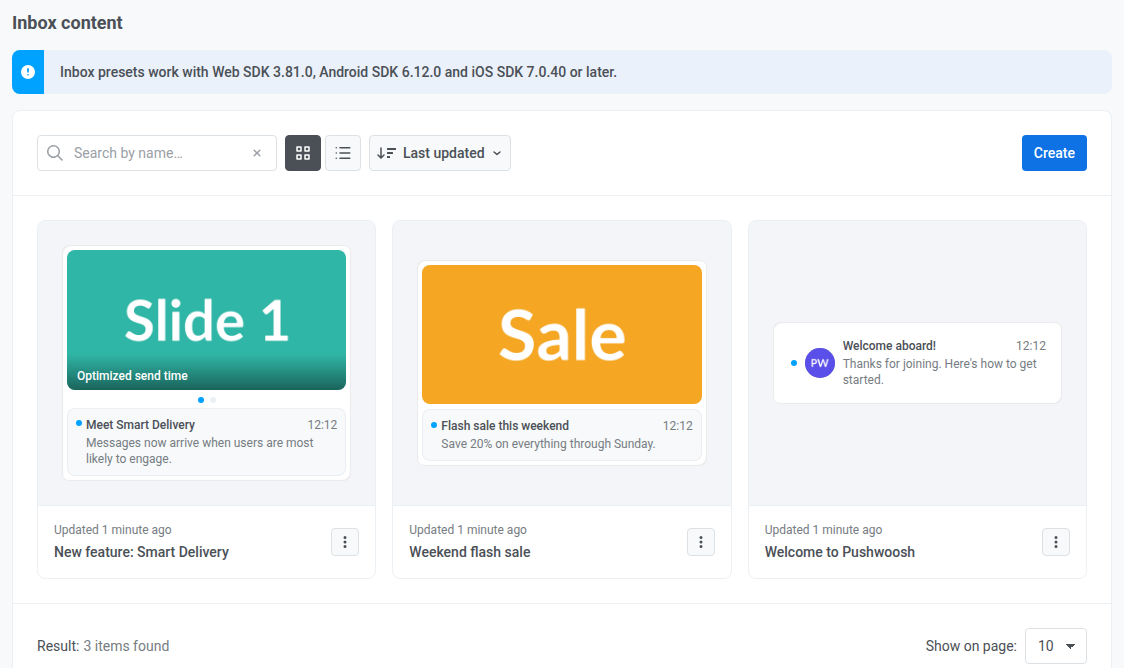
- انقر على اسم الإعداد المسبق بجانب Inbox content: في الأعلى لإعادة تسميته.
إضافة لغات
Anchor link toيمكنك إنشاء نفس الإعداد المسبق بعدة لغات، بنفس طريقة إعدادات push المسبقة:
- اكتب أولاً محتوى اللغة الافتراضية.
- انقر على أيقونة + بجانب Default language.
- اختر اللغات التي تحتاجها.
اختيار نوع التخطيط
Anchor link toفي Layout type، اختر كيف تبدو البطاقة في قائمة الـ inbox. يستخدم كل خيار مزيجًا مختلفًا من الوسائط والنص:
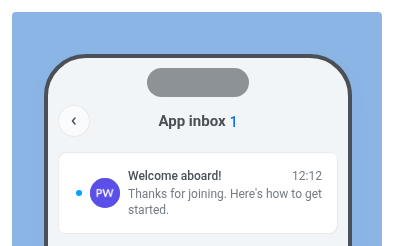
- Classic: أيقونة صغيرة بجانب Title وMessage. بدون صورة كبيرة.
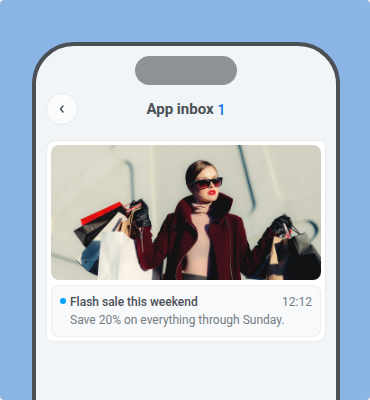
- Captioned: صورة كبيرة واحدة مع Title وMessage تحتها.
- Banner: صورة بعرض كامل فقط. بدون Title أو Message في القائمة.
- Carousel: عدة صور يمكن للمستخدم التمرير بينها. Title وMessage مشتركان، بالإضافة إلى تعليق اختياري على كل شريحة.
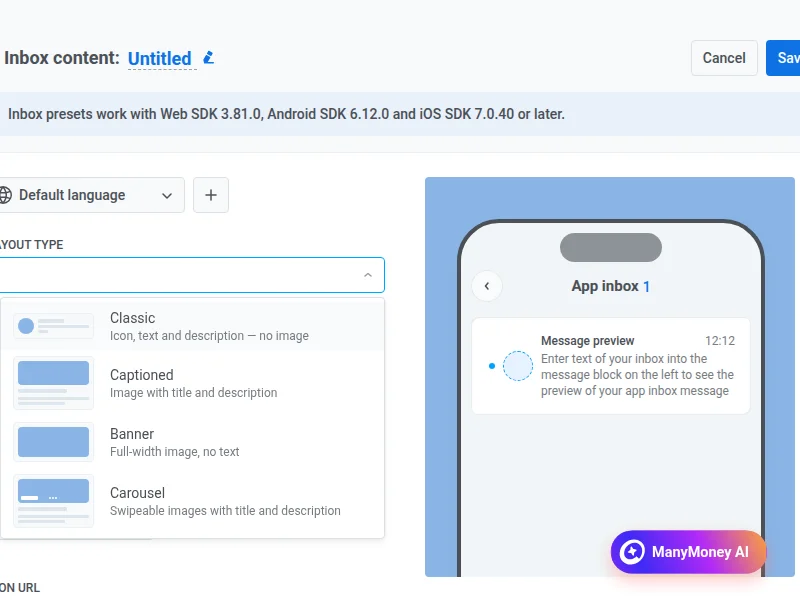
Classic
Anchor link toClassic هو صف القائمة المدمج: أيقونة على اليسار، Title وMessage بجانبها. عيّن Title وMessage للنص في قائمة الـ inbox. عيّن Icon URL على عنوان URL، أو اختر صورة من مساحة تخزين الوسائط. استخدم نسبة العرض إلى الارتفاع 1:1 عندما يمكنك ذلك.
Captioned
Anchor link toCaptioned هو صورة رئيسية واحدة مع نص تحتها. عيّن Title وMessage. عيّن Image URL على عنوان URL، أو اختر صورة من مساحة تخزين الوسائط. استخدم نسبة العرض إلى الارتفاع 1:2 عندما يمكنك ذلك.
Banner
Anchor link toBanner يعرض الصورة فقط: تعرض قائمة الـ inbox صورة بعرض كامل ولا حقول نصية. عيّن Image URL فقط (عنوان URL أو مساحة تخزين الوسائط). استخدم نسبة العرض إلى الارتفاع 1:2 عندما يمكنك ذلك.
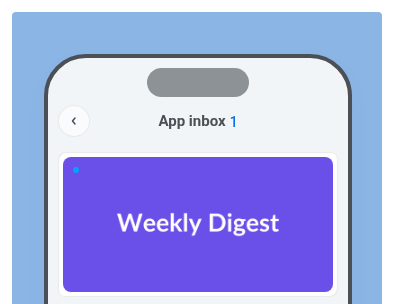
Carousel
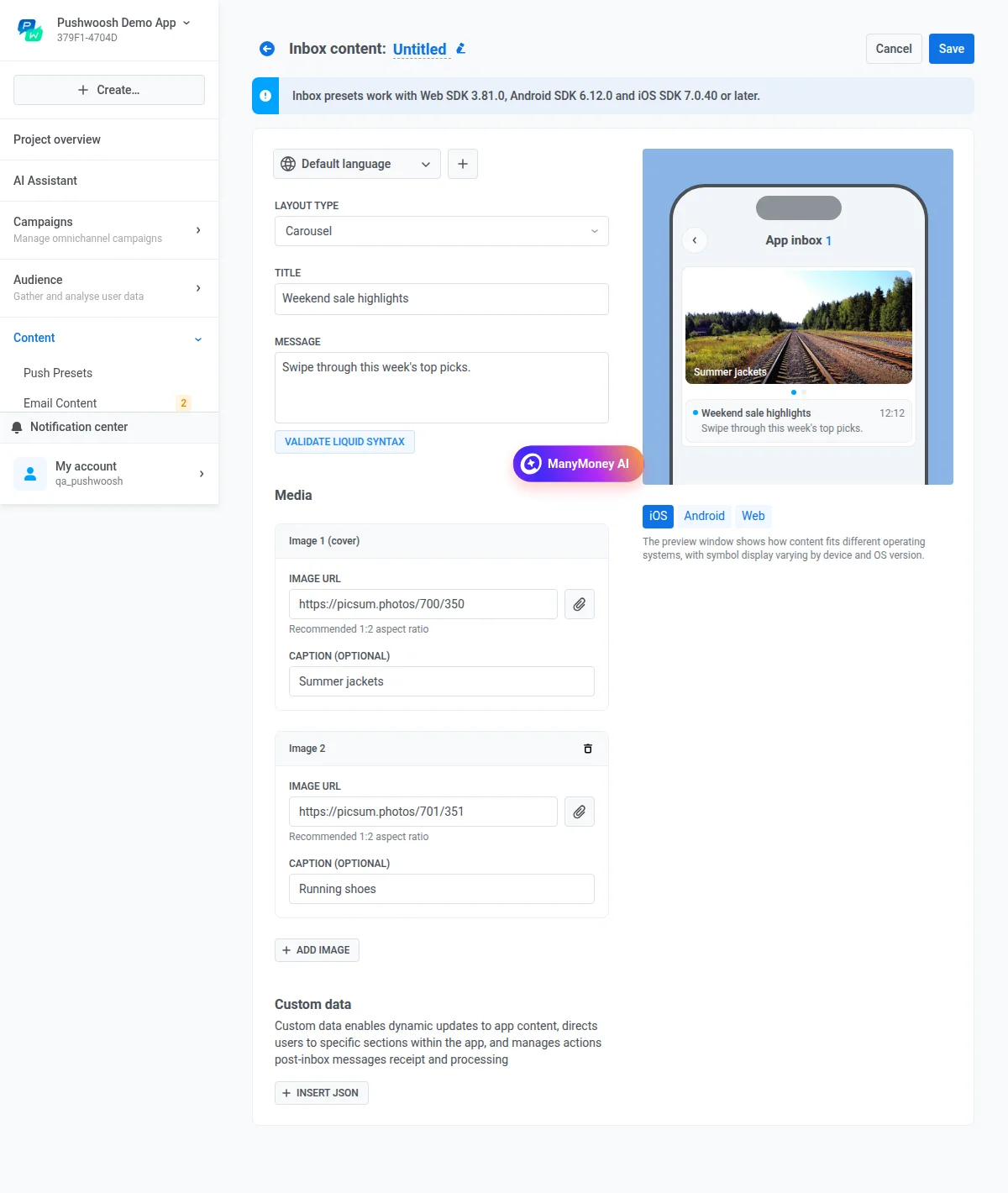
Anchor link toCarousel هو بطاقة متعددة الصور. يمرر المستخدم بين الشرائح. ينطبق Title وMessage على البطاقة بأكملها. يمكن أن يكون لكل شريحة أيضًا Caption خاصة بها. عيّن Title وMessage، ثم في Media عيّن Image URL لكل شريحة. اختياريًا، عيّن Caption على كل شريحة. انقر على Add image لإضافة شريحة أخرى.
التحقق من صيغة Liquid
Anchor link toإذا كنت تستخدم Liquid templates في الرسالة، انقر على Validate Liquid Syntax للتحقق من وجود أخطاء في الصيغة قبل الحفظ.
إضافة بيانات مخصصة
Anchor link toاستخدم البيانات المخصصة عندما يحتاج التطبيق إلى أكثر من نص الـ inbox المرئي، على سبيل المثال لفتح شاشة، أو تمرير معرّف حملة، أو تشغيل منطق بعد أن يفتح المستخدم الرسالة. يرسل Pushwoosh JSON هذا إلى الـ SDK مع الرسالة، بنفس طريقة Custom Data في إعدادات push المسبقة.
انقر على Insert JSON وأدخل كائن JSON يحتوي على أزواج مفتاح-قيمة.
معاينة
Anchor link toتحقق من المعاينة المسماة App inbox (مع عدد الرسائل غير المقروءة) لترى كيف تبدو الرسالة في قائمة الـ inbox. بدّل بين علامات التبويب iOS وAndroid وWeb للتحقق من كل منصة.
انقر على Save بجانب اسم الإعداد المسبق لتخزينه. تظهر الإعدادات المسبقة المحفوظة ضمن Content > Inbox Presets. استخدمها في رسائل Inbox لمرة واحدة وفي عنصر journey الخاص بـ App Inbox.
حذف الإعدادات المسبقة
Anchor link toلحذف عدة إعدادات مسبقة دفعة واحدة، انتقل إلى Content > Inbox Presets، وانقر فوق إجراءات جماعية ← حذف…، وحدد الإعدادات المسبقة، ثم انقر فوق زر حذف أعلى القائمة. يتم تخطي الإعدادات المسبقة المستخدمة في journeys. لا يمكن استعادة الإعدادات المسبقة المحذوفة.