إظهار المحتوى لمستلمين محددين
شرط العرض يُظهر أو يُخفي كتلة لمستلمين محددين بناءً على Tags الخاصة بهم. يحصل كل مشترك على نفس البريد الإلكتروني، لكن كل واحد يرى فقط الكتل المخصصة له.
يمكنك إضافة شرط عرض إلى أي كتلة أو عنصر على لوحة العمل، باستثناء التذييل (Footer).
لتعيين شرط عرض:
- حدد الكتلة أو العنصر على لوحة العمل.
- في اللوحة اليمنى تحت شرط العرض (Display condition)، قم بتشغيل إظهار هذه الكتلة بشكل شرطي (Show this block conditionally) (إظهار هذا العنصر بشكل شرطي (Show this element conditionally) إذا حددت عنصرًا داخل كتلة).

- في الحقل الأول، اختر Tag.
- عيّن المُعامِل والقيمة (على سبيل المثال، is و true).
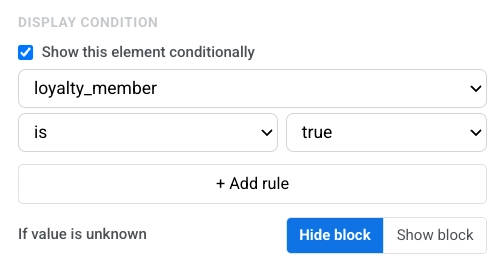
- انقر على + إضافة قاعدة (+ Add rule) لإضافة المزيد من القواعد. اختر كل القواعد (All rules) إذا كان يجب أن تتطابق كل قاعدة، أو أي قاعدة (Any rule) إذا كانت قاعدة واحدة على الأقل كافية.
- تحت إذا كانت القيمة غير معروفة (If value is unknown)، اختر إخفاء الكتلة (Hide block) أو إظهار الكتلة (Show block). هذا يتحكم فيما يحدث عندما لا يكون للـ Tag قيمة لمستلم معين.
عندما يكون الشرط نشطًا، تعرض الكتلة شريحة على لوحة العمل مع ملخص قصير للقاعدة: IF لشرط مستقل، أو ELSE IF / ELSE لكتلة في سلسلة فروع.
إظهار محتوى مختلف لمجموعات مختلفة
Anchor link toشرط العرض الواحد يتحكم فقط في كتلة واحدة: يظهرها المحرر لبعض المستلمين ويخفيها عن الآخرين. لا يستبدل كتلة بأخرى.
استخدم الفرع (Branch) عندما يجب أن يرى مستلمون مختلفون كتلًا مختلفة في نفس المكان، ويجب أن يرى كل مستلم متغيرًا واحدًا بالضبط.
لإعداد سلسلة فروع:
- ضع كتلتين أو أكثر (أو عناصر داخل نفس الكتلة) بجوار بعضها البعض مباشرة على لوحة العمل.
- في الكتلة الأولى، قم بتشغيل إظهار هذه الكتلة بشكل شرطي (Show this block conditionally) (أو إظهار هذا العنصر بشكل شرطي (Show this element conditionally)) وعيّن قاعدة الـ Tag. الكتلة الأولى لا تحتوي على إعداد الفرع (Branch). يتحقق المحرر من هذه الكتلة أولاً.
- في كل كتلة وسطى (كل كتلة أسفل الأولى باستثناء الأخيرة)، قم بتشغيل شرط العرض، وعيّن قاعدة Tag، وعيّن الفرع (Branch) إلى Else if. يتحقق المحرر من هذه الكتلة فقط عندما لا تتطابق شروط الكتل التي فوقها.
- في الكتلة الأخيرة، قم بتشغيل شرط العرض وعيّن الفرع (Branch) إلى Else. لا تقم بإضافة قاعدة Tag. هذه الكتلة هي البديل لكل من لم يتطابق مع أي كتلة أعلاه.
يتحقق المحرر من الكتل بالترتيب من الأعلى إلى الأسفل ويظهر أول كتلة تتطابق. تظل جميع الكتل الأخرى في السلسلة مخفية لذلك المستلم.
سيناريو مثال: إعادة التفاعل حسب آخر عملية شراء
Anchor link toبريد إلكتروني لإعادة التفاعل حيث يرى كل مستلم محتوى بناءً على المدة التي انقضت منذ آخر عملية شراء له.
| الكتلة | الفرع (Branch) | الشرط | ما يراه المستلم |
|---|---|---|---|
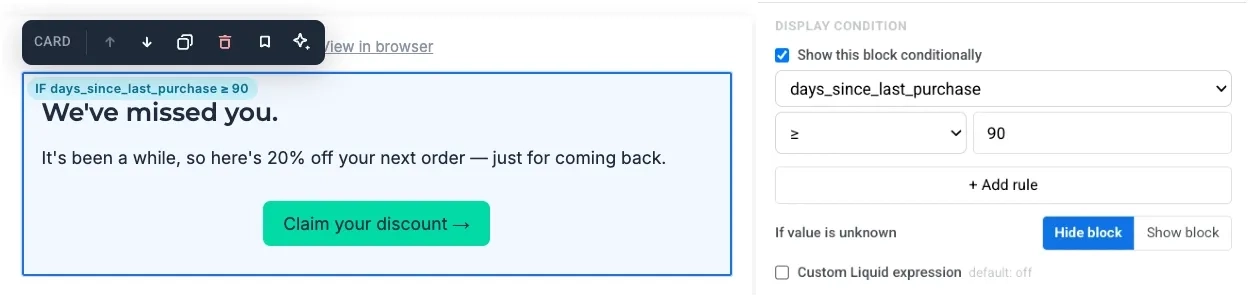
| الكتلة 1 | لا شيء | days_since_last_purchase ≥ 90 | رسالة “نفتقدك” مع خصم لاستعادتك |
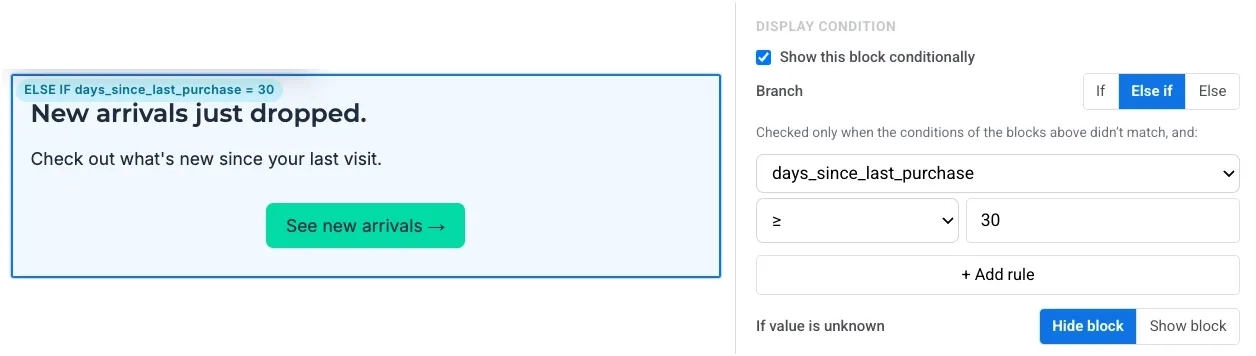
| الكتلة 2 | Else if | days_since_last_purchase ≥ 30 | تذكير بالمنتجات الجديدة |
| الكتلة 3 | Else | لا شيء | كتلة ترويجية عادية |
المستلم غير النشط لمدة 120 يومًا يتطابق مع الكتلة 1 والكتلة 2، لكنه يرى رسالة الاستعادة لأن الكتلة 1 تأتي أولاً. الشخص غير النشط لمدة 30-89 يومًا يرى تذكير المنتجات الجديدة. يرى الجميع الآخرون الكتلة الترويجية العادية.
لإعداد هذا السيناريو:
- أضف ثلاث كتل نص (Text) واحدة تلو الأخرى ككتل منفصلة على لوحة العمل.
- الكتلة 1: قم بتشغيل إظهار هذه الكتلة بشكل شرطي (Show this block conditionally). عيّن
days_since_last_purchase≥90، اترك إذا كانت القيمة غير معروفة (If value is unknown) على إخفاء الكتلة (Hide block)، وأضف نص الاستعادة.
- الكتلة 2: قم بتشغيل شرط العرض. عيّن
days_since_last_purchase≥30، عيّن الفرع (Branch) إلى Else if، وأضف نص المنتجات الجديدة.
- الكتلة 3: قم بتشغيل شرط العرض، عيّن الفرع (Branch) إلى Else، وأضف النص الترويجي العادي. لا تقم بإضافة قاعدة Tag.

كتابة شرط Liquid مخصص
Anchor link toعندما لا يكون منشئ القواعد كافيًا، اكتب الشرط بنفسك في Liquid.
- حدد الكتلة أو العنصر على لوحة العمل.
- تحت شرط العرض (Display condition)، قم بتشغيل تعبير Liquid مخصص (Custom Liquid expression).
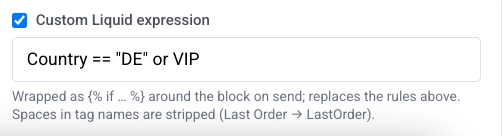
- اكتب شرطك. على سبيل المثال، لإظهار كتلة للمستلمين في ألمانيا أو للمشتركين VIP:
Country == "DE" or VIPيلف المحرر تعبيرك في وسم if من Liquid حول الكتلة عند إرسال البريد الإلكتروني. يحل التعبير المخصص محل أي قواعد تم تعيينها في المنشئ أعلاه.
يتم تحويل أسماء الـ Tags التي تحتوي على مسافات تلقائيًا. على سبيل المثال، Last Order تصبح LastOrder.