Amplitude: تعيين خصائص المستخدم
استخدم Amplitude: تعيين خصائص المستخدم لتحديث ملف تعريف مستخدم Amplitude للرحالة من خطوة في الرحلة، من خلال عملية $identify في HTTP API V2، بحيث ترى الشرائح والمجموعات على جانب Amplitude نفس البيانات الموجودة في Pushwoosh.
يقوم Pushwoosh بتعيين insert_id الخاص بـ Amplitude نيابة عنك من الرحالة وهذه الخطوة. هذا يعني أن نفس الرحالة الذي يمر عبر هذه النقطة المحددة مرتين، على سبيل المثال في جولة ثانية من رحلة متكررة، يقوم بتحديث نفس ملف تعريف Amplitude بدلاً من كتابة حدث تعريف مكرر.
الاستخدامات النموذجية:
- مزامنة العلامات في شرائح Amplitude: ادفع فئة الخطة، أو حالة التجربة، أو علامة أخرى إلى ملف تعريف Amplitude بحيث تتطابق مجموعات Amplitude مع جماهير Pushwoosh.
- الحفاظ على تحديث الملفات الشخصية بدون مهمة مزامنة منفصلة: قم بتحديث الملف الشخصي في خطوة الرحلة المحددة حيث تغيرت العلامة.
- تجنب استدعاءات التعريف المكررة في حلقة: يعني إلغاء التكرار المدمج أن المرور المتكرر عبر هذه النقطة يقوم بتحديث نفس الملف الشخصي بدلاً من الكتابة مرتين.
تكوين النقطة
Anchor link to- اسحب Amplitude: تعيين خصائص المستخدم من قسم التكاملات إلى اللوحة.
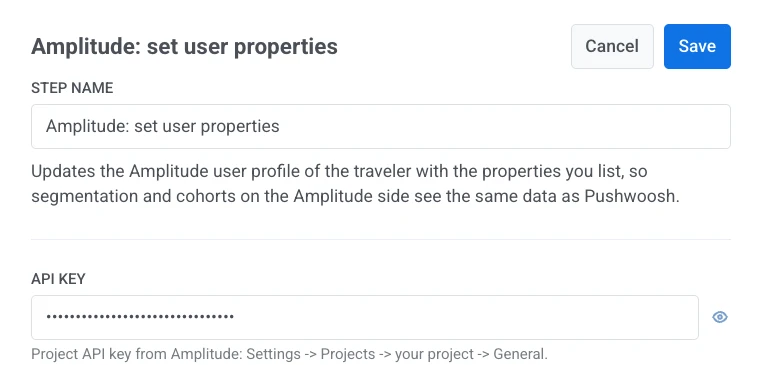
- انقر نقرًا مزدوجًا على النقطة وأدخل اسم الخطوة.
- في مفتاح API، أدخل مفتاح API للمشروع من Amplitude: الإعدادات > المشاريع > مشروعك > عام. يتم تخزينه مقنعًا، مثل رأس سر Webhook. لا يعرضه Pushwoosh أو يعيده أبدًا بمجرد حفظه، ولا يظهر أبدًا في الطلب المخزن للنقطة أو في سجل الاستدعاءات.
- في نقطة نهاية Amplitude، اختر المنطقة التي تم إنشاء مشروع Amplitude فيها:
api2.amplitude.comلمشروع أمريكي،api.eu.amplitude.comلمشروع أوروبي. يتم رفض مفتاح من منطقة من قبل الأخرى.

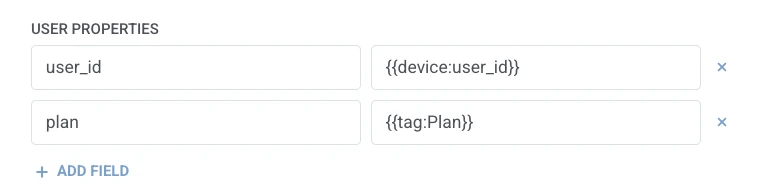
- في خصائص المستخدم، أضف صفًا واحدًا لكل خاصية لتعيينها في ملف تعريف Amplitude. أدخل اسم الخاصية والقيمة. يجب أن تكون الأسماء غير فارغة وفريدة. القيمة التي هي ماكرو رحالة واحد تحتفظ بنوعها الخاص في Amplitude (يصل
{{tag:Age}}كرقم، ويصل{{tag:Trial Ends}}كتاريخ). يتم إرسال أي نص آخر كسلسلة نصية. تستخدم وحدات الماكرو نفس الصيغة المستخدمة في نص Webhook. أو انقر على إدراج قيمة ديناميكية لاختيار سمة أنتجتها خطوة سابقة في هذه الرحلة، على سبيل المثال استجابة LLM أو قيمة Webhook معينة.
- انقر على حفظ.
الاستجابة
Anchor link toيستمر الرحالة إلى أي خطوة تقوم بتوصيلها بعد ذلك على اللوحة.
السمات بعد تشغيل الخطوة
Anchor link to| السمة | ما تحتويه |
|---|---|
amplitude_events_ingested | عدد الأحداث التي استوعبها Amplitude |
كيفية استخدامها في الخطوات اللاحقة
Anchor link toلقد استمر الرحالة بالفعل إلى الخطوة التالية بغض النظر عن هذه السمة. احفظها في Tag باستخدام تحديث ملف تعريف المستخدم إذا كنت بحاجة إلى تأكيد استيعاب التحديث أو التفرع بناءً عليه باستخدام تقسيم الشرط.
الإخفاقات والاستجابات غير المتوقعة
Anchor link toيؤدي الطلب الفاشل إلى إسقاط الرحالة من الرحلة. انظر الأخطاء والطلبات الفاشلة.
سيناريو مثال: الحفاظ على مزامنة ملف تعريف Amplitude للمشترك
Anchor link toيريد فريق تحديث فئة خطة الرحالة في ملف تعريف Amplitude الخاص بهم بمجرد تغييرها في Pushwoosh.
- أضف Amplitude: تعيين خصائص المستخدم مباشرة بعد الخطوة التي تتغير فيها فئة الخطة. في خصائص المستخدم، قم بتعيين
planإلى{{tag:Plan}}. - انقر على حفظ.
بمجرد تشغيل هذا، يعكس ملف تعريف Amplitude تغيير الخطة بدون مهمة مزامنة منفصلة.