استيراد مشتركي الإشعارات الفورية
إذا كنت تنتقل من مزود إشعارات فورية آخر، يمكنك استيراد قاعدة مشتركي الإشعارات الفورية الحالية إلى Pushwoosh من ملف CSV. تستمر الرموز في العمل طالما أن التطبيق لا يزال يستخدم نفس مفتاح APNs أو مشروع Firebase أو بيانات اعتماد HMS. لا يحتاج المستخدمون إلى إعادة تثبيت التطبيق أو منح الإذن مرة أخرى.
يقوم هذا الاستيراد بتسجيل الأجهزة برموز الإشعارات الفورية. لا ينشئ شريحة. تحصل الأجهزة المستوردة على وسم CSV import الذي يمكنك استخدامه لإنشاء شريحة لاحقًا. لاستيراد قائمة من معرفات المستخدم (User IDs) أو معرفات الأجهزة (Hardware IDs) المسجلة بالفعل إلى شريحة بدلاً من ذلك، راجع استيراد شريحة.
المنصات المدعومة
Anchor link toيستورد Pushwoosh رموز الإشعارات الفورية للمنصات المدرجة أدناه فقط.
يقبل عمود device_type تنسيقين مختلفين، اعتمادًا على مصدر ملفك:
- رقم، إذا كان التصدير الخاص بك يستخدم رموز المنصات الخاصة بـ OneSignal.
- كلمة، إذا كان تصديرًا من Amazon Pinpoint أو ملفًا أنشأته يدويًا.
لا تخلط بين التنسيقين في ملف واحد، لأن نفس الرقم يعني منصة مختلفة في كل نظام. قد يؤدي لصق رقم من مصدر غير OneSignal إلى استيراد الأجهزة بصمت تحت المنصة الخاطئة.
| المنصة | رقم device_type في OneSignal | أسماء المنصات المقبولة |
|---|---|---|
| iOS | 0 | ios, apns, apns_sandbox, apns_voip |
| Android | 1 | android, gcm, fcm |
| Amazon | 2 | amazon, adm, fireos |
| Windows | 6 | windows, wns |
| macOS | 9 | macos, osx |
| Huawei (HMS) | 13 | huawei, hms |
يتم تخطي الصفوف التي تحتوي على أي قيمة أخرى (راجع لماذا يتم تخطي الصف)، بما في ذلك:
- أنواع أجهزة إشعارات الويب والبريد الإلكتروني والرسائل القصيرة الخاصة بـ OneSignal.
- المنصات التي لا يدعمها Pushwoosh، مثل Windows Phone المتوقف أو إشعارات Baidu.
لا يمكن نقل اشتراكات إشعارات الويب من أي مزود. يحتاج هؤلاء المستخدمون إلى إعادة الاشتراك من خلال Pushwoosh SDK على موقع الويب الخاص بك.
إعداد ملف CSV
Anchor link toيجب أن يكون حجم ملف CSV الخاص بك أقل من 100 ميغابايت. قم بتسمية الأعمدة تمامًا كما هو موضح أدناه. حالة الأحرف لا تهم. لا يمكنك ربط الأعمدة في واجهة المستخدم، لذا أعد تسمية أي رؤوس لا تتطابق:
| العنوان | يقابل |
|---|---|
identifier | رمز الإشعار الفوري (مطلوب) |
device_type | المنصة (مطلوب) |
external_id أو external_user_id | معرف المستخدم (User ID) |
language | لغة الجهاز |
tags | كائن JSON لقيم الوسوم المخصصة |
invalid_identifier | علامة “غير مشترك” في OneSignal. يتم تخطي الصفوف التي تحمل هذه العلامة |
لا يتم استيراد عمود المنطقة الزمنية، إن وجد، لأن تنسيقه يختلف بين إصدارات التصدير.
مثال على ملف CSV
Anchor link toإليك ملف subscribers.csv يحتوي على جهازين، أحدهما يستخدم اسم منصة والآخر يستخدم رمزًا رقميًا من OneSignal:
| identifier | device_type | external_id | language | tags |
|---|---|---|---|---|
ios-token-0001 | ios | user-1001 | en | {"plan":"pro"} |
android-token-0002 | 1 | user-1002 | en | {"plan":"free"} |
تمثيل subscribers.csv بتنسيق نص عادي:
identifier,device_type,external_id,language,tagsios-token-0001,ios,user-1001,en,"{""plan"":""pro""}"android-token-0002,1,user-1002,en,"{""plan"":""free""}"كيفية الاستيراد
Anchor link to-
اذهب إلى Audience ← Import CSV وحدد بطاقة Import push subscribers.

-
حدد ملف CSV الخاص بك.
-
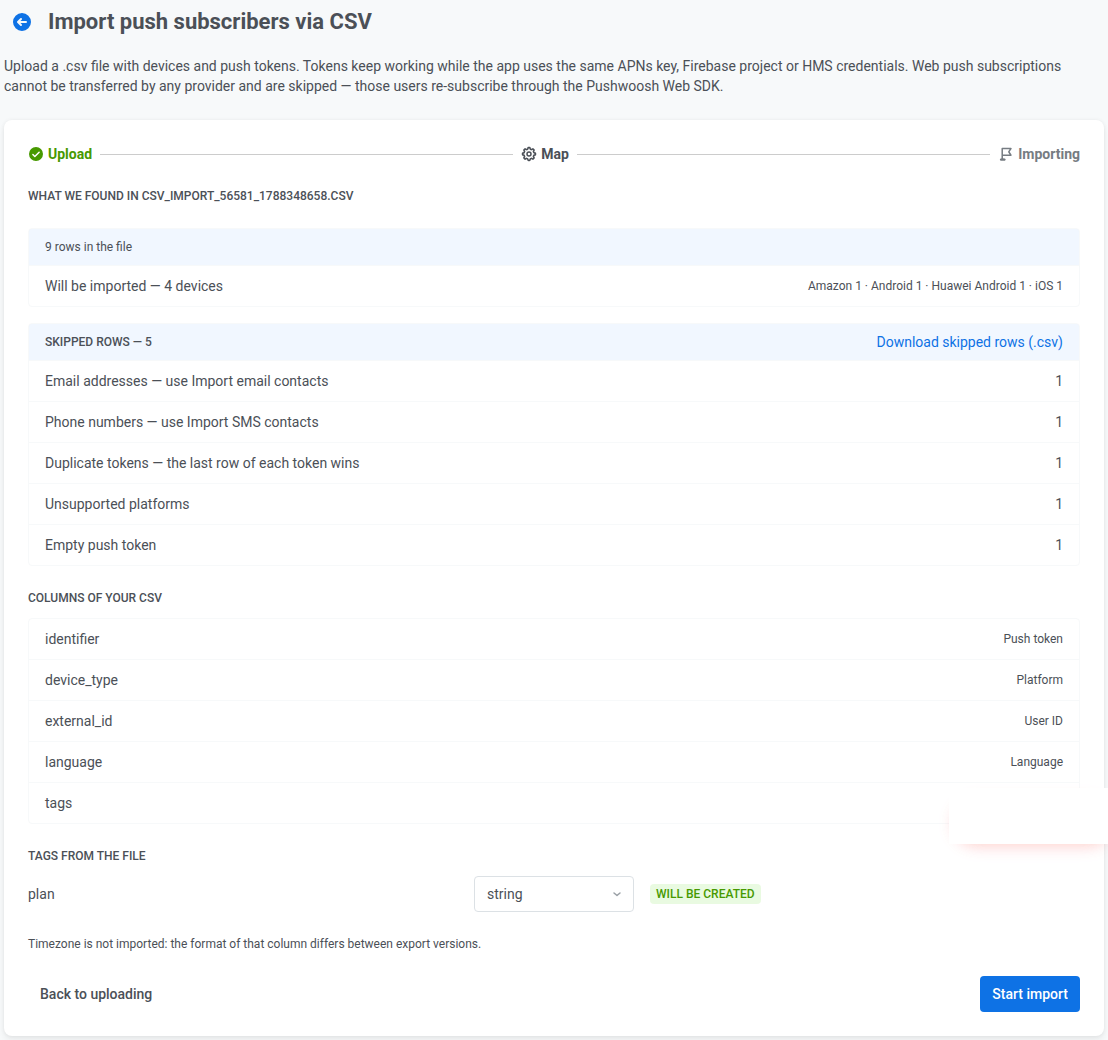
راجع الملخص:
- إجمالي الصفوف في الملف، وعدد الصفوف القابلة للاستيراد، مقسمة حسب المنصة.
- الصفوف التي تم تخطيها، مقسمة حسب السبب، مع رابط لتنزيل الصفوف التي تم تخطيها كملف CSV (الأعمدة الأصلية بالإضافة إلى عمود
skip_reason). - الوسوم المخصصة التي تم اكتشافها في عمود
tags، مع النوع الذي استنتجه Pushwoosh لكل منها (string،integer،boolean، أوdate). إذا كان اسم الوسم موجودًا بالفعل في حسابك بنوع مختلف، فسيتم تمييزه على أنه تعارض. يمكنك تغيير النوع أو تخطي هذا الوسم لهذا الاستيراد.
-
انقر على Start import.
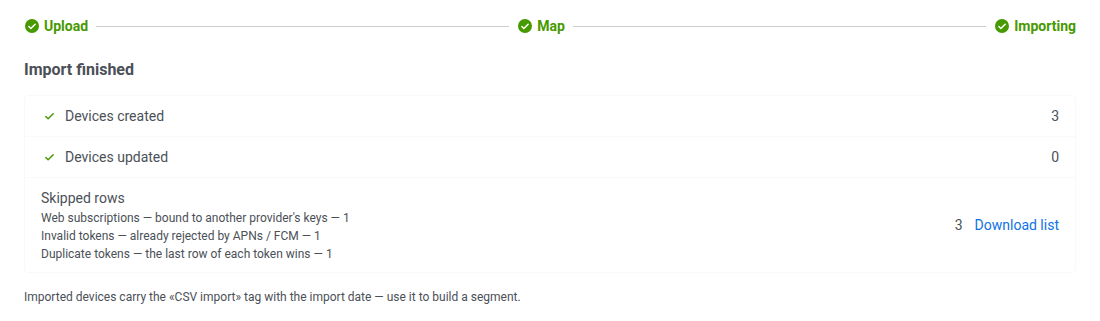
عند انتهاء الاستيراد، تحقق من الأعداد:
- Devices created: الأجهزة الجديدة.
- Devices updated: الأجهزة التي كانت موجودة بالفعل.
- Skipped rows: الصفوف التي تم استبعادها في خطوة الربط (الخطوة 3)، مقسمة حسب السبب، مع رابط تنزيل.
لماذا يتم تخطي الصف
Anchor link toهذه هي أسباب التخطي الموضحة في ملخص الربط وفي ملف CSV للصفوف التي تم تخطيها.
| السبب | التفسير |
|---|---|
| اشتراكات الويب | مرتبطة بمفاتيح مزود آخر. لا يمكن نقلها |
| رموز غير صالحة | مرفوضة بالفعل من قبل APNs / FCM (علامة invalid_identifier في OneSignal) |
| عناوين البريد الإلكتروني | استخدم استيراد جهات الاتصال بدلاً من ذلك |
| أرقام الهواتف | استخدم استيراد جهات الاتصال بدلاً من ذلك |
| رموز مكررة | يظهر نفس رمز الإشعار الفوري أكثر من مرة في الملف. يتم اعتماد الصف الأول وتخطي الصفوف اللاحقة |
| منصة غير مدعومة | المنصة ليست من المنصات التي يدعمها Pushwoosh (مثل Windows Phone, Baidu) |
| منصة غير معروفة | قيمة المنصة غير معروفة على الإطلاق |
| رمز إشعار فوري فارغ | لا توجد قيمة في عمود رمز الإشعار الفوري |
إعادة استيراد نفس الملف
Anchor link toيقوم Pushwoosh بإنشاء معرف الجهاز (HWID) لكل جهاز مستورد من رمز الإشعار الفوري الخاص به، وينتج نفس الرمز دائمًا نفس HWID. لذا فإن استيراد نفس الملف مرة أخرى يقوم بتحديث تلك الأجهزة الموجودة بدلاً من إنشاء نسخ مكررة. من الآمن إعادة تشغيل عملية الاستيراد بعد إصلاح مشكلة في الربط، أو لمزامنة قيم الوسوم بشكل دوري من تصدير جديد.
بعد الاستيراد
Anchor link toيتم وسم الأجهزة المستوردة بـ CSV import، مع قيمة تاريخ ووقت الاستيراد. يتم استخدام نفس الوسم بواسطة استيراد الشريحة. استخدمه لإنشاء شريحة من الأجهزة المستوردة، أو للعثور عليها بشكل فردي في مستكشف المستخدم.