Google Sheets: إضافة صف
استخدم Google Sheets: add row لإلحاق صف بجدول بيانات Google عندما يصل المسافر إلى هذه الخطوة. قم بربط قيم المسافر في الخلايا حتى يتم تحديث الورقة أثناء تشغيل الرحلة، دون الحاجة إلى بناء طلب Webhook بنفسك.
الاستخدامات النموذجية:
- الاحتفاظ بسجل بسيط: في كل مرة يصل فيها شخص ما إلى خطوة، أضف صفًا جديدًا بمعرفه وبعض العلامات. يفتح الفريق الورقة ليرى من مر من خلالها.
- تمرير العملاء المحتملين إلى فريق آخر: اكتب الاسم والبريد الإلكتروني وعلامات أخرى في ورقة مشتركة حتى يتمكن فريق المبيعات أو الدعم من المتابعة.
- تتبع الإكمالات بدون قاعدة بيانات: أنشئ قائمة حية بمن أنهى فرعًا أو حملة عندما يكون جدول البيانات كافيًا.
قبل أن تبدأ
Anchor link toقم بتوصيل حساب Google تحت الإعدادات > تكاملات الطرف الثالث > Google. بعد توصيل Google، قم بتثبيت التكامل حتى تظهر النقطة في منشئ الرحلة.
تكوين النقطة
Anchor link to- اسحب Google Sheets: add row من قسم التكاملات في اللوحة اليسرى إلى لوحة العمل.
- انقر نقرًا مزدوجًا على النقطة وأدخل اسم الخطوة.
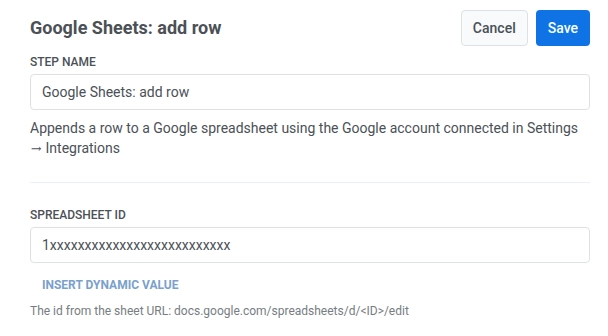
- في معرف جدول البيانات، أدخل المعرف من عنوان URL للورقة:
docs.google.com/spreadsheets/d/<ID>/edit.
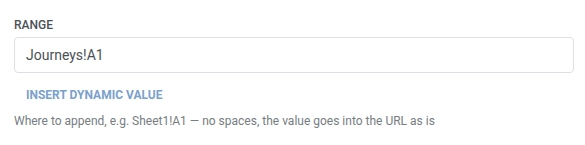
- في النطاق، أدخل المكان الذي سيتم إلحاق الصف به، على سبيل المثال
Sheet1!A1. لا تدرج مسافات. يستخدم Pushwoosh القيمة في الطلب كما هي. القيمة الافتراضية هيSheet1!A1.
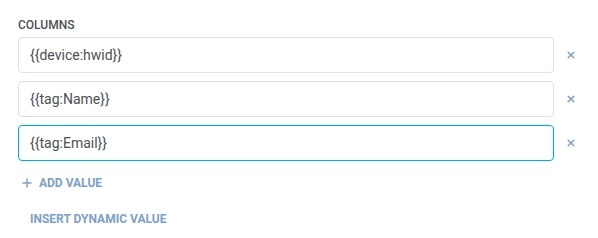
- في الأعمدة، أدخل ما ستكتبه في كل خلية من صف جدول البيانات الجديد، من اليسار إلى اليمين. تذهب القيمة الأولى إلى العمود A، والثانية إلى B، وهكذا. انقر على + إضافة قيمة لكل خلية تالية. استخدم نصًا ثابتًا أو ماكرو للمسافر مثل
{{device:hwid}}،{{tag:Name}}، أو{{tag:Email}}(نفس الماكروات المستخدمة في نص Webhook). أو انقر على إدراج قيمة ديناميكية لاختيار سمة أنتجتها خطوة سابقة في هذه الرحلة، على سبيل المثال استجابة LLM أو قيمة Webhook مرتبطة. احتفظ بقيمة واحدة غير فارغة على الأقل.
- انقر على حفظ.
الاستجابة
Anchor link toيستمر المسافر إلى أي خطوة تقوم بتوصيلها بعد ذلك على لوحة العمل.
السمات بعد تشغيل الخطوة
Anchor link toلا تقوم هذه النقطة بربط أي بيانات استجابة مرة أخرى في الرحلة.
الإخفاقات والاستجابات غير المتوقعة
Anchor link toيؤدي الطلب الفاشل إلى إسقاط المسافر من الرحلة. انظر الأخطاء والطلبات الفاشلة.
سيناريو مثال: تسجيل نشاط الرحلة لجدول بيانات العمليات
Anchor link toيريد فريق سجلًا خفيف الوزن لكل طلب عالي القيمة تعالجه رحلة، دون بناء خط أنابيب لإعداد التقارير.
- أضف عنصر Trigger-based entry وقم بتعيينه ليتم تشغيله عند وقوع حدث
HighValueOrderPlaced. - أضف Google Sheets: add row مباشرة بعده. قم بتعيين معرف جدول البيانات إلى معرف ورقة العمليات والنطاق إلى
Sheet1!A1. في الأعمدة، أضف معرف جهاز المسافر واسمه وقيمة الطلب:{{device:hwid}}،{{tag:Name}}،{{tag:Order Value}}. - انقر على حفظ.
بمجرد تشغيل هذا، يلحق كل طلب عالي القيمة صفًا بالورقة فور حدوثه، جاهزًا للفريق لمسحه دون فتح Pushwoosh.