استيراد وتصدير الترجمات
بدلاً من إنشاء الترجمات باستخدام AI Translate، يمكنك إحضار ترجماتك الخاصة من مزود خدمة ترجمة، أو جدول بيانات، أو إعداد مسبق آخر في Pushwoosh.
افتح Content ← Push presets، افتح الإعداد المسبق، ثم استخدم Import أو Export بجوار محدد اللغة في محرر الإعدادات المسبقة للدفع.

- Export: قم بتنزيل العنوان الحالي، والعنوان الفرعي، والرسالة لكل لغة كملف CSV لترجمتها في مكان آخر أو إعادة استخدامها في إعداد مسبق آخر.
- Import: قم بتحميل ملف CSV أو JSON لتطبيق الترجمات على هذا الإعداد المسبق.
تصدير المحتوى الحالي
Anchor link toانقر على Export لتنزيل عنوان الإعداد المسبق وعنوانه الفرعي ورسالته لكل لغة يحتوي عليها حاليًا، بما في ذلك اللغة الافتراضية، كملف CSV. يبدو اسم التنزيل مثل welcome-series-translations.csv (اسم الإعداد المسبق، محول إلى صيغة slug، ثم -translations.csv).
يبدو الملف كالتالي:
| language | title | subtitle | message |
|---|---|---|---|
| default | مرحبًا بك في تطبيقنا! | شكرًا على التثبيت. | |
| es | ¡Bienvenido a nuestra app! | Gracias por instalar. | |
| de | Willkommen in unserer App! | Danke fürs Installieren. |
استيراد الترجمات إلى الإعداد المسبق
Anchor link toتجهيز الملف
Anchor link toاستخدم ملف CSV من Export بعد تحريره، أو أنشئ ملفًا يطابق نفس التنسيق. يقبل الاستيراد أيضًا ملفات .json.
- language: عمود رأس مطلوب. اكتب كل رمز بنفس الطريقة التي يظهر بها في محدد اللغة، على سبيل المثال
zh-Hantللصينية التقليدية. حالة الأحرف لا تهم (ESوesكلاهما يعمل). إذا عرضت معاينة الاستيراد رمزًا لا يتعرف عليه Pushwoosh، فقم بإصلاحه في الملف واستورده مرة أخرى. لن يتم إرسال تلك اللغة إلى أي شخص حتى يصبح الرمز صالحًا. - title، subtitle، و message: اختياري. يمكن أن تكون الأعمدة بأي ترتيب. العمود الذي تحذفه يُعامل على أنه فارغ لكل صف، تمامًا مثل خلية فارغة في عمود أبقيته. كل صف تالٍ يمثل لغة واحدة.
استخدام ملف JSON بدلاً من CSV
Anchor link toإذا كان مزود الخدمة أو فريقك يرسل بالفعل ملف .json، فإن الاستيراد يقبله أيضًا. لا تحتاج إلى JSON إذا كنت تعمل مع ملف CSV من Export.
-
نفس الحقول الموجودة في CSV:
title،subtitle، وmessage، مجمعة حسب رمز اللغة:{"default": { "title": "Welcome to our app!", "message": "Thanks for installing." },"es": { "title": "¡Bienvenido a nuestra app!", "message": "Gracias por instalar." }} -
نفس الهيكل الذي تستخدمه Presets API لـ
localizedTitle،localizedSubtitle، وlocalizedContent(هذه تطابق أعمدة CSVtitle،subtitle، وmessage). مفيد إذا كنت تصدر الإعدادات المسبقة بالفعل عبر الـ API:{"localizedTitle": { "default": "Welcome to our app!", "es": "¡Bienvenido a nuestra app!" },"localizedContent": { "default": "Thanks for installing.", "es": "Gracias por instalar." }}
استيراد الملف
Anchor link to- انقر على Import بجوار محدد اللغة.
- اختر ملف
.csvأو.json. تعرض المعاينة عدد اللغات التي سيتم تطبيقها، وعدد اللغات الجديدة في هذا الإعداد المسبق، وعدد اللغات التي سيتم تخطيها. - حدد Overwrite languages that already have text فقط إذا كنت تريد أن يحل الملف محل الترجمات الحالية. اتركه غير محدد لملء اللغات الفارغة وإضافة لغات جديدة دون تغيير النص الذي كتبته بالفعل.
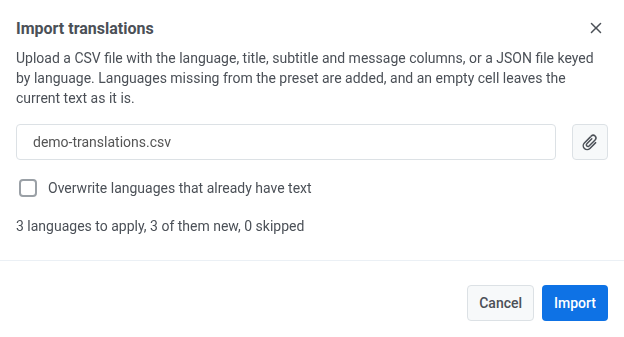
- انقر على Import.
بعد الاستيراد، قم بتبديل محدد اللغة إلى لغة من الملف وتأكد من أن العنوان والرسالة يبدوان صحيحين.
إذا لم يتمكن Pushwoosh من قراءة الملف
Anchor link toبدلاً من المعاينة، سترى إحدى هذه الرسائل:
| الرسالة | متى يحدث ذلك |
|---|---|
| الملف فارغ. | الملف لا يحتوي على محتوى. |
| الملف ليس ملف JSON صالحًا. | لا يمكن تحليل ملف .json (أو ملف يبدأ بـ {) كـ JSON، أو أن مستواه الأعلى ليس كائنًا. |
| ملف CSV لا يحتوي على عمود “language”. | صف الرأس في ملف CSV يفتقد عمود language. |
| الملف لا يحتوي على ترجمات. | كل صف، أو كل إدخال JSON، يفتقد رمز اللغة. |