إعداد مفاتيح المرور
مفاتيح المرور تتيح لك تسجيل الدخول إلى Pushwoosh بدون كلمة مرور. بدلاً من كتابة كلمة مرور أو انتظار رمز SMS، يمكنك تأكيد الوصول باستخدام Touch ID أو Face ID أو Windows Hello أو رمز PIN للجهاز.
ما هي فوائد مفاتيح المرور؟
Anchor link to- تسجيل دخول مقاوم للتصيد الاحتيالي: تعمل مفاتيح المرور فقط على النطاق الصحيح، لذا لا يمكن استخدامها على صفحة تسجيل دخول مزيفة.
- لا يوجد سر مشترك على الخادم: يخزن Pushwoosh مفتاحًا عامًا فقط، والذي لا يمكن استخدامه لتسجيل الدخول بمفرده.
- تدفق تسجيل دخول أسرع: لتسجيلات الدخول باستخدام مفتاح المرور، قم بتأكيد الوصول باستخدام Touch ID أو Face ID أو Windows Hello أو رمز PIN للجهاز بدلاً من إدخال كلمة مرور ورمز SMS.
- حماية أفضل من رموز SMS: لا ترتبط مفاتيح المرور برقم هاتفك، مما يقلل من مخاطر تبديل بطاقة SIM.
تمكين مفاتيح المرور في Pushwoosh
Anchor link toلإضافة مفتاح مرور:
-
اذهب إلى حسابي (My Account) > إعدادات الحساب (Account settings).
-
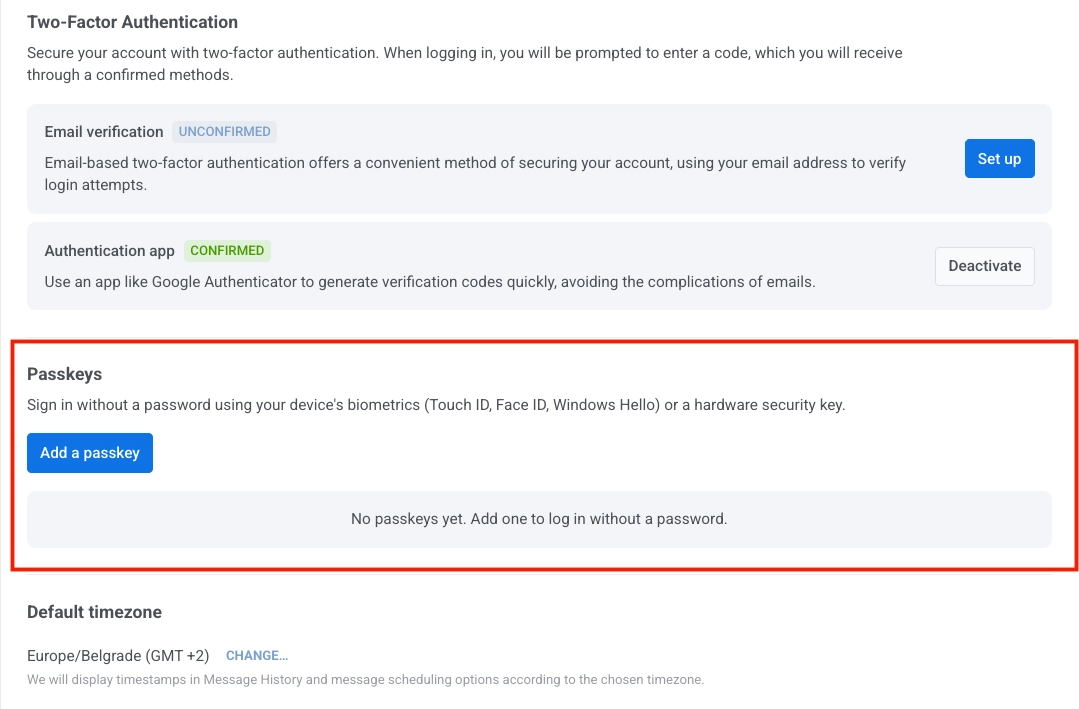
في قسم مفاتيح المرور (Passkeys)، انقر على إضافة مفتاح مرور (Add a passkey).
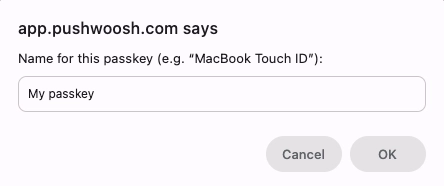
- أدخل اسمًا لمفتاح المرور، ثم انقر على موافق (OK).
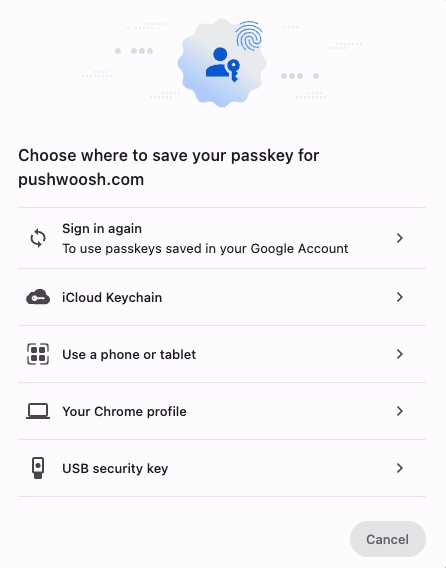
- حدد مكان حفظ مفتاح المرور.
خيارات تخزين مفتاح المرور
Anchor link toعند حفظ مفتاح مرور، يمكنك الاختيار من بين عدة خيارات للتخزين.
- تسجيل الدخول مرة أخرى (حساب Google): يحفظ ويزامن مفتاح المرور عبر الأجهزة المرتبطة بحساب Google الخاص بك. يعتمد توفره على الأجهزة الأخرى على إعدادات حساب Google ومزامنة Chrome. يُستخدم عادةً عند تسجيل الدخول باستخدام Chrome واستخدام مدير كلمات المرور في Google.
- سلسلة مفاتيح iCloud: تحفظ وتزامن مفتاح المرور عبر أجهزة Apple الخاصة بك، بما في ذلك Mac و iPhone و iPad. يُستخدم عادةً عندما تكون أجهزتك الرئيسية في نظام Apple البيئي.
- استخدام هاتف أو جهاز لوحي: يتيح لك مسح رمز QR واستخدام جهاز محمول قريب كمزود لمفتاح المرور. استخدم هذا الخيار عندما تحتاج إلى تسجيل الدخول من جهاز كمبيوتر مكتبي دون حفظ مفتاح مرور على هذا الكمبيوتر.
- ملف تعريف Chrome الخاص بك: يحفظ مفتاح المرور في ملف تعريف Chrome الحالي على هذا الجهاز. يعتمد توفره على الأجهزة الأخرى على إعدادات مزامنة Chrome ومدير كلمات المرور في Google.
- مفتاح أمان USB: يحفظ مفتاح المرور على مفتاح أمان FIDO مادي مثل YubiKey. يُستخدم عادةً في البيئات عالية الأمان أو حيث تكون المصادقة القائمة على الأجهزة مطلوبة.
يعتمد توفر مفتاح المرور على متصفحك ونظام التشغيل وإعدادات مزود مفتاح المرور المحدد.
-
أكمل خطوة التأكيد المعروضة لخيار التخزين الذي حددته. على سبيل المثال، إذا اخترت سلسلة مفاتيح iCloud، قم بالتأكيد باستخدام Touch ID.
-
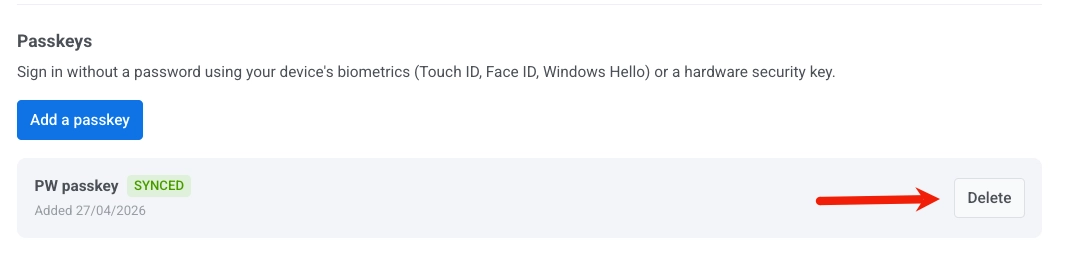
ارجع إلى إعدادات الحساب (Account settings) وتحقق من ظهور مفتاح المرور الجديد في قائمة مفاتيح المرور (Passkeys) بحالة تمت المزامنة (Synced).
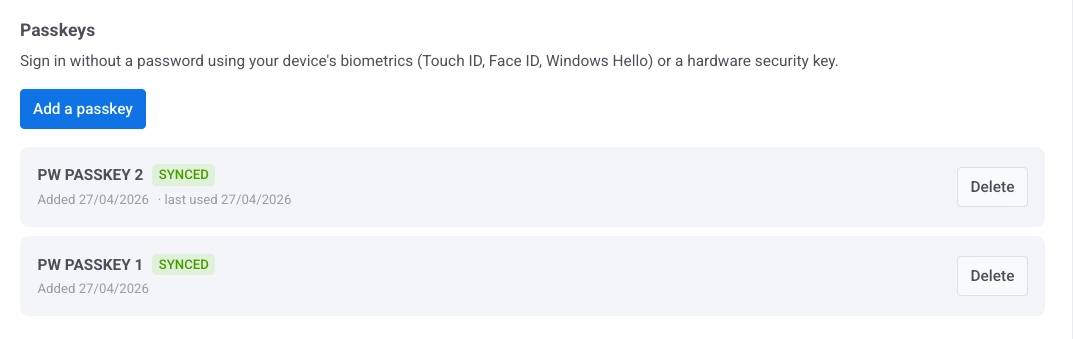
إذا أظهر مفتاح المرور حالة خطأ، فهذا يعني أن خطوة الحفظ لم تكتمل بنجاح. انقر على إضافة مفتاح مرور (Add a passkey) وحاول مرة أخرى.
حذف مفتاح مرور
Anchor link to- اذهب إلى حسابي (My Account) > إعدادات الحساب (Account settings).
- في قسم مفاتيح المرور (Passkeys)، ابحث عن مفتاح المرور الذي تريد إزالته.
- انقر على حذف (Delete) بجواره.
تسجيل الدخول باستخدام مفتاح مرور
Anchor link toعند تسجيل الدخول إلى Pushwoosh، يمكن استخدام مفتاح المرور بطريقتين:
- إذا كان مفتاح المرور متاحًا، فقد يقترحه متصفحك تلقائيًا عند إدخال اسم المستخدم أو البريد الإلكتروني.
- إذا لم يظهر أي اقتراح، أدخل اسم المستخدم أو البريد الإلكتروني، انقر على تسجيل الدخول (Sign in)، ثم انقر على تسجيل الدخول باستخدام مفتاح المرور (Sign In With Passkey).
قم بتأكيد تسجيل الدخول على جهازك باستخدام القياسات الحيوية أو رمز PIN للجهاز.