Auto-reports
هذا المحتوى غير متوفر بلغتك بعد.
An auto-report emails the project’s message statistics from the Project overview page as a CSV file on a schedule you set: every day, every week, or every month. Use it to deliver push and email results to people who don’t open the Control Panel, such as managers or an agency. To download the same CSV once for any period, use Export statistics instead.
Open auto-reports
Anchor link to- Go to Project overview.
- Click Auto-reports next to Export statistics.

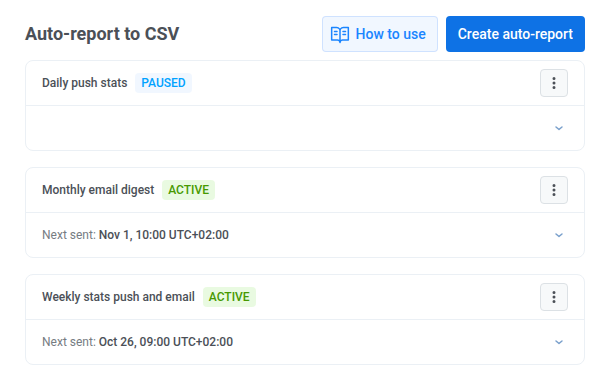
The drawer lists the project’s auto-reports. Each card shows the report name and its status. Once a report has been sent, the card also shows Last sent. An active report also shows Next sent. Both times are in the report’s timezone.
Create an auto-report
Anchor link to- In the drawer, click Create auto-report.
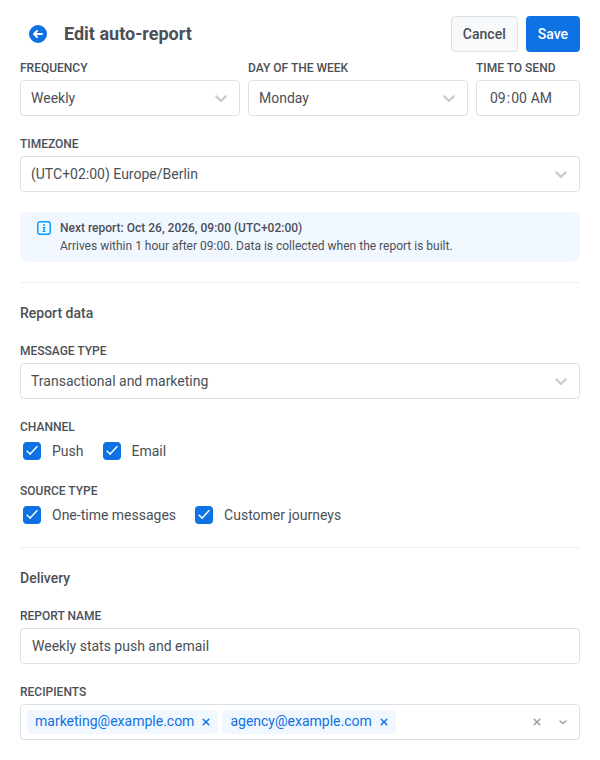
- In Frequency, choose Daily, Weekly, or Monthly.
- For a weekly report, choose the Day of the week. For a monthly report, enter the Day of the month, from 1 to 31.
- Set Time to send.
- Choose the Timezone. It defaults to the timezone in your profile.
- In Message type, choose Transactional and marketing, Only transactional, or Only marketing.
- In Channel, select Push, Email, or both.
- In Source type, select One-time messages, Customer journeys, or both.
- Check Report name. Pushwoosh builds it from the frequency and channels, for example “Weekly stats push and email”. Type your own name to replace it.
- In Recipients, type an email address and press Enter. Repeat for each recipient, up to 25. Your own email is already added.
- Click Create.
The Next report line under the timezone shows the date and time of the next send for the current settings, and the report arrives within an hour after that time. Editing a report opens the same form. Here it shows a weekly report:
A report name must be unique within the project. If another auto-report already uses it, the form shows “An auto-report with this name already exists in the project”. Change the name and click Create again.
A project can have up to 25 auto-reports. When it has 25, Create auto-report is unavailable until you delete one.
What period each report covers
Anchor link toEach report contains the statistics for the last full period before the send day:
- Daily: the previous day.
- Weekly: the 7 days before the send day. A report sent on Monday covers the previous Monday through Sunday.
- Monthly: the previous calendar month.
The send day is taken in the report’s timezone, and the days of the period are counted in UTC. For example, a daily report sent on October 20 covers October 19 from 00:00 to 24:00 UTC.
If you set a monthly report to a day the month doesn’t have, such as 31 in a 30-day month, it’s sent on the last day of that month.
If nothing was sent in the period, the report still arrives. Its CSV file contains only the column headers.
What the email contains
Anchor link toThe report arrives from Pushwoosh Team (help@pushwoosh.com), usually 5–10 minutes after the time you set. Its subject is the report name and the period, for example “Weekly stats push and email — Oct 13 – Oct 19, 2026”. The email contains:
- CSV attachment: the file is attached if it’s up to 768 KB. A larger file is only available through Download CSV.
- Download CSV: a link to the file. The link works for 7 days after the send.
- Open Project overview: a link to the project in the Control Panel.
- Unsubscribe from this report: a personal link for each recipient. It removes only that recipient from only this report.
The CSV file has one row per message or journey message for the period, with its channel, type, title or subject, journey name, preset, status, and send time, and its sent, delivered, opened, clicked, error, and unsubscribe counts.
Manage auto-reports
Anchor link toOpen a card’s menu (⋮) to manage the report:
- Edit: change any setting in the same form, then click Save.
- Pause: stop scheduled sends. The report keeps its settings, and the card shows Paused.
- Resume: restart scheduled sends of a paused report. The next send is counted from the moment you resume, and sends missed during the pause aren’t made up.
- Send now: build and email the report right away, without waiting for the schedule.
- Delete: remove the report permanently after you confirm.
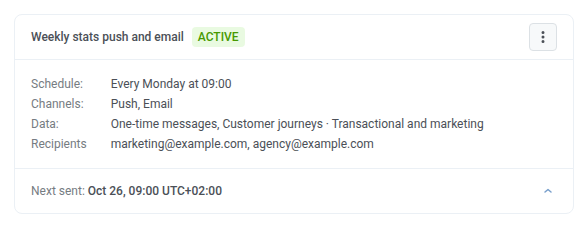
To see a report’s schedule, channels, data filters, and recipients, click the arrow at the bottom right of its card.
Send a report now
Anchor link toSend now builds and emails the report right away. It covers the same period a scheduled send would cover if it ran at that moment. For a daily report, that’s the previous day.
- You can send each report manually once per hour. A second attempt within the hour shows how many minutes are left.
- Last sent on the card updates to the time of the manual send. The next scheduled send stays the same.
- Send now isn’t available for a report with no recipients.
- Send now on a paused report shows the error “the report is paused, resume it to send” and doesn’t use up the hourly limit. Resume the report first.
Report statuses
Anchor link toThe card status shows whether the report is being sent:
- Active: the report is sent on schedule.
- Paused: scheduled sends are stopped until you resume the report.
- No recipients: every recipient unsubscribed from the report, so nothing is sent. To restart it, click Edit in the card’s menu and add recipients.
Who can manage auto-reports
Anchor link toAnyone who can see the project can see its auto-reports. To create, edit, pause, resume, delete, or send a report, a user needs permission to modify the project. Learn more about user permissions.