العمل مع AI Assistant
استخدم هذه الصفحة لبدء العمل مع AI Assistant وللتحقق من التغييرات التي يجريها في حسابك أو الموافقة عليها أو التراجع عنها.
البدء
Anchor link toمنح الموافقة
Anchor link toللسماح لـ AI Assistant بالتصرف في حسابك، امنح الموافقة أولًا. بدون موافقة، يظل بإمكانه الإجابة عن الأسئلة والبحث في الوثائق، لكنه لا يستطيع قراءة بيانات حسابك أو إجراء تغييرات.
-
سجّل الدخول إلى حساب Pushwoosh الخاص بك.
-
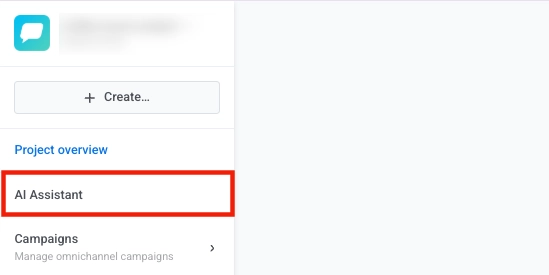
انقر على زر AI Assistant.
-
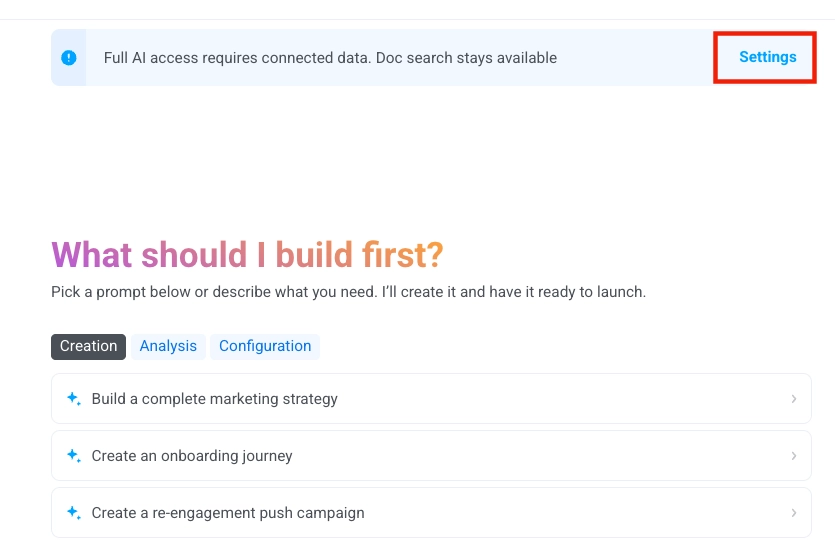
في الجزء العلوي من نافذة الدردشة، انقر على أيقونة الترس.
-
حدد معالجة البيانات (Data processing) من القائمة.
-
في نافذة الموافقة على معالجة البيانات، حدد الأتمتة الكاملة (Full Automation).
-
انقر على تطبيق (Apply).

وضعا الأتمتة الكاملة والمساعد العام
Anchor link toيعتمد ما يمكن لـ AI Assistant فعله على ما إذا كنت قد منحت الموافقة:
| الوضع | ما يمكن لـ AI Assistant فعله |
|---|---|
| الأتمتة الكاملة (Full Automation) (تم منح الموافقة) | يقرأ بيانات حسابك ويجري تغييرات نيابةً عنك. تمر مطالباتك والاستجابات التي يتم إنشاؤها واستدعاءات الأدوات عبر معالجين فرعيين معتمدين للذكاء الاصطناعي. |
| المساعد العام (General Assistant) (بدون موافقة) | يجيب عن الأسئلة، ويشرح كيفية عمل الميزات، ويبحث في وثائق Pushwoosh وأفضل الممارسات، ويقدم إرشادات بناءً على ما تصفه. لا يمكنه الوصول إلى بيانات حسابك أو بناء الحملات أو إجراء تغييرات. |
للتبديل بين الوضعين، انقر على أيقونة الترس في الجزء العلوي من الدردشة، وحدد معالجة البيانات (Data processing)، واختر وضعًا، ثم انقر على تطبيق (Apply).
بدء محادثة
Anchor link to-
انقر على اسم الدردشة في الجزء العلوي من نافذة AI Assistant.
-
حدد محادثة جديدة (New conversation) من القائمة المنسدلة.

-
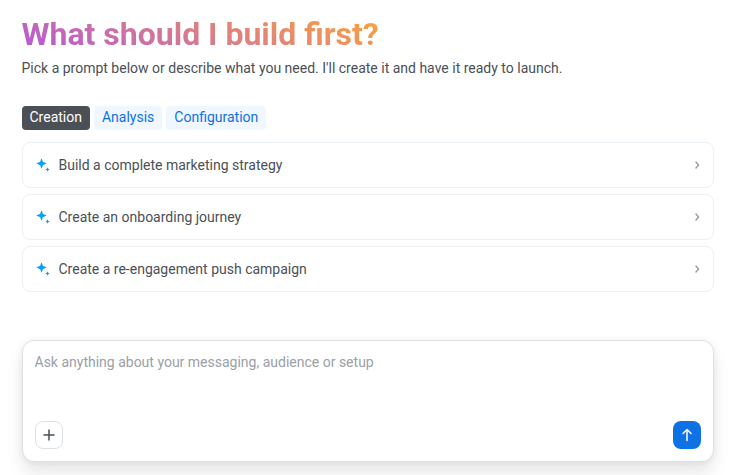
اختر مطالبة مقترحة، أو اكتب طلبك الخاص في مربع إدخال الدردشة. لمزيد من الأمثلة، راجع مكتبة المطالبات.
أثناء عمل AI Assistant
Anchor link toإيقاف الاستجابة
Anchor link toلإيقاف AI Assistant في منتصف الاستجابة، انقر على إيقاف الإنشاء (Stop generation).
متابعة طلب غير مكتمل
Anchor link toلا يمكن لـ AI Assistant تنفيذ سوى عدد محدود من الخطوات (استدعاءات الأدوات والردود) لكل طلب، لذا قد يتوقف الطلب الكبير في منتصفه. عندما يحدث ذلك، تظهر لافتة مع زر متابعة (Continue). انقر على متابعة (Continue) للسماح لـ AI Assistant بإنهاء الطلب من حيث توقف. يبقى الطلب غير مكتمل حتى تنقر على متابعة (Continue) أو ترسل رسالة أخرى.
توفير مساحة في محادثة طويلة
Anchor link toيُظهر مربع إدخال الدردشة مدى امتلاء المحادثة. عندما تكون ممتلئة تقريبًا، انقر على ضغط السياق (Compact context) في مربع إدخال الدردشة. يلخّص AI Assistant المحادثة لإفساح المجال لرسائل جديدة.
الموافقة على الإجراءات قبل تنفيذها
Anchor link toيطلب AI Assistant موافقتك قبل أن يرسل رسائل أو يغيّر حسابك. يعرض بطاقة قرار (Decision card) في الدردشة، ولا يتغير شيء حتى توافق عليها.
الإجراءات التي تتطلب موافقة
Anchor link to- إرسال الرسائل
- تحديث الكائنات أو حذفها
- تغيير التكوين أو الفوترة أو صلاحيات الوصول
- تحرير قوالب البريد الإلكتروني
- تغيير تحديد التكرار (frequency capping)
- إنشاء كائنات ذات نطاق تأثير واسع: رموز API، ودعوات الحساب، والنوافذ المنبثقة، والوسائط الغنية (rich media)، وتكاملات الجهات الخارجية
الإجراءات التي تُنفَّذ دون موافقة
Anchor link to- إنشاء معظم الكائنات الجديدة: الشرائح، والرحلات، والعلامات، والمناطق الجغرافية، والحملات، ومجمعات القسائم، وأجهزة الاختبار، وغير ذلك. تبدأ الشريحة أو الرحلة التي تُنشأ بهذه الطريقة كمسودة ولا تؤثر في المستخدمين حتى تطلقها. أما عمليات الإنشاء الأخرى، مثل العلامة أو المنطقة الجغرافية، فتسري فورًا، لأنها تضيف شيئًا جديدًا بدلًا من تغيير بيانات موجودة أو إزالتها.
- تشغيل تسجيل أجهزة الاختبار من التطبيق. يتوقف تلقائيًا بعد ساعة واحدة.
- أي إجراء في دردشة الإعداد الأولي التي تُجرى لمرة واحدة.
الموافقة على إجراء أو رفضه
Anchor link to-
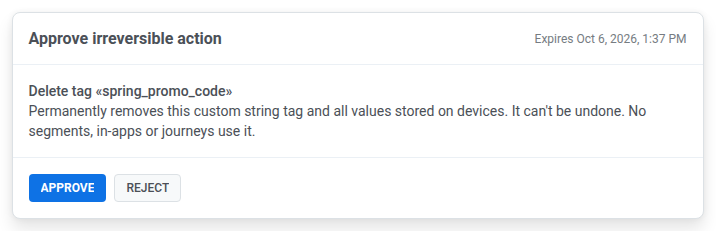
اقرأ بطاقة القرار التي تظهر في الدردشة. تُظهر الإجراء، وسبب رغبة AI Assistant في تنفيذه، وتحذيرًا إذا كان الإجراء لا يمكن التراجع عنه. عند إرسال رسالة أو بدء رحلة، تُظهر أيضًا عدد المستخدمين الذين سيصل إليهم الإجراء، بمجرد معرفة ذلك. بمجرد موافقتك، يُنفَّذ الإجراء فورًا، دون تأكيد ثانٍ.
-
انقر على موافقة (Approve) لتنفيذ الإجراء، أو رفض (Reject) لإلغائه. في كلتا الحالتين، يبلّغ AI Assistant عن النتيجة في الرسالة نفسها.
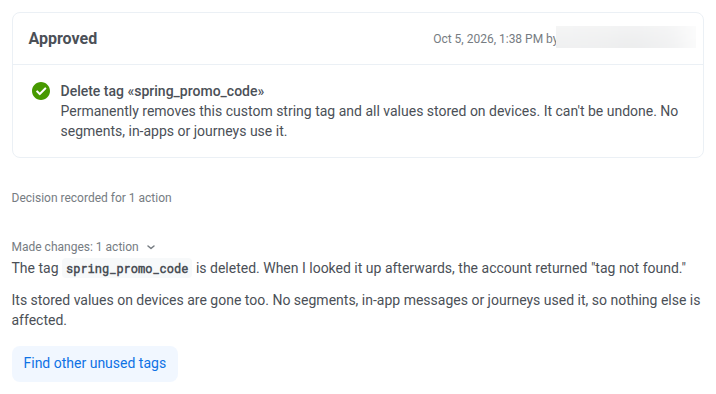
يُنفَّذ الإجراء بأذونات الشخص الذي يوافق عليه. بعد اتخاذ قرار بشأن البطاقة، تعرض البطاقة من وافق عليها أو رفضها ومتى.
لتنفيذ إجراء مرفوض لاحقًا، اطلب من AI Assistant اقتراحه مرة أخرى.
الموافقة على عدة إجراءات دفعة واحدة
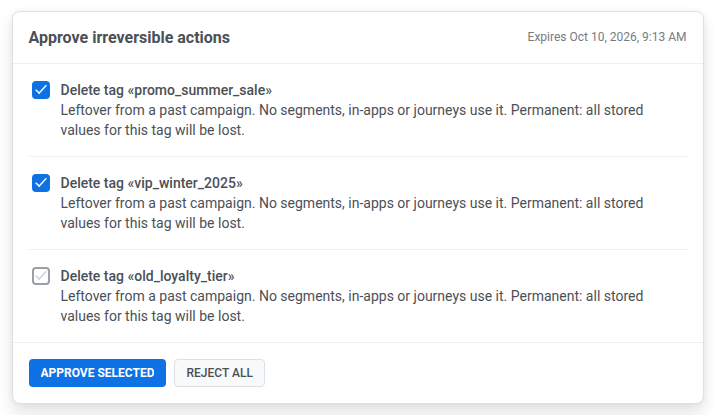
Anchor link toعندما يقترح AI Assistant عدة إجراءات في رد واحد، تظهر على بطاقة واحدة، مع مربع اختيار بجانب كل إجراء. تكون جميع مربعات الاختيار محددة في البداية. يظهر زر الموافقة باسم الموافقة على الكل (Approve all) عندما تكون جميع الإجراءات محددة، وباسم الموافقة على المحدد (Approve selected) عندما يكون بعضها فقط محددًا.
- لتنفيذ كل الإجراءات على البطاقة، انقر على الموافقة على الكل (Approve all).
- لتنفيذ بعضها فقط، أزل التحديد من مربعات اختيار الإجراءات التي لا تريدها، ثم انقر على الموافقة على المحدد (Approve selected). تُرفض الإجراءات التي أزلت تحديدها، وتُعلَّم البطاقة بأنها تمت الموافقة جزئيًا (Partially approved).
- لإلغاء كل الإجراءات على البطاقة، انقر على رفض الكل (Reject all).
متى تنتهي صلاحية البطاقة
Anchor link toتنتهي صلاحية البطاقة التي لم يُرد عليها بعد 24 ساعة، أو بمجرد إرسالك رسالة جديدة في المحادثة نفسها. تؤدي الرسالة الجديدة إلى إنهاء صلاحية كل بطاقة معلقة في تلك المحادثة، ويظهر وقت انتهاء الصلاحية على كل بطاقة. يتعين على AI Assistant اقتراح الإجراء منتهي الصلاحية مرة أخرى، لذا وافق على البطاقات المعلقة أو ارفضها قبل إرسال رسالتك التالية.
عرض جميع البطاقات المعلقة
Anchor link toتسرد لوحة القرارات (Decisions) البطاقات المعلقة من جميع المحادثات في المشروع الحالي. لفتحها:
-
انقر على أيقونة الترس في الجزء العلوي من الدردشة.
-
حدد عرض بطاقات الاقتراحات (Show proposal cards).
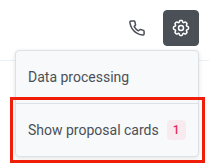
إذا لم يكن هناك شيء معلق، تعرض اللوحة “Nothing is waiting for a decision”. للموافقة على بطاقة أو رفضها من اللوحة، انقر على فتح في الدردشة (Open in chat) عليها واتخذ قرارك في الدردشة.
التحقق مما فعله AI Assistant
Anchor link toالمحادثة هي السجل الوحيد لما فعله AI Assistant. لا يوجد سجل نشاط منفصل. لكل طلب، تُظهر المحادثة ما يلي:
- أعداد الإجراءات، مثل Created · 3 actions أو Failed · 1 action
- قسم المنطق (Reasoning)
قبل أن تعتمد على نتيجة، تأكد من أنها ما طلبته. إذا لم تكن كذلك، فاطلب من AI Assistant تعديلها وأضف التفاصيل التي أغفلها طلبك الأول.
يؤدي حذف محادثة إلى إزالة هذا السجل نهائيًا، لذا احتفظ بالمحادثات التي تتضمن تغييرات مهمة.
التراجع عن تغيير
Anchor link toللتراجع عن شيء فعله AI Assistant، اطلب منه إجراء التغيير المعاكس. على سبيل المثال، اطلب منه إيقاف رحلة استأنفها مؤقتًا أو حذف شريحة أنشأها. يمكنك أيضًا إجراء التغيير بنفسك في لوحة التحكم (Control Panel).
لا يمكن التراجع عن بعض التغييرات، لأن الرسائل المرسلة والكائنات المحذوفة تختفي نهائيًا. قبل حذف شريحة، تحقق من عدم استخدام أي رحلة لها. لا يؤدي حذف شريحة تستخدمها رحلة إلى إظهار تحذير، وتفقد الرحلة شريحة الدخول الخاصة بها.
إرفاق الملفات
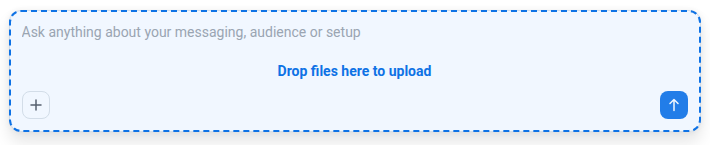
Anchor link toلإضافة ملفات إلى طلبك، انقر على + في مربع إدخال الدردشة، أو اسحب الملفات إلى مربع إدخال الدردشة.
- التنسيقات:
.p12و.pemو.p8و.cerو.jsonو.txtو.pdfو.csv. - الحجم: حتى 10 ميغابايت لكل ملف.
- عدد الملفات: يمكنك إرفاق عدة ملفات في وقت واحد.
السؤال بالصوت
Anchor link toاطرح سؤالًا سريعًا بالصوت بدلًا من الكتابة، على سبيل المثال، عن أداء حملة ما أو سبب توقف رحلة ما.
-
انقر على أيقونة الهاتف في الجزء العلوي من نافذة الدردشة لبدء مكالمة صوتية.

-
اطرح سؤالك.
-
انقر على أيقونة الهاتف مرة أخرى لإنهاء المكالمة.
ما تحتفظ به المكالمة يعتمد على المكان الذي تبدأها منه:
- في محادثة مفتوحة: تواصل المكالمة المحادثة بالسياق نفسه، ويمكنك العودة إلى الكتابة في أي وقت.
- قبل فتح محادثة: تبدأ المكالمة دون سياق ولا تحفظ نصًا مكتوبًا للمحادثة.
إدارة المحادثات
Anchor link toتُحفظ المحادثات تلقائيًا وتبقى متاحة بعد إعادة تحميل الصفحة أو التبديل بين علامات التبويب. استخدم القائمة المنسدلة لاسم الدردشة في الجزء العلوي من النافذة للتبديل بينها أو حذفها.
التبديل بين المحادثات
Anchor link to-
افتح القائمة المنسدلة لاسم الدردشة.
-
انقر على اسم محادثة موجودة للتبديل إليها.

يظهر اسم المحادثة الحالية في شريط عنوان القائمة المنسدلة.
فتح محادثة من إشعار
Anchor link toإذا غادرت علامة التبويب بينما لا يزال AI Assistant يعمل، فستتلقى إشعار ويب فوريًا عندما ينتهي أو يصل إلى حد الخطوات. انقر على الإشعار لفتح الدردشة في تلك المحادثة.
حذف محادثة
Anchor link to- افتح القائمة المنسدلة لاسم الدردشة.
- مرّر مؤشر الماوس فوق المحادثة التي تريد حذفها.
- انقر على أيقونة سلة المهملات لإزالتها.