PostHog integration
Este conteúdo ainda não está disponível no seu idioma.
PostHog is a product analytics platform that collects events from your apps and websites. With the Pushwoosh destination in PostHog, the events you already track there reach Pushwoosh as events. Use them to build segments and to start or branch customer journeys.
The destination works only if two fields in its mapping carry Pushwoosh values: the platform field must hold ios, android, or web, and the user field must hold the User ID that Pushwoosh knows the user by. PostHog’s own identifiers don’t match anything in Pushwoosh.
Before you start
Anchor link toCheck that you have the following before you create the destination:
- The Pushwoosh SDK is integrated in your app.
- You know which value identifies a user in Pushwoosh. It’s the value your app passes to
setUserId, or the device’s Hardware ID (HWID) for users without a custom User ID. - PostHog events carry this value. For example, your app calls
posthog.identify()with the same ID it passes tosetUserId, so the PostHogdistinct_idequals the Pushwoosh User ID. - You have the application code and an API token from Settings → API Access in Pushwoosh. A Device API token is enough.
- The token belongs to the account that owns the application.
Create the Pushwoosh destination in PostHog
Anchor link toCreate the destination in PostHog, enter your Pushwoosh credentials, and set the mapping fields.
-
In PostHog, click New destination.
-
Search for Pushwoosh and click Create next to it.

-
In Pushwoosh API Key, paste the API token.
-
In Pushwoosh Application Code, paste the application code. It looks like
XXXXX-XXXXX.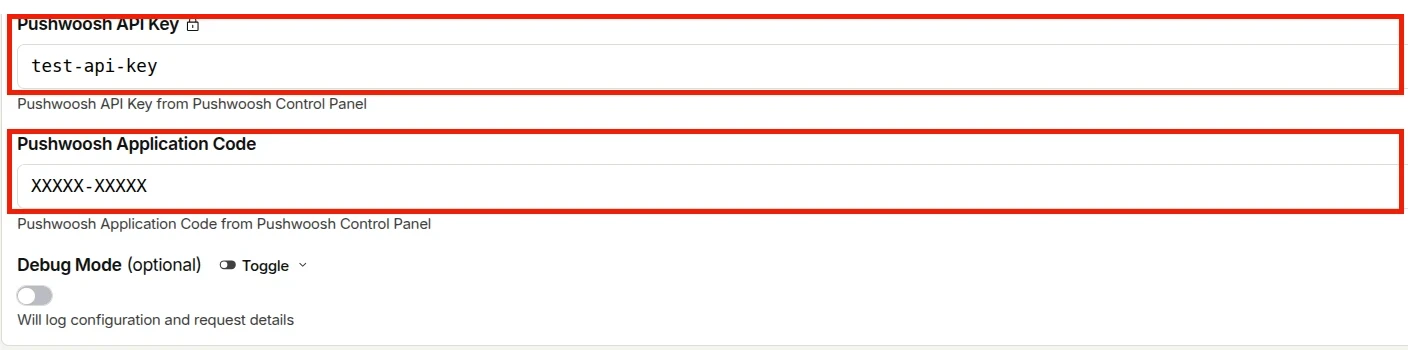
-
Under Mappings, click Track Events to open its fields.

-
Set the fields as described in Map the Track Events fields.
-
Optionally, click Create Or Update User Profile in the same list and set its fields as described in Map the user profile fields.
-
Click Create & enable.
Map the Track Events fields
Anchor link toThree fields decide which user an event belongs to. Fill each of them with a PostHog field that carries the Pushwoosh value, not just any identifier.
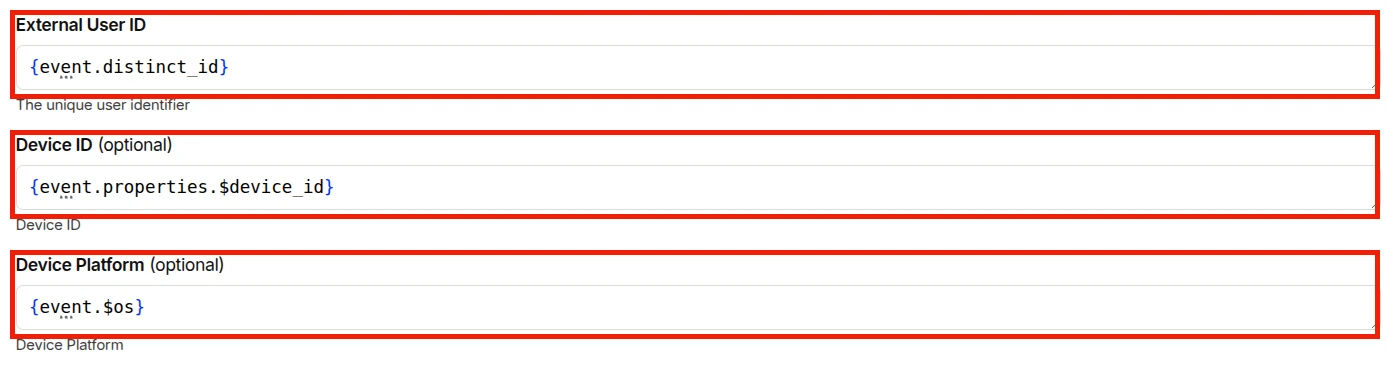
| Field | Map it to | Don’t map it to |
|---|---|---|
| External User ID | A field that holds the Pushwoosh User ID or HWID, usually {event.distinct_id} | {person.id}, because it’s PostHog’s internal person ID and no Pushwoosh user has it |
| Device Platform | A field that holds ios, android, or web, usually {event.$os} | $device_type, because it holds Mobile or Desktop, not a platform |
| Device ID | A field that holds the Pushwoosh HWID of the device, if your PostHog events carry it. Otherwise clear the field | PostHog’s own {event.properties.$device_id}, unless your app writes the Pushwoosh HWID into it |
External User ID
Anchor link toPushwoosh links the event to the user with this ID. distinct_id works only when it equals the Pushwoosh User ID, as described in Before you start.
Device Platform
Anchor link toValues are case-insensitive, so iOS and Android from $os work as they are.
On websites, $os holds the computer’s operating system, such as Mac OS X. In that case Pushwoosh takes the platform from the $lib event property. Keep Event Properties set to include the entire {event.properties} object so that $lib reaches Pushwoosh.
Device ID
Anchor link toWith the field empty, Pushwoosh records the event for the user as a whole, and it counts for all the user’s devices. A value that isn’t a Pushwoosh HWID matches no device in Pushwoosh.
If the field holds {event.properties.$device_id}, clear it, unless your app writes the Pushwoosh HWID into $device_id.
Other fields
Anchor link toLeave Name, Timestamp, and Event Properties as PostHog fills them. Each PostHog event becomes a Pushwoosh event with the same name, and Pushwoosh creates missing events and event properties automatically.
Map the user profile fields
Anchor link toThe Create Or Update User Profile mapping sends PostHog person properties to Pushwoosh as tags. It’s optional: set it up if you want to use person properties for targeting and personalization.
- Set External User ID the same way as for Track Events.
- Leave the device token, device ID, and platform fields empty, unless your PostHog data holds Pushwoosh push tokens.
With only a User ID, Pushwoosh saves the properties as user-specific tags of an existing user and creates no device.
If you map the device token and device ID, map the platform too, to a field that holds ios, android, or web. With any other platform, Pushwoosh rejects the request and saves nothing from it.
Check that the integration works
Anchor link toSend a test event from the destination, then check a real event in Pushwoosh.
- In the destination, click Start testing.
- Click Test function to send an example event.
- Check that the test shows Success.
Then send a real event for a user who has a device in Pushwoosh. In Pushwoosh, go to Audience → Events, open the event’s three-dot menu, choose Event statistics, and check that the event is counted.
Pushwoosh answers each request with a status and, for rejected events, the reason. The full list of responses is in What Pushwoosh does with data from Segment, as the PostHog destination uses the same endpoints.
Troubleshooting
Anchor link toIf the test or the destination’s logs show an error instead of Success, find the reason below.
The response says token doesn’t match appcode
Anchor link toThe API token belongs to a different account than the application. Create the token in the account that owns the application code.
The response says application not found
Anchor link toThe application code is wrong. Copy it again from the Pushwoosh Control Panel.
The response says invalid argument
Anchor link toPushwoosh rejected the event because of its content. The most common cause is that External User ID and Device ID are both empty. Map External User ID to a field that holds the Pushwoosh User ID, as described in Map the Track Events fields. Otherwise, check that the event name and event properties aren’t unusually long.
The test succeeds, but the event isn’t counted for the user
Anchor link toCheck these in order:
- The value in External User ID equals the Pushwoosh User ID. With
{event.distinct_id}, your app must callposthog.identify()with the same ID it passes tosetUserId. - A user with this User ID exists in Pushwoosh. Search for it in Audience → User Explorer.
- Device ID is empty or holds a Pushwoosh HWID, not PostHog’s own device ID.