Aprovações e versões de conteúdo
Toda vez que você salva uma predefinição de push ou um modelo de e-mail, o Pushwoosh mantém uma nova versão dele. Isso funciona para todas as contas.
A aprovação de conteúdo é uma etapa extra opcional. Quando está ativada para sua conta, você não pode enviar uma versão até que um revisor a aprove.
Você sempre pode visualizar, comparar e restaurar versões, independentemente de a aprovação de conteúdo estar ativada ou não.
Ativar a aprovação de conteúdo
Anchor link toPor padrão, toda versão salva é aprovada automaticamente. O conteúdo continua sendo enviado como antes.
Para exigir uma revisão antes do envio, peça ao suporte da Pushwoosh para ativar a restrição Exigir aprovação de conteúdo para sua conta.
Conceder a permissão Aprovar mensagens
Anchor link toOs revisores precisam da permissão Aprovar mensagens para abrir a fila de revisão e aprovar ou rejeitar as versões enviadas.
- Abra Usuários e funções.
- Adicione Aprovar mensagens a uma função. Ela fica no grupo Mensagens com Enviar mensagens e Excluir mensagens.
Se você não gerencia funções, peça a um administrador da conta para adicionar Aprovar mensagens para os revisores.
Consulte Permissões disponíveis para a matriz completa de funções.
Enviar conteúdo para aprovação
Anchor link toQuando a aprovação de conteúdo está ativada, ambos os editores mostram um status de versão (Rascunho, Em aprovação, Aprovado ou Rejeitado) e um botão Enviar para aprovação. A localização deles difere para push e e-mail.
Predefinições de push
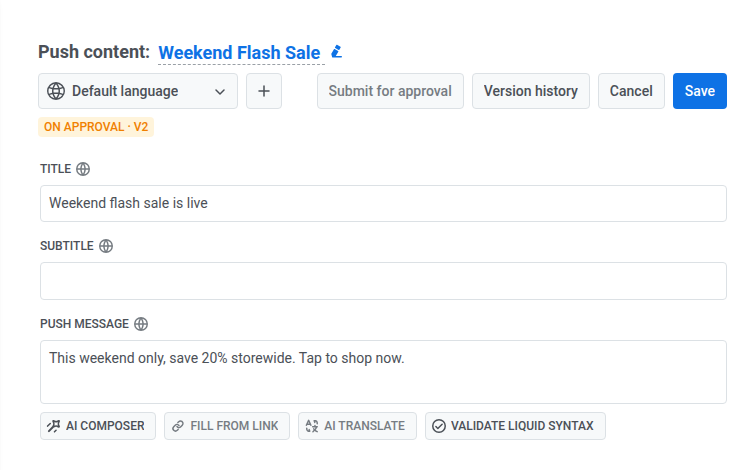
Anchor link toNo editor de conteúdo de push, o Histórico de versões fica ao lado de Salvar. O status da versão e o botão Enviar para aprovação ficam juntos em sua própria linha abaixo.
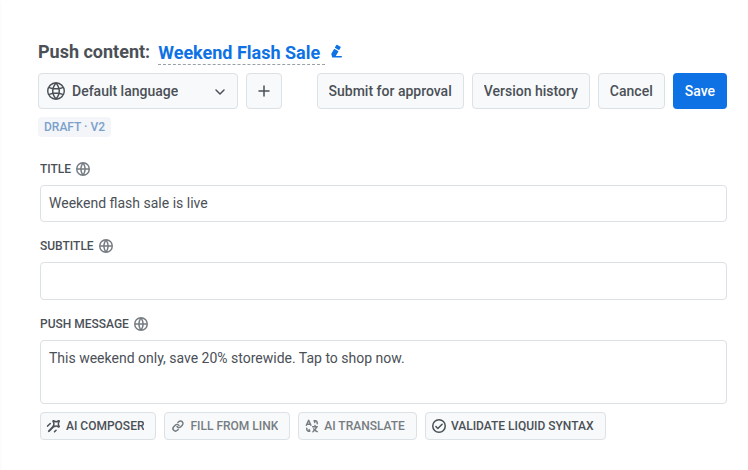
Para enviar uma versão para revisão, clique em Enviar para aprovação. O status muda para Em aprovação, e a versão aparece na fila do revisor. O botão Enviar para aprovação fica indisponível. O Histórico de versões permanece disponível.
Modelos de e-mail
Anchor link toNo editor de conteúdo de e-mail (incluindo sua aba de IA), o status da versão aparece ao lado do título do e-mail.
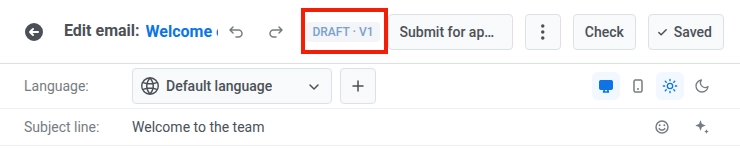
Para enviar uma versão para revisão, clique em Enviar para aprovação. O status muda para Em aprovação, e a versão aparece na fila do revisor. O botão Enviar para aprovação fica indisponível enquanto a versão está em aprovação.

Se um revisor a rejeitar, o status muda para Rejeitado e mostra o motivo do revisor na segunda linha. Edite o conteúdo e clique em Enviar para aprovação novamente para reenviar.
O que acontece quando você edita conteúdo aprovado
Anchor link toSe você editar uma predefinição de push ou um modelo de e-mail que está Aprovado, seu status muda para Rascunho e mostra um novo número de versão, por exemplo, Rascunho · v4.
Qualquer solicitação que ainda esteja aguardando aprovação para esse conteúdo é cancelada.
Revisar aprovações pendentes
Anchor link toAbra Conteúdo, escolha Predefinições de Push ou Conteúdo de E-mail e, em seguida, abra a aba Aprovação pendente. O número ao lado desse item no menu esquerdo indica quantas versões estão aguardando.
O que a fila inclui depende do canal:
- Predefinições de push: versões aguardando no projeto que você tem aberto agora. Versões de outros projetos não aparecem aqui.
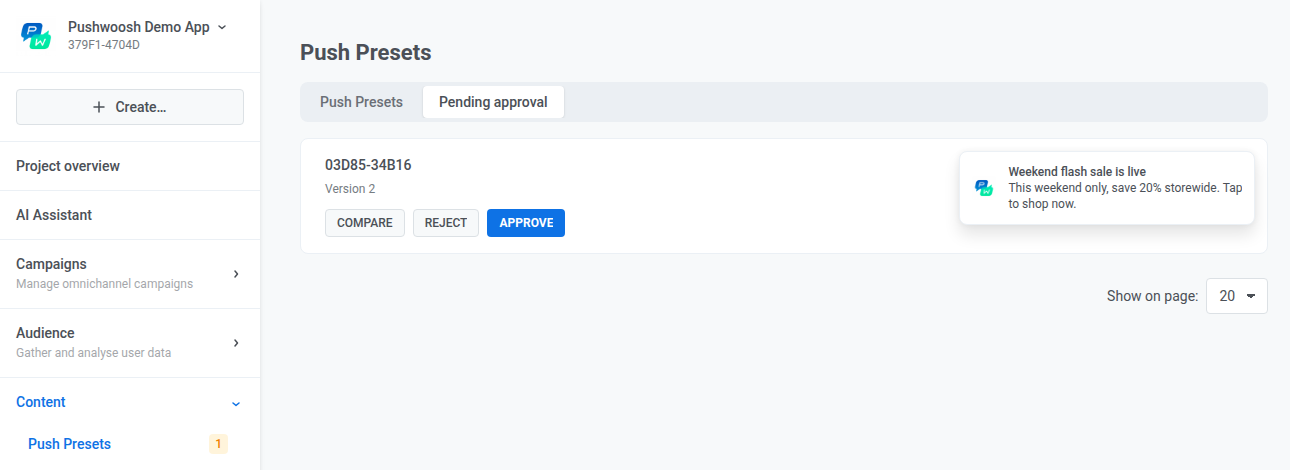
- Conteúdo de e-mail: versões aguardando em todos os projetos da conta. Os cartões de e-mail também incluem Abrir modelo.
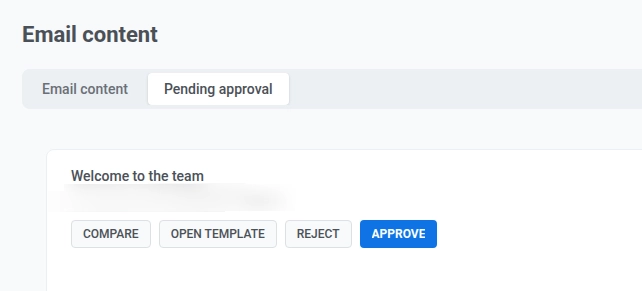
Cada cartão pendente tem as ações abaixo.
Comparar
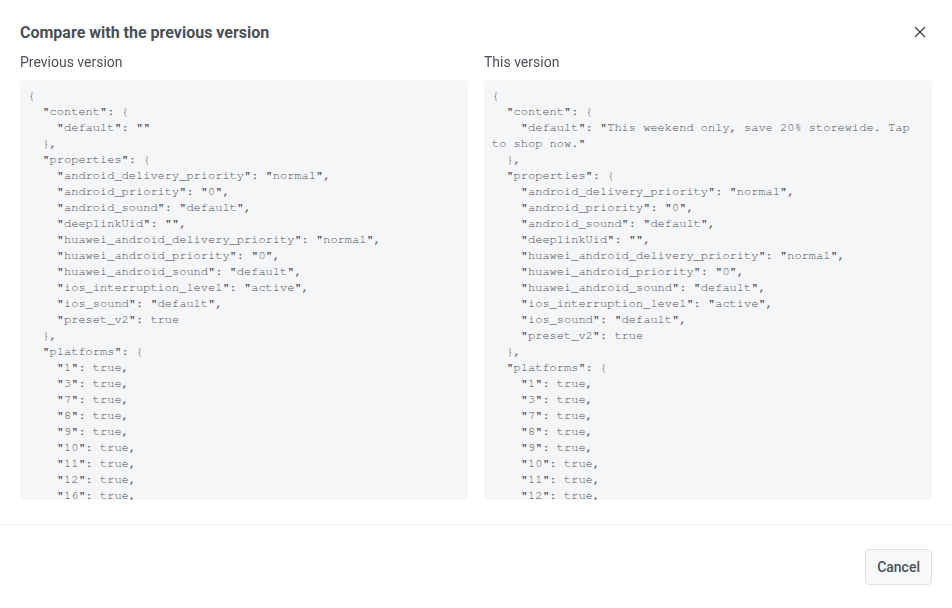
Anchor link toClique em Comparar para abrir uma visualização lado a lado da versão anterior e desta. Use-a para verificar o que mudou antes de aprovar ou rejeitar.
Abrir modelo
Anchor link toApenas nos cartões de e-mail, clique em Abrir modelo para abrir esse modelo no editor de conteúdo de e-mail. Use-o quando precisar da visualização completa do editor, não apenas da pré-visualização do cartão.
Rejeitar
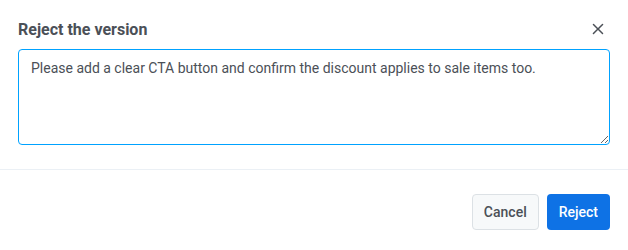
Anchor link toClique em Rejeitar para recusar a versão. Um motivo é obrigatório. O motivo aparece no cartão na lista e no status da versão no editor, para que o editor possa ver por que foi rejeitado e reenviar após a correção.
Aprovar
Anchor link toClique em Aprovar para aceitar a versão. Seu status se torna Aprovado, ela sai da fila de pendências e pode ser enviada.
O que acontece quando você tenta enviar conteúdo não aprovado
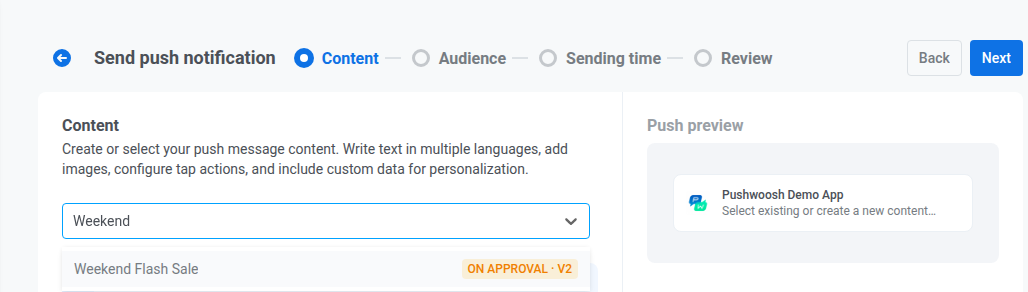
Anchor link toCom a aprovação de conteúdo ativada, apenas uma versão Aprovada pode ser enviada. Qualquer coisa que ainda esteja em Rascunho, Em aprovação ou Rejeitado é bloqueada.
- Push único e e-mail único. O conteúdo não aprovado ainda aparece na lista suspensa de conteúdo, mas você não pode selecioná-lo. O formulário de e-mail único se comporta da mesma maneira.
-
Customer Journey. Nos elementos da jornada Enviar Push e Enviar E-mail, a lista suspensa de conteúdo mostra o mesmo status de versão ao lado de cada opção, e qualquer opção que não esteja Aprovada é desativada. Se uma predefinição ou modelo escolhido anteriormente deixar de ser Aprovado (por exemplo, uma edição posterior criou uma nova versão em Rascunho), uma nota aparece sob a lista suspensa: “Este conteúdo não está aprovado e não pode ser enviado.”
Lançar ou retomar uma Journey também verifica cada predefinição de push e modelo de e-mail que ela enviaria. Se algum deles não estiver Aprovado, a verificação de pré-lançamento sinaliza o ponto com
Content is not approved and cannot be sent. A Journey não pode ser lançada ou retomada até que você corrija o problema ou escolha um conteúdo aprovado.Isso só detecta conteúdo que já não estava aprovado antes do lançamento ou da retomada. Se o conteúdo deixar de ser Aprovado enquanto a Journey já está em execução, o viajante recebe um motivo de abandono Conteúdo não aprovado em vez de um erro interno genérico. Um elemento Enviar Push também pausa a Journey. Enviar E-mail apenas abandona aquele viajante e mantém a Journey em execução.
Se você chamar a API diretamente, createMessage (push) ou createEmailMessage (e-mail) rejeita uma versão não aprovada com o código de erro 210. Um envio baseado em predefinição recebe a mensagem Preset content is not approved. Um e-mail transacional enviado apenas pelo código do modelo, sem predefinição, recebe Email Template content is not approved.
Criando conteúdo para um envio único
Anchor link toVocê ainda pode criar predefinições de push e modelos de e-mail. Com a aprovação de conteúdo ativada, você simplesmente não pode criá-los a partir do formulário de push único ou e-mail único. Em vez disso:
- Crie a predefinição ou o modelo em Conteúdo → Predefinições de push ou Conteúdo → Conteúdo de e-mail.
- Envie-o para aprovação e espere até que seu status seja Aprovado.
- Abra o formulário de envio único e selecione o conteúdo aprovado na lista suspensa.
Testando conteúdo
Anchor link toCom a aprovação de conteúdo ativada, Testar notificação push fica oculto no editor de conteúdo de push, e Testar e-mail fica oculto no editor de conteúdo de e-mail. Isso se aplica a todos os status de versão.
Visualizar, comparar e restaurar versões
Anchor link toCada predefinição de push e modelo de e-mail mantém suas últimas 20 versões em seu histórico de versões. Você pode abrir este histórico independentemente de a aprovação de conteúdo estar ativada para sua conta.
Uma versão aguardando aprovação permanece no histórico mesmo que você já tenha 20 outras versões. Ela não é descartada para dar lugar a novas.
No editor de conteúdo de push ou no editor de conteúdo de e-mail, abra o Histórico de versões ao lado de Salvar para:
- Comparar duas versões lado a lado para ver o que mudou entre elas.
- Restaurar uma versão anterior. Nada é salvo até que você clique em Salvar.
- Predefinição de push: restaura o texto da versão. Mídia, ações e configurações permanecem como estão no editor.
- Modelo de e-mail: restaura o conteúdo HTML, as variantes de localidade e o tema. Não restaura o estilo e o rodapé de todo o e-mail da aba Configurações.