Salesforce: criar ou atualizar registro
Use Salesforce: criar ou atualizar registro para fazer o upsert de um registro do Salesforce a partir de uma etapa da jornada, correspondido por um campo de ID externo: ele atualiza o registro quando o valor já existe e o cria quando não existe. O Salesforce não tem um token de API estático, então este ponto se autentica através de um aplicativo conectado registrado uma vez para toda a conta. Não há campo de token no próprio ponto.
Usos típicos:
- Manter o Salesforce em sincronia: crie ou atualize um Contato ou Lead à medida que o viajante avança na jornada, para que a equipe de vendas veja os dados atuais.
- Sincronizar a atividade da jornada no CRM: defina um campo quando um viajante atingir um marco, para que a equipe de vendas possa filtrar ou gerar relatórios sobre ele.
- Evitar registros duplicados: a correspondência por ID externo significa que um viajante que passa por este ponto novamente atualiza o mesmo registro em vez de criar um novo.
Antes de começar
Anchor link toCrie um aplicativo conectado em sua organização do Salesforce e conecte-o em Configurações > Integrações de terceiros > Salesforce:
- No Salesforce, crie um Aplicativo Cliente Externo (ou um aplicativo conectado clássico) com o OAuth ativado e o escopo Gerenciar dados do usuário via APIs (api).
- Ative o Fluxo de Credenciais do Cliente nele e escolha o usuário de execução. O ponto escreve como esse usuário, então seu perfil decide quais objetos e campos ele pode tocar.
- No Pushwoosh, em Host do Meu Domínio, insira o host da sua organização sem
https://, por exemploacme.my.salesforce.com. - Em Chave do Consumidor e Segredo do Consumidor, cole as credenciais do aplicativo. O segredo é armazenado apenas para escrita: o Pushwoosh nunca o mostrará novamente, então cole um novo para substituí-lo.
- Clique em Conectar Salesforce.
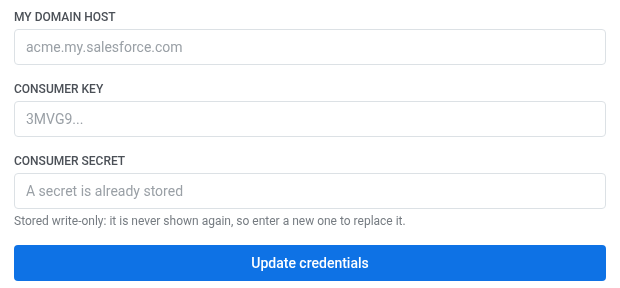
Depois de conectar o Salesforce, instale a integração para que o ponto apareça no construtor de jornada.
Duas coisas também precisam estar no lugar do lado do Salesforce:
- O campo em que você faz a correspondência deve ser marcado como ID Externo nesse objeto. Um campo de texto simples, mesmo
Email, não é suficiente — o Salesforce recusa a solicitação comNOT_FOUNDquando o campo não é um ID externo. - O usuário de execução do aplicativo conectado precisa de acesso em nível de campo a esse campo. Um campo criado através da Configuração ou da API não concede nada por si só, e sem a permissão, o Salesforce responde com o mesmo
NOT_FOUND: Field name provided ... does not match an External ID— o campo é invisível para esse usuário, então, do lado da API, ele não existe. Adicione-o a um conjunto de permissões atribuído ao usuário de execução.
Configurar a etapa
Anchor link to- Arraste Salesforce: criar ou atualizar registro da seção Integrações do painel esquerdo para a tela.
- Clique duas vezes na etapa e insira um Nome da Etapa.
- Em Host do Meu Domínio, insira o mesmo host onde o aplicativo conectado reside.
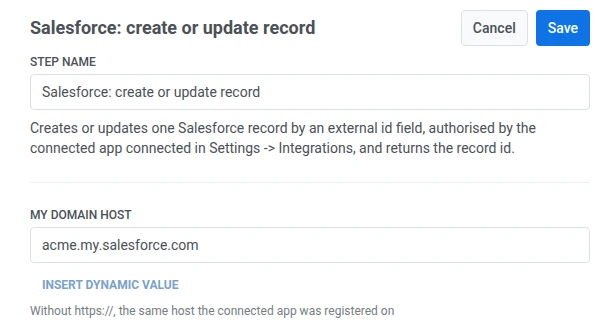
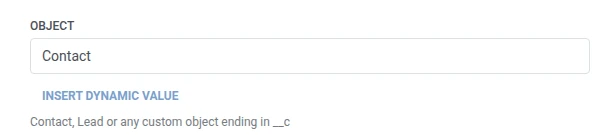
- Em Objeto, insira o nome da API do objeto —
Contact,Leadou um objeto personalizado terminando em__c.
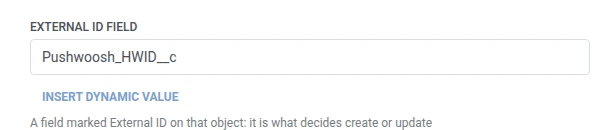
- Em Campo de ID externo, insira o nome da API do campo marcado como ID Externo.
- Em Valor do ID externo, insira o valor para correspondência, geralmente uma macro como
{{device:hwid}}.
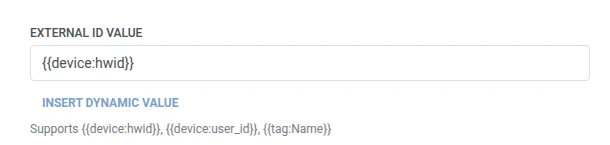
- Em Campos, adicione uma linha por campo do Salesforce a ser definido. Insira o nome da API do campo e o valor. Os nomes devem ser não vazios e únicos. Os campos obrigatórios do objeto devem estar entre eles, ou o Salesforce se recusará a criar um novo registro. Um valor pode ser um texto fixo ou uma macro do viajante, como
{{device:hwid}}, as mesmas macros que no corpo de um Webhook. Ou clique em Inserir Valor Dinâmico para escolher um atributo que uma etapa anterior nesta jornada produziu, por exemplo, uma resposta de LLM ou um valor de Webhook mapeado.

- Clique em Salvar.
Resposta
Anchor link toO viajante continua para qualquer etapa que você conectar a seguir na tela.
Atributos após a execução da etapa
Anchor link to| Atributo | O que contém |
|---|---|
salesforce_record_id | O ID do registro |
Como usá-lo em etapas posteriores
Anchor link toO viajante já continuou para a próxima etapa, independentemente deste atributo. Salve-o em uma Tag com Atualizar perfil do usuário se precisar referenciar este registro específico mais tarde, por exemplo, através da própria API do Salesforce.
Falhas e respostas inesperadas
Anchor link toAbra o Registro de chamadas na gaveta da etapa e verifique a resposta:
- 401 — as credenciais do aplicativo conectado estão erradas, ou o fluxo de credenciais do cliente não está ativado nele.
- NOT_FOUND no corpo — o nome do objeto, ou o campo de ID externo, não corresponde a nada nessa organização. Verifique se o campo está realmente marcado como ID Externo.
- REQUIRED_FIELD_MISSING no corpo — a criação de um novo registro precisa de um campo que a etapa não envia. Adicione-o em Campos.
- INVALID_FIELD no corpo — um nome em Campos não é um nome de API nesse objeto. O nome da API de um campo personalizado termina em
__c.
Uma solicitação com falha remove o viajante da jornada. Veja Erros e solicitações com falha.
Cenário de exemplo: Roteando uma solicitação de consultoria no aplicativo para vendas
Anchor link toUm aplicativo de bem-estar permite que os usuários toquem em Falar com um consultor no aplicativo. A equipe quer que essa solicitação se torne um Contato do Salesforce para que um representante possa dar seguimento.
- Adicione um elemento de Entrada baseada em gatilho e configure-o para disparar em um evento
AdvisorCallRequested. - Adicione Salesforce: criar ou atualizar registro logo após. Defina Objeto como
Contact, Campo de ID externo comoPushwoosh_HWID__ce Valor do ID externo como{{device:hwid}}. Em Campos, definaEmailcomo{{tag:Email}}. - Clique em Salvar.
Uma vez que isso for executado, cada solicitação de consultor no aplicativo chegará ao Salesforce como um Contato, correspondido por dispositivo, para que um toque repetido atualize o mesmo Contato em vez de criar um duplicado.